


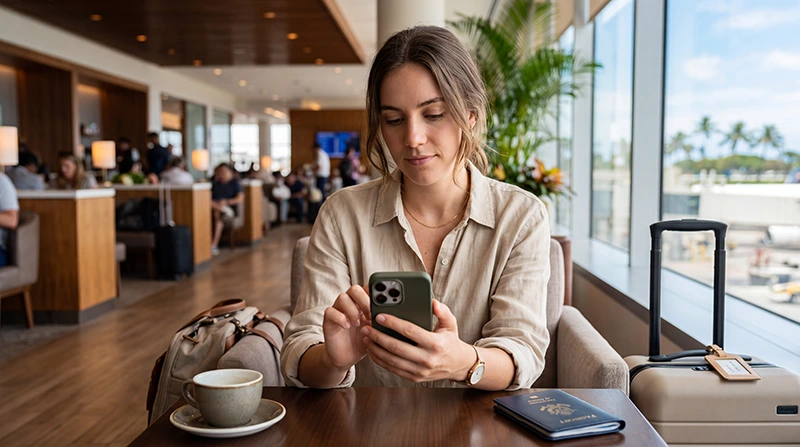

A Philippines eSIM can provide mobile data on a compatible unlocked iPhone without replacing the primary SIM. The key checks are whether Add eSIM appears in the phone settings, whether the device is carrier-unlocked and whether the particular iPhone variant supports eSIM.
After installation, the travel line must be selected for cellular data and usually needs Data Roaming enabled. The primary line can remain active for its usual number, but its roaming and data-switching settings must be controlled to prevent unexpected charges.
NoveSIM travel eSIMs are data-only. We do not provide a Philippine phone number, conventional voice calls or carrier SMS. WhatsApp, iMessage, FaceTime and other internet-based services can continue to use the data connection when their account settings remain unchanged.
Quick answer: on the iPhone, open Settings > Cellular or Mobile Service. Confirm that Add eSIM is available and that Carrier Lock shows no SIM restrictions. Install the plan on Wi-Fi, then in the Philippines switch on the travel line, select it under Cellular Data, enable Data Roaming on that eSIM and turn off Allow Cellular Data Switching.
Top Philippines eSIMs


Check whether your iPhone can use a travel eSIM
Model name alone is not always enough. eSIM availability can differ by market, and a carrier lock can prevent a second operator’s plan from working even when the hardware supports eSIM.
- Open Settings > General > About.
- Find Carrier Lock. The phone should indicate that there are no SIM restrictions.
- Return to Settings > Cellular or Mobile Service.
- Look for Add eSIM or Add Cellular Plan.
- Check that the iPhone has a stable Wi-Fi connection and current software before installation.
If Add eSIM is missing, confirm the exact model number and original sales region rather than relying on a generic model-family list. Some iPhones sold for particular markets use a different SIM configuration. A company-managed phone may also restrict cellular-plan changes.
The broader device checks are covered in Does My Phone Support eSIM in the Philippines?.
Install the Philippines eSIM on iPhone
Install the profile while you still have dependable Wi-Fi, but follow the activation and validity instructions supplied with the purchased plan. Scanning the QR code and starting plan validity are not necessarily the same event.
- Open the eSIM order instructions on a second screen or print the QR code.
- On the iPhone, open Settings > Cellular or Mobile Service.
- Tap Add eSIM.
- Select the QR-code option and scan the code.
- If scanning is unavailable, enter the supplied manual installation details.
- Follow the prompts until the new cellular plan appears.
- Give the line a clear label such as Philippines Data.
- Keep the QR code and manual details private.
Do not try to scan a QR code displayed on the same iPhone unless the supplied instructions explicitly support an on-device installation method. A second device is the simplest way to present the code to the camera.
For the full installation and activation sequence, use the Philippines eSIM activation guide.
Use the correct iPhone cellular settings after arrival
Once the plan should be active, configure the two lines deliberately. Menu wording can vary slightly by iOS version and region, but the outcome should be the same.
| iPhone setting | Travel configuration |
|---|---|
| Turn On This Line | On for the Philippines eSIM |
| Cellular Data | Philippines travel eSIM |
| Data Roaming on travel eSIM | On |
| Allow Cellular Data Switching | Off |
| Data Roaming on primary line | Off unless the home operator confirms the cost |
| Network Selection | Automatic |
After applying the settings, switch off Wi-Fi and load a simple webpage. This confirms that the iPhone is using cellular data rather than an airport, hotel or home network.
Data Roaming is normally required on the travel eSIM because it connects through a Philippine partner network. It should not be confused with enabling roaming data on the primary line. Each line has its own roaming control.
Keep the primary number without using its mobile data
Dual SIM lets the Philippines eSIM supply data while the primary line remains available for its usual number. This does not make carrier activity on the primary line free. Calls, voicemail and outgoing SMS can still be billed according to the home operator’s roaming tariff.
To reduce the risk of home-line data charges:
- select the Philippines eSIM under Cellular Data;
- turn off Data Roaming on the primary line;
- turn off Allow Cellular Data Switching;
- check the default voice line before placing a carrier call;
- confirm the home operator’s rules for SMS, calls and voicemail.
Do not remove the primary number from WhatsApp merely because the eSIM provides data. iMessage and FaceTime can remain associated with the existing number or Apple Account, subject to the selected settings. More detail is available in the Philippines WhatsApp guide.
What to expect while travelling between islands
The eSIM stays installed throughout the trip, but network availability changes with location. Coverage in a city or resort does not guarantee service on a ferry, at a remote beach or along a mountain road. The iPhone may reconnect automatically when a supported network becomes available again.
Before a transfer, download the ticket, accommodation pin, pickup instructions and an offline map. Send urgent messages while coverage is stable. If service disappears offshore, wait until you return to an area where terrestrial coverage is expected before resetting cellular settings.
Leave Network Selection on Automatic unless NoveSIM support provides a specific network instruction. The Philippines mobile-internet guide explains how geography, buildings and network capacity affect the practical connection.
Hotspot, data use and 4G or 5G on iPhone
Personal Hotspot availability depends on the plan and iPhone configuration. When tethering is supported, a connected laptop or tablet uses the same eSIM allowance. Cloud synchronisation, software updates and video meetings can consume substantially more data than messaging and maps.
The status bar may show LTE, 4G or 5G depending on the purchased plan, iPhone model, partner network and local coverage. A 5G-capable phone does not guarantee 5G at every location. Use an automatic voice-and-data mode unless there is a clear reason to restrict the phone to a particular network generation.
Monitor cellular usage under the iPhone settings, but remember that the phone’s current-period counter may not match the plan’s billing interval. Consult the plan information for the authoritative remaining allowance. Use the Philippines data-planning guide before choosing a package.
Fix common Philippines eSIM problems on iPhone
If mobile data stops working, first decide whether the problem is the location or the configuration. Move outdoors or wait until the next populated stop if you are on a remote route. When service should be available, check the iPhone in this order:
- Confirm that the plan is valid and still has data.
- Open Cellular or Mobile Service and make sure the Philippines line is on.
- Select it under Cellular Data.
- Open that line’s settings and enable Data Roaming.
- Turn off Wi-Fi and test again.
- Switch Airplane Mode on briefly, then turn it off.
- Restart the iPhone once.
- Return Network Selection to Automatic.
If a NoveSIM plan requires manual APN entry, use data.esim. Do not copy an APN from a Philippine domestic operator. Do not delete the eSIM during initial troubleshooting, because the installation code may not be reusable.
Continue with the Philippines eSIM troubleshooting guide if the connection does not return.
Related Articles
- How to Activate a Philippines eSIM
- How to Use an eSIM in the Philippines
- Philippines eSIM Troubleshooting
- Philippines eSIM Phone Compatibility
FAQ
How do I know whether my iPhone supports a Philippines eSIM?
Check for Add eSIM under Settings > Cellular or Mobile Service and confirm under Settings > General > About that the phone has no SIM restrictions. The exact regional model must support eSIM.
Should Data Roaming be enabled on the iPhone travel eSIM?
Usually yes. Enable Data Roaming on the Philippines travel eSIM so it can use its partner network, while keeping roaming data off on the primary line unless your home operator confirms the price.
Can I keep iMessage and WhatsApp on my normal number?
Yes. Using another line for cellular data does not require changing the number registered with WhatsApp. Review the iMessage and FaceTime line settings rather than removing the existing number.
Should I delete the eSIM if my iPhone shows no service?
No. Check the active data line, Data Roaming, network selection, location and plan validity first. Delete the eSIM only when NoveSIM support specifically instructs you to do so.
Final Recommendation
Confirm that the exact iPhone variant supports eSIM and that the device is unlocked before purchasing a plan. Install on dependable Wi-Fi and keep the QR code and manual details private.
In the Philippines, select the travel eSIM for Cellular Data, enable Data Roaming on that line and turn off Allow Cellular Data Switching. Keep roaming data off on the primary line unless its operator has confirmed the charges.
Prepare offline transfer information for ferries and remote routes, monitor the data allowance and follow the ordered iPhone checks before contacting support. Keep the eSIM installed unless support tells you to remove it.