


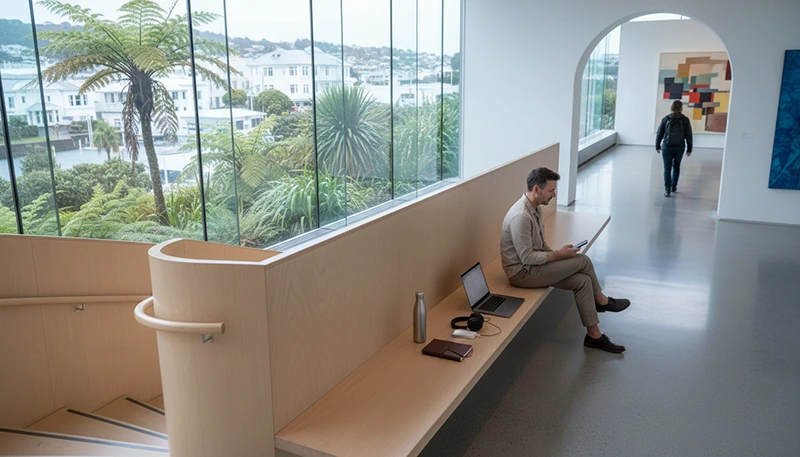

Reliable internet is essential when working remotely from New Zealand. Video meetings, cloud applications, document uploads and client communication require a more dependable setup than ordinary holiday browsing.
New Zealand offers major cities, smaller regional centres and spectacular rural destinations, but the quality of your connection can change as you move between accommodation, co-working spaces and remote travel routes. The safest strategy is to combine reliable fixed WiFi with a mobile data backup rather than depending entirely on one connection.
Quick answer: use accommodation or co-working WiFi as your main work connection and keep a New Zealand travel eSIM available for navigation, urgent messages and temporary hotspot use. Choose a plan with enough validity for your full stay, confirm whether tethering is supported and download important files before travelling through rural or mountainous areas.
Top New Zealand eSIMs

New Zealand eSIM
Fixed
1 GB, 7 days€ 2.182 GB, 15 days€ 3.923 GB, 30 days€ 5.22Unlimited
Unlimited, 1 day€ 2.61Unlimited, 3 days€ 6.53Unlimited, 5 days€ 10.44
Asia eSIM
Fixed
1 GB, 7 days€ 4.352 GB, 15 days€ 7.833 GB, 30 days€ 10.44Unlimited
Unlimited, 1 day€ 5.66Unlimited, 3 days€ 15.23Unlimited, 5 days€ 24.80What Is the Best Internet Setup for Remote Work?
| Connection | Best Use | Main Limitation |
|---|---|---|
| Accommodation WiFi | Daily work, meetings and large downloads | Quality may differ between properties |
| Co-working WiFi | Professional calls and focused work sessions | Requires access to a suitable workspace |
| Travel eSIM | Backup internet, travel days and temporary tethering | Depends on local mobile coverage and plan conditions |
| Local prepaid SIM | Longer stays and travellers needing a local number | Usually arranged after arrival |
| Public WiFi | Light browsing and non-sensitive tasks | Security, speed and reliability vary |
For most remote workers, the best arrangement is a stable primary WiFi connection supported by independent mobile data. This gives you an alternative when the shared network becomes congested or temporarily unavailable.
Why Remote Workers Need a Backup Connection
An accommodation listing may advertise WiFi without explaining whether the signal reaches the room, whether dozens of guests share it or whether it supports video meetings. Even a generally good connection can fail unexpectedly.
A mobile data backup can help you:
- Send urgent messages during a WiFi outage.
- Join a short audio or video meeting.
- Upload a time-sensitive document.
- Access cloud files while changing accommodation.
- Work during a transport delay.
- Navigate to a co-working space or meeting.
- Contact a host when check-in instructions are unclear.
Mobile data should not automatically replace reliable fixed WiFi for full working days, but it can prevent a minor connection problem from becoming a missed deadline.
Using an eSIM for Remote Work in New Zealand
A travel eSIM is installed digitally on a compatible smartphone. It allows you to organise mobile data before departure without removing your primary SIM.
An eSIM is useful for remote workers who want:
- Mobile data soon after arriving.
- A backup for unreliable accommodation WiFi.
- Navigation while moving between work locations.
- Temporary laptop tethering.
- Continued access to their home SIM.
- Internet-based messaging and calls.
Many travel eSIMs are data-only, so check the selected plan if you need traditional calls, SMS or a New Zealand telephone number. Hotspot availability can also depend on the specific plan.
Browse New Zealand eSIM plans.
Travel eSIM or Local Prepaid SIM?
| Feature | Travel eSIM | Local Prepaid SIM |
|---|---|---|
| Purchase before arrival | Usually possible | Usually arranged after arrival |
| Physical SIM replacement | Not required | Usually required |
| Keep primary SIM installed | Yes, on compatible devices | Depends on the phone |
| New Zealand telephone number | Not always included | Often available |
| Immediate arrival data | Possible after correct setup | Requires purchase and activation |
| Traditional calls and SMS | Depends on the plan | May be included |
A travel eSIM is generally convenient for visitors who mainly need mobile data. A local prepaid SIM may be more suitable for a longer stay when a New Zealand number is needed for clients, accommodation or local services.
Compare local SIM cards and eSIMs in New Zealand.
How Much Mobile Data Do Remote Workers Need?
Your ideal allowance depends on whether mobile data is a backup or your main work connection. Light browser work consumes far less data than daily video meetings, cloud backup or large media transfers.
| Remote-Work Pattern | Suggested Starting Point |
|---|---|
| Email, messaging and maps | 10 GB to 20 GB per month |
| Regular browsing and occasional tethering | 20 GB to 40 GB per month |
| Frequent meetings and file uploads | 40 GB or more per month |
| Mobile data as the primary connection | A substantially larger allowance |
These are planning estimates rather than fixed requirements. Actual use depends on meeting quality, software settings, background applications and the number of devices connected.
Read the New Zealand mobile data allowance guide.
Which Work Activities Consume the Most Data?
| Activity | Relative Data Use |
|---|---|
| Email and messaging | Low |
| Browser-based work | Low to moderate |
| Shared online documents | Moderate |
| Audio meetings | Moderate |
| Video meetings | High |
| Screen sharing | High |
| Large file transfers | High |
| Cloud media backup | Potentially very high |
| Software updates | Potentially very high |
A laptop may transfer data in the background even when you are performing a simple task. Pause updates, media backup and unnecessary cloud synchronisation before connecting through a phone hotspot.
How to Evaluate Accommodation WiFi
Do not assume that every property advertising free WiFi is suitable for professional work. Before making a long booking, ask specific questions about the connection.
- Does WiFi work inside the room?
- Is the connection shared by many guests?
- Is there a desk or suitable work surface?
- Are there usage or speed limits?
- Is the network stable during the evening?
- Is there a quiet location for meetings?
- Is mobile signal available as a backup?
For an important first booking, consider reserving a shorter stay before committing to several weeks. This allows you to test the connection and working environment.
Co-working Spaces, Libraries and Cafés
Co-working spaces are often the most suitable option for long work sessions because they are designed for professional use. They may provide desks, power outlets, call areas and more predictable internet than shared accommodation.
Libraries can be useful for quiet browser work and research, while cafés may suit shorter tasks. However, cafés are not always appropriate for confidential calls, long meetings or extended use of power outlets.
Before depending on a public workspace:
- Check opening hours.
- Confirm whether calls are permitted.
- Carry headphones.
- Bring a charging cable and power bank.
- Keep mobile data available as backup.
- Save essential files locally.
Using a Mobile Hotspot for Work
A hotspot allows your phone to share mobile data with a laptop or tablet. It can be extremely helpful during a WiFi failure, but tethering uses more battery and may consume data quickly.
A hotspot is practical for:
- Sending urgent emails.
- Editing cloud documents.
- Joining a short meeting.
- Accessing work platforms.
- Completing bookings on a laptop.
- Working temporarily while travelling.
Confirm that the selected eSIM supports hotspot use before relying on it.
How to Control Hotspot Data Use
- Mark the connection as metered where possible.
- Pause operating system updates.
- Disable automatic file synchronisation.
- Close unused applications and browser tabs.
- Use audio instead of video when practical.
- Reduce video-call quality.
- Disconnect tethering as soon as the task is complete.
Remote Work in New Zealand Cities
Major cities generally provide more accommodation choices, public workspaces and backup connections than isolated destinations.
Auckland
Auckland can be a practical arrival base with extensive accommodation and transport options. Mobile data is useful while changing neighbourhoods, accessing check-in instructions and travelling between temporary work locations.
Read the Auckland internet guide.
Wellington
Wellington has a compact central area, but the quality of individual connections still depends on the building and provider. Keep backup data available when moving between accommodation and shared workspaces.
Read the Wellington internet guide.
Christchurch
Christchurch can serve as a useful base for South Island travel. Download work files before journeys into rural Canterbury or more remote regions.
Read the Christchurch internet guide.
Queenstown
Queenstown combines work opportunities with outdoor activities, but busy accommodation and shared WiFi may become congested. Confirm the workspace and connection before booking a long stay.
Read the Queenstown internet guide.
Working While Travelling Through Rural New Zealand
Mobile service is generally easier to find in cities, towns and populated transport corridors. It may vary in mountain areas, national parks, forests, deep valleys and remote coastal regions.
Before leaving a town:
- Download your complete route.
- Save accommodation details.
- Store essential work files offline.
- Send urgent work before departure.
- Download documents needed for the next day.
- Tell colleagues when you may be temporarily offline.
Do not schedule an essential client meeting while crossing a remote scenic route unless you have confirmed a suitable stopping place and backup connection.
Read the guide to mobile data on New Zealand scenic routes.
5G and Mobile Coverage Expectations
5G availability depends on your phone, selected plan, supported frequencies, location, local network and congestion. Your device may switch between 5G, 4G, a slower connection and no service during the same journey.
No eSIM or prepaid SIM can guarantee continuous reception in every part of New Zealand. A temporary loss of service does not necessarily indicate a setup problem. Check again after reaching a more open or populated location.
Keep Important Work Available Offline
Offline preparation reduces disruption when WiFi fails or mobile coverage disappears.
Before each travel day, save:
- Documents needed for upcoming work.
- Meeting agendas and contact details.
- Accommodation addresses.
- Transport tickets.
- Offline maps.
- Authentication backup codes where appropriate.
- Copies of essential travel documents.
Do not store sensitive information without suitable device security. Use a screen lock, keep software updated through trusted WiFi and enable account protection where available.
Using Public WiFi More Safely
- Confirm the official network name.
- Avoid suspicious duplicate networks.
- Use secure websites and trusted services.
- Do not ignore browser security warnings.
- Disable file sharing and device discovery.
- Avoid sensitive account changes on open networks.
- Forget the network after leaving.
Mobile data is often a better choice for banking, password changes and confidential communication.
Can You Keep Your Home SIM Active?
Yes. A compatible Dual-SIM phone can use a travel eSIM for mobile data while keeping the primary SIM available for calls, SMS and verification messages.
To reduce accidental roaming charges:
- Select the travel eSIM for Mobile Data.
- Turn off Data Roaming on the primary SIM.
- Disable Automatic Data Switching.
- Check the selected line before making traditional calls.
Your home provider may still charge for calls, voicemail or certain messages while abroad.
How to Check eSIM Compatibility
Your phone must support eSIM and be carrier-unlocked. Compatibility may vary by exact model and regional version, so check the manufacturer’s specifications.
You can dial *#06#. An eSIM-compatible device may display an EID alongside one or more IMEI numbers.
You may also see Add eSIM, Add Cellular Plan, Add Mobile Plan or SIM Manager in the settings.
Recommended eSIM Settings
| Setting | Recommended Value |
|---|---|
| Travel eSIM | Enabled after arrival |
| Mobile Data | Travel eSIM |
| Data Roaming on travel eSIM | On |
| Data Roaming on primary SIM | Off |
| Automatic Data Switching | Off |
| Network Selection | Automatic |
| APN | data.esim when required |
What If the eSIM Does Not Connect?
- Confirm that the plan includes New Zealand.
- Check that the travel eSIM is enabled.
- Select it for Mobile Data.
- Enable Data Roaming on the travel eSIM.
- Turn off Data Roaming on the primary SIM.
- Disable Automatic Data Switching.
- Leave Network Selection on Automatic.
- Check that the APN is data.esim.
- Turn Airplane Mode on for 30 seconds and turn it off.
- Wait several minutes for network registration.
- Restart the phone if necessary.
If you are in a rural, mountainous or enclosed location, weak signal may be the cause. Test the connection again in a more open or populated area.
Do not delete the eSIM while troubleshooting. Its installation QR code may be valid for one installation only.
Remote-Work Internet Checklist
- Book accommodation with verified work-suitable WiFi.
- Keep an independent mobile data backup.
- Choose enough validity for the complete stay.
- Confirm whether hotspot sharing is supported.
- Estimate realistic mobile data use.
- Install the eSIM before departure when permitted.
- Save setup instructions offline.
- Pause automatic backups and updates.
- Download work files before rural journeys.
- Carry a charging cable and power bank.
- Keep alternative workspaces identified.
- Do not rely on continuous remote coverage.
Related New Zealand Travel Internet Guides
- New Zealand eSIM Plans
- Best eSIM for New Zealand
- Best eSIM for Digital Nomads in New Zealand
- Internet for a Working Holiday in New Zealand
- Mobile Internet in New Zealand
- Internet in New Zealand for Tourists
- How Much Data Do You Need for New Zealand?
- Internet for a New Zealand Road Trip
- Internet for a South Island Road Trip
FAQ
What is the best internet setup for remote work in New Zealand?
Use stable accommodation or co-working WiFi as your primary connection and keep an eSIM with hotspot support as an independent backup.
How much mobile data does a remote worker need?
Approximately 20 GB to 40 GB may suit regular browsing and occasional tethering. Frequent video meetings, large uploads and daily hotspot use require considerably more.
Can I work entirely through an eSIM hotspot?
It may be possible when coverage is strong and the plan supports tethering, but stable fixed WiFi is generally more suitable for daily work, long meetings and large transfers.
Is accommodation WiFi reliable enough for video calls?
It depends on the property, room location and number of users. Ask specific questions before booking and keep mobile data or a nearby workspace as backup.
Will mobile data work in rural New Zealand?
It can work where supported network coverage is available, but reception may vary in mountains, forests, national parks and remote coastal areas.
Can I keep my home SIM active?
Yes. Select the travel eSIM for Mobile Data, disable roaming on the primary SIM and turn off Automatic Data Switching.
What APN should I use for NoveSIM?
Use data.esim when manual APN configuration is required.
Final Recommendation
The most dependable remote-work setup in New Zealand combines verified fixed WiFi with an independent eSIM connection. Use WiFi for full working days, long video calls, software downloads and cloud backup. Keep mobile data available for travel, urgent communication and temporary outages.
Choose an eSIM with enough validity for your stay, a realistic data allowance and confirmed hotspot support. Remote workers who tether frequently need substantially more data than travellers who use the eSIM only as a backup.
Before travelling through rural regions, download essential files and avoid scheduling critical meetings during remote journeys. A planned backup connection is far more useful than trying to solve an internet problem after work has already been interrupted.