


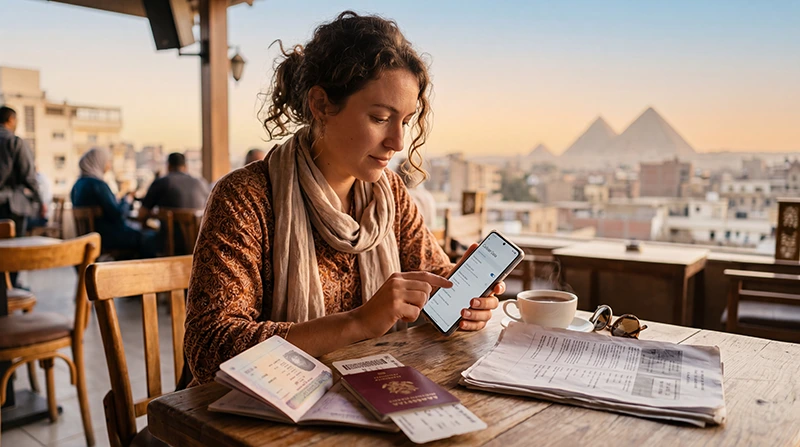

To activate your Egypt eSIM, first add the supplied profile to a compatible, unlocked phone. When you reach Egypt, enable that line, select it for mobile data and apply the roaming setting in your order instructions. Installing a profile and starting the package’s validity are not necessarily the same event.
Prepare on reliable Wi-Fi before your flight if the package allows it. That leaves time to resolve a QR-code problem before you need to contact a Cairo transfer driver or find the pickup point outside a Red Sea airport.
With NoveSIM, we provide travel data, not an Egyptian telephone number, conventional calls or SMS. Keep the home line only for services you still need, and check its charges separately.
Quick answer: Check the validity-start rule, install using your order’s QR code or supplied manual details, and label the profile “Egypt Data”. After arrival, select it for mobile data, enable its required data roaming and disable automatic data switching. Switch Wi-Fi off to test a webpage. If installation or data fails, keep any installed profile and contact support rather than deleting it.
Top Egypt eSIMs

Egypt eSIM
Fixed
1 GB, 7 days€ 4.462 GB, 15 days€ 7.143 GB, 30 days€ 9.82Unlimited
Unlimited, 1 day€ 4.91Unlimited, 3 days€ 11.60Unlimited, 5 days€ 18.74
Africa eSIM
Fixed
1 GB, 7 days€ 10.262 GB, 15 days€ 19.193 GB, 30 days€ 26.78Unlimited
Unlimited, 1 day€ 13.83Unlimited, 3 days€ 39.72Unlimited, 5 days€ 65.60Check three things before scanning the code
- The handset: verify eSIM support for the exact model and purchase region, and confirm that it is carrier-unlocked. Use the Egypt phone-compatibility checks if you are unsure.
- The package: read when validity starts. Do not assume that keeping a line disabled postpones a clock that begins at installation.
- The order details: have the QR code or installation link, any supplied manual credentials and support contact available before starting.
Review the current Egypt package information for its allowance and terms. Do not install the order on a spare phone just to try it: transfer or reuse of a travel profile is not guaranteed.
Install on an iPhone
Menu names depend on iOS and language. Apple uses names such as Mobile Service, Mobile Data or Cellular for the line settings.
- Connect to reliable Wi-Fi and display the order’s QR code on another screen, or use the installation method supplied with the order.
- Open Settings, then the mobile-service settings, and choose Add eSIM.
- Select the QR-code method and scan the supplied code. Follow the download prompts and enter a confirmation code only if one was provided.
- Check that the new line appears, then give it a recognisable name such as Egypt Data.
- Keep the intended voice line selected for conventional calls. Follow the package’s timing instructions for enabling the travel line.
Apple also supports QR codes received on the phone through certain email or browser workflows; see its official eSIM installation methods. Do not choose a home-number transfer merely because it appears beside the option to add a travel eSIM.
Install on a Samsung Galaxy or another Android phone
On a compatible Galaxy, the usual starting point is Settings → Connections → SIM manager. Samsung’s eSIM instructions use Add mobile plan and Add using QR code; some software versions label the option Add eSIM.
- Connect the Galaxy to Wi-Fi and open SIM manager.
- Choose the option to add an eSIM or mobile plan, then the QR-code installation method.
- Scan the code supplied for this order and confirm the profile download.
- Find the added profile in the SIM list and name it so it cannot be mistaken for the home line.
- Leave the line’s activation timing consistent with the package instructions; select it for data when you are ready to connect in Egypt.
Other Android manufacturers may put the equivalent controls under Network & Internet or SIMs. If no eSIM-addition option is available, check the exact device specification and carrier lock rather than repeatedly scanning the code. The Egypt Android guide covers the separate data-line settings.
If the QR code cannot be read
First check whether the profile is already listed on the phone. A failed webpage test after installation is a data problem, not a reason to scan the installation code again.
If the profile is absent, display the complete QR code clearly on another screen and confirm that the phone has working internet access. Do not crop the code or confuse it with a payment or order-reference code.
Use manual entry only when the order provides the required credentials and the phone supports that method:
- Open the eSIM-addition screen and choose Enter Details Manually on an iPhone or the available activation-code option on Android.
- Enter the supplied SM-DP+ address and activation code, or the combined activation string if that is what the order and device require.
- Enter a confirmation code only when supplied, then follow the download prompts.
- Verify that the profile appears in the SIM list before attempting another installation.
Copy credentials exactly; the order number is not an activation code. If the phone reports that the code is invalid or already used, contact support with the order reference, model and error message. Do not try it on a second phone or post the QR code publicly.
Activate the Egypt eSIM for mobile data after landing
- Open the SIM list and enable the Egypt-covered travel profile according to its instructions.
- Select that profile for Mobile Data or the preferred data SIM. The default voice line is a separate choice.
- Enable Data Roaming on the NoveSIM travel line as instructed. Keep home-line data roaming off unless you deliberately use the home carrier’s roaming service.
- Disable automatic mobile-data switching where the phone offers it, to prevent fallback to home data.
- Start with network selection on Automatic and allow the phone time to register.
- Briefly switch Wi-Fi off, load a small webpage and send a message before leaving the airport or hotel connection.
An Egypt-only package may not connect to a supported network at home. That does not, by itself, mean installation failed. Conversely, signal bars after landing do not establish that the package is valid or that data is working.
The profile is installed, but there is no internet
Check that the plan includes Egypt, is within its validity and has data remaining. Then inspect the selected data line and its roaming setting. If one app fails, compare it with a normal webpage before changing the SIM configuration.
For NoveSIM, the APN is data.esim. When manual entry is required and available, follow the Egypt APN instructions; do not substitute a domestic operator’s APN. Toggle Airplane Mode briefly or restart once if registration appears stuck.
Keep the eSIM installed. A used code may not reinstall the profile after deletion. Follow the Egypt connection troubleshooting sequence or contact support with screenshots of the line settings. Delete a profile only if support specifically instructs you to do so.
Keep phone-number services separate from travel data
Adding a data line does not require changing the number associated with WhatsApp. Retain access to the original number if account verification is needed later. Conventional calls and SMS on an enabled home line remain subject to the home provider’s terms.
Hotspot and 5G depend on the package, device and available network. Test phone data before testing a laptop hotspot, and check tethering permission instead of treating successful installation as proof that every feature is included.
Related Articles
FAQ
Does installing the Egypt eSIM start its validity?
That depends on the package’s start rule. Read the order instructions before installation; disabling a line does not necessarily stop a validity clock that has already started.
How do I install without scanning a QR code?
Use a supplied installation link or the phone’s manual-entry option when your order includes the necessary credentials. Do not invent activation details from an order number; contact support if the required information is missing.
Which SIM should provide mobile data after landing?
Select the Egypt-covered travel profile and apply its data-roaming requirement. Keep home-line data roaming off and disable automatic data switching unless you intentionally want home-carrier data.
Should I delete the eSIM when activation fails?
No. Check whether the profile is installed, then verify plan status, data-line selection, roaming and APN. Keep it installed for support; remove it only on support’s explicit instruction.
Final Recommendation
Install and activate your Egypt eSIM on the phone you will travel with, following the order’s method and validity instructions.
At arrival, make the travel profile the deliberate data choice and verify it with Wi-Fi off before relying on it for your transfer.
If something fails, distinguish a missing profile from a failed data connection. Preserve an installed profile and give support the actual error rather than repeatedly deleting and reinstalling it.