


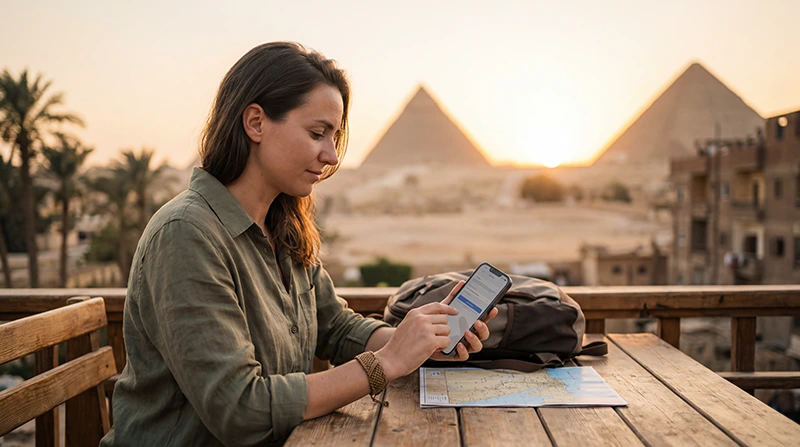

You can use an Egypt travel eSIM on an eSIM-capable, unlocked iPhone, but the exact model and purchase region matter. Check the handset itself before buying; the country you are visiting does not add eSIM support to a phone that lacks it.
Once installed, the important choice is which line supplies mobile data in Egypt. Leaving the home SIM enabled for your number is not the same as authorising it to provide roaming data.
We provide data-only NoveSIM travel plans. They do not include an Egyptian number or conventional calls and SMS; your existing messaging accounts can use the travel data connection.
Quick answer: Confirm that your iPhone supports eSIM and shows no network-provider lock. Install using the supplied instructions, select the Egypt-covered line for mobile data, disable data switching and keep home-line data roaming off. On the NoveSIM line, follow the roaming instructions and use data.esim if an APN needs entering.
Top Egypt eSIMs

Egypt eSIM
Fixed
1 GB, 7 days€ 4.462 GB, 15 days€ 7.143 GB, 30 days€ 9.82Unlimited
Unlimited, 1 day€ 4.91Unlimited, 3 days€ 11.60Unlimited, 5 days€ 18.74
Africa eSIM
Fixed
1 GB, 7 days€ 10.262 GB, 15 days€ 19.193 GB, 30 days€ 26.78Unlimited
Unlimited, 1 day€ 13.83Unlimited, 3 days€ 39.72Unlimited, 5 days€ 65.60Check the exact iPhone, not just its family name
Apple identifies iPhone XS, XS Max, XR and later as the general starting point for travel eSIM support, but its international eSIM guidance also lists regional exceptions. Some models sold in Hong Kong or Macao use two physical SIMs, and mainland-China models have their own rules.
Before paying, find the exact model number and purchase region, check the available eSIM option and confirm that another provider can be used. Apple’s lock check is under Settings → General → About; an unlocked handset shows No SIM restrictions beside the network-provider lock entry.
If you cannot find the relevant setting, ask with the model number rather than guessing from “iPhone Pro” or its age. Our Egypt phone-compatibility guide is the appropriate next check; this article assumes you will use an eligible iPhone.
Read the plan timing before installing
Check the current Egypt eSIM package for validity, allowance, supported services and the event that starts its clock. Do not assume that every plan waits for your aircraft to land.
Installation adds the profile to the phone; usable data also depends on the plan being valid, enabled and registered on a supported network. If the instructions allow advance installation, doing it on dependable Wi-Fi avoids trying to download a profile through an airport portal.
Have the supplied QR code on a second screen or follow the manual method provided with the order. Never invent an activation code from the order number, and do not use Apple’s number-transfer option as a substitute for the travel provider’s installation method.
Add the travel line and name it clearly
- Connect the iPhone to a reliable internet connection.
- Open the mobile-service settings and choose Add eSIM; menu wording varies with iOS and language.
- Use the QR-code or other installation method supplied for your NoveSIM order.
- Follow the prompts and label the added line, for example Egypt travel.
- Check that the profile appears in the line list before closing the instructions.
Apple documents the available methods in its eSIM setup guide. For the package-specific sequence, follow NoveSIM Egypt activation guidance and your order instructions.
Give mobile data to the travel line
At arrival, inspect both lines instead of accepting a default from memory. In particular, a line name such as “Primary” does not tell you which package will be billed for data.
| Control | Intended setting |
|---|---|
| Mobile-data line | The Egypt-covered NoveSIM line |
| Automatic mobile-data switching | Off, to avoid fallback to home data |
| Home-line data roaming | Off unless you deliberately use an included roaming service |
| Travel-line data roaming | As instructed for the NoveSIM plan |
| Network selection | Automatic initially |
If iOS presents a travel-line assistant, review its choices and then verify the resulting settings. Keeping the home line active may preserve access to your number, but conventional calls and other home-provider services can still incur charges.
The safest data test is simple: switch Wi-Fi off briefly and load a small webpage. If it works, you have checked the mobile connection rather than hotel or airport Wi-Fi.
Signal appears, but the webpage will not load
Check the allowance and validity first, then confirm that the travel line is enabled and selected for data. Look at its roaming setting, not the setting belonging to the home SIM.
For NoveSIM, the APN is data.esim. If iOS exposes an editable mobile-data-network field, check that value against the Egypt APN instructions. Some configurations do not expose manual editing; do not install an unknown profile to force a setting.
Keep the installed eSIM. Removing it can make recovery harder, and rescanning the original QR code is not guaranteed to reinstall a used profile. Use the Egypt data troubleshooting guide or contact support with the order details and a screenshot of the selected line.
WhatsApp, hotspot and the return home
A data-only travel line does not itself issue a new WhatsApp number. Avoid starting an account-number change merely because you have added mobile data; retain access to any number needed for future account verification.
Hotspot and 5G availability depend on the package, device and local network. If you plan to connect another traveller’s device, verify hotspot support before buying and include that use in your allowance. A successful phone-data test does not promise a particular network generation.
On returning home, select the home line for data again and check the line list. You can turn the travel line off without deleting it; whether it can be used again depends on the package’s remaining validity and terms.
Related Articles
FAQ
Does every recent iPhone support an Egypt eSIM?
No. Exact model, purchase region and network-provider lock matter. Check the phone and the current Apple guidance before buying a travel plan.
Which line should I select for mobile data in Egypt?
Select the Egypt-covered travel eSIM. Disable automatic mobile-data switching if you do not want the iPhone to fall back to home-SIM data.
Should data roaming be on or off?
Apply the setting separately to each line. Keep home-line data roaming off unless intentionally using your home provider’s roaming offer; follow NoveSIM’s instructions for the travel line.
Should I delete the Egypt eSIM when it has signal but no data?
No. Check line selection, validity, allowance, roaming and the APN first. Delete the installed profile only if support specifically instructs you to do so.
Final Recommendation
Verify the actual iPhone and its unlocked status before choosing the Egypt package.
After installation, make the travel line the deliberate data choice and test it without Wi-Fi at arrival.
Keep the home number and travel data roles separate, so a working holiday connection does not quietly become home-provider roaming.