


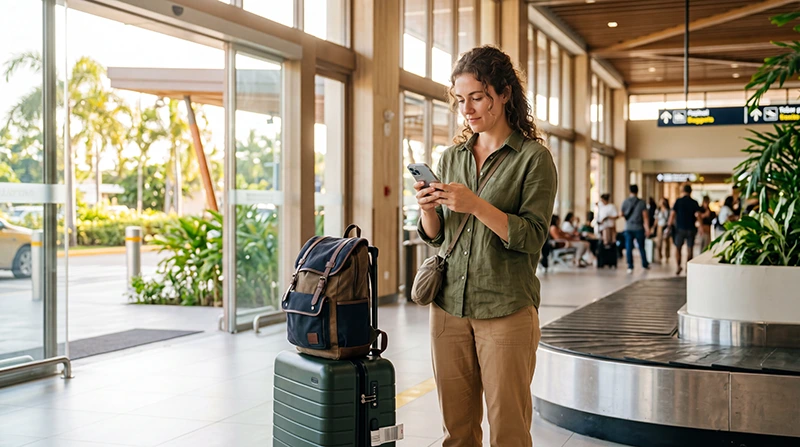

Internet at Bohol-Panglao International Airport can come from a prepared eSIM, registered local SIM, roaming plan or airport Wi-Fi. The connection is most useful for coordinating a pickup and confirming the route to Panglao accommodation, Alona Beach or Tagbilaran.
Choose the connection around the transfer that follows: Panglao accommodation, Alona Beach or Tagbilaran. Retailer and hotspot availability can change, so keep the destination pin and pickup instructions offline.
NoveSIM travel eSIMs are data-only. We do not provide a Philippine phone number, conventional calls or carrier SMS. Internet-based calling and messaging apps can use the data connection.
Quick answer: prepare an eSIM before flying when the phone is compatible and unlocked, then select it for mobile data and enable roaming on the travel line after arrival. Use verified airport Wi-Fi as backup, or buy a registered local SIM if a Philippine number is required. Save the accommodation pin and pickup instructions offline.
Top Philippines eSIMs


Compare the arrival options at Bohol Airport
| Option | Advantage | Check |
|---|---|---|
| Travel eSIM | Prepared before landing | Compatibility, unlock status and activation rule |
| Local SIM | May include a Philippine number | Registration, retailer and plan details |
| Roaming | Uses the existing line | Confirmed price and allowance |
| Airport Wi-Fi | Temporary access inside the terminal | Current network, login and performance |
For the wider country decision, use the Philippines mobile-internet guide.
Prepare the Panglao arrival before departure
- Save the accommodation’s exact map pin.
- Record the pickup provider and meeting point.
- Keep the hotel contact and check-in instructions offline.
- Confirm that the phone supports eSIM and is unlocked.
- Install the travel eSIM on reliable Wi-Fi.
- Store the validity and activation instructions privately.
Property names can be similar, so use the pin and complete address rather than relying on the name alone.
Activate an installed eSIM after landing
- Switch on the Philippines eSIM when the plan should activate.
- Select it as the mobile-data line.
- Enable Data Roaming on that eSIM when required.
- Disable automatic data switching.
- Keep network selection on Automatic.
- Turn off Wi-Fi and test a simple webpage.
Do not assume that installation begins validity. Follow the specific plan instructions and use the Philippines activation guide when the timing is unclear.
Use airport Wi-Fi only for the terminal task
Confirm the current official network and portal instructions inside the airport. Avoid lookalike hotspots and unexpected certificate requests. Download the pickup and route details before leaving because terminal Wi-Fi will not cover Panglao roads or the journey to Tagbilaran.
The Bohol Airport Wi-Fi guide covers access and portal troubleshooting separately.
Buy a local SIM when the trip requires one
A physical SIM may suit a traveller who needs a local number or has no eSIM support. Registration is required. Confirm the data allowance, validity, balance check and activation before leaving the seller.
Do not assume that a particular retailer or plan will be available at every arrival time. Keep an offline transport plan if purchase must wait until later.
Continue to Alona Beach, another Panglao property or Tagbilaran
Send the driver or property a message while the connection is stable. Verify the pickup point and destination pin before beginning the journey. Indoor reception at a resort may differ from coverage on the road or outdoors.
For day trips beyond the main visitor areas, download route information and meeting points. A signal gap on a rural or coastal section should be assessed by location before changing phone settings.
Protect the primary SIM from roaming charges
Use the Philippines eSIM for mobile data and disable automatic switching. Keep roaming data off on the primary SIM unless the home operator has confirmed the cost. Calls, SMS and voicemail on that line may still incur fees.
Fix a connection without deleting the eSIM
- Confirm that the plan is active and has data.
- Check that the eSIM is on and selected for mobile data.
- Enable roaming on the travel line.
- Turn off Wi-Fi and test again.
- Toggle Airplane Mode once.
- Restart once if necessary.
If manual APN entry is required, use data.esim. Keep the installed profile. Continue with the Philippines troubleshooting guide if data remains unavailable.
Related Articles
- Wi-Fi at Bohol Airport
- SIM Cards at Bohol Airport
- Mobile Internet in the Philippines
- Activate a Philippines eSIM
FAQ
How can I get internet at Bohol-Panglao Airport?
Use a prepared eSIM on a compatible unlocked phone, a registered local SIM, a confirmed roaming plan or verified airport Wi-Fi for temporary terminal access.
Should I install the eSIM before flying to Bohol?
Yes. Install on reliable Wi-Fi, but follow the plan’s validity rule before switching the line on.
Will airport Wi-Fi work at my Panglao hotel?
No. It is limited to the airport environment. Arrange mobile data or save the route and pickup details offline.
Should I delete an eSIM that has no data after landing?
No. Check plan status, data-line selection, roaming, network selection and APN first. Remove it only if support instructs you to.
Final Recommendation
Prepare the eSIM and Bohol transfer details before flying. A local SIM remains an alternative when a Philippine number is required.
After landing, select the travel line for data, enable roaming on it and test with Wi-Fi off. Save the Panglao or Tagbilaran destination pin before leaving.
Keep the eSIM installed during troubleshooting and use airport Wi-Fi only as a temporary terminal backup.