


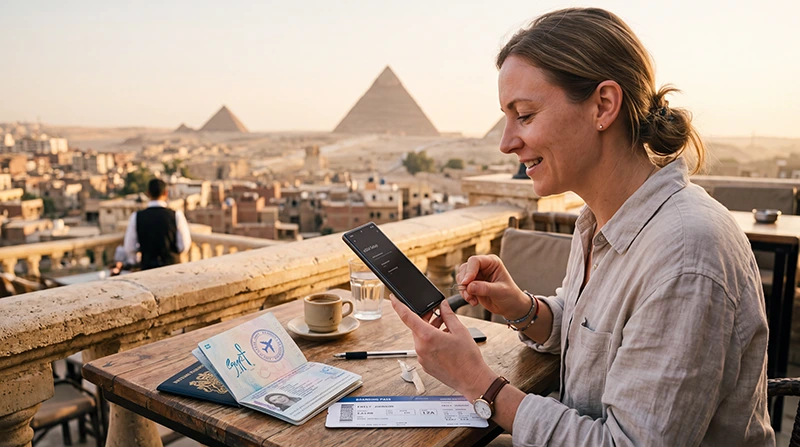

If you are traveling to Egypt, installing your eSIM before departure is the easiest way to prepare mobile data for your trip. With an Egypt eSIM, you can avoid airport SIM queues and use internet after arrival where local mobile coverage is available.
An Egypt eSIM is useful for maps, WhatsApp, hotel communication, airport transfers, taxis, online tickets, Red Sea resorts, Nile cruises and sightseeing in Cairo, Giza, Luxor, Aswan, Hurghada and Sharm El Sheikh.
Quick answer: install your Egypt eSIM while connected to WiFi before your trip. After arrival in Egypt, turn on Data Roaming for the eSIM, select it for Mobile Data and keep Network Selection on Automatic.
Top Egypt eSIMs

Egypt eSIM
Fixed
1 GB, 7 days€ 4.332 GB, 15 days€ 6.923 GB, 30 days€ 9.52Unlimited
Unlimited, 1 day€ 4.76Unlimited, 3 days€ 11.25Unlimited, 5 days€ 18.17
Africa eSIM
Fixed
1 GB, 7 days€ 9.952 GB, 15 days€ 18.603 GB, 30 days€ 25.96Unlimited
Unlimited, 1 day€ 13.41Unlimited, 3 days€ 38.50Unlimited, 5 days€ 63.60Before You Install Your Egypt eSIM
Before installing your eSIM, make sure your device is ready. This helps avoid setup problems before your trip.
| Check | Why It Matters |
|---|---|
| eSIM-compatible phone | Your phone must support digital SIM profiles |
| Unlocked device | Carrier-locked phones may not accept travel eSIMs |
| Stable WiFi | Required for downloading and installing the eSIM profile |
| QR code available | You need your Egypt eSIM QR code or manual details |
| Updated software | Helps avoid installation errors |
| Enough battery | Prevents interruption during setup |
When Should You Install an Egypt eSIM?
The best time to install your Egypt eSIM is before departure while connected to a stable WiFi network. Do not wait until you are at the airport if possible.
In most cases, the eSIM profile can be installed before travel and will connect after you arrive in Egypt, where supported local mobile network coverage is available.
Important Installation Tips
- Install the eSIM on WiFi.
- Do not delete the eSIM after installation.
- Do not scan the same QR code on multiple phones.
- Use the same phone for installation and travel.
- Keep your QR code email until your trip is finished.
- Enable Data Roaming only for the travel eSIM after arrival.
- Keep your primary SIM roaming data off to avoid charges.
How to Install Egypt eSIM on iPhone
- Connect your iPhone to WiFi.
- Open Settings.
- Tap Cellular or Mobile Data.
- Tap Add eSIM.
- Choose Use QR Code.
- Scan your Egypt eSIM QR code.
- Follow the on-screen instructions.
- Label the plan as Egypt eSIM or Travel.
- Keep your primary SIM as the default line for calls and SMS.
- After arrival, select the Egypt eSIM for Mobile Data.
How to Install Egypt eSIM on Android
Android menus can differ depending on the phone brand and software version. The steps below cover the most common paths.
- Connect your Android phone to WiFi.
- Open Settings.
- Tap Network & Internet, Connections or SIM Manager.
- Tap Add eSIM, Add SIM, Add Mobile Plan or Download SIM.
- Choose QR code setup if available.
- Scan your Egypt eSIM QR code.
- Follow the on-screen instructions.
- Label the plan as Egypt eSIM or Travel.
- Keep your primary SIM for calls and SMS.
- After arrival, select the Egypt eSIM for Mobile Data.
Manual Installation Option
If QR code scanning does not work, some phones allow manual eSIM installation using SM-DP+ address and activation details from your eSIM order.
| Manual Detail | Where to Find It |
|---|---|
| SM-DP+ Address | Your eSIM order email or account details |
| Activation Code | Your eSIM order email or account details |
| Confirmation Code | Only if provided |
Use manual installation only if your phone supports it and your order includes manual setup details.
Recommended Settings After Installing Egypt eSIM
| Setting | Recommended Value |
|---|---|
| Mobile Data | Egypt eSIM |
| Calls | Primary SIM |
| SMS | Primary SIM |
| Data Roaming | ON for the Egypt eSIM |
| Primary SIM Data Roaming | OFF |
| Automatic Data Switching | OFF |
| Network Selection | Automatic |
| APN | data.esim if required |
Should You Turn On Data Roaming?
Yes. Data Roaming should be turned ON for the Egypt eSIM. Many travel eSIMs need roaming enabled to connect to partner mobile networks.
To avoid unexpected roaming charges, keep Data Roaming OFF on your primary SIM unless you intentionally want to use your home carrier abroad.
APN Settings for Egypt eSIM
Most phones configure APN settings automatically. If mobile data does not work after arrival in Egypt, enter the APN manually.
| Field | Value |
|---|---|
| APN | data.esim |
| Username | Leave blank |
| Password | Leave blank |
| Authentication | None |
How to Select Egypt eSIM for Mobile Data
After arrival in Egypt, make sure your phone uses the Egypt eSIM for internet.
- Open your phone settings.
- Go to Cellular, Mobile Data, Connections or SIM Manager.
- Select Mobile Data or Preferred Data SIM.
- Choose your Egypt eSIM.
- Turn off automatic data switching if available.
Can You Install Egypt eSIM After Arrival?
Yes, but it is better to install it before departure. If you install after arrival, you will need a stable WiFi connection at the airport, hotel or another location.
Installing before travel gives you more time to check settings and avoid setup stress after landing.
Can You Reinstall the Same eSIM?
Usually no. Most eSIM QR codes can be installed only once and on one device. If you delete the eSIM after installation, you may not be able to reinstall it.
Do not remove your Egypt eSIM from your phone until your trip is finished.
Can You Move Egypt eSIM to Another Phone?
Usually no. Most travel eSIM profiles are designed for one-time installation on one device. If you install the eSIM on one phone, you should not expect to move it to another phone later.
Always install the eSIM on the device you plan to use during your Egypt trip.
Can You Keep Your Regular SIM Active?
Yes. Most modern Dual SIM phones allow you to keep your regular SIM active while using your Egypt eSIM for mobile data.
- Use the Egypt eSIM for internet.
- Keep your primary SIM for calls and SMS.
- Receive verification codes if supported by your home carrier.
- Use WhatsApp with your existing number.
- Avoid roaming data charges on your primary SIM.
Does WhatsApp Work After Installing Egypt eSIM?
Yes. WhatsApp works with mobile data and WiFi in Egypt. Your WhatsApp account remains linked to your existing phone number, even if you use an eSIM only for internet.
Can You Use Hotspot After Installing Egypt eSIM?
Yes. Most smartphones allow hotspot sharing with an eSIM where mobile coverage is available. This can be useful for laptops, tablets or another traveler’s device.
Hotspot can use data quickly, especially with laptops, video calls, cloud sync and streaming. Choose a larger data plan if you plan to share your connection often.
Mobile Coverage After Installing Egypt eSIM
An Egypt eSIM can provide mobile data where supported local mobile network coverage is available. Coverage is usually strong in cities, airports, Red Sea resorts and popular tourist areas.
| Destination | Expected Coverage |
|---|---|
| Cairo | Excellent |
| Giza | Excellent |
| Alexandria | Excellent |
| Luxor | Excellent |
| Aswan | Very Good to Excellent |
| Hurghada | Excellent |
| Sharm El Sheikh | Excellent |
| Dahab | Very Good |
| Marsa Alam | Good to Very Good |
| Siwa Oasis | Variable |
| White Desert | Variable to Limited |
Common Egypt eSIM Installation Problems
- The phone does not support eSIM.
- The phone is carrier-locked.
- The phone is not connected to WiFi.
- The QR code was already used.
- The eSIM was installed on the wrong device.
- The software version is outdated.
- The user deleted the eSIM after installation.
- The phone camera cannot scan the QR code.
What to Do If Installation Fails
- Check that your phone supports eSIM.
- Make sure your phone is carrier-unlocked.
- Connect to stable WiFi.
- Restart your phone.
- Try scanning the QR code again.
- Check whether manual installation details are available.
- Update your phone software if needed.
- Do not try the same QR code on another phone after a failed attempt unless support confirms it is safe.
What to Do If eSIM Installs but Internet Does Not Work
- Check that the Egypt eSIM is turned ON.
- Select the Egypt eSIM for Mobile Data.
- Enable Data Roaming on the Egypt eSIM.
- Turn off Data Roaming on your primary SIM.
- Turn off automatic data switching.
- Restart your phone.
- Turn Airplane Mode on for 30 seconds.
- Keep Network Selection on Automatic.
- Set APN to data.esim if manual setup is required.
- Move outdoors or closer to a window if indoor signal is weak.
Related Egypt eSIM Guides
- Egypt eSIM
- How to Activate Egypt eSIM
- Egypt eSIM for iPhone
- Egypt eSIM for Android
- Does My Phone Support eSIM in Egypt?
- Egypt eSIM APN Settings
- Egypt eSIM Not Working
- Best eSIM for Egypt
FAQ
When should I install my Egypt eSIM?
Install your Egypt eSIM before departure while connected to WiFi. After arrival, select it for Mobile Data and enable Data Roaming.
Can I install an Egypt eSIM at the airport?
Yes, but it is better to install it before travel. If you install at the airport, you will need stable WiFi to download the eSIM profile.
Can I scan the same Egypt eSIM QR code twice?
Usually no. Most eSIM QR codes are for one-time installation on one device. Do not delete the eSIM after installing it.
Should Data Roaming be on for Egypt eSIM?
Yes. Data Roaming should be ON for the Egypt eSIM and OFF for your primary SIM if you want to avoid roaming data charges.
What APN should I use for Egypt eSIM?
If manual APN setup is required, use data.esim.
Does WhatsApp work after installing Egypt eSIM?
Yes. WhatsApp works normally with mobile data or WiFi, and your account remains linked to your existing phone number.
Final Recommendation
The best way to install an Egypt eSIM is to do it before departure while connected to stable WiFi. Make sure your phone supports eSIM, is unlocked and has enough battery before scanning the QR code.
After arrival in Egypt, select the Egypt eSIM for Mobile Data, enable Data Roaming, keep Network Selection on Automatic and use data.esim as the APN if manual setup is required. Do not delete the eSIM until your trip is finished.