


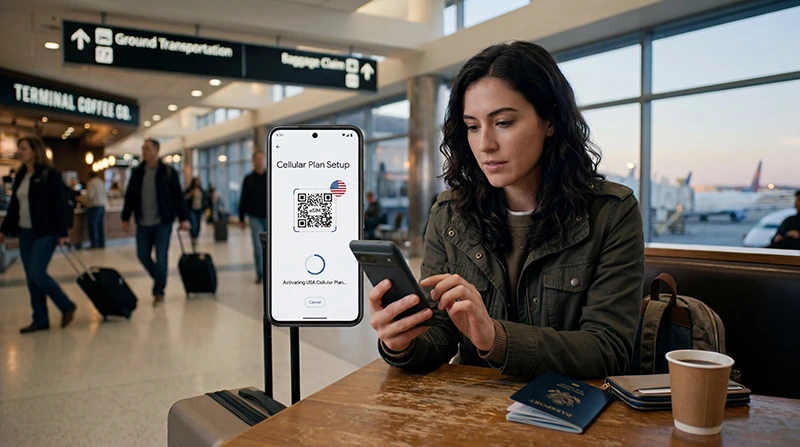

To install USA eSIM service safely, add the profile before departure while you have stable private Wi-Fi, but wait to activate or use it until the plan instructions say to do so. Installation, activation and network registration are separate stages.
The exact menu wording varies by phone and operating-system version. On iPhone, look under Cellular or Mobile Data; on Pixel, use Network & internet; and on Samsung Galaxy, use Connections and SIM manager.
NoveSIM USA eSIMs are data-only. They supply mobile internet rather than a US telephone number, so ordinary calls and SMS remain with the primary line and its carrier charges.
Quick answer: Connect to Wi-Fi, open the phone’s Add eSIM option, scan the supplied QR code or enter the details manually, label the new line, and keep it off until the appropriate activation time. In the USA, select it for Mobile Data and enable Data Roaming on the travel line when required.
Top United States eSIMs

United States eSIM
Fixed
1 GB, 7 days€ 2.642 GB, 15 days€ 4.403 GB, 30 days€ 5.72Unlimited
Unlimited, 1 day€ 3.52Unlimited, 3 days€ 8.81Unlimited, 5 days€ 13.65
Before you install USA eSIM service
- Confirm the exact phone model on the eSIM-compatible device list.
- Verify that the phone is carrier-unlocked.
- Connect to dependable private Wi-Fi and charge the phone.
- Keep the QR code, activation code and order details private.
- Read what triggers plan activation and when validity begins.
- Update the operating system before the trip when it is safe to do so.
Compatibility and unlock status are different. A phone can support eSIM but still reject a plan from another provider because it is locked to the carrier that sold it. Resolve any restriction before purchase or installation.
When should you install the eSIM?
Install it before travelling unless the order instructions specify another time. Home or office Wi-Fi is generally more dependable than an airport login portal, and support is easier to contact before departure.
Do not assume installation starts the validity period. Follow the supplied activation rule and avoid turning on the travel line early when first network registration triggers the plan. Do not repeatedly scan the QR code after the profile appears.
How to install a USA eSIM on iPhone
Apple’s current interface may call the menu Cellular or Mobile Data, depending on region and language.
- Open Settings.
- Tap Cellular or Mobile Data.
- Tap Add eSIM or Set Up Cellular.
- Choose Use QR Code and scan the code supplied with the order.
- If scanning is unavailable, choose the manual-entry option and enter the supplied SM-DP+ address and activation code exactly.
- Wait until the new cellular plan appears, then give it a clear label such as USA Travel.
- Keep your usual line as the default for calls and messages if that is the intended dual-SIM setup.
- Do not select the travel line for data until the activation instructions permit it.
Apple confirms that iPhone uses one cellular-data line at a time. After arrival, open Cellular or Mobile Data, tap Cellular Data and choose the travel eSIM. Turn off Allow Cellular Data Switching when you want to prevent the phone from switching to the primary line.
How to install a USA eSIM on Google Pixel
- Open Settings.
- Tap Network & internet.
- Open SIMs or tap the add-SIM control shown on the device.
- Choose the option to set up or download an eSIM.
- Scan the supplied QR code, or use manual details when the order provides them.
- Wait for the profile to download and label it USA Travel.
- Leave it inactive until the plan’s activation time.
Android wording differs across releases. Follow the labels visible on the phone rather than forcing a menu sequence from another model.
How to install a USA eSIM on Samsung Galaxy
- Open Settings.
- Tap Connections.
- Open SIM manager.
- Tap Add eSIM.
- Choose the QR-code option and scan the code supplied with the order.
- Use manual activation details only when they were provided for that purpose.
- Wait for the plan to appear and label it clearly.
- Keep the travel eSIM off until activation is appropriate.
Not every Galaxy model or regional variant supports eSIM. The presence of SIM manager alone is not proof; confirm the exact model before buying.
How to use manual installation details
Manual installation normally requires an SM-DP+ address and activation code from the order instructions. Enter them exactly, without adding spaces or substituting APN information. The activation code installs the profile; it is not the same as the mobile-data APN.
Keep these credentials private. If the phone reports that a code has already been used and the eSIM profile is visible, stop scanning and check the installed lines.
Select the USA eSIM for mobile data
- After arrival, leave Airplane Mode.
- Enable the line labelled USA Travel.
- Select it as the phone’s Mobile Data or Preferred SIM for data.
- Enable Data Roaming on the travel eSIM when required by the plan.
- Keep Data Roaming off on the primary line.
- Disable automatic mobile-data switching when preventing primary-line data use.
- Leave network selection on Automatic and allow several minutes for registration.
The primary SIM can remain enabled for its number on a supported dual-SIM phone. Calls, SMS, voicemail and Wi-Fi Calling still follow the home carrier’s roaming terms. The USA WhatsApp guide explains how an existing app account uses travel data without changing its registered number.
Should Data Roaming be on?
Travel eSIMs often connect through partner networks, so Data Roaming may need to be on for the travel line. This does not mean it should be enabled on the primary SIM.
Check the line name before changing the setting. Keep primary-line Data Roaming off unless you deliberately intend to use and pay for home-carrier roaming.
APN settings after installation
Start without changing the APN when the phone receives settings automatically. If the NoveSIM instructions require manual APN entry, use data.esim and leave username and password blank.
Do not enter the name of a US domestic carrier as the NoveSIM APN. The USA eSIM APN guide covers device-specific checks.
Test the eSIM correctly
With Wi-Fi turned off temporarily, open a normal website and load a map. A data-only eSIM is working when internet traffic passes even though it cannot make an ordinary carrier call.
Also confirm that the primary line is not supplying the test data. On dual-SIM phones, the status display and mobile-data settings should identify the selected line.
If the installed eSIM has no internet
- Confirm that the eSIM profile is present and enabled.
- Check that the plan is valid for the USA and has active data.
- Select the travel line for Mobile Data.
- Enable Data Roaming on that line when required.
- Turn automatic data switching off.
- Toggle Airplane Mode once and wait for network registration.
- Verify data.esim only if manual APN entry is required.
Continue with the USA eSIM troubleshooting guide if the reversible checks do not restore service. Do not delete the installed eSIM unless NoveSIM Support specifically instructs you to do so; a QR code may not be reusable.
Related Articles
- How to Activate a USA eSIM
- Will My eSIM Work in the USA?
- Fix No Internet on a USA eSIM
- Choose the Best eSIM for USA Travel
FAQ
Can I install a USA eSIM before travelling?
Yes, and installing on dependable Wi-Fi before departure is usually preferable. Follow the plan instructions so that you do not activate validity earlier than intended.
Can I scan the eSIM QR code on the same phone?
Some phones and providers support installation from a saved image or link; others require the QR code on a second screen. Use the method supplied with the order, or enter the provided details manually.
Should I turn off my normal SIM after installing the USA eSIM?
Not necessarily. It can remain available for its number on a compatible dual-SIM phone. Select the travel eSIM for data, keep primary-line Data Roaming off and review the home carrier’s call and SMS charges.
Should I delete and reinstall a USA eSIM that does not connect?
No. Check the selected data line, Data Roaming, plan status, network registration and APN first. Delete the profile only when NoveSIM Support specifically instructs you to do so.
Final Recommendation
Install USA eSIM service before departure on reliable private Wi-Fi, after confirming that the exact phone is unlocked and compatible. Keep the activation credentials private and follow the plan-specific timing.
Use the iPhone, Pixel or Samsung menu labels visible on the device, then select the travel line for mobile data after arrival. Enable roaming only on the travel eSIM when required and disable automatic switching if avoiding primary-line data charges.
Test with a website and map, preserve the installed profile during troubleshooting and move to the specialist support guide when the reversible settings do not restore service.