


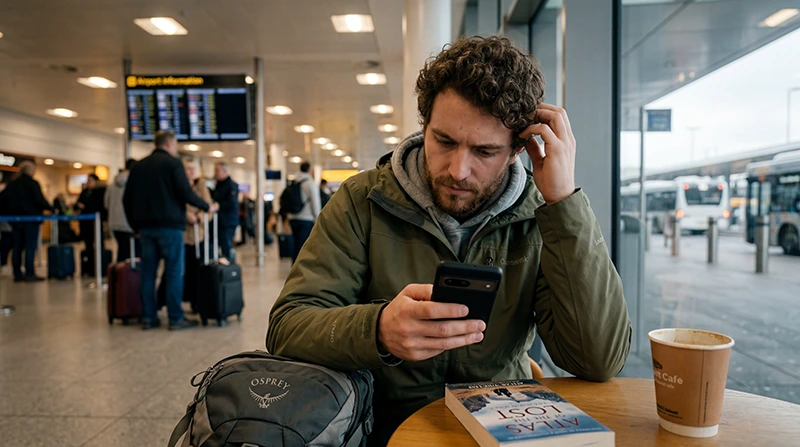

If your USA eSIM is installed but there is no internet, the issue is usually related to mobile data selection, data roaming, APN settings, network connection, coverage, or phone settings.
This guide explains what to check when your eSIM shows no internet in the United States, even if the eSIM appears installed on your phone.
Quick answer: if your USA eSIM has no internet, select the eSIM for mobile data, enable data roaming for the eSIM, enter the APN data.esim if required, turn airplane mode on for 30 seconds and off again, then restart your phone if needed.
Top United States eSIMs

United States eSIM
Fixed
1 GB, 7 days€ 2.682 GB, 15 days€ 4.463 GB, 30 days€ 5.80Unlimited
Unlimited, 1 day€ 3.57Unlimited, 3 days€ 8.93Unlimited, 5 days€ 13.83
Quick Fix Checklist
- Make sure the USA eSIM is installed
- Select the USA eSIM for mobile data
- Turn on mobile data
- Enable data roaming for the USA eSIM
- Enter APN data.esim if required
- Turn airplane mode on for 30 seconds, then off
- Restart your phone
- Turn WiFi off temporarily and test mobile data
- Try manual network selection
- Move to a place with better signal
Most Common Reasons for No Internet on a USA eSIM
| Reason | What it means | Fix |
|---|---|---|
| eSIM not selected for mobile data | Your phone may still use your regular SIM for internet | Select the USA eSIM as the mobile data line |
| Data roaming is off | Many travel eSIMs need roaming enabled | Turn on data roaming for the eSIM |
| APN is missing | The phone may not connect to mobile data | Enter data.esim if required |
| WiFi is connected but broken | Your phone may be using WiFi with no internet | Turn WiFi off and test mobile data |
| Weak coverage | You may be in a low-signal area | Move location or try another network |
| Network selection issue | The phone may not connect automatically | Try manual network selection |
Step 1: Check That the eSIM Is Installed
First, confirm that your USA eSIM appears in your phone settings.
On iPhone:
- Open Settings.
- Tap Mobile Data or Cellular.
- Check whether your USA eSIM appears under SIMs or Cellular Plans.
On Android:
- Open Settings.
- Go to Connections, Network & Internet, or SIM Manager.
- Check whether your USA eSIM appears and is active.
If the eSIM does not appear, the installation may not be completed, the QR code may already have been used, or the phone may not support eSIM.
Step 2: Select the USA eSIM for Mobile Data
An eSIM can be installed correctly but still not used for internet if your phone is using another SIM for mobile data.
On iPhone:
- Open Settings.
- Tap Mobile Data or Cellular.
- Tap Mobile Data.
- Select your USA eSIM.
On Android:
- Open Settings.
- Open SIM Manager or Mobile Network settings.
- Select your USA eSIM for mobile data.
Step 3: Enable Data Roaming for the USA eSIM
Many travel eSIMs require data roaming to be enabled. This is normal for international travel eSIMs.
Make sure data roaming is enabled for the USA eSIM, not accidentally for your regular SIM.
On iPhone:
- Open Settings.
- Tap Mobile Data or Cellular.
- Select your USA eSIM.
- Turn on Data Roaming.
On Android:
- Open Settings.
- Go to SIM Manager or Mobile Network settings.
- Select your USA eSIM.
- Turn on Data Roaming.
Step 4: Check APN Settings
If your USA eSIM requires manual APN settings, enter:
| Setting | Value |
|---|---|
| APN | data.esim |
| Username | Leave blank |
| Password | Leave blank |
Enter data.esim exactly as shown. Do not add spaces or extra characters.
Read the full USA eSIM APN settings guide
Step 5: Toggle Airplane Mode for 30 Seconds
After changing mobile data, roaming, or APN settings, refresh the connection.
- Turn airplane mode on.
- Wait 30 seconds.
- Turn airplane mode off.
- Wait a few minutes for the phone to reconnect.
- Test mobile data in a browser or Google Maps.
Step 6: Restart Your Phone
If airplane mode does not fix the issue, restart your phone.
A restart can refresh eSIM status, network registration, mobile data routing, and connection settings.
Step 7: Turn WiFi Off and Test Mobile Data
Sometimes your phone is connected to WiFi that has no internet. This can make it look like your eSIM is not working.
Turn WiFi off temporarily and test mobile data only.
Try opening:
- A website in your browser
- Google Maps
- Your hotel app
- A ride-sharing app
Step 8: Try Manual Network Selection
If automatic network connection does not work, try selecting a network manually.
On iPhone:
- Open Settings.
- Tap Mobile Data or Cellular.
- Select your USA eSIM.
- Tap Network Selection.
- Turn off Automatic.
- Wait for available networks to appear.
- Select an available supported network.
On Android:
- Open Settings.
- Go to Mobile Network settings.
- Tap Network Operators.
- Turn off automatic selection.
- Select an available supported network.
Wait a few minutes after choosing a network before testing mobile data again.
Step 9: Check Coverage in Your Location
No eSIM can provide internet where there is no mobile signal.
Coverage may be weaker in:
- National parks
- Remote highways
- Desert areas
- Mountain valleys
- Forests
- Rural locations
- Basements
- Large buildings
- Underground transport areas
If you are in a low-signal area, move outside, closer to a window, or to a more open location.
Step 10: Check Device Compatibility
If your USA eSIM does not install or does not connect, your phone may not support eSIM, may be carrier-locked, or may not support the needed network bands.
Before using an eSIM, check that:
- Your phone supports eSIM
- Your phone is unlocked
- Your phone software is updated
- Your device supports mobile networks used in the USA
- Your eSIM plan includes the United States
Check if your phone supports eSIM
No Internet on USA eSIM After Landing
If your eSIM has no internet after landing in the USA, it may need a few minutes to connect to a supported network.
Try this:
- Turn off WiFi.
- Select the USA eSIM for mobile data.
- Enable data roaming.
- Toggle airplane mode for 30 seconds.
- Wait 2 to 5 minutes.
- Test a website or Google Maps.
No Internet Even Though eSIM Shows Signal
If the eSIM shows signal bars but apps do not load, the phone may be connected to a network but not correctly configured for data.
Check:
- Mobile data is turned on
- The USA eSIM is selected for mobile data
- Data roaming is enabled
- APN data.esim is entered if required
- WiFi is not connected to a broken network
- VPN is not blocking traffic
No Internet on iPhone with USA eSIM
For iPhone users, check these settings:
- Settings → Mobile Data → Mobile Data line is set to the USA eSIM
- Settings → Mobile Data → select the eSIM → Data Roaming is on
- Settings → Mobile Data → Allow Mobile Data Switching is off if needed
- APN is set to data.esim if the menu is available and required
- Airplane mode has been toggled for 30 seconds
- The iPhone has been restarted
- Manual network selection has been tested
No Internet on Android with USA eSIM
For Android users, menu names can vary, but the same checks apply.
- SIM Manager shows the eSIM as active
- The USA eSIM is selected for mobile data
- Data roaming is enabled for the eSIM
- Mobile data is turned on
- APN is set to data.esim if required
- Airplane mode has been toggled for 30 seconds
- The phone has been restarted
- Manual network selection has been tested
Apps Not Loading with USA eSIM
If some apps do not load but others work, the issue may be app-specific, VPN-related, WiFi-related, or permission-related.
Try:
- Turning WiFi off and testing mobile data
- Turning VPN off temporarily
- Testing a normal website in your browser
- Opening Google Maps and searching for a place
- Checking app permissions for location-based apps
- Restarting the app
USA eSIM No Internet During Road Trips
During USA road trips, mobile coverage can change as you move between cities, highways, rural areas, deserts, mountains, forests, and national parks.
If mobile data works in one place but not another, the issue may be coverage, not the eSIM itself.
Download offline maps before remote routes.
Read more about internet for USA road trips
USA eSIM No Internet in National Parks
Many US national parks have limited mobile coverage, especially in remote areas, canyons, forests, mountain valleys, desert roads, and backcountry trails.
A USA eSIM can help around towns, entrances, visitor centers, lodges, hotels, and main roads, but offline maps are still essential.
Read more about eSIM for US national parks
What to Send Support If It Still Does Not Work
If your USA eSIM still has no internet after all checks, contact support with clear details so the issue can be reviewed faster.
- Your phone model
- Your current location in the USA
- Whether the eSIM is installed and visible in settings
- Whether the eSIM shows signal bars
- Whether the eSIM is selected for mobile data
- Whether data roaming is enabled
- Whether APN data.esim is entered if required
- Screenshots of mobile data, roaming, and APN settings
Related USA eSIM Troubleshooting Guides
- eSIM Not Working in the USA
- APN Settings for USA eSIM
- Does My eSIM Work in the USA?
- Why Is My eSIM Slow in the USA?
- Does WhatsApp Work in the USA?
- Best Network in the USA for Tourists
- How Much Data Do You Need for USA Travel?
- Using Google Maps in the USA
- Best Internet Option for USA Travel
- eSIM Compatible Devices
FAQ: No Internet on USA eSIM
Why does my USA eSIM have no internet?
Your USA eSIM may have no internet because it is not selected for mobile data, data roaming is off, APN settings are missing, WiFi is connected without internet, coverage is weak, or the phone has not connected to a supported network.
What APN should I use for USA eSIM?
If your NoveSIM USA eSIM requires manual APN settings, enter data.esim in the APN field and leave username and password blank.
Should data roaming be on for a USA eSIM?
Yes, many travel eSIMs require data roaming to be enabled. Turn on data roaming for the USA eSIM, not your regular SIM.
Why does my eSIM show signal but no internet?
If your eSIM shows signal but no internet, check mobile data selection, data roaming, APN settings, WiFi, VPN, and whether your plan is active.
Can airplane mode fix no internet on eSIM?
Yes. Turning airplane mode on for 30 seconds and then off again can refresh the mobile network connection and often fixes temporary eSIM connection issues.
Why does my eSIM not work in national parks?
Many national parks have limited mobile coverage. If there is no signal in the area, the eSIM cannot provide internet. Download offline maps before entering remote park areas.
What should I do if my USA eSIM still has no internet?
Contact support and share your phone model, location, screenshots of mobile data settings, APN settings, roaming settings, and whether the eSIM shows signal.
Can WiFi make it look like my eSIM has no internet?
Yes. If your phone is connected to WiFi without internet, apps may not load. Turn WiFi off temporarily and test mobile data only.
Final Recommendation
If your USA eSIM has no internet, start with the most important fixes: select the eSIM for mobile data, enable data roaming, enter APN data.esim if required, toggle airplane mode for 30 seconds, and restart your phone.
If mobile data still does not work, try manual network selection, test in a better coverage area, and send screenshots of your settings to support for faster help.