


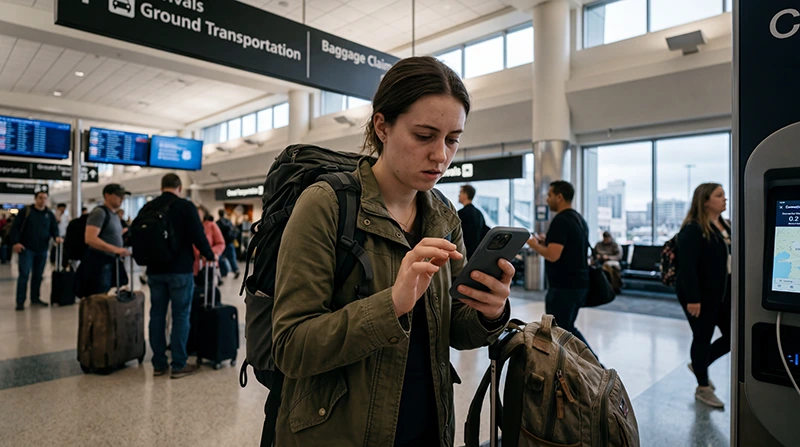

If your eSIM is slow in the USA, the issue is usually related to coverage, network congestion, signal strength, data roaming settings, APN settings, hotspot use, fair usage rules, or your current location.
Slow mobile data can affect Google Maps, Uber, Lyft, WhatsApp, Safari, hotel apps, travel bookings, hotspot, music streaming, and everyday browsing while traveling in the United States.
Quick answer: if your USA eSIM is slow, first check signal strength, move to a better coverage area, turn airplane mode on for 30 seconds, restart your phone, confirm the eSIM is selected for mobile data, enable data roaming, and check whether your plan has speed limits or fair usage rules.
Top United States eSIMs

United States eSIM
Fixed
1 GB, 7 days€ 2.662 GB, 15 days€ 4.443 GB, 30 days€ 5.77Unlimited
Unlimited, 1 day€ 3.55Unlimited, 3 days€ 8.87Unlimited, 5 days€ 13.75
Common Reasons Your eSIM Is Slow in the USA
| Reason | What it means | What to do |
|---|---|---|
| Weak signal | Your phone has poor mobile reception | Move outside, closer to a window, or to a better coverage area |
| Network congestion | Too many users are connected in the same area | Try again later or switch networks if available |
| Fair usage limit | Your plan may reduce speed after heavy data use | Check your plan details and remaining high-speed data |
| Wrong network | Your phone may be connected to a slower available network | Try manual network selection |
| APN issue | Data settings may not be configured correctly | Check the APN from your eSIM instructions |
| Hotspot use | Shared devices can use more data and reduce performance | Disconnect unused devices and test speed on your phone only |
Step 1: Check Signal Strength
Slow eSIM speed often starts with weak signal. If your phone has one or two signal bars, mobile data may be unstable or slow.
Signal can be weaker in:
- Basements
- Large buildings
- Hotel rooms far from windows
- Airports during congestion
- Remote highways
- National parks
- Mountain areas
- Deserts and rural areas
Try moving outside, closer to a window, or to an open area and test again.
Step 2: Turn Airplane Mode On for 30 Seconds
Turn airplane mode on for 30 seconds, then turn it off.
This forces your phone to reconnect to the mobile network and can help if your device is stuck on a weak or slow connection.
Step 3: Restart Your Phone
If airplane mode does not help, restart your phone.
A restart refreshes network registration, mobile data routing, eSIM status, and background connection issues that may slow down data.
Step 4: Make Sure the eSIM Is Selected for Mobile Data
If your phone has both your regular SIM and a USA eSIM active, make sure the eSIM is selected for mobile data.
On iPhone:
- Open Settings.
- Tap Mobile Data or Cellular.
- Tap Mobile Data.
- Select your USA eSIM.
On Android:
- Open Settings.
- Open Connections, Network & Internet, or SIM Manager.
- Select your USA eSIM for mobile data.
Step 5: Enable Data Roaming for the eSIM
Many travel eSIMs require data roaming to be enabled. If roaming is off, the eSIM may not connect correctly or may perform poorly.
Turn on data roaming for the USA eSIM, not your regular SIM, if you want to use the eSIM for mobile data.
Step 6: Check APN Settings
If your eSIM instructions include a specific APN, make sure it is entered exactly as provided.
Incorrect APN settings can cause no internet, unstable data, or slow connection.
If no APN is required in your eSIM instructions, do not add random APN settings.
Step 7: Try Manual Network Selection
Sometimes your phone automatically connects to a slower or weaker available network. Manual network selection can help.
On iPhone:
- Open Settings.
- Tap Mobile Data or Cellular.
- Select your USA eSIM.
- Tap Network Selection.
- Turn off Automatic.
- Wait for available networks to appear.
- Select a different supported network.
On Android:
- Open Settings.
- Open Connections or Network & Internet.
- Tap Mobile Networks.
- Tap Network Operators.
- Turn off automatic selection.
- Select another available supported network.
After selecting a network, wait a few minutes and test your connection again.
Step 8: Check If You Reached a Fair Usage Limit
Some unlimited or large-data eSIM plans may reduce speed after heavy use. This is often called fair usage, reduced speed, throttling, or network management.
Check your plan details for:
- Daily high-speed data limits
- Total high-speed data allowance
- Reduced speed after heavy usage
- Hotspot restrictions
- Network management rules
Read more about unlimited data eSIMs for the USA
Step 9: Turn Off VPN Temporarily
A VPN can sometimes slow mobile data, especially if the VPN server is far away or overloaded.
If your eSIM connection is slow, temporarily turn off VPN and test again using your browser, Google Maps, or a travel app.
Step 10: Disconnect Hotspot Devices
If you are sharing your eSIM data through hotspot, connected devices may use data in the background.
Disconnect laptops, tablets, and other phones, then test speed on your main phone only.
Hotspot use can be affected by:
- Multiple connected devices
- Cloud backups
- Video calls
- Streaming
- Software updates
- Large file downloads
Why Your eSIM May Be Slow at Airports
Airports can be crowded, and mobile networks may be busy. Your eSIM may feel slower during peak travel times, especially near arrival halls, baggage claim, immigration areas, and rideshare pickup zones.
If possible, move to a less crowded area, toggle airplane mode, or wait a few minutes for the phone to reconnect properly.
Why Your eSIM May Be Slow in Cities
In large US cities, slow mobile data may happen because of network congestion, tall buildings, indoor signal blockage, underground transport areas, or crowded events.
Try moving outside, closer to a window, or switching to another supported network if your eSIM allows manual network selection.
Why Your eSIM May Be Slow on Road Trips
During USA road trips, speed can change as you move between cities, highways, rural areas, mountains, deserts, and national parks.
This is normal because mobile coverage is not equal everywhere.
For road trips, download offline maps before remote routes and avoid relying only on live mobile data in low-coverage areas.
Read more about internet for USA road trips
Why Your eSIM May Be Slow in National Parks
National parks often have limited mobile infrastructure. Even if your eSIM connects, speeds may be slow because of weak signal, terrain, distance from towers, or crowded visitor areas.
Offline maps are essential for national parks, especially in canyons, mountains, forests, deserts, and remote trails.
Read more about eSIM for US national parks
eSIM Is Slow but WiFi Works
If WiFi works but your eSIM is slow, the issue is probably related to mobile network coverage, congestion, roaming settings, APN, or plan speed policy.
Test mobile data with WiFi turned off so you know which connection your phone is actually using.
eSIM Is Slow Only on Some Apps
If only some apps are slow, the eSIM may not be the main issue.
Check:
- Whether the app is having service problems
- Whether VPN is affecting the app
- Whether app permissions are enabled
- Whether Low Data Mode is turned on
- Whether background data is restricted
How to Improve eSIM Speed in the USA
- Move to a better signal area.
- Turn airplane mode on for 30 seconds, then off.
- Restart your phone.
- Select the USA eSIM for mobile data.
- Enable data roaming for the eSIM.
- Check APN settings if required.
- Try manual network selection.
- Turn off VPN temporarily.
- Disconnect hotspot devices.
- Check whether your plan has fair usage or speed limits.
When Slow Speed Is Normal
Slow eSIM speed can be normal in some situations, even when your setup is correct.
- Remote national park areas
- Mountain valleys
- Desert roads
- Rural highways
- Large events
- Busy airports
- Underground areas
- Inside buildings with weak signal
- After reaching fair usage limits
Related USA eSIM Troubleshooting Guides
- eSIM Not Working in the USA
- Does My eSIM Work in the USA?
- Unlimited Data eSIM for USA Travel
- Best Unlimited eSIM for USA Travel
- Best Internet Option for USA Travel
- Using Google Maps in the USA
- Internet for USA Road Trips
- eSIM for National Parks in the USA
- Best Pocket WiFi Alternative for USA Travel
- eSIM Compatible Devices
FAQ: Why Is My eSIM Slow in the USA?
Why is my eSIM slow in the USA?
Your eSIM may be slow because of weak signal, network congestion, fair usage limits, APN issues, roaming settings, hotspot use, VPN, or your current location.
How do I fix slow eSIM data in the USA?
Move to a better signal area, toggle airplane mode for 30 seconds, restart your phone, make sure the eSIM is selected for mobile data, enable data roaming, check APN settings, and try manual network selection.
Can unlimited eSIM data become slow?
Yes. Some unlimited eSIM plans may reduce speed after heavy usage or include fair usage policies. Always check the plan details.
Why is my eSIM slow in national parks?
National parks often have limited mobile coverage because of terrain, distance from towers, and remote areas. Offline maps are strongly recommended.
Why is my eSIM slow at the airport?
Airports can have network congestion because many people use mobile data at the same time. Moving to another area or toggling airplane mode may help.
Does hotspot make my eSIM slower?
Hotspot can feel slower if multiple devices are connected or if laptops and tablets are using data in the background. Disconnect unused devices and test again.
Can VPN make my eSIM slow?
Yes. VPN services can slow mobile data depending on the server, connection quality, and app settings. Try turning VPN off temporarily to test speed.
Is slow eSIM speed always a problem with the eSIM?
No. Slow speed can also be caused by weak coverage, congestion, phone settings, app issues, VPN, hotspot use, or remote travel locations.
Final Recommendation
If your eSIM is slow in the USA, start with the fastest fixes: move to a better signal area, toggle airplane mode for 30 seconds, restart your phone, confirm the eSIM is selected for mobile data, enable data roaming, and check APN settings if required.
If the issue happens only in airports, national parks, remote highways, large buildings, or crowded areas, the cause may be temporary network congestion or limited coverage rather than a problem with the eSIM itself.