


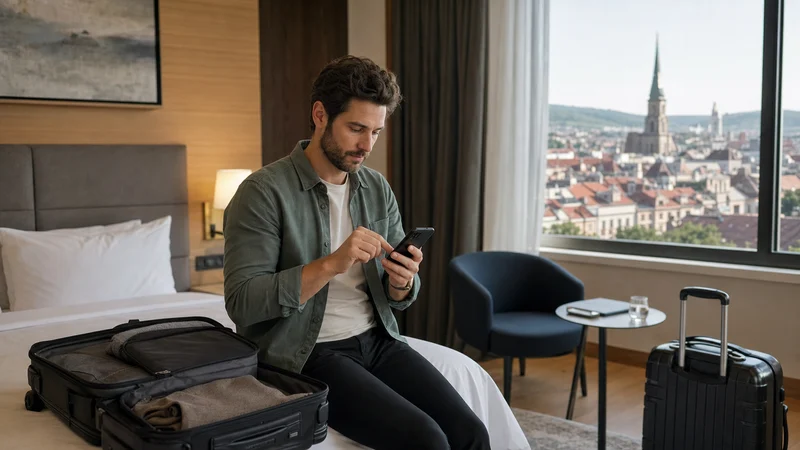

Install a Romania eSIM while you still have stable WiFi, but activate mobile data according to the plan instructions. Installation downloads the eSIM profile to the phone; activation and connection to a Romanian partner network may happen at a different time.
The exact menu names vary by manufacturer and software version. Keep the QR code or manual installation details available on a second screen, and do not delete an installed eSIM if the first connection attempt fails.
NoveSIM travel eSIMs are data-only. They do not provide a Romanian number, conventional calls or SMS. Keep your normal SIM enabled if you need its number, while using the travel eSIM for data.
Quick answer: Confirm that the phone supports eSIM and is network unlocked, connect to reliable WiFi, add the eSIM by QR code or manual details, label it clearly and wait to select it for mobile data until the plan’s activation conditions are met.
Top Romania eSIMs

Romania eSIM
Fixed
1 GB, 7 days€ 2.232 GB, 15 days€ 4.023 GB, 30 days€ 4.91Unlimited
Unlimited, 1 day€ 2.23Unlimited, 3 days€ 5.36Unlimited, 5 days€ 8.03
Balkans eSIM
Fixed
1 GB, 7 days€ 4.462 GB, 15 days€ 7.143 GB, 30 days€ 9.37Unlimited
Unlimited, 1 day€ 4.91Unlimited, 3 days€ 11.16Unlimited, 5 days€ 17.40Europe Extra eSIM
Fixed
1 GB, 7 days€ 2.232 GB, 15 days€ 3.573 GB, 30 days€ 4.46Unlimited
Unlimited, 1 day€ 2.68Unlimited, 3 days€ 5.36Unlimited, 5 days€ 8.93Europe+ eSIM
Fixed
1 GB, 7 days€ 2.682 GB, 15 days€ 4.023 GB, 30 days€ 5.36Unlimited
Unlimited, 1 day€ 2.68Unlimited, 3 days€ 6.25Unlimited, 5 days€ 10.26Europe Lite eSIM
Fixed
1 GB, 7 days€ 2.232 GB, 15 days€ 3.573 GB, 30 days€ 4.46Unlimited
Unlimited, 1 day€ 2.68Unlimited, 3 days€ 5.36Unlimited, 5 days€ 8.93Check the phone before starting
- The device must support eSIM.
- It must not be locked to an incompatible mobile operator.
- A stable internet connection is required to download the profile.
- The QR code or activation details should be accessible on another device or in a printed copy.
- The plan’s coverage, validity and activation policy must match the trip.
Select a suitable Romania eSIM plan before installation. If the trip continues across borders, verify each additional country rather than relying only on a regional product name.
Install the Romania eSIM on an iPhone
- Connect the iPhone to reliable WiFi.
- Open Settings and select Cellular or Mobile Service.
- Tap Add eSIM.
- Choose Use QR Code and scan the code supplied with the plan.
- If scanning is unavailable, choose the manual-details option and enter the supplied activation information exactly.
- Label the new line Romania eSIM or another unmistakable name.
- Keep the home line as the default for calls and messages if required.
- Do not enable the travel line for data earlier than the plan instructions allow.
Install the Romania eSIM on Android
Android menus differ between Samsung, Google Pixel and other manufacturers, but the process follows the same sequence.
- Connect the phone to stable WiFi.
- Open Settings.
- Choose Connections, Network & Internet or the equivalent mobile-network menu.
- Open SIM Manager or SIMs.
- Select Add eSIM or Download a SIM.
- Scan the supplied QR code or enter the manual installation details.
- Give the new profile a clear Romania label.
- Leave the intended mobile-data switch until the activation stage.
Use manual installation when the QR code cannot be scanned
Manual installation normally uses an SM-DP+ address and an activation code supplied with the order. Enter each value exactly, without adding spaces. Do not substitute the order number, ICCID or APN for the activation code.
A QR code is commonly intended for one successful installation. If it has already been used or the phone reports that it is invalid, do not repeatedly delete and reinstall the profile. Contact support with the order details and the exact error message.
Activate the data connection after arrival
- Open the SIM or cellular settings.
- Turn on the Romania eSIM line.
- Select it for mobile data.
- Apply the data-roaming setting specified in the plan instructions.
- Turn off cellular-data switching to prevent the home SIM using roaming data.
- Leave network selection automatic while the phone registers.
- Test a webpage or map before leaving the arrival area.
The separate Romania eSIM activation guide covers the arrival sequence in more detail.
What to do if the eSIM installs but has no data
- Confirm that the Romania eSIM is turned on and selected for mobile data.
- Check the required roaming setting on the travel line.
- Leave network selection automatic and wait several minutes.
- Toggle Airplane Mode once, then test again.
- If manual APN entry is needed for NoveSIM, use
data.esim. - Do not delete the eSIM unless NoveSIM support specifically instructs you to do so.
For continuing problems, use the Romania network-selection guide or the slow-data troubleshooting guide.
Related Articles
- Romania eSIM APN Settings
- Best eSIM for Romania Travel
- Romania eSIM Coverage
- Best SIM Card for Romania
FAQ
Should I install my Romania eSIM before travelling?
Yes, when the plan permits it. Installation on trusted home WiFi is easier than downloading the profile after landing, but follow the activation timing stated for the purchased plan.
Can I install the same QR code on two phones?
Usually not. An eSIM activation code is commonly intended for one profile installation. Use the code only on the device that will carry the plan.
Do I need to remove my physical SIM?
No, on a compatible dual-SIM device. Keep it installed and select the Romania eSIM as the mobile-data line.
Should I delete the eSIM if it does not connect?
No. Check the selected data line, roaming, automatic network selection and APN first. Delete it only when support explicitly tells you to do so.
Final Recommendation
Install the Romania eSIM on reliable WiFi after confirming compatibility and unlocked status. Keep the QR code or manual details available until the installation succeeds.
After arrival, select the travel profile for data, apply the required roaming setting and leave network selection automatic. Use data.esim only when manual NoveSIM APN entry is necessary.
Keep the profile installed during troubleshooting. A careful line selection usually resolves more problems than deleting and attempting a second installation.