


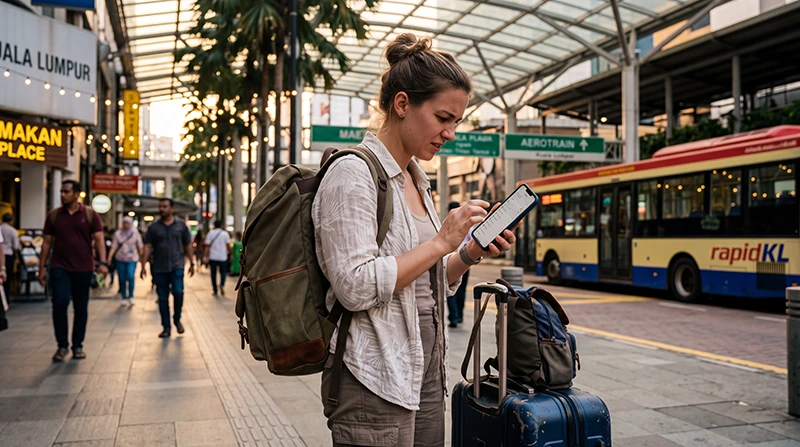

You arrived in Malaysia, your eSIM appears installed correctly, the phone may even show signal bars, but websites, maps, WhatsApp and other apps refuse to load.
This is one of the most common issues travelers experience when using a travel eSIM for the first time.
Quick answer: Most Malaysia eSIM internet issues are caused by Data Roaming being disabled, incorrect APN settings, the wrong SIM being selected for mobile data or temporary network registration delays.
Top Malaysia eSIMs

Malaysia eSIM
Fixed
1 GB, 7 days€ 3.932 GB, 15 days€ 6.983 GB, 30 days€ 9.16Unlimited
Unlimited, 1 day€ 5.24Unlimited, 3 days€ 12.65Unlimited, 5 days€ 20.51
Why Does My eSIM Have No Internet in Malaysia?
If your eSIM is connected but mobile internet does not work, one of the following causes is usually responsible:
- Data Roaming is disabled
- Incorrect APN settings
- Wrong SIM selected for mobile data
- Mobile data is turned off
- Network registration has not completed
- Temporary network congestion
- Device settings issue
The good news is that most problems can be fixed within a few minutes.
Step 1: Verify That Your eSIM Is Enabled
Before checking anything else, make sure your eSIM profile is active.
iPhone:
- Settings
- Cellular
- Select your travel eSIM
- Confirm that “Turn On This Line” is enabled
Android:
- Settings
- Network & Internet
- SIM Manager
- Verify that the eSIM is enabled
If the eSIM is disabled, mobile internet will not work.
Step 2: Select the eSIM for Mobile Data
This is one of the most common mistakes.
Many travelers install the eSIM successfully but forget to select it as the active mobile data line.
Make sure the Malaysia eSIM is selected for:
- Mobile Data
- Cellular Data
- Internet Access
Your home SIM can remain active for calls and SMS while the eSIM handles data.
Step 3: Enable Data Roaming
This is the single most common cause of no internet issues.
Most travel eSIMs require Data Roaming to be enabled.
Check the following:
- Data Roaming ON for the travel eSIM
- Data Roaming OFF for your primary SIM
Without Data Roaming enabled, many travel eSIMs cannot access partner networks in Malaysia.
Step 4: Check APN Settings
If the phone shows signal but internet does not work, APN settings should be verified.
Use the following settings:
| Setting | Value |
|---|---|
| APN | data.esim |
| Username | Leave blank |
| Password | Leave blank |
After updating APN settings, restart the device.
Step 5: Make Sure Mobile Data Is Enabled
It may sound obvious, but mobile data can sometimes be disabled accidentally.
Check that:
- Mobile Data is ON
- Cellular Data is ON
- The eSIM is selected as the active data source
Without mobile data enabled, internet access will not work even if signal is present.
Step 6: Use Airplane Mode Reset
A quick network refresh often solves connection problems.
- Enable Airplane Mode
- Wait 30 seconds
- Disable Airplane Mode
- Wait several minutes
This forces the device to reconnect to the network.
Step 7: Restart Your Phone
A device restart is one of the simplest and most effective troubleshooting methods.
Restarting helps refresh network registration and reload connectivity settings.
Signal But No Internet?
If signal bars appear but websites do not load, the issue is usually one of the following:
- Incorrect APN settings
- Wrong data line selected
- Data Roaming disabled
- Mobile data disabled
Checking these settings resolves most cases.
No Signal and No Internet?
If the device shows “No Service” or no signal bars at all, the issue may be:
- Network registration delay
- Disabled eSIM
- Carrier lock
- Coverage limitation
In these situations, APN settings are usually not the cause.
No Internet at KLIA Airport?
If your eSIM does not work immediately after arriving at KLIA Airport:
- Enable Data Roaming
- Select the eSIM for mobile data
- Check APN settings
- Use Airplane Mode reset
- Restart your phone
- Wait for network registration
These steps solve most airport arrival connectivity issues.
No Internet in Langkawi, Penang or Borneo?
Malaysia generally offers excellent coverage in major tourist destinations.
However, speeds and connectivity may vary in:
- Remote islands
- National parks
- Mountain regions
- Rainforest areas
- Rural villages
If internet works in cities but not in remote areas, the issue may be related to coverage rather than your eSIM.
Can I Keep My Home SIM Active?
Yes.
Most dual-SIM smartphones allow you to keep your primary SIM active while using the eSIM for mobile data.
This helps you continue receiving:
- SMS verification codes
- Banking messages
- Two-factor authentication codes
- Regular phone calls
Does WhatsApp Work with an eSIM?
Yes.
Once internet access is restored, WhatsApp usually continues working with your existing phone number.
You generally do not need to create a new account.
Malaysia eSIM Troubleshooting Checklist
| Check | Status |
|---|---|
| eSIM Enabled | ✓ |
| Selected for Mobile Data | ✓ |
| Data Roaming Enabled | ✓ |
| APN = data.esim | ✓ |
| Mobile Data Enabled | ✓ |
| Airplane Mode Reset | ✓ |
| Phone Restarted | ✓ |
Related Malaysia Travel Guides
- eSIM Not Working Malaysia
- APN Settings Malaysia eSIM
- Does My eSIM Work in Malaysia
- Why Is My eSIM Slow in Malaysia
- Best eSIM for Malaysia
- Mobile Internet Malaysia
- How to Get Internet in Malaysia
FAQ: No Internet Malaysia eSIM
Why does my eSIM show signal but no internet?
The most common causes are incorrect APN settings, disabled Data Roaming or the wrong mobile data line being selected.
Do I need Data Roaming enabled?
Yes. Most travel eSIMs require Data Roaming to be enabled on the eSIM profile.
What APN should I use?
If manual setup is required, use data.esim and leave username and password fields blank.
Should I restart my phone?
Yes. Restarting the device often resolves temporary network registration issues.
What should I do first if I have no internet?
Verify that the eSIM is enabled, selected for mobile data, Data Roaming is turned on and APN is set to data.esim.
Can I keep my home SIM active?
Yes. Most dual-SIM smartphones allow you to use your eSIM for data while keeping your regular SIM active.
Does WhatsApp work with an eSIM?
Yes. WhatsApp generally continues working with your existing number once internet access is available.
Should I delete and reinstall my eSIM?
No. Most connectivity issues can be fixed without deleting the eSIM profile.
Final Recommendation
If your Malaysia eSIM has no internet connection, start by checking Data Roaming, APN settings, mobile data selection and whether the eSIM is enabled.
These four checks resolve the majority of connectivity problems experienced by travelers.
In most cases, a quick Airplane Mode reset or phone restart will complete network registration and restore internet access without requiring additional support.