


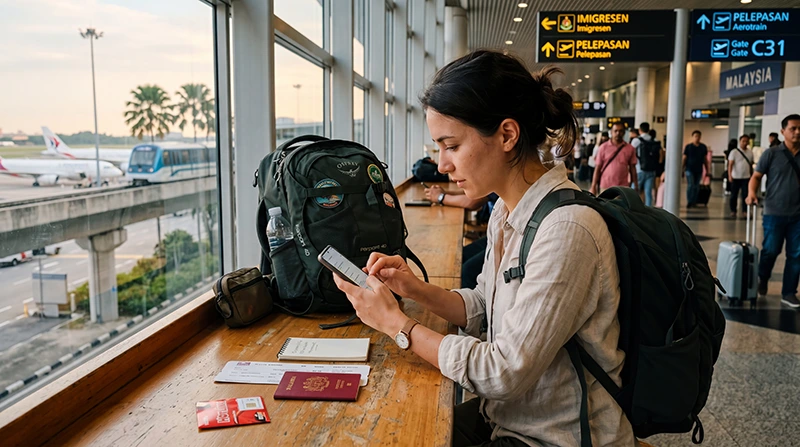

If your eSIM is connected to a mobile network but mobile data is not working, incorrect APN settings are often the cause.
Fortunately, APN configuration is usually simple and can be completed within a few minutes.
Quick answer: Most Malaysia travel eSIMs use the APN data.esim. If your internet connection is not working, manually entering this APN may solve the problem.
Top Malaysia eSIMs

Malaysia eSIM
Fixed
1 GB, 7 days€ 3.892 GB, 15 days€ 6.923 GB, 30 days€ 9.09Unlimited
Unlimited, 1 day€ 5.19Unlimited, 3 days€ 12.55Unlimited, 5 days€ 20.33
What Is an APN?
APN stands for Access Point Name.
It tells your phone how to connect to the mobile data network.
Without the correct APN settings, your device may:
- Show signal but no internet
- Connect to the network but fail to load websites
- Experience unstable connectivity
- Fail to register mobile data services
Most devices configure APN settings automatically, but manual setup is sometimes required.
Malaysia eSIM APN Settings
If your eSIM provider requires manual configuration, use the following settings.
| Setting | Value |
|---|---|
| APN | data.esim |
| Username | Leave blank |
| Password | Leave blank |
| MMSC | Leave blank |
| MCC | Automatic |
| MNC | Automatic |
| Authentication Type | None |
| APN Type | Default |
In most cases, only the APN field needs to be entered.
When Should You Check APN Settings?
You should verify APN settings if:
- Your eSIM shows signal but no internet
- Websites do not load
- Apps cannot connect
- Mobile data stops working after arrival
- Your provider specifically recommends manual APN setup
APN configuration is one of the most common troubleshooting steps for travel eSIMs.
How to Configure APN on iPhone
To check APN settings on iPhone:
- Open Settings
- Select Cellular
- Select your travel eSIM
- Tap Cellular Data Network
- Locate the APN field
- Enter data.esim
- Save changes if required
- Restart your phone
After restarting, mobile data should reconnect automatically.
How to Configure APN on Android
Android menus vary slightly by manufacturer, but the process is usually similar.
- Open Settings
- Select Network & Internet
- Select SIMs or Mobile Network
- Choose your eSIM
- Open Access Point Names
- Create or edit an APN
- Enter data.esim
- Save the APN
- Restart your phone
Once the phone reconnects, internet access should be available.
Enable Data Roaming
Even with the correct APN settings, many travel eSIMs require Data Roaming to be enabled.
This is one of the most common reasons internet does not work after arrival.
Make sure:
- Data Roaming is ON for the travel eSIM
- Data Roaming is OFF for your primary SIM
Without Data Roaming enabled, the eSIM may not connect properly.
Signal but No Internet?
If you see signal bars but websites do not load, the problem is often related to:
- Incorrect APN settings
- Mobile data disabled
- Wrong data line selected
- Network registration delay
Checking the APN should be one of your first troubleshooting steps.
No Service or No Signal?
If your device displays “No Service” or “No Signal”, the issue is usually not APN-related.
Instead, check:
- Whether the eSIM is enabled
- Whether Data Roaming is enabled
- Whether the device is carrier unlocked
- Whether network registration has completed
APN settings only affect mobile data after the network connection has already been established.
Should You Delete and Reinstall the eSIM?
No.
Incorrect APN settings rarely require deleting the eSIM profile.
Most issues can be solved simply by updating the APN and restarting the phone.
Deleting an eSIM may prevent reinstallation if you no longer have access to the original activation details.
Airplane Mode Reset
After updating APN settings, it is often helpful to refresh the network connection.
- Enable Airplane Mode
- Wait 30 seconds
- Disable Airplane Mode
- Wait for network registration
This helps the device reconnect using the updated settings.
Restart Your Device
Many APN-related issues are resolved after a full restart.
Restarting forces the device to reload network settings and reconnect to the mobile network.
Common APN Mistakes
Some of the most frequent configuration mistakes include:
- Typing the APN incorrectly
- Entering spaces before or after the APN
- Adding unnecessary usernames or passwords
- Using APN settings from another provider
- Forgetting to save the APN profile
- Not restarting the phone afterward
Always verify the APN exactly as provided.
Can I Keep My Home SIM Active?
Yes.
Most dual-SIM smartphones allow you to keep your regular SIM active while the eSIM handles mobile data.
This is useful for:
- SMS verification codes
- Banking messages
- Two-factor authentication
- Regular calls
Does WhatsApp Work After APN Configuration?
Yes.
Once mobile data begins working, WhatsApp generally functions normally using your existing phone number.
No account changes are usually required.
Related Malaysia Travel Guides
- eSIM Not Working Malaysia
- No Internet Malaysia eSIM
- Does My eSIM Work in Malaysia
- Why Is My eSIM Slow in Malaysia
- Best eSIM for Malaysia
- Mobile Internet Malaysia
- How to Get Internet in Malaysia
FAQ: APN Settings Malaysia eSIM
What APN should I use for a Malaysia eSIM?
Most travel eSIMs use data.esim as the APN.
Do I need a username or password?
No. Username and password fields should normally be left blank.
Why do I have signal but no internet?
This is often caused by incorrect APN settings, disabled mobile data or the wrong data line being selected.
Do I need Data Roaming enabled?
Yes. Most travel eSIMs require Data Roaming to be enabled on the eSIM profile.
Should I restart my phone after changing APN settings?
Yes. Restarting helps the device reconnect using the updated network configuration.
Can incorrect APN settings make my internet slow?
Yes. Incorrect APN settings can affect connectivity and overall data performance.
Should I delete my eSIM if APN settings are wrong?
No. APN issues can usually be fixed without deleting or reinstalling the eSIM profile.
Will WhatsApp work after fixing APN settings?
Yes. Once mobile data is working, WhatsApp generally functions normally with your existing number.
Final Recommendation
If your Malaysia eSIM is connected but mobile data is not working, checking the APN should be one of your first troubleshooting steps.
In most cases, entering data.esim, enabling Data Roaming and restarting the device will restore internet connectivity within minutes.
Always verify APN settings carefully before attempting more advanced troubleshooting or deleting your eSIM profile.