


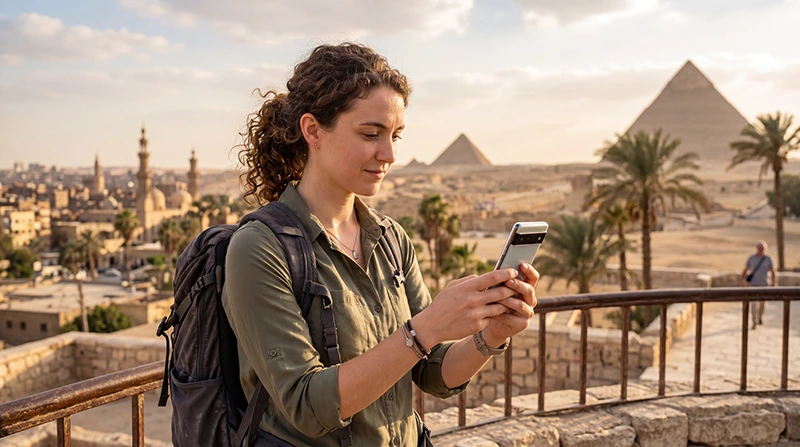

If your Egypt eSIM is installed but there is no internet, the issue is usually related to mobile data settings, Data Roaming, APN configuration, network selection or weak signal in your current location.
An Egypt eSIM can provide mobile data where supported local mobile network coverage is available. Coverage is usually strong in Cairo, Giza, Alexandria, Luxor, Aswan, Hurghada and Sharm El Sheikh, but signal can vary in remote deserts, oases, boat trips, mountains and long-distance roads.
Quick answer: select your Egypt eSIM for Mobile Data, turn Data Roaming ON for the eSIM, turn roaming OFF on your primary SIM, keep Network Selection on Automatic and set the APN to data.esim if mobile data does not work automatically.
Top Egypt eSIMs

Egypt eSIM
Fixed
1 GB, 7 days€ 4.442 GB, 15 days€ 7.103 GB, 30 days€ 9.76Unlimited
Unlimited, 1 day€ 4.88Unlimited, 3 days€ 11.54Unlimited, 5 days€ 18.64
Africa eSIM
Fixed
1 GB, 7 days€ 10.202 GB, 15 days€ 19.083 GB, 30 days€ 26.62Unlimited
Unlimited, 1 day€ 13.75Unlimited, 3 days€ 39.49Unlimited, 5 days€ 65.22Why Your Egypt eSIM Has No Internet
| Issue | What It Usually Means |
|---|---|
| eSIM installed but no data | Wrong SIM selected for Mobile Data or Data Roaming is OFF |
| Signal appears but pages do not load | APN may be missing or mobile data settings need refresh |
| No service | eSIM may be OFF, unsupported network selected or weak coverage |
| Internet works then stops | Weak signal, network congestion or automatic data switching |
| Only primary SIM has data | Egypt eSIM is not selected as preferred data SIM |
Fast Fix Checklist
- Make sure the Egypt eSIM is turned ON.
- Select the Egypt eSIM for Mobile Data.
- Turn Data Roaming ON for the Egypt eSIM.
- Turn Data Roaming OFF on your primary SIM.
- Turn Automatic Data Switching OFF.
- Keep Network Selection on Automatic.
- Restart your phone.
- Turn Airplane Mode ON for 30 seconds, then OFF.
- Set APN to data.esim if required.
- Move outdoors or closer to a window if signal is weak.
Recommended Settings for Egypt eSIM Internet
| Setting | Recommended Value |
|---|---|
| Mobile Data | Egypt eSIM |
| Calls | Primary SIM |
| SMS | Primary SIM |
| Data Roaming | ON for Egypt eSIM |
| Primary SIM Data Roaming | OFF |
| Automatic Data Switching | OFF |
| Network Selection | Automatic |
| APN | data.esim if required |
APN Settings for Egypt eSIM
Most phones configure APN settings automatically. If your Egypt eSIM has signal but no internet, enter the APN manually.
| Field | Value |
|---|---|
| APN | data.esim |
| Username | Leave blank |
| Password | Leave blank |
| Authentication | None |
Fix No Internet on iPhone
- Open Settings.
- Tap Cellular or Mobile Data.
- Tap your Egypt eSIM.
- Make sure the eSIM line is ON.
- Turn Data Roaming ON.
- Go back to Mobile Data.
- Select the Egypt eSIM for Mobile Data.
- Turn Allow Mobile Data Switching OFF.
- Keep Network Selection on Automatic.
- Restart your iPhone.
- Turn Airplane Mode ON for 30 seconds, then OFF.
Fix No Internet on Android
- Open Settings.
- Tap Connections, Network & Internet or SIM Manager.
- Select your Egypt eSIM.
- Make sure the eSIM is turned ON.
- Enable Data Roaming.
- Choose the Egypt eSIM as preferred SIM for Mobile Data.
- Turn automatic data switching OFF if available.
- Keep Network Selection on Automatic.
- Set APN to data.esim if needed.
- Restart your Android phone.
- Turn Airplane Mode ON for 30 seconds, then OFF.
Why Data Roaming Must Be ON
Travel eSIMs often connect through partner mobile networks. For this reason, Data Roaming must be ON for the Egypt eSIM line.
This does not mean you should turn roaming on for your primary SIM. To avoid extra charges, keep Data Roaming OFF on your home SIM unless you intentionally want to use your home carrier abroad.
Why APN Matters
The APN tells your phone how to connect to mobile data. If the APN is missing or incorrect, your phone may show signal but still have no internet.
If your Egypt eSIM has signal but websites and apps do not load, check the APN and use data.esim if manual setup is required.
Why Network Selection Should Be Automatic
Automatic Network Selection allows your phone to connect to a supported available mobile network. Manual selection can cause problems if you choose an unsupported network.
If you changed network settings manually, switch back to Automatic and restart your phone.
What If You Are Not in Egypt Yet?
If you are not yet in Egypt, your eSIM may not connect to mobile data. This can be normal because the eSIM usually needs to reach a supported local network before it starts working.
Install your eSIM before departure, then complete the mobile data settings after arrival in Egypt.
What If You Have Signal but No Internet?
If your phone shows bars or 4G/5G but websites do not load, check the following:
- The Egypt eSIM is selected for Mobile Data.
- Data Roaming is ON for the Egypt eSIM.
- APN is set to data.esim if required.
- Automatic Data Switching is OFF.
- Your phone has been restarted after changing settings.
What If There Is No Signal?
If your phone shows no service, the issue may be coverage, eSIM status or network selection.
- Check that the Egypt eSIM is turned ON.
- Keep Network Selection on Automatic.
- Move outdoors or closer to a window.
- Turn Airplane Mode ON for 30 seconds.
- Restart your phone.
- Wait a few minutes after arriving in Egypt.
Where Egypt eSIM Internet Usually Works Best
| Destination | Expected Coverage |
|---|---|
| Cairo | Excellent |
| Giza | Excellent |
| Alexandria | Excellent |
| Luxor | Excellent |
| Aswan | Very Good to Excellent |
| Hurghada | Excellent |
| Sharm El Sheikh | Excellent |
| Dahab | Very Good |
| Marsa Alam | Good to Very Good |
| Remote deserts and oases | Variable |
| Boat trips and remote roads | Variable to limited |
No Internet in Remote Areas
If you are in a remote desert, oasis, mountain area, boat trip or long-distance road section, weak or unavailable mobile signal may be the reason your eSIM has no internet.
In these cases, there may be nothing wrong with the eSIM. Wait until you reach a town, port, resort zone, main road or stronger coverage area.
Can You Use WhatsApp If eSIM Has No Internet?
WhatsApp needs mobile data or WiFi to work. If your Egypt eSIM has no internet, WhatsApp messages may not send until your phone connects to mobile data or WiFi again.
Your WhatsApp account remains linked to your existing phone number even if your Egypt eSIM is data-only.
Can You Use Hotel WiFi as Backup?
Yes. If your eSIM has no internet temporarily, use hotel, airport, cafe or resort WiFi as backup while checking settings.
Once your Egypt eSIM connects to mobile data, you can use it outside WiFi zones where coverage is available.
Common Mistakes That Block Internet
- Leaving Data Roaming OFF on the eSIM.
- Selecting the primary SIM for Mobile Data.
- Turning on Automatic Data Switching.
- Leaving APN blank when manual setup is needed.
- Choosing a network manually.
- Deleting the eSIM after installation.
- Trying to install the same QR code on another phone.
- Using a locked or non-eSIM-compatible phone.
When to Contact Support
If you have checked the settings and still have no internet, contact support with screenshots so the issue can be reviewed faster.
- Screenshot of the eSIM line settings.
- Screenshot showing the eSIM is selected for Mobile Data.
- Screenshot showing Data Roaming is ON for the eSIM.
- Screenshot of APN settings if available.
- Your phone model and software version.
- Your current location in Egypt.
- Whether you see signal bars, 4G, 5G or no service.
Related Egypt eSIM Guides
- Egypt eSIM
- Egypt eSIM Not Working
- Install Egypt eSIM
- How to Activate Egypt eSIM
- How to Use eSIM in Egypt
- Egypt eSIM for iPhone
- Egypt eSIM for Android
- Egypt eSIM APN Settings
- Best Network in Egypt
FAQ
Why do I have no internet with my Egypt eSIM?
The most common reasons are Data Roaming being OFF, the wrong SIM selected for Mobile Data, missing APN settings, manual network selection, weak signal or an incompatible phone.
What APN should I use if my Egypt eSIM has no internet?
If manual APN setup is required, use data.esim. Leave username and password blank.
Should Data Roaming be on for Egypt eSIM internet?
Yes. Data Roaming should be ON for the Egypt eSIM. Keep roaming OFF on your primary SIM to avoid extra charges.
Why does my eSIM show signal but no internet?
This often means the wrong data SIM is selected, Data Roaming is OFF or APN settings are missing. Select the Egypt eSIM for Mobile Data and check APN settings.
Why does my eSIM have no service in Egypt?
No service may be caused by weak coverage, the eSIM being turned OFF, manual network selection or being in a remote area. Keep Network Selection on Automatic and move to a stronger coverage area.
Can support help if my Egypt eSIM still has no internet?
Yes. If the issue continues, contact support with screenshots of your eSIM settings, Mobile Data selection, Data Roaming and APN settings.
Final Recommendation
If you have no internet with your Egypt eSIM, first check the most important settings: select the Egypt eSIM for Mobile Data, enable Data Roaming, turn off roaming on your primary SIM, keep Network Selection on Automatic and use data.esim as the APN if required.
Restart your phone, turn Airplane Mode ON for 30 seconds and move outdoors if signal is weak. If the issue continues, contact support with screenshots of your eSIM settings, Mobile Data selection, Data Roaming and APN settings.