


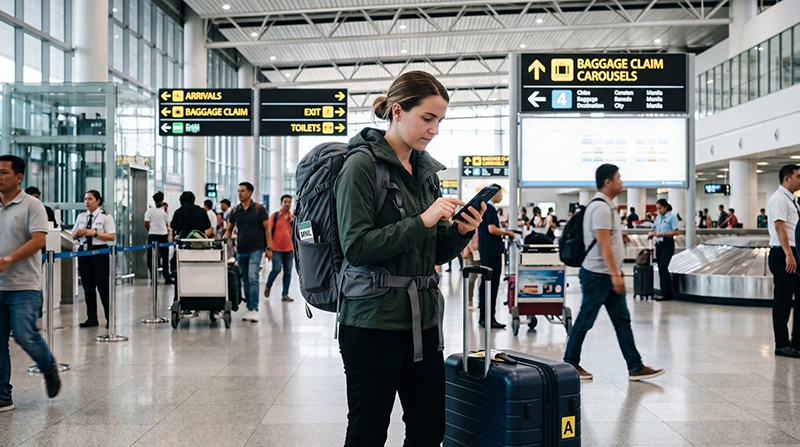

Internet at Manila Airport can come from a prepared travel eSIM, a registered local SIM, home-provider roaming or airport Wi-Fi. The right option depends on the arrival terminal, transfer time, phone compatibility and whether you need a Philippine number.
NAIA is an arrival and transfer environment: passengers may need to contact a pickup, confirm another terminal or retrieve accommodation instructions. Save those essentials offline because no connection method should be treated as guaranteed at every point inside the airport.
NoveSIM travel eSIMs are data-only. We do not provide a Philippine phone number, conventional calls or carrier SMS. Messaging and internet-calling apps can use the data connection.
Quick answer: prepare an eSIM before flying when the phone is compatible and unlocked. After landing, select it for mobile data, enable roaming on that travel line and test with Wi-Fi off. Use airport Wi-Fi as backup, or buy a registered local SIM when a Philippine number is important.
Top Philippines eSIMs

Philippines eSIM
Fixed
1 GB, 7 days5.50$2 GB, 15 days8.50$3 GB, 30 days11.00$Unlimited
Unlimited, 1 day6.00$Unlimited, 3 days9.50$Unlimited, 5 days13.50$
Compare the four arrival options at NAIA
| Option | Useful for | Main dependency |
|---|---|---|
| Travel eSIM | Data prepared before landing | Unlocked eSIM-compatible phone and correct activation |
| Local SIM | A Philippine number or domestic prepaid service | Retail availability, registration and setup time |
| Roaming | Using the existing home SIM | A clearly priced operator pass |
| Airport Wi-Fi | A first message or setup backup | Current access, login and performance |
The airport choice is narrower than the country-wide decision. Use the Philippines mobile-internet guide when planning connectivity beyond Manila.
Prepare the connection and terminal details before flying
- Confirm the arrival and onward-departure terminals.
- Save the pickup zone and accommodation map pin.
- Keep airline and hotel contacts offline.
- Confirm that the phone supports eSIM and is unlocked.
- Install the travel eSIM on dependable Wi-Fi.
- Store the plan instructions privately.
Do not assume that scanning the QR code starts validity in every case. Follow the purchased plan’s activation rule. The dedicated Manila Airport eSIM guide gives the complete arrival sequence.
Test an installed eSIM after landing
- Switch on the Philippines eSIM when the plan should activate.
- Select it as the mobile-data line.
- Enable Data Roaming on that eSIM when required.
- Disable automatic data switching to the primary SIM.
- Leave network selection on Automatic.
- Turn off Wi-Fi and load a simple webpage.
Keep roaming data off on the home SIM unless its operator has confirmed the price. Do not delete an installed eSIM if it fails to connect; check plan status, line selection and roaming first.
Use airport Wi-Fi carefully
Wi-Fi may help retrieve a booking or complete setup, but access conditions can change. Confirm the official network name, avoid unexpected security warnings and do not expose an eSIM QR code in a crowded area.
Airport Wi-Fi does not replace a connection for the journey into the city. For access and troubleshooting details, use the Manila Airport Wi-Fi guide.
Buy a physical SIM when it fits the requirement
A local SIM can suit a traveller who needs a Philippine number or has no eSIM support. Registration takes time and requires the information requested by the provider. Check the included general data, validity, balance method and whether the SIM is active before leaving the retailer.
Retail availability and queues can change. The Manila Airport SIM-card guide covers the purchase decision without assuming that a counter will always be open.
Prepare for an airport-terminal transfer
Verify the transfer process with the airline and airport information rather than relying on an old route description. Keep the onward boarding pass, terminal and connection deadline as screenshots. A short distance on a map does not necessarily mean a quick transfer.
If indoor reception weakens, move towards an open public area before changing settings. Preserve battery for airline messages and transport coordination.
Continue from the airport into Manila
Confirm the exact accommodation entrance and pickup point before requesting transport. Traffic can lengthen the trip, so send the estimated arrival time while the connection is stable. Keep the address offline in case data drops inside a car park or building.
The Manila tourist internet guide covers maps, ride booking and mobile-data use across the city.
Fix a connection that fails after arrival
- Confirm the plan is valid and has data.
- Check that the intended line is on and selected for mobile data.
- Enable roaming on the travel eSIM.
- Turn off Wi-Fi and test again.
- Toggle Airplane Mode once.
- Restart the phone once if necessary.
If manual APN entry is required, use data.esim. Leave automatically supplied MCC and MNC values unchanged. Continue with the Philippines eSIM troubleshooting guide if data remains unavailable.
Related Articles
- eSIM at Manila Airport
- Wi-Fi at Manila Airport
- SIM Cards at Manila Airport
- Internet in Manila for Tourists
FAQ
What is the easiest way to get internet at Manila Airport?
A pre-installed eSIM is convenient for a compatible unlocked phone. Airport Wi-Fi can be a backup, while a local SIM suits travellers who need a Philippine number and can complete registration.
Can I rely only on NAIA Wi-Fi?
It may help inside the airport, but access and performance can change and it will not cover the city journey. Save essential arrival information offline.
Should I activate the eSIM before the flight?
Install it before departure, but follow the plan’s specific validity rule before switching it on. Installation and activation may be separate events.
Should I delete an eSIM that has no data at NAIA?
No. Check plan status, the selected data line, roaming, network selection and APN first. Remove it only when NoveSIM support instructs you to do so.
Final Recommendation
Prepare both connectivity and terminal details before flying to Manila. An installed eSIM reduces arrival setup, while a registered local SIM remains useful when a Philippine number is required.
At NAIA, select the travel line for data, enable roaming on it and test with Wi-Fi off. Keep airport Wi-Fi as backup and preserve all transfer information offline.
Do not delete the eSIM during initial troubleshooting. Once connected, save the pickup and destination pins before continuing into Metro Manila.