


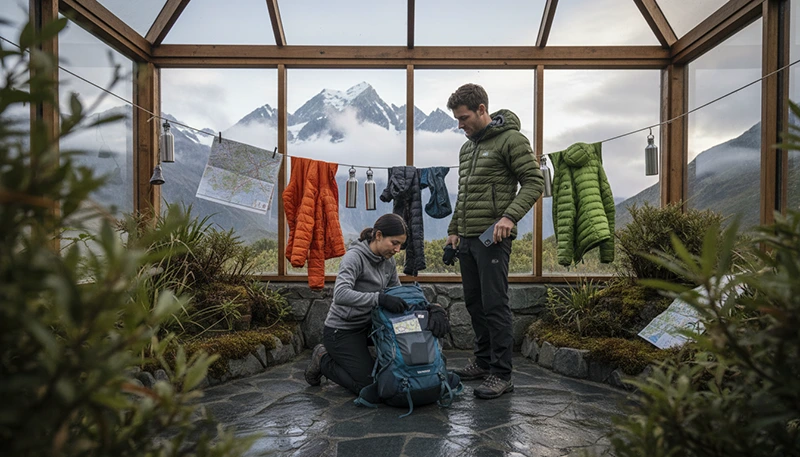

Internet access around Aoraki Mount Cook can help with accommodation check-in, route planning, weather information, transport arrangements and communication with tour operators. However, the national park sits in a remote alpine environment where mobile reception can vary significantly between accommodation areas, roads, valleys and walking tracks.
A New Zealand travel eSIM can provide useful mobile data while driving to the park, staying near Mount Cook Village and continuing through the South Island. It should still be combined with accommodation WiFi, downloaded maps and offline copies of essential travel information.
Quick answer: use an eSIM for navigation, messages and bookings where mobile coverage is available, but download maps, accommodation details and hiking information before arriving. Do not expect continuous reception on alpine trails, inside valleys or throughout remote sections of the national park.
Top New Zealand eSIMs

New Zealand eSIM
Fixed
1 GB, 7 days2.50$2 GB, 15 days4.50$3 GB, 30 days6.00$Unlimited
Unlimited, 1 day3.00$Unlimited, 3 days7.50$Unlimited, 5 days12.00$
Asia eSIM
Fixed
1 GB, 7 days5.00$2 GB, 15 days9.00$3 GB, 30 days12.00$Unlimited
Unlimited, 1 day6.50$Unlimited, 3 days17.50$Unlimited, 5 days28.50$What Is the Best Internet Option for Mount Cook?
The most practical setup combines several connection methods rather than depending on one service.
| Internet Option | Best For | Main Limitation |
|---|---|---|
| Travel eSIM | Navigation, messages, bookings and road travel | Requires available mobile coverage |
| Accommodation WiFi | Large downloads, backups and trip preparation | Quality can vary by property and room |
| Offline maps | Navigation when mobile data is unavailable | Must be downloaded in advance |
| Public or guest WiFi | Occasional browsing near visitor facilities | May be limited, busy or unavailable |
| Phone hotspot | Temporary laptop or tablet access | Consumes data and battery quickly |
For most travellers, an eSIM plus accommodation WiFi offers the best balance. The eSIM supports travel outside the property, while WiFi is better for large transfers and media uploads.
Why Mobile Data Is Useful Around Mount Cook
Even if you have WiFi at your accommodation, mobile data remains useful during the drive, while moving between facilities and when managing last-minute travel details.
Mobile data can help you:
- Navigate towards Aoraki Mount Cook National Park.
- Open accommodation check-in instructions.
- Contact a tour or transport provider.
- Review route information before leaving.
- Check general weather information while connected.
- Find fuel, food and essential services before entering remote areas.
- Manage onward travel through the South Island.
- Use internet-based messaging where reception is available.
- Access digital booking confirmations.
A travel eSIM can be installed digitally on a compatible, carrier-unlocked phone without removing your primary SIM.
Browse New Zealand eSIM plans.
Mobile Coverage Around Aoraki Mount Cook
Mobile reception is generally more likely near accommodation, visitor facilities and commonly travelled roads than on remote tracks or deeper inside mountain terrain. Signal strength may change quickly because of valleys, steep slopes, distance from infrastructure and weather conditions.
| Location Type | What to Expect |
|---|---|
| Accommodation and visitor areas | Mobile service may be available, but indoor strength can vary |
| Main approach road | Coverage may appear and disappear during the drive |
| Open areas near populated facilities | Data may work where supported service is available |
| Mountain valleys | Weak or unavailable reception is possible |
| Forested or sheltered sections | Terrain can reduce signal strength |
| Remote alpine tracks | Prepare for long periods without service |
An eSIM does not create signal where no supported mobile network is available. A lack of service in remote terrain does not necessarily indicate an installation problem.
WiFi at Mount Cook Accommodation
Hotels, lodges, hostels, holiday parks and other properties may provide guest WiFi, but speed and reliability are not identical everywhere. Remote accommodation can also have fewer backup connection options than a city hotel.
Before booking a longer stay, ask:
- Does WiFi work inside the exact room or unit?
- Is the connection suitable for video calls?
- Are there usage or speed limits?
- Does performance become slower in the evening?
- Is mobile reception available as a backup?
- Is there a suitable place to work or charge devices?
Use accommodation WiFi for map downloads, software updates, streaming, cloud backup and large photo transfers. This preserves mobile data for the road and outdoor travel.
Internet During the Drive to Mount Cook
Many visitors reach Mount Cook as part of a rental-car or campervan trip. The approach passes through sparsely populated landscapes where reception may not remain continuous.
Before leaving a larger town or reliable WiFi connection:
- Download the complete driving route.
- Save your accommodation address.
- Store the booking confirmation locally.
- Check fuel availability.
- Download important weather and road information.
- Save contact details for your property or tour.
- Charge your phone and power bank.
Do not rely on a live map for every section of the journey. An offline route remains available if mobile data temporarily disappears.
How Much Mobile Data Do You Need?
Your ideal allowance depends on the length of your New Zealand trip rather than only the number of nights spent near Mount Cook. Maps, messages and booking pages consume relatively little data, while video uploads and hotspot use can consume much more.
| Trip Type | Suggested Starting Point |
|---|---|
| One or two nights near Mount Cook | 1 GB to 3 GB |
| One-week South Island holiday | 5 GB to 10 GB |
| Two-week South Island road trip | 10 GB to 20 GB |
| Frequent photo and video uploads | 10 GB or more |
| Regular hotspot or remote-work use | A substantially larger allowance |
These are general planning estimates. Cloud photo backup, application updates and video streaming can use a smaller allowance quickly.
Read the New Zealand mobile data allowance guide.
Internet for Hiking Near Mount Cook
Mobile data is most useful before beginning a walk and after returning. Once you enter valleys, remote tracks or sheltered alpine terrain, service may weaken or disappear.
Before leaving:
- Download the complete route.
- Save trail information locally.
- Store transport and accommodation details.
- Check the phone battery.
- Carry a power bank.
- Pause automatic backups and updates.
- Share your intended route and return time when appropriate.
Do not repeatedly change eSIM settings whenever reception disappears on a track. Terrain is often the cause.
Read the internet guide for hiking in New Zealand.
Download Offline Maps Before Arrival
Offline maps are particularly important around Mount Cook because roads, accommodation and trails may be separated by areas with inconsistent coverage.
Download and save:
- The approach road to the national park.
- Your accommodation location.
- Relevant walking routes.
- Parking and transport points.
- Nearby settlements and services.
- Your onward route after leaving.
- Alternative travel arrangements.
Test the map by temporarily turning off mobile data. Confirm that the required area remains visible and that saved locations can still be opened.
Save Essential Information Offline
Important information should not remain accessible only inside an email, cloud drive or application that requires internet access.
Save screenshots or local copies of:
- Accommodation booking details.
- Check-in instructions.
- Tour meeting points.
- Transport or shuttle information.
- Route descriptions.
- Emergency and visitor information.
- Contact details for hosts and operators.
- Your next accommodation address.
Complete these downloads before entering the most remote part of the journey.
Internet for Scenic Flights and Guided Activities
Visitors may book scenic flights, guided walks or other organised activities around the national park. Mobile data is useful for receiving messages and checking meeting instructions before departure.
Before the activity:
- Download the booking confirmation.
- Save the exact meeting location.
- Store the operator’s contact details.
- Check the required arrival time.
- Complete urgent online tasks.
- Keep changes or cancellation instructions available offline.
Do not assume you will have reception throughout a flight, remote transfer or outdoor activity.
Internet for Campervan and Road-Trip Travellers
Campervan travellers often need mobile data for campsite searches, navigation, fuel planning and accommodation alternatives. However, campsites and roadside stopping areas can be far from strong mobile coverage.
A practical setup includes:
- A New Zealand eSIM for the full trip.
- Offline road maps.
- Downloaded campsite information.
- A charged power bank.
- Charging cables suitable for the vehicle.
- Saved fuel and food stops.
- Accommodation WiFi for large downloads.
Choose data according to the complete South Island route rather than only the days spent at Mount Cook.
Read the New Zealand campervan internet guide.
Travel eSIM or Local SIM?
| Feature | Travel eSIM | Local Prepaid SIM |
|---|---|---|
| Purchase before departure | Usually possible | Usually arranged after arrival |
| Physical SIM replacement | Not required | Usually required |
| Keep primary SIM installed | Yes, on compatible phones | Depends on the device |
| New Zealand telephone number | Not always included | Often available |
| Remote coverage guarantee | No | No |
| Arrival convenience | Can be prepared before travel | Requires local purchase and setup |
A local prepaid SIM does not automatically provide continuous service in mountain valleys or remote national parks. Both options depend on the available network, exact location, device and terrain.
Compare local SIM cards and eSIMs in New Zealand.
Can You Use a Mobile Hotspot?
Hotspot availability depends on the selected plan. When tethering is supported, your phone can share mobile data with a laptop, tablet or another traveller.
A hotspot may be useful for:
- Opening travel documents on a laptop.
- Downloading maps to another device.
- Managing onward accommodation.
- Sending urgent work messages.
- Working during an accommodation WiFi interruption.
Pause cloud backup, software updates and unnecessary applications before connecting another device. Hotspot use can consume both data and battery quickly.
Internet for Remote Work Near Mount Cook
Mount Cook is better suited to short travel stays than to work requiring guaranteed continuous connectivity. Remote workers should verify accommodation WiFi before booking and keep an eSIM as a backup rather than assuming mobile data will support a full working day.
A practical setup includes:
- Verified accommodation WiFi.
- An eSIM with reserve data.
- Downloaded work files.
- Hotspot support when required.
- A fully charged laptop and power bank.
- A plan for completing important calls before entering remote areas.
Schedule critical video meetings for locations with confirmed connectivity rather than relying on a mountain accommodation connection without checking it first.
5G Expectations Around Mount Cook
5G availability depends on the phone, selected plan, supported frequencies, exact location, local partner network and congestion. Your phone may switch between 5G, 4G, slower service and no connection during the same journey.
A stable 4G connection is generally sufficient for maps, messages, booking pages and ordinary travel browsing. Maximum network speed is less important than coverage, battery life and offline preparation in remote alpine areas.
How to Save Mobile Data
- Download maps through WiFi.
- Save bookings and route information locally.
- Pause automatic photo and video backup.
- Disable application updates over mobile data.
- Turn off automatic video playback.
- Use accommodation WiFi for streaming.
- Restrict unnecessary background data.
- Upload large media after leaving the national park.
- Monitor usage in the phone settings.
- Disconnect hotspot devices after use.
How to Preserve Phone Battery
A phone can use extra power while repeatedly searching for a network. Cold temperatures, navigation, photography and screen brightness may reduce battery life further.
- Charge the phone fully before leaving.
- Carry a charged power bank.
- Enable battery-saving mode.
- Reduce screen brightness.
- Close unused applications.
- Pause cloud synchronisation.
- Use Airplane Mode during extended no-signal periods when appropriate.
- Protect the phone from moisture and cold.
Remember that Airplane Mode stops normal mobile communication until it is turned off.
Can You Keep Your Primary SIM Active?
A compatible Dual-SIM phone can use the travel eSIM for mobile data while keeping the primary SIM available for calls, SMS and verification messages.
To reduce accidental roaming charges:
- Select the travel eSIM for Mobile Data.
- Turn off Data Roaming on the primary SIM.
- Disable Automatic Data Switching.
- Check the selected line before making a traditional call.
Your home provider may still charge for calls, voicemail or certain messages while abroad.
How to Check eSIM Compatibility
Your phone must support eSIM and be carrier-unlocked. Compatibility can differ between regional versions of the same device.
Dial *#06#. An eSIM-compatible phone may display an EID alongside one or more IMEI numbers.
You may also find Add eSIM, Add Cellular Plan, Add Mobile Plan or SIM Manager in the device settings.
Recommended eSIM Settings
| Setting | Recommended Value |
|---|---|
| Travel eSIM | Enabled |
| Mobile Data | Travel eSIM |
| Data Roaming on travel eSIM | On |
| Data Roaming on primary SIM | Off |
| Automatic Data Switching | Off |
| Network Selection | Automatic |
| APN | data.esim when required |
| Cloud backup | Off on mobile data |
| Application updates | WiFi only |
What to Do If the eSIM Does Not Connect
- Confirm that the plan includes New Zealand and remains valid.
- Check that the travel eSIM is enabled.
- Select it for Mobile Data.
- Enable Data Roaming on the travel eSIM.
- Turn off Data Roaming on the primary SIM.
- Disable Automatic Data Switching.
- Leave Network Selection on Automatic.
- Enter data.esim as the APN when manual setup is required.
- Turn Airplane Mode on for 30 seconds and then turn it off.
- Wait several minutes for network registration.
- Restart the phone if necessary.
If you are inside a mountain valley, on a remote track or travelling through an isolated area, the missing connection may be caused by the location. Test again after reaching accommodation, a visitor area, a main road or another populated place.
Do not delete the eSIM while troubleshooting. The installation QR code may be valid for one installation only.
Mount Cook Internet Checklist
- Choose an eSIM covering the complete New Zealand itinerary.
- Confirm plan validity and activation timing.
- Install the eSIM before travel when permitted.
- Download road and hiking maps.
- Save accommodation and tour details locally.
- Check fuel and food stops before entering remote areas.
- Use WiFi for large downloads and media uploads.
- Carry a charged phone and power bank.
- Pause cloud backup and automatic updates.
- Expect periods without mobile reception.
- Do not rely on internet access as the only safety system.
- Never delete the eSIM during troubleshooting.
Related New Zealand Travel Internet Guides
- New Zealand eSIM Plans
- Best eSIM for New Zealand
- Internet for Hiking in New Zealand
- Mobile Data for Hiking in New Zealand
- Internet for a South Island Road Trip
- Mobile Data on New Zealand Scenic Routes
- Internet for Milford Sound
- Internet for Fiordland National Park
- Internet for a New Zealand Campervan Trip
- How Much Data Do You Need for New Zealand?
FAQ
Is there mobile internet at Mount Cook?
Mobile data may be available near accommodation, visitor facilities and some roads, but reception can weaken or disappear in valleys, on remote tracks and throughout isolated alpine terrain.
What is the best internet option for Mount Cook?
A combination of accommodation WiFi, a New Zealand travel eSIM and downloaded offline maps is practical for most visitors.
Will my eSIM work on Mount Cook hiking trails?
It may connect where supported coverage is available, but continuous service should not be expected on mountain tracks or inside remote valleys.
How much data do I need?
Approximately 5 GB to 10 GB may suit many one-week South Island trips. Longer road journeys, hotspot use and frequent media uploads may require more.
Should I download offline maps?
Yes. Download the approach road, accommodation location, relevant trails and onward travel routes before entering the national park.
Does a larger data plan improve coverage?
No. A larger allowance provides more data but cannot create a signal where supported mobile infrastructure is unavailable.
Can I use a hotspot near Mount Cook?
Yes, when the selected plan supports tethering and mobile coverage is available. Hotspot performance will depend on the local signal.
What APN should I use for NoveSIM?
Use data.esim when manual APN configuration is required.
Final Recommendation
The best internet setup for Mount Cook combines a New Zealand travel eSIM with accommodation WiFi and thorough offline preparation. Use mobile data for navigation, bookings and communication where coverage is available, but expect service to vary throughout the remote alpine environment.
Download road maps, hiking routes, accommodation instructions and activity confirmations before arriving. Use WiFi for large transfers, preserve phone battery and keep a power bank available during longer outdoor days.
Most importantly, do not depend on a live connection for every stage of the trip. Mountain valleys and remote tracks may have little or no service, so essential information should always remain accessible offline.