


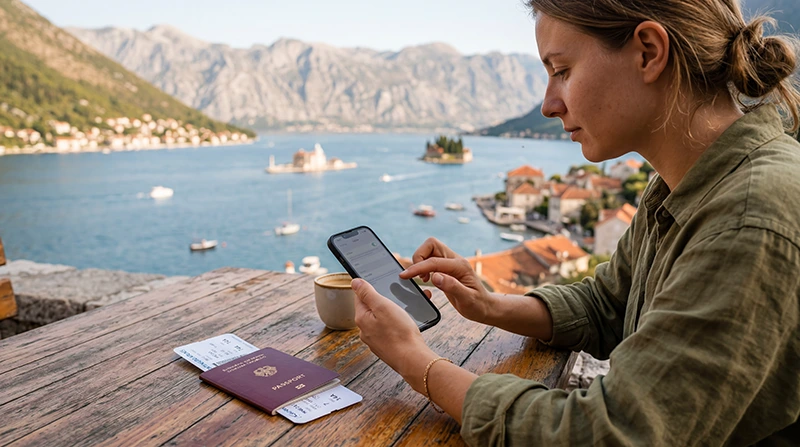

Installing a Montenegro eSIM is quick and usually takes less than five minutes. By completing the installation before your trip, you’ll be ready to connect to a local mobile network shortly after arriving, without searching for a SIM card shop at the airport.
Whether you’re visiting Kotor, Budva, Tivat, Podgorica, Herceg Novi, Ulcinj or planning a road trip through Montenegro, installing your eSIM before departure is the easiest way to stay connected.
Quick answer: install your Montenegro eSIM while connected to WiFi before traveling. After arriving in Montenegro, enable the eSIM, turn on Data Roaming and select it for Mobile Data.
Top Montenegro eSIMs

Montenegro eSIM
Fixed
1 GB, 7 days4.00$2 GB, 15 days6.00$3 GB, 30 days8.00$Unlimited
Unlimited, 1 day4.50$Unlimited, 3 days9.50$Unlimited, 5 days14.50$
Balkans eSIM
Fixed
1 GB, 7 days5.00$2 GB, 15 days8.00$3 GB, 30 days10.50$Unlimited
Unlimited, 1 day5.50$Unlimited, 3 days12.50$Unlimited, 5 days19.50$Why Install Your eSIM Before Traveling?
Installing the eSIM before departure saves time and avoids potential problems after landing.
- No need to search for a SIM card shop.
- No airport queues.
- Installation is easier over stable WiFi.
- Your phone is ready before arrival.
- Keep your regular SIM active.
- Start using mobile data soon after landing.
Before You Begin
Before installing your Montenegro eSIM, make sure you have everything you need.
| Requirement | Status |
|---|---|
| Compatible phone | Required |
| Carrier-unlocked device | Required |
| Stable WiFi connection | Required |
| QR code or activation details | Required |
| Latest software updates | Recommended |
Step 1: Connect to WiFi
Installation requires an internet connection. Connect your phone to a reliable WiFi network before scanning the QR code.
Avoid installing your eSIM while using unstable public WiFi or during travel if possible.
Step 2: Open Your Phone Settings
On iPhone
- Open Settings.
- Select Cellular or Mobile Service.
- Tap Add eSIM.
On Android
- Open Settings.
- Go to Network & Internet, Connections or SIM Manager.
- Select Add eSIM or Add Mobile Plan.
Menu names vary slightly depending on the manufacturer and Android version.
Step 3: Scan Your QR Code
Use your phone’s camera to scan the QR code provided with your eSIM purchase.
If you received the QR code on the same phone you’re installing it on, open the email on another device or use manual installation if supported.
Step 4: Complete Installation
Your phone will download and install the eSIM profile.
This usually takes only a few minutes.
Once completed, label the eSIM something easy to recognize, such as:
- Montenegro
- Travel
- Vacation
- Europe Trip
Step 5: Configure Your SIM Settings
| Setting | Recommended Value |
|---|---|
| Mobile Data | Montenegro eSIM |
| Calls | Primary SIM |
| SMS | Primary SIM |
| Data Roaming | OFF until arrival |
| Automatic Data Switching | OFF |
Most travelers leave their primary SIM as the default for calls and messages while using the Montenegro eSIM only for mobile data.
Step 6: Travel to Montenegro
Keep the eSIM installed but avoid deleting it before your trip.
Most travel eSIMs should remain inactive until you arrive in Montenegro and connect to a supported network.
Step 7: Activate After Arrival
When you arrive:
- Turn on your Montenegro eSIM.
- Select it for Mobile Data.
- Enable Data Roaming.
- Leave Network Selection on Automatic.
- Wait a few minutes for the connection.
Recommended Phone Settings
| Setting | Recommended Value |
|---|---|
| Mobile Data | Montenegro eSIM |
| Primary SIM | Calls and SMS |
| Data Roaming | ON for the eSIM |
| Network Selection | Automatic |
| Automatic Data Switching | OFF |
| APN | data.esim if required |
Can You Keep Your Home SIM?
Yes. Most Dual SIM smartphones allow you to keep your regular SIM active while using the Montenegro eSIM for mobile internet.
- Receive calls.
- Receive SMS verification codes.
- Keep your existing phone number.
- Use the eSIM for mobile data.
- Continue using WhatsApp normally.
Does WhatsApp Work?
Yes. Installing an eSIM does not change your WhatsApp account or phone number. The eSIM simply provides your internet connection.
Can You Use Hotspot?
Yes. Most phones allow Personal Hotspot or Mobile Hotspot when using an eSIM, making it easy to connect laptops and tablets while traveling.
How Much Data Do You Need?
| Trip Length | Recommended Data |
|---|---|
| Weekend trip | 1–3 GB |
| One week | 5–10 GB |
| Two weeks | 10–20 GB |
| Remote work | 20 GB+ |
| Heavy hotspot use | 20 GB+ or Unlimited |
Common Installation Mistakes
- Installing without WiFi.
- Deleting the eSIM after installation.
- Turning off the eSIM before traveling.
- Using the wrong SIM for Mobile Data.
- Leaving Data Roaming disabled after arrival.
- Scanning the QR code multiple times.
What If Installation Fails?
If the installation does not complete successfully:
- Restart your phone.
- Reconnect to WiFi.
- Try scanning the QR code again.
- Check that your phone supports eSIM.
- Verify that your device is carrier unlocked.
- Use manual installation if your provider supplies activation details.
What If Mobile Data Doesn’t Work After Arrival?
- Enable Data Roaming.
- Select the Montenegro eSIM for Mobile Data.
- Restart your phone.
- Turn Airplane Mode on for 30 seconds.
- Leave Network Selection on Automatic.
- Set the APN to data.esim if manual configuration is required.
Travel Tips
- Install the eSIM before your flight.
- Keep the QR code until your trip is complete.
- Download offline maps of Montenegro.
- Bring a power bank.
- Keep important travel documents available offline.
Related Montenegro Guides
- Montenegro eSIM
- How to Activate a Montenegro eSIM
- Montenegro eSIM for iPhone
- Montenegro eSIM for Android
- Does My Phone Support eSIM?
- Montenegro eSIM Not Working
- APN Settings for Montenegro eSIM
- Mobile Internet in Montenegro
FAQ
When should I install my Montenegro eSIM?
Install it before your trip while connected to a stable WiFi network. Activation typically happens after arriving in Montenegro.
Do I need WiFi to install an eSIM?
Yes. A stable WiFi connection is recommended during installation.
Should I delete my eSIM after installation?
No. Leave it installed until your trip is complete.
Can I keep my normal phone number?
Yes. Your physical SIM can remain active while the Montenegro eSIM provides mobile data.
Do I need to enable Data Roaming?
Yes. Most travel eSIMs require Data Roaming to be enabled after you arrive in Montenegro.
What APN should I use?
If manual configuration is needed, use data.esim.
Final Recommendation
Installing your Montenegro eSIM before departure is the easiest way to ensure a smooth start to your trip. Complete the installation over WiFi, keep the eSIM on your phone, and once you arrive simply enable Data Roaming and select the eSIM for Mobile Data. You’ll be ready to enjoy reliable mobile internet throughout Montenegro while keeping your regular phone number active.