
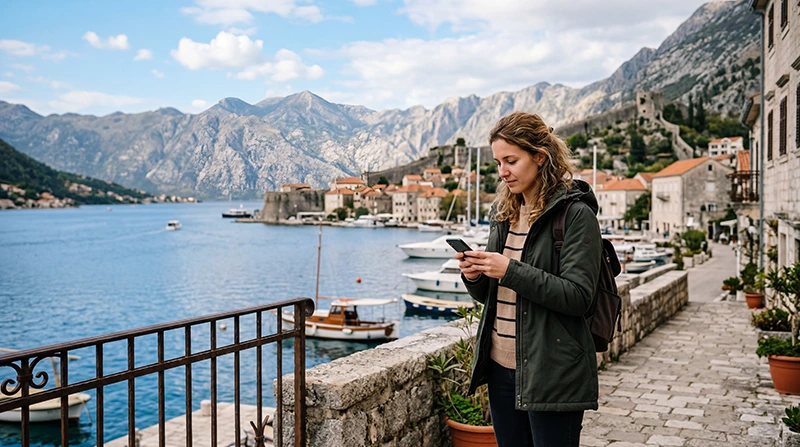

Traveler configuring APN settings for a Montenegro eSIM

Montenegro eSIM APN Settings: Complete Setup Guide

If your Montenegro eSIM is installed but mobile data isn’t working properly, the APN settings may need to be checked. Fortunately, most smartphones configure the APN automatically, so manual setup is only necessary in a small number of cases.

Whether you’re visiting Kotor, Budva, Tivat, Podgorica, Herceg Novi or exploring Montenegro on a road trip, having the correct APN ensures your phone can connect to the mobile internet.

Quick answer: if your Montenegro eSIM requires manual APN configuration, use data.esim. Leave all other fields empty unless your eSIM provider specifically instructs otherwise.

Top Montenegro eSIMs

What Is an APN?

APN stands for Access Point Name. It tells your phone how to connect to the mobile data network.

Without the correct APN, your phone may:

  • Show signal but have no internet.
  • Connect very slowly.
  • Fail to load websites.
  • Prevent apps from accessing mobile data.

Montenegro eSIM APN Settings

Setting Value
APN data.esim
Username Leave blank
Password Leave blank
Authentication None
MMSC Leave blank
MMS Proxy Leave blank
MCC Automatic
MNC Automatic
APN Type Default

Do You Always Need to Enter the APN?

No. In most cases, your phone automatically downloads the correct APN settings during activation.

You should only enter the APN manually if:

  • Your eSIM has signal but no internet.
  • Your provider specifically instructs you to do so.
  • The APN field is empty.
  • Automatic configuration failed.

How to Change APN on iPhone

  1. Open Settings.
  2. Select Cellular or Mobile Service.
  3. Tap your Montenegro eSIM.
  4. Select Cellular Data Network.
  5. Enter data.esim in the APN field.
  6. Leave Username and Password blank.
  7. Return to the previous screen.

How to Change APN on Android

  1. Open Settings.
  2. Go to Network & Internet, Connections or SIM Manager.
  3. Select your Montenegro eSIM.
  4. Open Access Point Names (APN).
  5. Create a new APN if necessary.
  6. Enter data.esim.
  7. Save the APN.
  8. Select the new APN.

Recommended Phone Settings

Setting Recommended Value
Mobile Data Montenegro eSIM
Calls Primary SIM
SMS Primary SIM
Data Roaming ON
Network Selection Automatic
Automatic Data Switching OFF
APN data.esim

What If Mobile Data Still Doesn’t Work?

If changing the APN doesn’t solve the problem, try the following:

  1. Restart your phone.
  2. Enable Data Roaming.
  3. Select the Montenegro eSIM for Mobile Data.
  4. Turn Airplane Mode on for 30 seconds.
  5. Leave Network Selection on Automatic.
  6. Wait a few minutes for the phone to reconnect.

Common APN Problems

Problem Solution
No internet Check APN
Slow mobile data Verify APN and signal strength
Signal but no data Enable Data Roaming
APN field empty Enter data.esim manually
Wrong SIM selected Select Montenegro eSIM for Mobile Data

Can You Keep Your Home SIM?

Yes. Most Dual SIM smartphones allow you to keep your physical SIM active while your Montenegro eSIM provides mobile internet.

  • Receive calls.
  • Receive SMS verification codes.
  • Keep your existing phone number.
  • Use the Montenegro eSIM for mobile data.

Does WhatsApp Work?

Yes. WhatsApp continues using your existing phone number. Once your APN is configured correctly and mobile data is working, WhatsApp reconnects automatically.

Coverage Across Montenegro

Location Expected Coverage
Podgorica Excellent
Kotor Excellent
Budva Excellent
Tivat Excellent
Herceg Novi Very Good
Bar Very Good
Ulcinj Very Good
Durmitor National Park Variable
Tara Canyon Variable
Lake Skadar Good to Variable

Common Mistakes

  • Entering the APN incorrectly.
  • Adding spaces before or after the APN.
  • Entering a Username or Password when not required.
  • Leaving Data Roaming disabled.
  • Using the primary SIM for Mobile Data.
  • Forgetting to save the APN.

When Should You Contact Support?

If you’ve entered the correct APN and mobile data still doesn’t work, contact customer support with:

  • Your phone model.
  • Your current location.
  • A screenshot of the APN settings.
  • A screenshot of your Mobile Data settings.
  • A screenshot showing your installed SIMs.

Related Montenegro Guides

FAQ

What APN should I use for my Montenegro eSIM?

If manual configuration is required, use data.esim.

Do I always need to enter the APN manually?

No. Most smartphones configure the APN automatically.

Should Username and Password be filled in?

No. Leave both fields empty unless instructed otherwise.

Can the wrong APN cause no internet?

Yes. An incorrect or missing APN may prevent your phone from accessing mobile data.

Does WhatsApp work after changing the APN?

Yes. Once mobile data is restored, WhatsApp reconnects automatically.

Should I restart my phone after changing the APN?

Yes. Restarting the phone is recommended to ensure the new settings are applied correctly.

Final Recommendation

In most cases, your Montenegro eSIM will configure the APN automatically. If manual setup is required, simply use data.esim, leave the remaining fields empty, enable Data Roaming and restart your phone. With the correct APN settings, you should be able to enjoy reliable mobile internet throughout Montenegro.

Browse Montenegro eSIM plans here.

Scroll to Top