


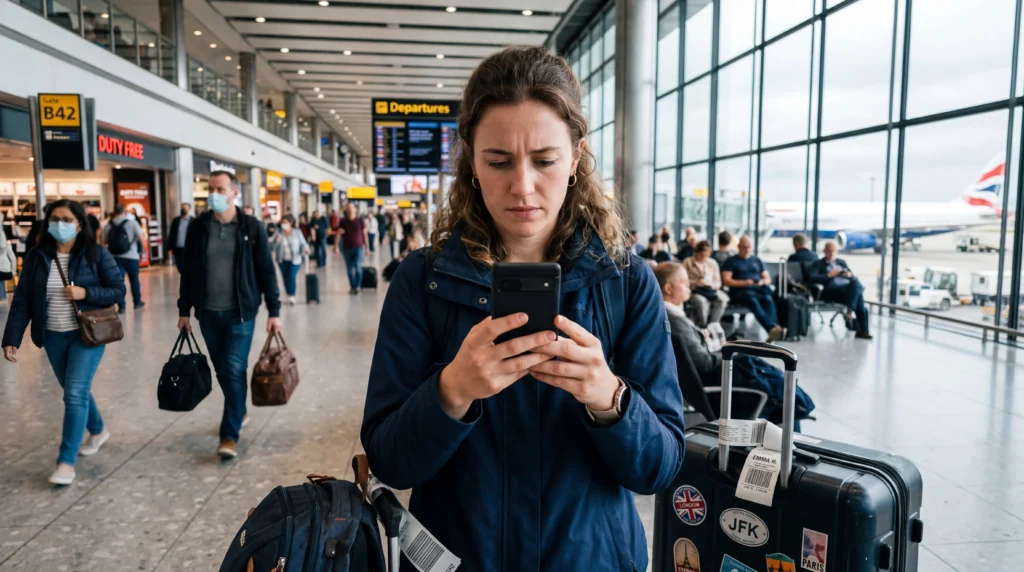

An “eSIM activation failed” message can refer to three different stages: adding the profile to the phone, starting the plan, or registering on a mobile network. The correct fix depends on which stage failed.
First check whether the eSIM already appears in the phone’s SIM settings. If it does, do not scan the QR code again and do not delete the profile.
NoveSIM travel eSIMs are data-only. They normally need a compatible unlocked phone, a stable connection during installation and a supported destination network when mobile service begins.
Quick answer: If activation fails, confirm that the eSIM is already installed, connect to stable Wi-Fi, check device compatibility and carrier-lock status, and review when the plan is supposed to start. After arrival, select the eSIM for data and enable Data Roaming if required. Do not delete the profile unless Support explicitly tells you to do so.
Top eSIMs

What Does “eSIM Activation Failed” Mean?
Phones and providers do not always use the word activation consistently. Identify the visible state before attempting a fix:
| What you see | Likely stage | First check |
|---|---|---|
| No new line in SIM settings | Installation failed | Internet, compatibility, lock and activation details |
| Profile is present but shows Activating | Provisioning or network registration | Plan timing and supported destination |
| Line has signal but no internet | Data configuration | Data line, roaming and APN |
| QR code says used or invalid | Profile may already be installed | SIM list and original device |
Check Whether the eSIM Is Already Installed
Open Cellular, Mobile Service, SIM Manager or SIMs in the phone settings. Look for a newly added line, even if it has a generic label such as Secondary, Business or Travel.
If the profile is present, installation succeeded. A QR code is commonly intended for one installation and scanning it again can produce a misleading failure. Continue with activation and connection checks instead.
Confirm Compatibility and Carrier Lock
The exact regional phone model must support eSIM and be carrier-unlocked. A product family can include variants with different eSIM capability. Check the compatible-device list and the phone’s own SIM settings.
A carrier lock can prevent another provider’s eSIM from being added even when the device hardware supports it. Only the locking carrier can confirm or remove that restriction.
Use a Stable Installation Connection
Adding the profile requires internet access. Use dependable private Wi-Fi, turn off a VPN temporarily if it interferes with provisioning, and ensure that the phone’s date and time are automatic.
Keep the QR code private and enter manual activation details exactly when the instructions provide them. For platform steps, use the eSIM installation guide.
Installation Is Not Always Plan Activation
Some plans begin when installed, while others begin at the first connection to a supported destination network. A profile installed at home may show no service because its partner network is not available there.
Review the order instructions before repeatedly changing settings. If the plan should start only at the destination, wait until arrival unless the provider says otherwise.
Steps after Landing
- Turn Airplane Mode off when permitted.
- Enable the travel eSIM line.
- Select it for Mobile Data or Cellular Data.
- Enable Data Roaming if required by the plan.
- Leave network selection on Automatic.
- Turn Wi-Fi off temporarily and open a normal webpage.
- Wait several minutes for the first registration.
If the phone remains offline, toggle Airplane Mode briefly and restart it. Do not interpret a delay of a few minutes as proof that the profile is unusable.
What If There Is Signal but No Data?
A signal icon means the line has registered, not that data is configured correctly. Confirm the selected data line and roaming setting. If manual APN entry is required for NoveSIM, use data.esim; leave username and password blank unless the order instructions state otherwise.
Follow the no-internet-abroad guide when installation is complete but browsing still fails.
Why a QR Code May Be Rejected
- The profile is already installed on this phone.
- The code was installed on another device.
- The code or manual details were copied incorrectly.
- The phone is incompatible or carrier-locked.
- The activation information has expired or been replaced.
Do not purchase another plan solely because a second scan fails. Check the SIM list and contact Support with the order number and exact error message.
Information to Send Support
- Order number without sharing the QR code publicly.
- Phone make, model and software version.
- Country and current location.
- Exact error wording and a screenshot.
- Whether the profile appears in SIM settings.
- Displayed network name and signal state.
- Steps already attempted.
Preserving the installed profile gives Support more options. Deleting it can remove information needed to diagnose or restore the connection.
Related Articles
- How to install an eSIM
- Check eSIM-compatible devices
- Fix no internet abroad
- eSIM not showing after installation
FAQ
Why did my eSIM activation fail?
Common causes include an unstable installation connection, incompatible or locked phone, reused QR code, plan timing or failure to register on a supported destination network.
Should I delete an eSIM that says activation failed?
No. Keep the profile installed and contact Support unless you are explicitly instructed to remove it.
Can I scan the QR code again?
First check whether the profile is already in SIM settings. Many QR codes are single-use, so repeated scanning may fail even after a successful installation.
Why is the eSIM installed but still activating?
It may need to reach a supported destination network or complete provisioning. Check the plan timing and wait several minutes after configuring the data line.
Final Recommendation
If eSIM activation failed, identify whether the missing step is installation, plan start or mobile-network registration.
Keep an installed profile in place, use stable Wi-Fi for setup and verify compatibility, carrier lock, data-line selection, roaming and plan timing.
If the error persists, send Support the exact message and device details rather than deleting the eSIM or repeatedly rescanning its QR code.