
 Български

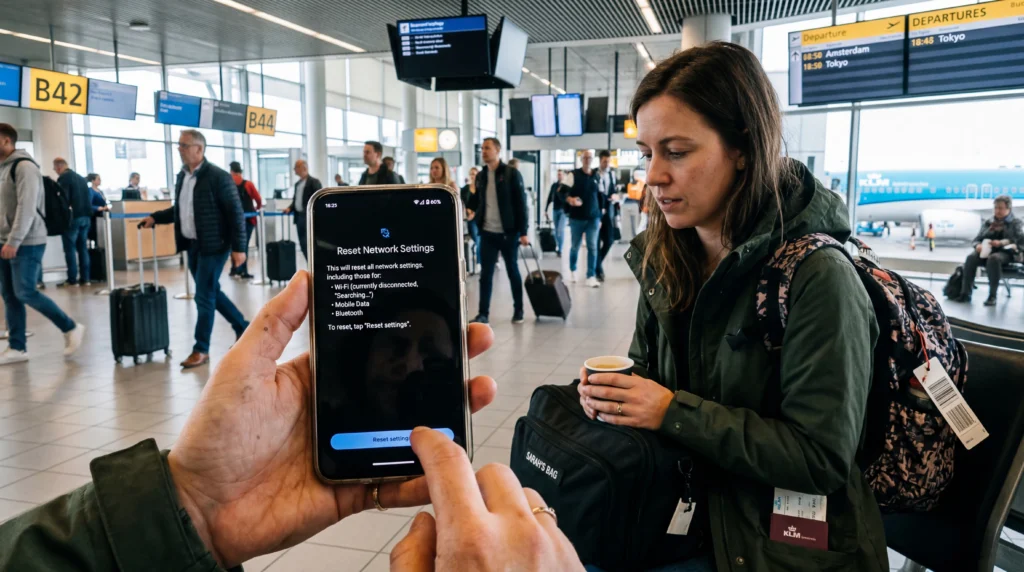
If your eSIM is not connecting to the internet, resetting network settings can often resolve the issue.
This process clears saved network configurations and forces the device to reconnect to mobile networks correctly.
In this guide, we explain how to reset network settings for eSIM on both iPhone and Android devices.
What Happens When You Reset Network Settings?
Resetting network settings restores all connectivity settings to their default state.
This includes:
- mobile network settings
- WiFi networks
- Bluetooth connections
- APN configurations
It does not remove your eSIM, but it may disconnect the phone temporarily from networks.
When Should You Reset Network Settings?
This troubleshooting step is useful if you experience:
- eSIM connected but no internet
- very slow mobile data
- network switching problems
- unstable signal after installing eSIM
If your device shows signal but the internet does not work, resetting network settings may solve the problem.
For more troubleshooting steps see:
How to Reset Network Settings on iPhone
Follow these steps on an iPhone:
- open Settings
- tap General
- select Transfer or Reset iPhone
- tap Reset
- choose Reset Network Settings
Your phone will restart and reconnect to mobile networks.
How to Reset Network Settings on Android
The exact steps can vary slightly depending on the device manufacturer.
- open Settings
- tap General Management or System
- choose Reset
- tap Reset Network Settings
The device will remove saved network settings and restart network connections.
What to Do After Resetting Network Settings
After resetting network settings:
- turn mobile data on again
- enable data roaming if required
- restart the device if necessary
Your phone should reconnect to the correct mobile network automatically.
If the connection still fails, you may need to select the network manually.
See:
Does Resetting Network Settings Delete eSIM?
No. Resetting network settings does not delete the installed eSIM profile.
The eSIM remains installed, but the device reconnects to networks using default settings.
Common Reasons eSIM Stops Working
| Issue | Possible Cause | Fix |
| No internet | Incorrect network settings | Reset network settings |
| Slow connection | Weak network | Select another network |
| No signal | Coverage issue | Restart device |
Final Thoughts
Resetting network settings is one of the simplest ways to fix common eSIM connectivity issues.
This process refreshes all network connections and often restores internet access when automatic configuration fails.
If the issue continues after resetting, additional troubleshooting steps such as manual network selection may be required.
FAQ
Will resetting network settings remove my eSIM?
No. Resetting network settings does not delete the installed eSIM profile.
Why does resetting network settings fix eSIM problems?
It clears incorrect configurations and reconnects the device to mobile networks using default settings.
Do I lose WiFi passwords after resetting network settings?
Yes. Saved WiFi networks and passwords are removed during the reset.
When should I reset network settings?
You should reset network settings when your eSIM shows signal but the internet is not working.