


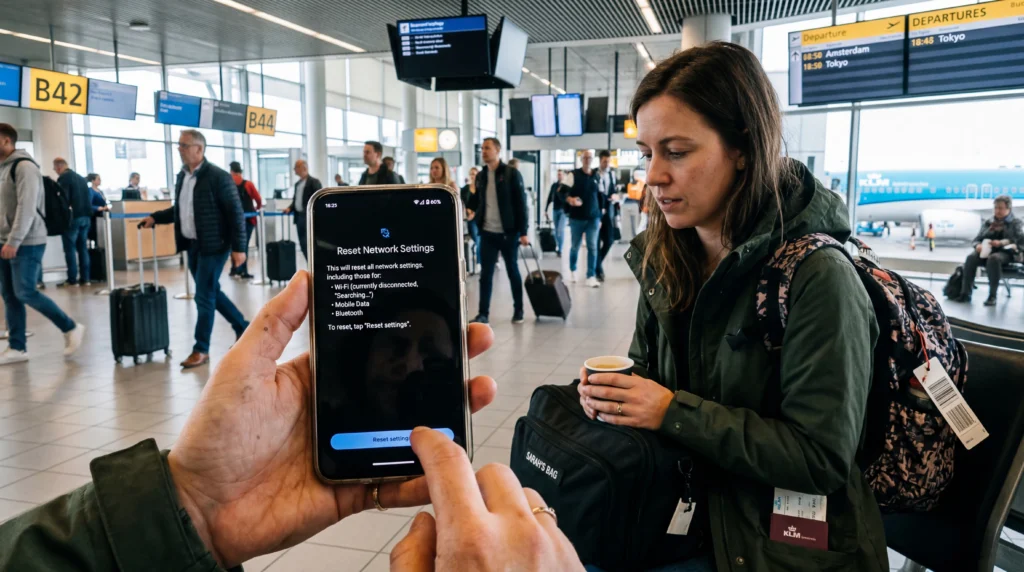

Resetting network settings can help an eSIM when a phone has persistent Wi-Fi or mobile-registration problems, but it should not be the first troubleshooting step. The reset can remove saved Wi-Fi networks, VPN or cellular preferences and other connection settings.
It will not repair an expired plan, unsupported phone, missing coverage or exhausted data allowance. Record the existing configuration and complete reversible checks before resetting anything.
For NoveSIM, keep the installed eSIM profile in place. If manual APN entry is needed after the reset, the APN is data.esim.
Quick answer: Reset network settings only after checking the active data line, Data Roaming, Airplane Mode, plan status and Automatic Network Selection. Save Wi-Fi passwords and APN details first, and never delete the eSIM as part of the reset unless NoveSIM Support instructs you to.
Top eSIMs

What a Network Reset Can and Cannot Fix
A network reset can clear a corrupted or conflicting connection configuration. It may help after an operating-system update or when several Wi-Fi and cellular connections behave incorrectly.
It cannot add destination coverage, unlock a carrier-locked phone or restore consumed activation credentials. If the line is present but has no internet, start with the connected-without-internet checks.
Complete These Checks First
- Confirm the travel eSIM is installed and switched on.
- Select it as the Mobile Data line.
- Enable Data Roaming on the travel line and disable automatic data switching.
- Turn Airplane Mode on briefly, then off, and restart the phone.
- Confirm the plan includes the present country and still has data and validity.
- Leave Network Selection on Automatic.
Check the NoveSIM APN guide before altering APN fields. Take safe screenshots, excluding QR codes and activation credentials.
What to Save before Resetting
- Passwords for Wi-Fi networks you still need.
- Current APN values and selected data line.
- VPN or private-DNS configuration that must be restored.
- The exact error message and phone software version.
- Your NoveSIM order number for Support.
The precise effect and menu wording vary by device and operating-system version. Apple and Android manufacturers may separate mobile-network resets from Wi-Fi and Bluetooth resets, so read the confirmation screen before proceeding.
After the Network Reset
Reconnect to trusted Wi-Fi, switch on the travel line, select it for Mobile Data and restore Data Roaming on that line. If required, re-enter data.esim and leave username and password blank.
Wait for automatic network registration, then test a normal website. If there is still no service, use the No Service troubleshooting guide or contact NoveSIM Support with the recorded diagnostics.
Related Articles
- Fix signal without mobile data
- Check Data Roaming for eSIM
- Fix an activated eSIM with No Service
- What to do with no internet abroad
FAQ
Should I reset network settings for an eSIM?
Only after simpler checks fail. A reset can help with corrupted connection settings, but it cannot fix plan validity, device compatibility or absent coverage.
Will resetting network settings delete my eSIM?
The effect varies by device and reset option. Read the confirmation screen carefully and never select an option that removes the eSIM unless NoveSIM Support instructs you to.
What will I need to restore afterwards?
You may need to reconnect Wi-Fi, restore VPN or DNS settings, select the data line, enable roaming and re-enter the APN.
What APN should I use for NoveSIM?
When manual APN entry is required, use data.esim with blank username and password.
Final Recommendation
Use a network-settings reset for an eSIM only as a controlled later step, after confirming that the plan, line selection, roaming and coverage are correct.
Save the settings you will need, read the device’s confirmation screen and preserve the installed NoveSIM profile.
After resetting, restore the travel-line settings and contact Support if the same clearly documented fault remains.