


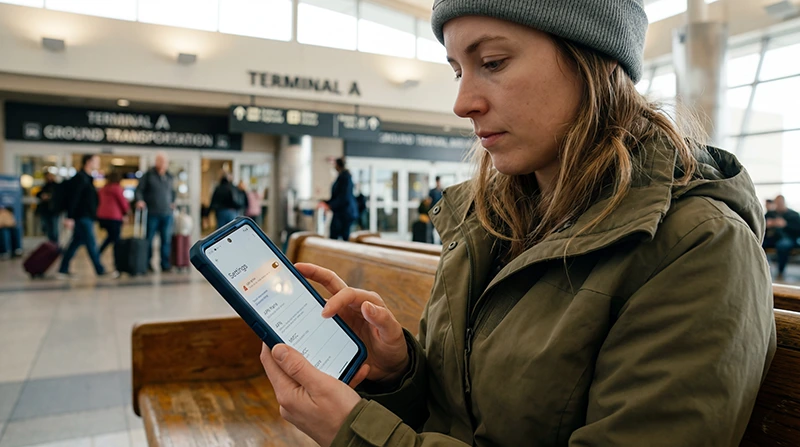

If your USA eSIM is installed but mobile internet is not working, the APN settings may need to be checked.
For many NoveSIM USA eSIM setups, the APN should be entered as data.esim. This helps your phone connect correctly to mobile data while traveling in the United States.
Quick answer: if your USA eSIM requires manual APN settings, enter data.esim in the APN field, select the eSIM for mobile data, enable data roaming for the eSIM, then toggle airplane mode on for 30 seconds and off again.
Top United States eSIMs

United States eSIM
Fixed
1 GB, 7 days€ 2.662 GB, 15 days€ 4.443 GB, 30 days€ 5.77Unlimited
Unlimited, 1 day€ 3.55Unlimited, 3 days€ 8.87Unlimited, 5 days€ 13.75
USA NoveSIM eSIM APN Settings
| Setting | Value |
|---|---|
| APN | data.esim |
| Username | Leave blank |
| Password | Leave blank |
Enter the APN exactly as shown: data.esim. Avoid adding spaces, capital letters, or extra characters.
When Do You Need APN Settings?
You may need to enter APN settings if your USA eSIM is installed but mobile data does not work correctly.
APN settings may be needed when:
- The eSIM is installed but there is no internet
- The phone shows signal but apps do not load
- Google Maps, WhatsApp, Safari, Uber, or travel apps are not working
- Mobile data is unstable after arrival
- Your installation instructions mention a specific APN
- Your phone did not configure mobile data automatically
Before Changing APN Settings
Before editing APN settings, check the basic mobile data setup first.
- Make sure the USA eSIM is installed
- Make sure the USA eSIM is selected for mobile data
- Turn on mobile data
- Enable data roaming for the eSIM
- Turn WiFi off temporarily to test mobile data
- Move to a location with good mobile signal
How to Enter data.esim APN on iPhone
On iPhone, APN settings may appear under the eSIM mobile data settings if manual APN editing is available.
- Open Settings.
- Tap Mobile Data or Cellular.
- Select your USA eSIM.
- Tap Mobile Data Network if available.
- In the APN field, enter data.esim.
- Leave username and password blank.
- Go back and save the settings if your device asks you to save.
- Turn airplane mode on for 30 seconds, then turn it off.
- Restart your iPhone if mobile data still does not work.
If the Mobile Data Network menu is not visible, your device or eSIM profile may not allow manual APN editing. In that case, continue with data roaming, airplane mode, restart, and network selection checks.
How to Enter data.esim APN on Android
Android menu names can vary by brand, but the APN settings are usually located inside mobile network settings.
- Open Settings.
- Go to Connections, Network & Internet, or Mobile Network.
- Select your USA eSIM.
- Tap Access Point Names or APN.
- Create a new APN or edit the existing one.
- Enter data.esim in the APN field.
- Leave username and password blank.
- Save the APN.
- Select the saved APN.
- Turn airplane mode on for 30 seconds, then turn it off.
- Restart your phone if needed.
Important: Select the eSIM for Mobile Data
APN settings will not help if your phone is still using your regular SIM for mobile data.
Make sure your USA eSIM is selected as the mobile data line.
On iPhone:
- Open Settings.
- Tap Mobile Data or Cellular.
- Tap Mobile Data.
- Select your USA eSIM.
On Android:
- Open Settings.
- Open SIM Manager or Mobile Network settings.
- Select your USA eSIM for mobile data.
Important: Enable Data Roaming for the eSIM
Many travel eSIMs require data roaming to be enabled.
This does not mean you are using expensive roaming from your regular SIM if the USA eSIM is selected for mobile data.
Enable roaming only for the eSIM you want to use for internet.
After Entering APN: Do This
After entering data.esim, refresh the mobile connection.
- Turn airplane mode on.
- Wait 30 seconds.
- Turn airplane mode off.
- Wait a few minutes for the phone to connect.
- Open a browser and test a website.
- Open Google Maps and search for a place.
If APN data.esim Still Does Not Work
If mobile data still does not work after entering the APN, continue with these checks:
- Restart your phone
- Check that the eSIM is selected for mobile data
- Check that data roaming is enabled for the eSIM
- Turn WiFi off and test mobile data only
- Try manual network selection
- Move to a place with stronger signal
- Check whether your plan is active
- Check whether your phone supports eSIM and is unlocked
Manual Network Selection
If your phone does not connect automatically, try manual network selection.
On iPhone:
- Open Settings.
- Tap Mobile Data or Cellular.
- Select your USA eSIM.
- Tap Network Selection.
- Turn off Automatic.
- Wait for networks to appear.
- Select an available supported network.
On Android:
- Open Settings.
- Go to Mobile Network settings.
- Tap Network Operators.
- Turn off automatic selection.
- Select an available supported network.
Wait a few minutes after selecting a network before testing mobile data again.
Common APN Mistakes
- Typing data esim instead of data.esim
- Adding spaces before or after the APN
- Using capital letters unnecessarily
- Entering the APN under the wrong SIM profile
- Forgetting to save the APN on Android
- Forgetting to select the new APN after saving it
- Leaving the regular SIM selected for mobile data
- Forgetting to enable data roaming for the eSIM
APN Settings for Google Maps, WhatsApp, and Travel Apps
Once the APN is correct and mobile data is working, your USA eSIM can support common travel apps.
- Google Maps and Apple Maps
- WhatsApp and messaging apps
- Uber and Lyft
- Hotel booking apps
- Airline apps
- Weather apps
- Safari, Chrome, and browsing
- Hotspot if supported by the plan
Does APN Affect eSIM Speed?
Incorrect APN settings can cause no data, unstable data, or poor performance.
If your eSIM is connected but slow, first confirm that the APN is correct, then check signal strength, network congestion, hotspot use, VPN, and fair usage limits.
Read more about slow eSIM speed in the USA
Related USA eSIM Troubleshooting Guides
- eSIM Not Working in the USA
- Does My eSIM Work in the USA?
- Why Is My eSIM Slow in the USA?
- How Much Data Do You Need for USA Travel?
- Does WhatsApp Work in the USA?
- Using Google Maps in the USA
- Best Network in the USA for Tourists
- Best Internet Option for USA Travel
- eSIM Compatible Devices
- USA eSIM Plans
FAQ: APN Settings for USA eSIM
What is the APN for a USA eSIM?
For many NoveSIM USA eSIM setups, the APN should be entered as data.esim. Always follow the installation details provided with your eSIM.
How do I enter data.esim APN?
Open your mobile network settings, select your USA eSIM, find APN or Mobile Data Network settings, and enter data.esim in the APN field. Leave username and password blank.
Do I need username or password for data.esim?
No. Leave username and password blank unless your eSIM instructions specifically say otherwise.
Why is my eSIM installed but not working?
Your eSIM may not work if it is not selected for mobile data, data roaming is off, APN settings are missing or incorrect, coverage is weak, or the phone has not connected to a supported network.
Should data roaming be on for a USA eSIM?
Yes, many travel eSIMs require data roaming to be enabled. Make sure roaming is enabled for the eSIM, not your regular SIM.
What should I do after changing APN settings?
After entering data.esim, turn airplane mode on for 30 seconds, turn it off, wait for the phone to reconnect, and test mobile data.
Why can I not see APN settings on iPhone?
Some iPhones, carriers, or eSIM profiles do not show manual APN editing. If the menu is not visible, check mobile data selection, data roaming, airplane mode, restart, and network selection.
Can wrong APN make mobile data slow?
Yes. Incorrect APN settings can cause no internet, unstable data, or poor performance. Enter the APN exactly as provided in your eSIM instructions.
Final Recommendation
If your USA eSIM needs manual APN settings, enter data.esim, leave username and password blank, select the eSIM for mobile data, and enable data roaming for the eSIM.
After saving the APN, toggle airplane mode for 30 seconds or restart your phone. This usually helps the phone reconnect properly to mobile data in the United States.