
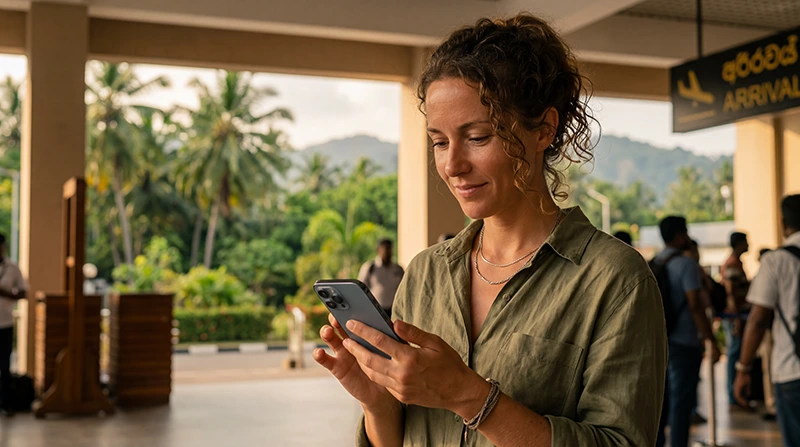

Traveler activating a Sri Lanka eSIM on a smartphone after arriving on the island

How to Activate a Sri Lanka eSIM

Activating a Sri Lanka eSIM is usually quick once the profile has been installed correctly on a compatible smartphone. After arriving in Sri Lanka, you need to enable the travel line, select it for Mobile Data and turn on Data Roaming.

These settings allow the eSIM to register with a supported local partner network and provide internet access for Google Maps, WhatsApp, hotel communication, ride-hailing apps, train information and travel bookings.

Installation and activation are not exactly the same. Installation adds the digital SIM profile to your phone. Activation happens when the eSIM is enabled and connects to an eligible mobile network, according to the conditions of the selected plan.

Quick answer: after landing in Sri Lanka, turn on the travel eSIM, select it as your Mobile Data line, enable Data Roaming, disable automatic data switching and wait several minutes for network registration.

Top Sri Lanka eSIMs

What Does Activating a Sri Lanka eSIM Mean?

Activation means making the installed eSIM ready to connect to a supported mobile network and use mobile data.

A successfully installed eSIM may already appear in your phone settings before departure. However, it may remain inactive, disabled or unable to connect until you arrive in Sri Lanka.

To activate it, your phone normally needs:

  • The Sri Lanka eSIM profile installed.
  • The eSIM line turned on.
  • The eSIM selected for Mobile Data.
  • Data Roaming enabled on the travel eSIM.
  • Automatic Network Selection enabled.
  • Coverage from a supported local partner network.

Once these conditions are met, the phone should connect automatically. Registration may take several minutes after landing or after Airplane Mode is turned off.

Install the eSIM Before Trying to Activate It

You cannot activate an eSIM that has not been installed on the device. Install the profile before departure while connected to stable WiFi whenever possible.

The QR code and installation instructions are sent to your email after purchase. They can also be found in your NoveSIM account by opening the relevant order and viewing the eSIM details.

After installation, label the line Sri Lanka, Travel or NoveSIM. A clear label makes it easier to select the correct SIM after arrival.

For full installation instructions, read our guide on how to install a Sri Lanka eSIM.

When Should You Activate the Sri Lanka eSIM?

Install the eSIM before travelling, but complete the connection settings after arriving in Sri Lanka.

A practical sequence is:

  1. Purchase your Sri Lanka data plan.
  2. Install the eSIM at home using reliable WiFi.
  3. Keep the profile installed on your phone.
  4. Travel to Sri Lanka.
  5. Turn off Airplane Mode after landing.
  6. Enable the travel eSIM.
  7. Select it for Mobile Data.
  8. Turn on Data Roaming.

Activation conditions vary by package. Many travel plans begin when the eSIM first connects to a supported network in the covered destination. Always check the validity information supplied with your plan.

Quick Sri Lanka eSIM Activation Checklist

Setting Recommended Value
Sri Lanka eSIM On
Mobile Data Sri Lanka eSIM
Data Roaming on travel eSIM On
Data Roaming on primary SIM Off
Automatic Data Switching Off
Network Selection Automatic
Preferred Network Type 5G Auto or 4G/LTE
APN data.esim if required

How to Activate a Sri Lanka eSIM on iPhone

Apple allows you to choose which SIM line provides mobile data. The wording may appear as Cellular or Mobile Data depending on the region and language settings.

  1. Turn off Airplane Mode after arriving in Sri Lanka.
  2. Open Settings.
  3. Select Cellular or Mobile Data.
  4. Tap the line labelled Sri Lanka, Travel or NoveSIM.
  5. Enable Turn On This Line.
  6. Turn Data Roaming on.
  7. Return to the main Cellular or Mobile Data menu.
  8. Tap Cellular Data or Mobile Data.
  9. Select the Sri Lanka eSIM.
  10. Turn Allow Cellular Data Switching off.
  11. Wait several minutes for the network connection.

Apple also allows compatible iPhones to use a travel eSIM together with the current SIM. When both lines remain active, the travel eSIM should be selected as the data line to reduce the risk of using mobile data through your home operator.

Recommended iPhone Settings

iPhone Function Recommended Line
Mobile Data Sri Lanka eSIM
Default Voice Line Primary SIM
SMS Primary SIM
iMessage and FaceTime Existing number or Apple Account
Data Roaming on Sri Lanka eSIM On
Allow Cellular Data Switching Off

For more detailed iPhone instructions, visit our Sri Lanka eSIM for iPhone guide.

How to Activate a Sri Lanka eSIM on Samsung

The exact menu names may vary by Samsung model and One UI version.

  1. Turn off Airplane Mode.
  2. Open Settings.
  3. Select Connections.
  4. Tap SIM Manager.
  5. Enable the Sri Lanka eSIM.
  6. Under Preferred SIMs, select the travel eSIM for Mobile Data.
  7. Return to Connections.
  8. Open Mobile Networks.
  9. Turn on Data Roaming for the travel eSIM when the option is available per line.
  10. Disable automatic or backup data switching.
  11. Keep Network Operators set to automatic selection.

Samsung’s official setup process places eSIM controls under Connections and SIM Manager. Depending on the software version, the installation option may be called Add eSIM or Add Mobile Plan.

Recommended Samsung Settings

Samsung Function Recommended Setting
Sri Lanka eSIM Enabled
Mobile Data Sri Lanka eSIM
Calls Primary SIM
Messages Primary SIM
Data Roaming On for travel eSIM
Data Switching Off
Network Operators Select automatically

How to Activate a Sri Lanka eSIM on Google Pixel

Google Pixel phones allow you to keep more than one SIM profile and choose which line is used for mobile data, calls and messages.

  1. Turn off Airplane Mode.
  2. Open Settings.
  3. Select Network and Internet.
  4. Tap SIMs.
  5. Select the Sri Lanka eSIM.
  6. Enable Use SIM.
  7. Turn on Roaming.
  8. Return to the SIMs menu.
  9. Select the Sri Lanka eSIM as the preferred line for Mobile Data.
  10. Disable automatic data switching if it is available.
  11. Keep automatic network selection enabled.

The wording may vary slightly depending on the Android version. Search for SIMs, Roaming or Mobile Data inside Settings when a menu is difficult to locate.

How to Activate the eSIM on Other Android Phones

Motorola, Xiaomi, Honor, Oppo and other Android manufacturers use different menu names, but the activation process follows the same basic principle.

  1. Open Settings.
  2. Find Mobile Network, SIMs, SIM Management or Network and Internet.
  3. Select the Sri Lanka eSIM.
  4. Enable the eSIM line.
  5. Choose it as the preferred SIM for Mobile Data.
  6. Turn on Data Roaming for that line.
  7. Disable automatic mobile data switching.
  8. Keep Network Selection on Automatic.
  9. Wait for the device to connect.

Use the Settings search field and search for eSIM, roaming or mobile data when the menu structure is different.

See our dedicated Sri Lanka eSIM for Android guide.

Why Must Data Roaming Be Enabled?

A travel eSIM normally connects through a local partner network rather than operating its own mobile infrastructure. For this reason, the phone treats the connection as roaming and requires Data Roaming to be enabled on the eSIM line.

Turning on Data Roaming for the travel eSIM does not mean that you should also enable it on your primary SIM.

Use this configuration:

  • Data Roaming on Sri Lanka eSIM: On.
  • Data Roaming on primary SIM: Off.
  • Mobile Data line: Sri Lanka eSIM.
  • Automatic Data Switching: Off.

This helps the phone use the prepaid travel plan instead of the roaming service provided by your home operator.

How to Keep Your Primary SIM Active Safely

Many travellers keep their primary SIM active to receive verification codes, bank messages and incoming calls.

A Dual SIM configuration can work well when the correct line is selected for each function.

Function Recommended SIM
Mobile Data Sri Lanka eSIM
Incoming SMS Primary SIM
Calls Primary SIM
WhatsApp Data Sri Lanka eSIM
Data Roaming Travel eSIM only

Your home operator may still charge for making or answering calls abroad. Receiving SMS is often free, but this depends on the operator and roaming agreement.

Should Automatic Data Switching Be Turned Off?

Yes. Automatic Data Switching allows the phone to use another SIM when the selected data line has a weak connection.

While this can be useful at home, it may cause the phone to use roaming data from your primary SIM during a trip.

The setting may be called:

  • Allow Cellular Data Switching.
  • Automatic Data Switching.
  • Switch Mobile Data Automatically.
  • Backup Calling or Backup Data.

Turn the feature off and keep the Sri Lanka eSIM selected for mobile data.

How Long Does eSIM Activation Take?

Activation is often completed within a few minutes after the phone reaches Sri Lanka and connects to a supported network.

It can take longer when:

  • The phone has just left Airplane Mode.
  • The local network is congested.
  • The device is indoors with weak reception.
  • Automatic network registration is still in progress.
  • The eSIM is not selected for Mobile Data.
  • Data Roaming is disabled.

Wait several minutes before changing settings repeatedly. If no connection appears, activate Airplane Mode for approximately 30 seconds and then turn it off.

How Do You Know the eSIM Is Active?

The eSIM is normally active when:

  • The line appears as enabled in the SIM settings.
  • A local network name or signal bars appear.
  • 4G, LTE or 5G is displayed near the signal indicator.
  • Websites load while WiFi is turned off.
  • Google Maps and messaging apps work through mobile data.

Test the connection by temporarily turning WiFi off and opening a lightweight website or map.

Which Network Will the Sri Lanka eSIM Use?

A travel eSIM connects through one or more supported local partner networks. The exact operator depends on the plan and its roaming agreements.

Automatic Network Selection is recommended because it allows the phone to register with an available supported operator.

Coverage is generally strong in Colombo, Kandy, Galle and other populated destinations. Reception can vary in Ella, Nuwara Eliya, mountain roads, national parks and remote beaches.

Read our guide to the best mobile networks in Sri Lanka for tourists.

Should You Select 5G or 4G?

Use 5G Auto when your phone and plan support it. The device can then switch between 5G and 4G according to local availability.

Switch temporarily to 4G or LTE when:

  • The 5G signal is weak.
  • Mobile data disconnects repeatedly.
  • The device is using too much battery.
  • 4G provides a more stable connection.

A stable 4G connection is sufficient for maps, messaging, browsing, bookings and most travel activities.

Sri Lanka eSIM APN Settings

The APN is normally configured automatically. Manual setup may be required when the phone connects to a network but does not provide internet access.

APN Field Value
Name NoveSIM
APN data.esim
Username Leave blank
Password Leave blank
Authentication None or automatic

After entering the APN, save it and make sure it is selected. Restart the phone or use Airplane Mode for 30 seconds.

Read our complete guide to Sri Lanka eSIM APN settings.

What to Do If the eSIM Does Not Activate

  1. Confirm that the eSIM profile is installed.
  2. Make sure you are already in Sri Lanka.
  3. Enable the Sri Lanka eSIM line.
  4. Select it for Mobile Data.
  5. Turn on Data Roaming for the eSIM.
  6. Disable automatic data switching.
  7. Keep Network Selection on Automatic.
  8. Turn Airplane Mode on for 30 seconds.
  9. Turn Airplane Mode off and wait several minutes.
  10. Restart the phone.

Do not delete the eSIM while troubleshooting. Many travel eSIM QR codes only support one installation.

What If the Phone Shows Signal but No Internet?

A signal without internet usually means that the eSIM has registered with a network but the mobile data configuration is incomplete.

Check the following:

  • The Sri Lanka eSIM is selected for Mobile Data.
  • Data Roaming is enabled on the travel line.
  • The APN is set to data.esim.
  • Automatic Data Switching is disabled.
  • The plan is valid and has available data.
  • WiFi is turned off during the mobile data test.

After correcting the settings, use Airplane Mode for 30 seconds and test the connection again.

What If the Phone Shows No Service?

No Service means that the phone has not registered with a supported local network.

  1. Move outdoors or closer to a window.
  2. Confirm that the travel line is enabled.
  3. Turn on Data Roaming.
  4. Keep network selection automatic.
  5. Use Airplane Mode for 30 seconds.
  6. Restart the phone.
  7. Test a supported network manually if automatic registration fails.

How to Select a Network Manually

Manual network selection should only be used when automatic registration does not work.

  1. Open the settings for the Sri Lanka eSIM.
  2. Select Network Selection or Network Operators.
  3. Turn automatic selection off.
  4. Wait for the available networks to appear.
  5. Select a network supported by the eSIM plan.
  6. Wait several minutes for registration.

Return to automatic selection if the chosen network does not connect.

Does WhatsApp Need to Be Activated Again?

No. WhatsApp can continue using your existing telephone number while the Sri Lanka eSIM provides mobile data.

Do not change your registered WhatsApp number when installing or activating the travel eSIM. Your messages, contacts and calls can continue through the eSIM internet connection.

See our guide to using WhatsApp in Sri Lanka.

Can You Activate the eSIM Before Arriving?

You can install and enable the profile before travelling, but it may not connect until the phone reaches a supported destination.

To avoid confusion, install the profile before departure and complete the mobile data and roaming configuration after landing.

Do not attempt to test the connection through an unsupported home-country network, and do not delete the profile if it shows no service before the trip.

Can You Turn the eSIM Off and On Again?

Yes. Disabling the eSIM line is different from deleting it.

You can turn the line off temporarily and enable it again later. This does not remove the profile from the phone.

Do not use the Remove eSIM, Delete eSIM or Erase Mobile Plan option unless customer support specifically instructs you to do so.

Common Activation Mistakes

  • Forgetting to turn on Data Roaming.
  • Selecting the primary SIM for Mobile Data.
  • Leaving Automatic Data Switching enabled.
  • Testing the eSIM before arriving in Sri Lanka.
  • Deleting the profile when it does not connect immediately.
  • Entering the APN incorrectly.
  • Turning on roaming for the primary SIM instead of the travel eSIM.
  • Repeatedly changing networks before registration is complete.

Related Sri Lanka Guides

FAQ

How do I activate my Sri Lanka eSIM?

After arriving, enable the travel eSIM, select it for Mobile Data, turn on Data Roaming and keep Network Selection on Automatic.

Should I activate the eSIM before arriving?

Install it before departure, but complete the connection settings after landing in Sri Lanka.

Does installing the eSIM activate it?

Not always. Installation adds the profile to the phone. Activation normally occurs when it connects to a supported network under the plan conditions.

Do I need Data Roaming enabled?

Yes. Enable Data Roaming on the Sri Lanka travel eSIM because it connects through a local partner network.

Should roaming be enabled on my primary SIM?

No. Keep Data Roaming disabled on the primary SIM to reduce the risk of unwanted charges.

How long does activation take?

It often takes a few minutes after landing and turning off Airplane Mode. Network registration can occasionally take longer.

What APN should I use?

If manual configuration is required, enter data.esim and leave the username and password blank.

Why does my phone show signal but no internet?

Check that the eSIM is selected for Mobile Data, Data Roaming is enabled and the APN is set to data.esim.

Why does my eSIM show No Service?

The phone may not have registered with a supported network. Use Airplane Mode for 30 seconds, restart the device and keep network selection automatic.

Can I keep my normal SIM active?

Yes. Keep it active for calls and SMS while using the Sri Lanka eSIM for Mobile Data.

Will WhatsApp keep my current number?

Yes. WhatsApp continues using your existing number while the travel eSIM provides internet access.

Can I turn the eSIM off and reactivate it later?

Yes. You can disable and re-enable the line without deleting the eSIM profile.

Should I delete the eSIM if activation fails?

No. Do not delete it while troubleshooting. Many travel eSIM QR codes can only be installed once.

Final Recommendation

Install your Sri Lanka eSIM before departure, then activate the connection after landing. Enable the travel line, select it for Mobile Data, turn on Data Roaming and disable automatic data switching.

Keep Data Roaming turned off on your primary SIM. This allows you to continue receiving calls or SMS while reducing the risk of accidental mobile data roaming.

If the eSIM connects to a network but has no internet, enter data.esim as the APN, use Airplane Mode for 30 seconds and restart the phone. Do not delete the profile while troubleshooting.

Browse Sri Lanka eSIM plans here.

Scroll to Top