


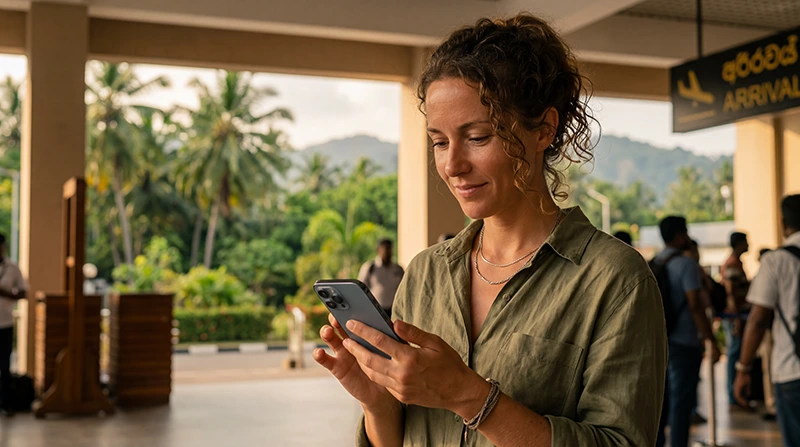

Activating a Sri Lanka eSIM normally means switching an already installed profile on, selecting it for mobile data and allowing it to register on a supported local network. Installation and activation are different steps: install before departure when the plan instructions permit, but start using the plan according to its stated activation policy.
Complete the switch while stationary after landing, with the QR code or installation details still available offline. Menu names vary between iPhone, Samsung and other Android phones.
NoveSIM travel eSIMs are data-only. They do not provide a Sri Lankan number or conventional calls and SMS; WhatsApp and other internet services continue to work through data.
Quick answer: After arrival in Sri Lanka, turn on the eSIM, select it for Mobile Data, enable Data Roaming on that line and leave Network Selection on Automatic. Disable mobile-data switching and keep roaming off on the primary SIM. If service does not start, restart the data session and check the APN before contacting support.
Top Sri Lanka eSIMs


What to check before activating the eSIM
- The phone supports eSIM and is carrier-unlocked.
- The plan lists Sri Lanka and has not expired.
- The eSIM profile is installed and visible in SIM settings.
- The QR code has not been reused on another device.
- You understand when the plan validity begins.
Use the Sri Lanka installation guide if the profile is not yet on the phone. For plan selection and coverage expectations, see the Sri Lanka eSIM guide.
Activate a Sri Lanka eSIM on iPhone
- Open Settings and select Cellular or Mobile Service.
- Tap the Sri Lanka travel eSIM and turn on Turn On This Line.
- Enable Data Roaming for the travel eSIM.
- Return to Cellular Data and select the travel eSIM.
- Turn off Allow Cellular Data Switching.
- Disable Wi-Fi temporarily and load a normal website to test mobile data.
Activate it on Samsung or another Android phone
- Open Settings and choose Connections, Network & Internet or the equivalent menu.
- Open SIM Manager or SIMs and switch on the travel eSIM.
- Select it as the preferred SIM for Mobile Data.
- Enable roaming for that eSIM and disable automatic data switching.
- Leave network selection on Automatic, then test with Wi-Fi off.
Android labels differ by manufacturer and software version. Change only the travel profile’s settings; do not enable data roaming on the primary line by mistake.
What if activation completes but data does not work?
Toggle flight mode for about 30 seconds, switch it off and allow the phone time to register again. Confirm that the travel eSIM—not the home SIM—is selected for data. If an APN is required for a NoveSIM plan, use data.esim exactly as instructed. Do not delete the eSIM while troubleshooting.
Continue with Sri Lanka eSIM troubleshooting if the phone still has no data. Network quality and 4G or 5G availability depend on the plan, handset, location and local coverage.
Related Articles
- Install a Sri Lanka eSIM
- Sri Lanka eSIM Not Working
- Best eSIM for Sri Lanka Travel
- Sri Lanka Mobile Networks for Tourists
FAQ
Should I activate my Sri Lanka eSIM before flying?
Install it early if the provider permits, but follow the plan’s activation policy because some plans begin validity when installed and others when they first connect.
Does Data Roaming need to be on?
Yes when the travel plan uses roaming partner networks. Enable it only for the travel eSIM and keep it off on the home line.
Why does the eSIM show signal but no internet?
The wrong data line, disabled roaming, an exhausted allowance, an incorrect APN or a stale network session are common causes.
Should I delete and reinstall the eSIM?
No. Keep the profile installed and contact support before deleting it, because the original QR code may not be reusable.
Final Recommendation
Install the profile before travel when allowed, then activate it in Sri Lanka by selecting the correct data line and enabling roaming on that line.
Test with Wi-Fi off and keep automatic data switching disabled to protect the primary SIM from accidental roaming.
If the phone connects without data, check allowance, APN and network registration in that order, without deleting the eSIM.