


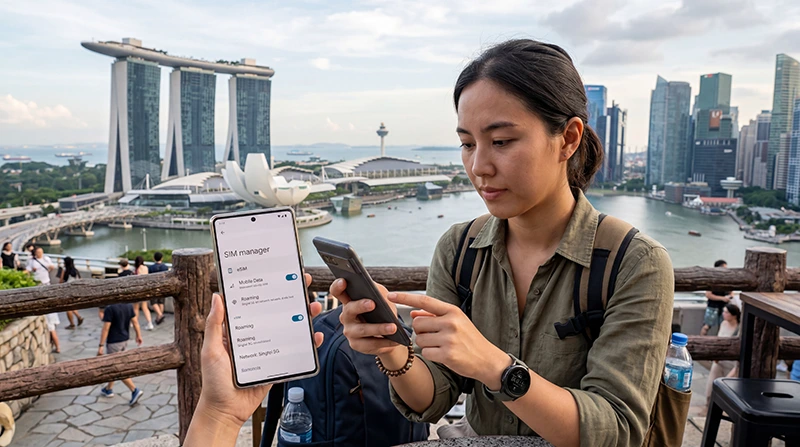

Using a Singapore eSIM on Android is one of the easiest ways to get mobile internet during your trip without buying a physical SIM card after arrival.
With a compatible unlocked Android phone, you can install your eSIM before travel and use mobile data in Singapore for Google Maps, Grab, WhatsApp, hotel directions, MRT routes, attraction tickets, business travel, remote work, and daily travel apps.
Quick answer: To use a Singapore eSIM on Android, install the eSIM while connected to WiFi, arrive in Singapore, select the eSIM for mobile data, enable data roaming on the eSIM line, and test internet with Chrome, Google Maps, WhatsApp, or Grab.
Top Singapore eSIMs

Singapore eSIM
Fixed
1 GB, 7 days€ 3.032 GB, 15 days€ 4.333 GB, 30 days€ 5.19Unlimited
Unlimited, 1 day€ 3.46Unlimited, 3 days€ 6.06Unlimited, 5 days€ 8.65
Does Android Support Singapore eSIM?
Many modern Android phones support eSIM, but compatibility depends on the exact brand, model, region, and carrier restrictions.
Before buying a Singapore eSIM, check that your Android phone supports eSIM and is carrier unlocked.
Popular Android Phones That Often Support eSIM
- Samsung Galaxy S series
- Samsung Galaxy Z Fold series
- Samsung Galaxy Z Flip series
- Selected Samsung Galaxy A models
- Google Pixel devices
- Selected Motorola models
- Selected Xiaomi, Oppo, Sony, and other Android models depending on region
Android compatibility varies strongly by market, so always check your specific device before travel.
Before Installing Singapore eSIM on Android
- Make sure your Android phone supports eSIM
- Make sure your phone is carrier unlocked
- Connect to stable WiFi
- Keep your QR code or activation details ready
- Install before travel if possible
- Do not delete your eSIM if it does not connect immediately
How to Install Singapore eSIM on Samsung
- Connect your phone to WiFi.
- Open Settings.
- Tap Connections.
- Open SIM Manager.
- Tap Add eSIM.
- Scan your QR code or enter activation details manually.
- Follow the setup instructions.
- Label the eSIM as Singapore, Travel, or NoveSIM.
How to Install Singapore eSIM on Google Pixel
- Connect your Pixel phone to WiFi.
- Open Settings.
- Go to Network & Internet.
- Tap SIMs.
- Select Add SIM or Download a SIM instead.
- Scan your QR code or enter activation details manually.
- Follow the on-screen instructions.
- Label the eSIM clearly for travel.
How to Install Singapore eSIM on Other Android Phones
Android menus vary by manufacturer, but the setup is usually similar.
- Connect to WiFi.
- Open Settings.
- Go to Network, Connections, or Mobile Network.
- Find SIM Manager, SIMs, or Add eSIM.
- Scan your QR code or enter manual activation details.
- Complete the installation.
- Label the eSIM as Singapore or Travel.
When Should You Install Your Singapore eSIM?
You can usually install your Singapore eSIM before your trip while connected to WiFi.
This helps you avoid searching for WiFi or a SIM card shop after landing at Changi Airport.
Many travel eSIMs begin working when they connect to a supported network in the destination country.
How to Activate Singapore eSIM on Android After Arrival
- Arrive in Singapore.
- Turn off airplane mode.
- Open Settings.
- Go to Connections, Network & Internet, or Mobile Network.
- Make sure the Singapore eSIM line is turned on.
- Select the Singapore eSIM for mobile data.
- Enable data roaming on the Singapore eSIM line.
- Wait for network connection.
- Test internet with Chrome, Google Maps, WhatsApp, or Grab.
How to Select Singapore eSIM for Mobile Data on Samsung
- Open Settings.
- Tap Connections.
- Open SIM Manager.
- Find Preferred SIMs.
- Select the Singapore eSIM for Mobile Data.
- Make sure mobile data is turned on.
How to Select Singapore eSIM for Mobile Data on Google Pixel
- Open Settings.
- Go to Network & Internet.
- Tap SIMs.
- Select the Singapore eSIM.
- Turn on the eSIM if needed.
- Set it as the preferred SIM for mobile data.
Should Data Roaming Be On for Singapore eSIM?
Yes. Most travel eSIM plans require data roaming to be enabled on the eSIM line.
This does not mean you need to enable data roaming on your primary SIM.
Enable data roaming only on the Singapore eSIM line if you use it for mobile data.
How to Enable Data Roaming on Samsung
- Open Settings.
- Tap Connections.
- Tap Mobile Networks.
- Turn on Data Roaming for the Singapore eSIM.
How to Enable Data Roaming on Google Pixel
- Open Settings.
- Go to Network & Internet.
- Tap SIMs.
- Select the Singapore eSIM.
- Turn on Roaming.
Can You Keep Your Regular SIM Active?
Yes. Many Android phones support dual SIM functionality.
You can use your Singapore eSIM for mobile data while keeping your regular SIM active for calls, SMS verification codes, banking messages, work authentication, and your existing WhatsApp number.
To avoid unwanted roaming charges, keep data roaming disabled on your primary SIM and enable it only on the Singapore eSIM line.
Will WhatsApp Work on Android with Singapore eSIM?
Yes. WhatsApp usually continues working with your existing number while using the Singapore eSIM for mobile data.
You normally do not need to change your WhatsApp number or create a new WhatsApp account.
Can You Use Google Maps and Grab on Android?
Yes. Google Maps and Grab work normally when your Android phone has mobile internet through the Singapore eSIM.
These apps are useful after landing at Changi Airport, finding hotels, booking rides, using MRT routes, and exploring Singapore.
Can You Use Hotspot with Singapore eSIM on Android?
Hotspot may be available depending on your eSIM plan and Android device settings.
If hotspot is supported, it can help connect a laptop, tablet, or another device for urgent work, email, hotel backup, or short remote work sessions.
APN Settings for NoveSIM Singapore eSIM on Android
| Setting | Value |
|---|---|
| Name | NoveSIM |
| APN | data.esim |
| Username | Leave blank |
| Password | Leave blank |
How to Check APN Settings on Samsung
- Open Settings.
- Tap Connections.
- Tap Mobile Networks.
- Tap Access Point Names.
- Select the Singapore eSIM if needed.
- Check that APN is set to data.esim.
How to Check APN Settings on Google Pixel
- Open Settings.
- Go to Network & Internet.
- Tap SIMs.
- Select the Singapore eSIM.
- Open Access Point Names if available.
- Check that APN is set to data.esim.
Singapore eSIM Not Working on Android
If your Singapore eSIM does not work on Android, do not delete it first.
- Make sure the eSIM line is turned on.
- Select the Singapore eSIM for mobile data.
- Enable data roaming on the Singapore eSIM line.
- Turn airplane mode on for 30 seconds, then off.
- Restart your Android phone.
- Check APN settings if available.
- Disable VPN temporarily.
- Test Chrome, Google Maps, WhatsApp, or Grab.
No Internet on Singapore eSIM Android
If your Android phone shows signal but no internet, check:
- Mobile data line selection
- Data roaming on the eSIM line
- APN settings
- VPN or private DNS
- Airplane mode refresh
- Phone restart
Slow Singapore eSIM on Android
If mobile data is slow, the issue may be caused by indoor signal, network congestion, VPN, hotspot usage, background app updates, Google Photos backup, or cloud sync.
- Move to a more open area
- Refresh airplane mode
- Restart your phone
- Disable VPN temporarily
- Pause cloud backup on mobile data
- Stop hotspot temporarily
- Use WiFi for large uploads and updates
Do Not Delete Your eSIM First
If your Singapore eSIM does not connect immediately, do not delete it as the first troubleshooting step.
Some eSIM profiles cannot be installed again after removal. Always check mobile data selection, data roaming, APN, airplane mode, restart, VPN, and network selection before deleting anything.
Where to Find Your NoveSIM eSIM Details
Your NoveSIM QR code, installation instructions, and eSIM details are available:
- In your confirmation email
- Under My Account → Orders → View → eSIM details
Related Singapore Device Guides
- Singapore eSIM iPhone
- How to Activate Singapore eSIM
- Install Singapore eSIM
- Does My Phone Support eSIM Singapore?
- How to Use eSIM in Singapore
More Singapore Troubleshooting Guides
- eSIM Not Working Singapore
- No Internet Singapore eSIM
- APN Settings Singapore eSIM
- Why Is My eSIM Slow in Singapore?
- Does WhatsApp Work in Singapore?
FAQ: Singapore eSIM for Android
Can I use Singapore eSIM on Android?
Yes, if your Android phone supports eSIM, is carrier unlocked, and your eSIM plan includes Singapore coverage.
Can Samsung phones use Singapore eSIM?
Many modern Samsung phones support eSIM, including selected Galaxy S, Z Fold, Z Flip, and some A series models depending on region and carrier settings.
Can Google Pixel use Singapore eSIM?
Many Google Pixel phones support eSIM, but compatibility depends on the exact model and region.
Should I install my Singapore eSIM before travel?
Yes. Installing before travel while connected to WiFi is usually more convenient.
Do I need data roaming enabled on Android?
Yes. Most travel eSIM plans require data roaming to be enabled on the Singapore eSIM line.
Will WhatsApp still work with my regular number?
Yes. WhatsApp usually continues working with your existing number while using the Singapore eSIM for mobile data.
What APN should I use?
If manual APN editing is available, use data.esim and leave username and password blank.
Final Recommendation
A Singapore eSIM is a practical option for Android users who want mobile internet for Changi Airport arrival, Google Maps, Grab, WhatsApp, hotel directions, MRT navigation, business travel, remote work, and sightseeing.
Install your Singapore eSIM before travel, select it for mobile data after arrival, enable data roaming on the eSIM line, and keep your primary SIM active if you need calls, SMS, banking codes, or your existing WhatsApp number.