
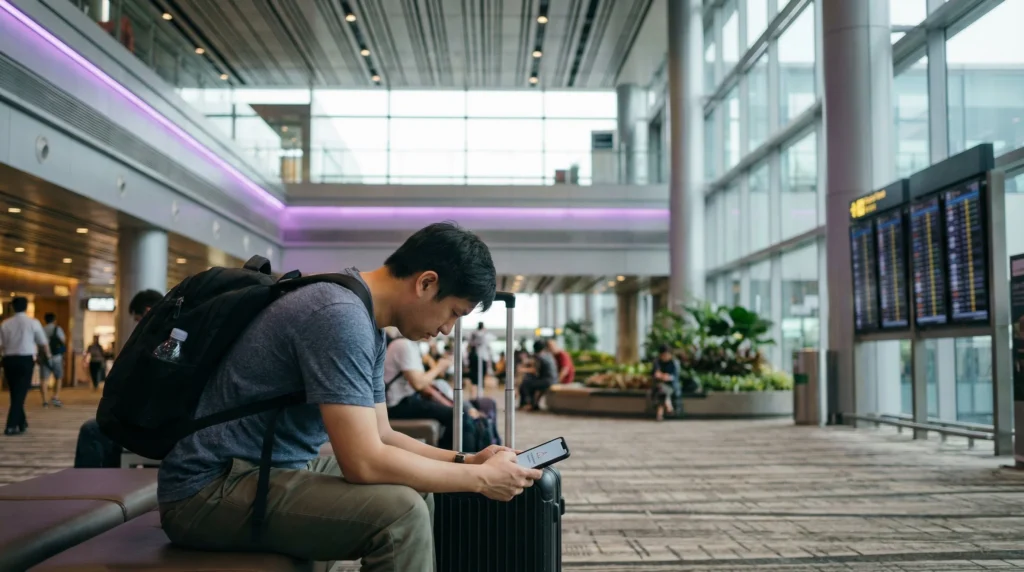

Traveler fixing no internet issue with Singapore eSIM mobile data settings

No Internet with Singapore eSIM? (2026 Fix Guide)

If your Singapore eSIM is installed but you have no internet, the issue is usually related to mobile data settings, data roaming, APN configuration, VPN, network selection, or the wrong SIM being selected for data.

This can happen after landing at Changi Airport, while moving around Singapore, or after switching between WiFi and mobile data.

Quick answer: If your Singapore eSIM has no internet, select the Singapore eSIM for mobile data, enable data roaming on the eSIM line, set APN to data.esim if needed, refresh airplane mode for 30 seconds, restart your phone, and disable VPN temporarily.

Top Singapore eSIMs

First: Do Not Delete Your eSIM

Do not delete your Singapore eSIM as the first troubleshooting step.

Some eSIM profiles cannot be installed again after removal. Most no-internet issues can be fixed through settings without deleting the eSIM.

Quick Fix Checklist

  1. Make sure the Singapore eSIM is installed.
  2. Make sure the Singapore eSIM line is turned on.
  3. Select the Singapore eSIM for mobile data.
  4. Enable data roaming on the Singapore eSIM line.
  5. Turn airplane mode on for 30 seconds, then off.
  6. Restart your phone.
  7. Check APN settings if needed.
  8. Disable VPN temporarily.
  9. Test internet in a browser.
  10. Try Google Maps, Grab, or WhatsApp again.
  11. Move to a more open area if signal is weak.
  12. Try manual network selection if available.

Common Reasons Your Singapore eSIM Has No Internet

Problem Possible Cause Fix
eSIM installed but no data Wrong SIM selected for mobile data Select Singapore eSIM for mobile data
Signal bars but no internet Data roaming is disabled Enable data roaming on the eSIM line
Apps do not load VPN or private DNS interference Disable VPN temporarily
Browser does not open websites APN issue Set APN to data.esim if required
No service Network not selected or weak signal Refresh airplane mode or try manual network selection
Only one app fails App-specific issue Restart the app and check permissions

Step 1: Make Sure the Singapore eSIM Is Turned On

Your eSIM may be installed but switched off inside your phone settings.

  • Open mobile data or SIM settings.
  • Find the Singapore eSIM line.
  • Make sure the line is enabled.
  • Confirm the eSIM appears in your SIM list.

Step 2: Select Singapore eSIM for Mobile Data

This is the most common reason travelers have no internet with a Singapore eSIM.

Your phone may still be using your primary SIM for mobile data instead of the Singapore eSIM.

On iPhone

  1. Open Settings.
  2. Go to Mobile Service or Cellular.
  3. Tap Mobile Data or Cellular Data.
  4. Select your Singapore eSIM.
  5. Turn off automatic mobile data switching if it causes confusion.

On Samsung or Android

  1. Open Settings.
  2. Go to Connections.
  3. Open SIM Manager.
  4. Select the Singapore eSIM for mobile data.
  5. Make sure mobile data is enabled.

Step 3: Enable Data Roaming on the Singapore eSIM

Most travel eSIM plans require data roaming to be enabled on the eSIM line.

This does not mean you need to enable roaming on your home SIM. Enable data roaming only on the Singapore eSIM line if you are using it for mobile data.

On iPhone

  1. Open Settings.
  2. Go to Mobile Service or Cellular.
  3. Select the Singapore eSIM line.
  4. Turn on Data Roaming.

On Samsung or Android

  1. Open Settings.
  2. Go to Connections.
  3. Tap Mobile Networks.
  4. Enable Data Roaming for the Singapore eSIM.

Step 4: Check APN Settings

If your phone shows signal but has no internet, APN settings may be missing or incorrect.

Setting Value
APN data.esim
Username Leave blank
Password Leave blank

If APN fields are not editable, your phone or eSIM profile may configure them automatically.

Step 5: Refresh Airplane Mode

Airplane mode refresh can force your phone to reconnect to the mobile network.

  1. Turn airplane mode on.
  2. Wait 30 seconds.
  3. Turn airplane mode off.
  4. Wait for network reconnection.
  5. Test internet using a browser, Google Maps, WhatsApp, or Grab.

Step 6: Restart Your Phone

If airplane mode does not solve the issue, restart your device.

A restart can refresh mobile data selection, network registration, APN settings, and app connectivity.

Step 7: Disable VPN or Private DNS Temporarily

VPN apps, private DNS, ad blockers, and security filtering tools may block mobile internet or make it look like the eSIM has no connection.

Temporarily disable:

  • VPN apps
  • Private DNS
  • Security filtering apps
  • Ad blockers
  • Custom network profiles

Then test internet again in a browser.

Step 8: Test Internet Correctly

Do not test only one app.

Open several simple tests:

  • Safari or Chrome
  • Google Maps
  • WhatsApp text message
  • Grab app
  • Email app

If only one app does not work, the problem may be app-specific rather than a Singapore eSIM issue.

Step 9: Move to a More Open Area

Indoor areas can sometimes weaken mobile signal.

If you have no internet inside a building, try testing outside or near a window.

This can help in:

  • Changi Airport arrival halls
  • Large shopping malls
  • Hotel rooms
  • Basements
  • Underground MRT areas
  • Conference halls
  • Indoor attractions

Step 10: Try Manual Network Selection

If automatic network selection does not connect correctly, manual selection may help.

  1. Open mobile network settings.
  2. Turn off automatic network selection.
  3. Wait for networks to appear.
  4. Select an available supported network.
  5. If it does not work, return to automatic selection and restart the phone.

No Internet at Changi Airport with Singapore eSIM

If your Singapore eSIM has no internet after landing at Changi Airport, check these first:

  • Airplane mode is off
  • Singapore eSIM is selected for mobile data
  • Data roaming is enabled on the Singapore eSIM
  • Primary SIM is not selected for data
  • APN is correct if manual APN is needed
  • VPN is disabled temporarily
  • You are in an area with mobile signal

Airport buildings and busy arrival zones can sometimes affect signal. Move to a more open area and refresh airplane mode.

Signal Bars but No Internet

If you see signal bars but internet does not work, the most likely causes are data roaming, APN, VPN, or mobile data line selection.

  1. Select Singapore eSIM for mobile data.
  2. Enable data roaming on the Singapore eSIM.
  3. Check APN settings.
  4. Disable VPN temporarily.
  5. Restart your phone.

No Internet on iPhone with Singapore eSIM

  1. Open Settings → Mobile Service.
  2. Make sure the Singapore eSIM is turned on.
  3. Go to Mobile Data.
  4. Select the Singapore eSIM.
  5. Open the Singapore eSIM line.
  6. Enable Data Roaming.
  7. Turn off automatic mobile data switching if needed.
  8. Refresh airplane mode for 30 seconds.
  9. Restart the iPhone.
  10. Check APN if editable.

No Internet on Samsung with Singapore eSIM

  1. Open Settings.
  2. Go to Connections.
  3. Open SIM Manager.
  4. Make sure the Singapore eSIM is turned on.
  5. Select the Singapore eSIM for mobile data.
  6. Go to Mobile Networks.
  7. Enable data roaming for the eSIM.
  8. Refresh airplane mode for 30 seconds.
  9. Restart the phone.
  10. Check APN settings if needed.

No Internet on Android with Singapore eSIM

Android settings vary by device, but the logic is similar.

  1. Open mobile network settings.
  2. Find SIM or eSIM settings.
  3. Turn on the Singapore eSIM.
  4. Select it for mobile data.
  5. Enable data roaming on the eSIM line.
  6. Refresh airplane mode.
  7. Restart your phone.
  8. Check APN settings if available.

Google Maps Not Loading

If Google Maps does not load with your Singapore eSIM, test whether other apps work.

  • If all apps fail, check mobile data, roaming, APN, and VPN.
  • If only Google Maps fails, restart the app.
  • Check location permissions.
  • Disable VPN temporarily.
  • Try opening maps in a browser.

Grab Not Working

If Grab does not work, first confirm that your mobile internet works in another app.

  • Open a browser and test a website.
  • Check mobile data selection.
  • Enable data roaming.
  • Disable VPN temporarily.
  • Check location permissions.
  • Restart the Grab app.

WhatsApp Not Working

WhatsApp usually continues working with your existing number while using a Singapore eSIM for mobile data.

If WhatsApp does not work:

  • Test a website in your browser.
  • Check mobile data permission for WhatsApp.
  • Disable VPN temporarily.
  • Restart WhatsApp.
  • Try sending a text message before sending photos or videos.

Can You Keep Your Primary SIM Active?

Yes. Many modern phones support dual SIM functionality.

You can use your Singapore eSIM for mobile data while keeping your primary SIM active for SMS verification codes, calls, banking messages, and WhatsApp on your existing number.

To avoid unwanted roaming charges, keep data roaming disabled on your primary SIM and enable it only on the Singapore eSIM line.

What If Your eSIM Was Installed Before Travel?

Installing your Singapore eSIM before travel is usually fine.

Many travel eSIMs begin working when they connect to a supported network in the destination country.

After arriving in Singapore, select the eSIM for mobile data and enable data roaming.

What If Your eSIM Shows No Service?

If the Singapore eSIM shows no service:

  1. Make sure the eSIM line is turned on.
  2. Make sure airplane mode is off.
  3. Restart your phone.
  4. Try automatic network selection.
  5. Move to a more open area.
  6. Check if your phone is unlocked.
  7. Confirm your phone supports eSIM.

Before Contacting Support

If you still have no internet, prepare the following details:

  • Your order number
  • Your email address used for purchase
  • Your phone model
  • Your current location in Singapore
  • Screenshot of mobile data selection
  • Screenshot of data roaming setting
  • Screenshot of APN settings if available
  • Description of whether you see signal bars
  • Description of which apps do not work

Where to Find Your NoveSIM eSIM Details

Your NoveSIM QR code, installation instructions, and eSIM details are available:

  • In your confirmation email
  • Under My Account → Orders → View → eSIM details

More Singapore Troubleshooting Guides

More Singapore eSIM and Internet Guides

FAQ: No Internet with Singapore eSIM

Why do I have no internet with my Singapore eSIM?

The most common reasons are wrong mobile data selection, data roaming turned off, incorrect APN settings, VPN interference, weak signal, or network selection issues.

What APN should I use for NoveSIM Singapore eSIM?

If manual APN editing is available, use data.esim and leave username and password blank.

Do I need data roaming enabled?

Yes. Most travel eSIM plans require data roaming to be enabled on the Singapore eSIM line.

Should I enable roaming on my primary SIM?

No, not if you want to avoid home-provider roaming charges. Enable data roaming only on the Singapore eSIM line if you use it for mobile data.

Why does my phone show signal but no internet?

This usually means the eSIM is connected to a network but mobile data settings, APN, data roaming, or VPN need to be checked.

Should I delete my eSIM if there is no internet?

No. Do not delete your eSIM first. Some eSIM profiles cannot be installed again after removal.

Can I use WhatsApp with a data-only Singapore eSIM?

Yes. WhatsApp usually continues working with your existing number while using the Singapore eSIM for mobile data.

What should I send support?

Send your order number, email address, phone model, current location, and screenshots of mobile data selection, data roaming, and APN settings if available.

Final Recommendation

If your Singapore eSIM has no internet, start with mobile data selection, data roaming, APN settings, airplane mode refresh, phone restart, and VPN check.

Most no-internet problems can be fixed without deleting the eSIM. If the issue continues, contact support with your order number, phone model, location, and screenshots of the relevant settings.

View Singapore eSIM plans

Scroll to Top