
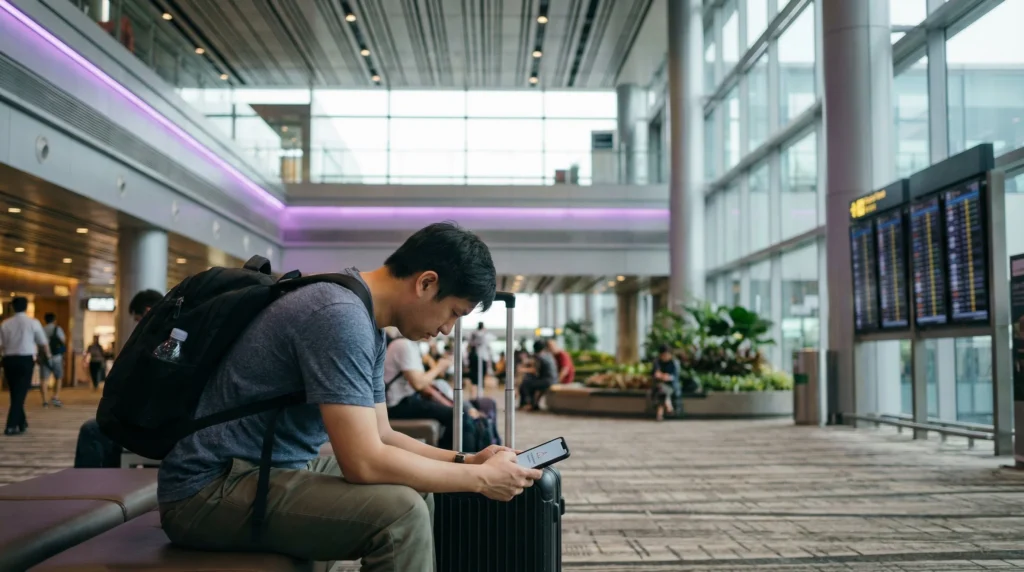

Traveler troubleshooting slow Singapore eSIM speed on smartphone with mobile data settings

Why Is My eSIM Slow in Singapore? (2026 Troubleshooting Guide)

If your eSIM is slow in Singapore, the issue may not mean the eSIM is broken.

Slow mobile data can happen because of indoor signal, network congestion, VPN apps, background updates, hotspot usage, fair usage policies, incorrect mobile data settings, or temporary connection problems.

Quick answer: If your Singapore eSIM is slow, first refresh airplane mode for 30 seconds, restart your phone, make sure the Singapore eSIM is selected for mobile data, enable data roaming on the eSIM line, disable VPN temporarily, check APN settings, and test the connection in a more open area.

Top Singapore eSIMs

Common Reasons Your eSIM Is Slow in Singapore

Reason What It Means What to Try
Weak indoor signal Large malls, hotels, MRT areas, or airport zones can affect signal Move near a window or open area
Network congestion Busy areas may temporarily slow mobile data Refresh airplane mode or try again later
VPN enabled VPN apps can slow or block traffic Disable VPN temporarily
Background data usage Cloud backup, app updates, or hotspot may consume data Pause backups and updates
Wrong mobile data line Your phone may still use your primary SIM Select the Singapore eSIM for mobile data
Data roaming off Many travel eSIMs need roaming enabled Enable data roaming on the eSIM line
Fair usage policy Some plans reduce speed after heavy use Check your plan rules and usage

First: Do Not Delete Your eSIM

If your Singapore eSIM feels slow, do not delete it first.

Some eSIM profiles cannot be installed again after removal. Slow data is usually caused by settings, signal, congestion, app behavior, VPN, or usage conditions — not by the eSIM profile itself.

Quick Fix Checklist for Slow Singapore eSIM

  1. Turn airplane mode on for 30 seconds, then turn it off.
  2. Restart your phone.
  3. Make sure the Singapore eSIM is selected for mobile data.
  4. Enable data roaming on the Singapore eSIM line.
  5. Disable VPN temporarily.
  6. Move to a more open area.
  7. Check APN settings if needed.
  8. Pause cloud backup and app updates.
  9. Stop hotspot sharing temporarily.
  10. Try another app or website.
  11. Try manual network selection if available.

Step 1: Refresh Airplane Mode

Refreshing airplane mode is one of the fastest ways to reset your mobile connection.

  1. Turn airplane mode on.
  2. Wait 30 seconds.
  3. Turn airplane mode off.
  4. Wait for the phone to reconnect.
  5. Test Google Maps, WhatsApp, Grab, Safari, Chrome, or another app.

This can help your phone reconnect to a better available network signal.

Step 2: Restart Your Phone

If airplane mode does not help, restart your device.

A restart can refresh network registration, SIM selection, app behavior, VPN services, background traffic, and mobile data settings.

Step 3: Make Sure the Singapore eSIM Is Selected for Mobile Data

Your phone may show the Singapore eSIM as installed, but it may still use your primary SIM for mobile data.

Make sure the Singapore eSIM is selected as the preferred data line.

On iPhone

  1. Open Settings.
  2. Go to Mobile Service or Cellular.
  3. Tap Mobile Data or Cellular Data.
  4. Select the Singapore eSIM.
  5. Turn off automatic mobile data switching if it causes confusion.

On Samsung or Android

  1. Open Settings.
  2. Go to Connections.
  3. Open SIM Manager.
  4. Select the Singapore eSIM for mobile data.
  5. Make sure mobile data is enabled.

Step 4: Enable Data Roaming on the Singapore eSIM

Most travel eSIM plans require data roaming to be enabled on the eSIM line.

This does not mean you need to enable roaming on your home SIM. Enable data roaming only on the Singapore eSIM line if you use it for mobile data.

On iPhone

  1. Open Settings.
  2. Go to Mobile Service or Cellular.
  3. Select the Singapore eSIM line.
  4. Turn on Data Roaming.

On Samsung or Android

  1. Open Settings.
  2. Go to Connections.
  3. Tap Mobile Networks.
  4. Enable Data Roaming for the Singapore eSIM.

Step 5: Check APN Settings

If mobile data works but feels unstable or does not load some apps, APN settings may need to be checked.

Setting Value
APN data.esim
Username Leave blank
Password Leave blank

If APN fields are not editable, your device or eSIM profile may configure them automatically.

Step 6: Disable VPN Temporarily

VPN apps can reduce speed, block location-based apps, or make pages load slowly.

If your Singapore eSIM connects but feels slow, temporarily disable:

  • VPN apps
  • Private DNS
  • Security filtering apps
  • Ad blockers
  • Custom network profiles

Then test mobile data again using a browser, Google Maps, WhatsApp, or Grab.

Step 7: Move to a More Open Area

Mobile signal can be weaker indoors, underground, or inside large buildings.

Slow eSIM speed may happen in:

  • Airport arrival halls
  • Large shopping malls
  • Hotel rooms
  • Basements
  • Underground MRT areas
  • Conference halls
  • Indoor attractions
  • Elevators and corridors

Move closer to a window, outside, or to a more open area and test again.

Step 8: Pause Background Data Usage

Your phone may feel slow if other apps are using data in the background.

Check and pause:

  • iCloud backup
  • Google Photos backup
  • App Store or Google Play updates
  • System updates
  • Large file downloads
  • Streaming apps
  • Hotspot sharing
  • Cloud storage sync

Step 9: Stop Hotspot Temporarily

Hotspot can consume a large amount of mobile data and may make your phone connection feel slower.

If you are sharing data with a laptop, tablet, or another phone, turn hotspot off temporarily and test mobile speed again.

Step 10: Try Manual Network Selection

If automatic network selection connects to a slow or unstable signal, manual network selection may help.

  1. Open mobile network settings.
  2. Turn off automatic network selection.
  3. Wait for available networks to appear.
  4. Select a supported local network.
  5. If it does not improve, return to automatic selection.

Slow eSIM at Changi Airport

Changi Airport is usually well connected, but arrival areas can be busy and indoor signal conditions may vary.

If your eSIM is slow after landing:

  • Move away from crowded arrival areas
  • Refresh airplane mode
  • Restart your phone
  • Disable VPN temporarily
  • Make sure data roaming is enabled
  • Test Google Maps or a browser

Slow eSIM in Marina Bay

Marina Bay includes indoor malls, hotels, waterfront areas, restaurants, and attractions.

If speed is slow indoors, test mobile data outside or near a window.

Large buildings and busy tourist areas can affect temporary performance.

Slow eSIM in Sentosa

Sentosa visitors often use mobile data for maps, Grab, attractions, hotels, beaches, and social media.

If speed feels slow, check whether background photo uploads, video sharing, or hotspot use are consuming data.

Slow eSIM on Orchard Road

Orchard Road has many malls, hotels, shops, restaurants, and underground areas.

Mobile data may feel slower indoors or during crowded shopping hours. Move outside, refresh airplane mode, and disable VPN if needed.

Slow eSIM in Chinatown or Little India

Chinatown and Little India are busy walking areas with shops, restaurants, markets, hotels, and MRT access.

If your eSIM is slow, check signal strength, background uploads, VPN settings, and whether the Singapore eSIM is selected for mobile data.

Slow eSIM at Gardens by the Bay

Gardens by the Bay includes indoor and outdoor areas.

If mobile data is slow inside attractions or conservatories, try testing outside in an open area and refresh airplane mode.

Why Google Maps Is Slow with Singapore eSIM

If Google Maps loads slowly, first check whether other apps are also slow.

  • If all apps are slow, troubleshoot mobile data settings
  • If only Google Maps is slow, restart the app
  • Check location permissions
  • Disable VPN temporarily
  • Use standard map view instead of satellite view
  • Download offline maps as backup

Why Grab Is Slow with Singapore eSIM

If Grab loads slowly, test mobile data in another app first.

  • Open a browser
  • Check mobile data selection
  • Enable data roaming on the eSIM
  • Disable VPN temporarily
  • Check location permissions
  • Restart the Grab app

Why WhatsApp Is Slow with Singapore eSIM

WhatsApp messages usually use little data, but media sharing can slow down if signal is weak or background uploads are active.

  • Try sending a text message first
  • Pause video or photo uploads
  • Disable VPN temporarily
  • Check mobile data permission for WhatsApp
  • Restart WhatsApp

Does Fair Usage Affect eSIM Speed?

Some unlimited or high-data plans may include fair usage policies.

This means the plan may offer high-speed data up to a certain amount, then reduce speed after heavy usage.

If your eSIM was fast at first and later became slow after heavy streaming, hotspot, or video uploads, fair usage rules may be involved.

What Uses the Most Data and Can Slow Your Connection?

  • YouTube
  • TikTok
  • Instagram Reels
  • Netflix
  • Video calls
  • Cloud photo backup
  • Hotspot sharing
  • Large downloads
  • App updates
  • Laptop updates

Google Maps, Grab, WhatsApp text messages, email, MRT searches, and restaurant searches usually use much less data.

How to Improve eSIM Speed in Singapore

  • Use WiFi for large uploads and app updates
  • Turn off autoplay videos in social apps
  • Pause automatic cloud photo backup
  • Use standard map view instead of satellite view
  • Disable VPN when not needed
  • Limit hotspot use
  • Restart your phone once per day during heavy use
  • Move to open areas when signal is weak
  • Keep your phone battery charged

iPhone Slow eSIM Troubleshooting

  1. Go to Settings → Mobile Service.
  2. Make sure the Singapore eSIM is selected for mobile data.
  3. Open the Singapore eSIM line.
  4. Enable Data Roaming.
  5. Turn off automatic mobile data switching if needed.
  6. Turn airplane mode on for 30 seconds and off again.
  7. Restart your iPhone.
  8. Disable VPN temporarily.
  9. Check APN if editable.

Samsung Slow eSIM Troubleshooting

  1. Open Settings.
  2. Go to Connections.
  3. Open SIM Manager.
  4. Select the Singapore eSIM for mobile data.
  5. Go to Mobile Networks.
  6. Enable data roaming for the eSIM.
  7. Refresh airplane mode for 30 seconds.
  8. Restart the phone.
  9. Disable VPN temporarily.
  10. Check APN settings if needed.

Android Slow eSIM Troubleshooting

  1. Open mobile network settings.
  2. Find SIM or eSIM settings.
  3. Make sure the Singapore eSIM is turned on.
  4. Select it for mobile data.
  5. Enable data roaming on the eSIM line.
  6. Refresh airplane mode.
  7. Restart the phone.
  8. Disable VPN temporarily.
  9. Check APN settings.

When to Contact Support

If your Singapore eSIM remains very slow after all troubleshooting steps, contact support with clear details.

Prepare:

  • Your order number
  • Your email address used for purchase
  • Your phone model
  • Your current location in Singapore
  • Screenshot of mobile data selection
  • Screenshot of data roaming setting
  • Screenshot of APN settings if available
  • Speed test result if available
  • Description of which apps are slow

Where to Find Your NoveSIM eSIM Details

Your NoveSIM QR code, installation instructions, and eSIM details are available:

  • In your confirmation email
  • Under My Account → Orders → View → eSIM details

More Singapore Troubleshooting Guides

More Singapore eSIM and Internet Guides

FAQ: Why Is My eSIM Slow in Singapore?

Why is my Singapore eSIM slow?

Your eSIM may be slow because of indoor signal, network congestion, VPN, hotspot usage, background updates, fair usage policies, or incorrect mobile data settings.

How can I make my Singapore eSIM faster?

Refresh airplane mode, restart your phone, disable VPN, check data roaming, select the Singapore eSIM for mobile data, pause background downloads, and test in a more open area.

Does data roaming affect eSIM speed?

Data roaming must usually be enabled for travel eSIMs. If it is off, mobile data may not work correctly.

Can VPN make my eSIM slow?

Yes. VPN apps can slow mobile data or block some apps. Disable VPN temporarily to test the connection.

Why is my eSIM slow at Changi Airport?

Airport buildings, arrival areas, crowds, and temporary network congestion can affect speed. Move to a more open area and refresh airplane mode.

Can hotspot make my eSIM slower?

Yes. Hotspot sharing can consume large amounts of data and make the connection feel slower, especially if a laptop is updating or syncing files.

Should I delete my eSIM if it is slow?

No. Do not delete the eSIM first. Try troubleshooting settings, signal, VPN, APN, and network selection before removing anything.

What APN should I use for NoveSIM Singapore eSIM?

If manual APN editing is available, use data.esim and leave username and password blank.

Final Recommendation

If your eSIM is slow in Singapore, start by refreshing airplane mode, restarting your phone, selecting the Singapore eSIM for mobile data, enabling data roaming on the eSIM line, disabling VPN, checking APN settings, and testing in an open area.

Most slow eSIM issues are temporary or settings-related and can be improved without deleting the eSIM profile.

View Singapore eSIM plans

Scroll to Top