


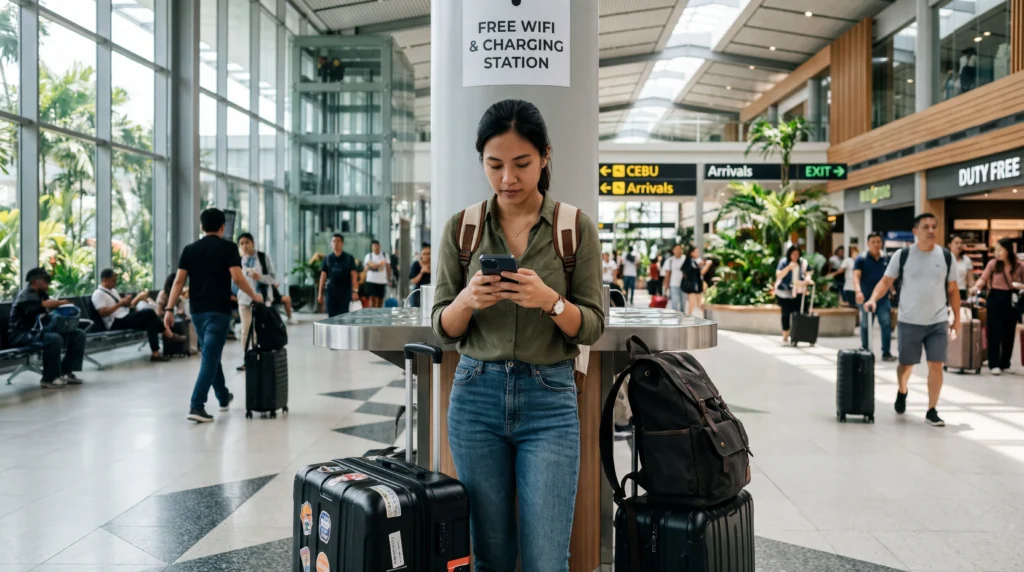

Wi-Fi at Mactan–Cebu International Airport can help with an arrival message, transport booking or access to an eSIM installation email. It should be treated as a temporary terminal connection rather than the only internet plan for Cebu and the surrounding islands.
Airport network names, login steps, session limits and coverage inside the terminals can change. Read the signs displayed in the terminal and select only a network presented as official by the airport. Avoid choosing a similarly named hotspot merely because it appears at the top of the list.
Quick answer: After entering the public terminal area, open Wi-Fi settings and select the official airport network shown on current airport signage. Complete any login or acceptance page and test a simple webpage. If the portal does not appear, turn Wi-Fi off and on, forget the network and reconnect, or open a non-sensitive webpage to trigger it. Use mobile data for the journey beyond the airport.
Top Philippines eSIMs

Philippines eSIM
Fixed
1 GB, 7 days5.50$2 GB, 15 days8.50$3 GB, 30 days11.00$Unlimited
Unlimited, 1 day6.00$Unlimited, 3 days9.50$Unlimited, 5 days13.50$
Connect after you have finished the arrival process
Wait until the aircraft has arrived, mobile use is permitted and you are in a passenger area where the network is visible. Finish immigration, baggage and customs tasks before relying on the connection for a time-sensitive pickup.
- Open the phone’s Wi-Fi settings.
- Check terminal signs or an airport information point for the current official network name.
- Select that network.
- Wait for a login or terms page.
- Complete only the information required by the official portal.
- Open a simple webpage to confirm that the connection works.
Do not assume that a network is official because it includes “Cebu,” “MCIA” or “Airport” in its name. When in doubt, ask airport staff before joining.
If the Wi-Fi login page does not open
Public Wi-Fi often uses a captive portal. The phone can show that it is connected while internet access remains blocked until the portal is completed.
Try these steps in order:
- Turn Wi-Fi off and on.
- Reconnect to the verified airport network.
- Open the browser and visit a basic non-sensitive webpage.
- If the portal still does not appear, forget the network and join it again.
- Temporarily disable a VPN or privacy relay only if it prevents the portal from loading, then restore it after login.
- Move to another public seating area if the signal is weak.
Do not repeatedly submit personal details to an unfamiliar page. If the portal looks inconsistent with the airport branding or requests unexpected payment information, disconnect and verify the network with staff.
When the phone says connected but nothing loads
A Wi-Fi icon does not confirm working internet. The session may have expired, the portal may be incomplete or the local access point may be congested.
| Symptom | Useful check |
|---|---|
| Connected without internet | Reopen the browser and look for the portal |
| Portal completed but pages fail | Forget the network, reconnect and retest |
| Connection drops repeatedly | Move closer to a public terminal area with a stronger signal |
| Only one app fails | Test a webpage to separate an app problem from a Wi-Fi problem |
| Large download stalls | Pause it and use the connection only for essential arrival tasks |
If the airport connection is unavailable, use a prepared eSIM or ask an information desk about the current passenger internet service.
Use public airport Wi-Fi carefully
Public Wi-Fi is shared by many travellers. Use it for low-risk tasks such as checking a pickup message, opening a saved booking or locating a transport app.
- Confirm the network name before connecting.
- Prefer websites and apps that use encrypted connections.
- Avoid entering payment-card details or accessing sensitive financial accounts.
- Do not accept unexpected certificate or security warnings.
- Disable file sharing and automatic connection to open networks.
- Forget the airport network after leaving.
If a sensitive task cannot wait, use a trusted mobile-data connection instead.
Prepare essential arrival information offline
Airport Wi-Fi should be a convenience, not a single point of failure. Before departure, save:
- the accommodation name and address;
- the pickup contact and meeting point;
- the first route from the airport;
- booking confirmations;
- the eSIM installation email and support details;
- an offline map of Cebu or Mactan.
A screenshot is often more reliable than an app that needs to refresh after landing.
Can airport Wi-Fi be used to install an eSIM?
Installation requires a stable internet connection, so it may work on airport Wi-Fi. However, installing before departure is safer because you have time to solve compatibility, QR-code or account-access problems.
If installation must be completed at the airport:
- Confirm that the phone is unlocked and supports eSIM.
- Keep the QR code available on a second screen or use the supported manual method.
- Stay connected until installation completes.
- Do not delete the profile if it does not connect immediately.
- Follow the plan instructions for activation and data roaming.
The full device sequence is covered in the Philippines eSIM activation guide.
Choose internet for the trip beyond the terminal
Airport Wi-Fi ends when you leave its coverage area. For transfers, navigation and communication around Cebu, compare the options before arrival.
| Option | Best suited to | Main limitation |
|---|---|---|
| Travel eSIM | Visitors who want data prepared before landing | Requires a compatible unlocked phone and is data-only |
| Local SIM | Travellers who need a Philippine number | Purchase and identity registration take time |
| Home-network roaming | Short visits with a confirmed roaming bundle | Price and allowance depend on the home operator |
| Public Wi-Fi | Brief terminal or accommodation use | Coverage, performance and security vary |
Use the Cebu Airport internet guide for the wider arrival comparison, or the Cebu Airport SIM-card guide if a local number is important.
Connect an eSIM after landing
If the eSIM was installed before departure, wait until you are in an allowed terminal area, then:
- Turn off airplane mode.
- Enable the travel eSIM line.
- Select it for mobile data.
- Enable data roaming for that line when the plan requires it.
- Leave network selection on automatic.
- Wait several minutes and test a webpage.
If the phone has signal but no data, use the Philippines eSIM no-data checklist. Do not delete the eSIM during initial troubleshooting.
Related Articles
- Philippines eSIM Plans
- Internet at Cebu Airport
- SIM Cards at Cebu Airport
- Using an eSIM at Cebu Airport
- Internet in Cebu for Tourists
- How to Activate a Philippines eSIM
- Philippines eSIM Has Signal but No Internet
FAQ
How do I connect to Wi-Fi at Cebu Airport?
Check the current terminal signage for the official network name, select it in Wi-Fi settings and complete any login or acceptance portal. Network names and access steps can change.
Why does Cebu Airport Wi-Fi say connected without internet?
The login portal may not be complete or the session may have expired. Open a browser, forget and reconnect to the verified network, or move to another public terminal area.
Is airport Wi-Fi enough for a Cebu trip?
No. It is useful inside the terminal, but you need mobile data, a local SIM or roaming for transport, navigation and communication after leaving the airport.
Can I activate a Philippines eSIM using airport Wi-Fi?
It may be possible on a stable connection, but installing before departure is safer. Follow the plan-specific activation instructions and do not delete the profile if it does not connect immediately.
Final Recommendation
Use Cebu Airport Wi-Fi for brief arrival tasks after verifying the official network name. If the login page does not appear, reconnect carefully and test a basic webpage. Avoid sensitive transactions on a shared public network.
Prepare addresses, tickets and the first route offline before departure. For dependable internet after leaving the terminal, install an eSIM in advance or compare a registered local SIM when you need a Philippine number.