
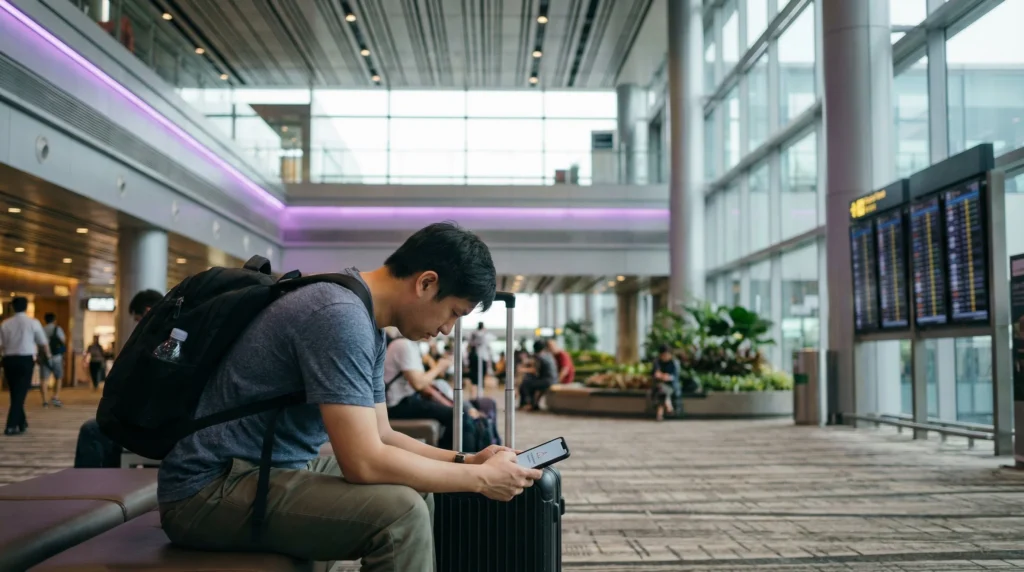

If your eSIM is not working in Singapore, do not delete it immediately.
Most Singapore eSIM connection issues are caused by mobile data selection, data roaming settings, APN configuration, airplane mode, VPN apps, weak indoor signal, or the phone connecting to the wrong network.
Quick answer: If your Singapore eSIM is not working, make sure the eSIM is turned on, selected for mobile data, data roaming is enabled on the eSIM line, APN is set to data.esim if required, airplane mode has been refreshed, and your phone has been restarted.
Top Singapore eSIMs
First: Do Not Delete Your eSIM
If your Singapore eSIM does not connect immediately, do not delete it as the first troubleshooting step.
Some eSIM profiles cannot be installed again after removal. Before deleting anything, check mobile data selection, data roaming, APN settings, airplane mode, network selection, VPN, and device compatibility.
Quick Fix Checklist
- Make sure your phone supports eSIM.
- Make sure your phone is carrier unlocked.
- Make sure the Singapore eSIM is installed.
- Make sure the eSIM line is turned on.
- Select the Singapore eSIM for mobile data.
- Enable data roaming on the Singapore eSIM line.
- Turn airplane mode on for 30 seconds, then turn it off.
- Restart your phone.
- Check APN settings if needed.
- Disable VPN temporarily.
- Move to a more open area if signal is weak.
- Try manual network selection if available.
Most Common Reasons eSIM Does Not Work in Singapore
| Problem | Likely Cause | What to Do |
|---|---|---|
| No mobile data | Wrong SIM selected for mobile data | Select the Singapore eSIM for mobile data |
| No internet connection | Data roaming is off | Enable data roaming on the eSIM line |
| Signal but no internet | APN issue | Set APN to data.esim if manual APN is required |
| Slow or unstable data | Weak indoor coverage or network congestion | Move to open area or refresh airplane mode |
| Apps not loading | VPN, private DNS, or app restriction | Disable VPN/private DNS temporarily |
| eSIM not visible | Installation not completed | Check SIM manager or mobile service settings |
Step 1: Check If Your Phone Supports eSIM
Your Singapore eSIM will only work on an eSIM-compatible device.
Before troubleshooting network settings, confirm that your phone supports eSIM and is not locked to another carrier.
Step 2: Make Sure Your Phone Is Carrier Unlocked
An eSIM may not work correctly if your phone is locked to your home mobile provider.
A carrier-locked phone may reject travel eSIM profiles or fail to connect to supported networks abroad.
If you are not sure whether your phone is unlocked, check your device settings or contact your mobile provider before traveling.
Step 3: Make Sure the Singapore eSIM Is Turned On
After installing an eSIM, some phones allow you to turn the eSIM line on or off.
If the Singapore eSIM line is disabled, your phone cannot use it for mobile data.
- Open mobile data or SIM settings
- Find your Singapore eSIM line
- Make sure the line is turned on
- Confirm it is available in your SIM list
Step 4: Select the Singapore eSIM for Mobile Data
One of the most common reasons eSIM does not work in Singapore is that the phone is still using the primary SIM for mobile data.
You need to select the Singapore eSIM as the preferred mobile data line.
On iPhone
- Open Settings.
- Go to Mobile Service or Cellular.
- Tap Mobile Data or Cellular Data.
- Select your Singapore eSIM.
- Turn off automatic mobile data switching if it causes confusion.
On Android or Samsung
- Open Settings.
- Go to Connections.
- Open SIM Manager.
- Select your Singapore eSIM for mobile data.
- Make sure mobile data is enabled.
Step 5: Enable Data Roaming on the Singapore eSIM
Most travel eSIM plans require data roaming to be enabled on the eSIM line.
This does not mean you need to enable roaming on your primary SIM. Enable data roaming only on the Singapore eSIM line if you are using it for mobile data.
On iPhone
- Open Settings.
- Go to Mobile Service or Cellular.
- Select your Singapore eSIM.
- Open eSIM line settings.
- Turn on Data Roaming.
On Samsung or Android
- Open Settings.
- Go to Connections.
- Tap Mobile Networks.
- Turn on Data Roaming for the Singapore eSIM.
Step 6: Refresh Airplane Mode
Airplane mode can force your phone to reconnect to the mobile network.
- Turn airplane mode on.
- Wait 30 seconds.
- Turn airplane mode off.
- Wait for your phone to reconnect.
- Test internet using Google Maps, Safari, Chrome, WhatsApp, or Grab.
Step 7: Restart Your Phone
If airplane mode does not fix the issue, restart your phone.
A restart can refresh mobile network registration, SIM selection, APN settings, and background connection processes.
Step 8: Check APN Settings
If your phone has signal but mobile internet does not load, APN settings may need to be checked.
| Setting | Value |
|---|---|
| APN | data.esim |
| Username | Leave blank |
| Password | Leave blank |
If APN fields are not editable, your phone or eSIM profile may configure them automatically.
Step 9: Disable VPN or Private DNS Temporarily
VPN apps, private DNS settings, security apps, or ad blockers may interfere with mobile data connections.
If your eSIM shows signal but apps do not load, temporarily disable:
- VPN apps
- Private DNS
- Security filtering apps
- Ad blockers
- Custom network profiles
Then test internet again using a browser or Google Maps.
Step 10: Try Manual Network Selection
If your phone does not connect automatically, manual network selection may help.
Open your mobile network settings, disable automatic network selection, wait for available networks to appear, and try selecting a supported local network.
If the first network does not connect, return to automatic selection or try another available network.
eSIM Not Working at Changi Airport
Many travelers notice eSIM issues immediately after landing at Changi Airport.
If your Singapore eSIM does not work after arrival, check these first:
- Airplane mode is turned off
- Singapore eSIM is selected for mobile data
- Data roaming is enabled on the eSIM line
- Primary SIM is not being used for data
- APN is correct if manual APN is needed
- VPN is disabled temporarily
- You are in an area with mobile signal
Airport buildings, underground areas, and crowded arrival zones may temporarily affect signal quality. Move to a more open area and refresh airplane mode if needed.
eSIM Has Signal But No Internet
If your phone shows signal bars but pages do not load, the issue is usually related to mobile data settings.
- Confirm the Singapore eSIM is selected for mobile data.
- Enable data roaming on the Singapore eSIM.
- Check APN settings.
- Disable VPN temporarily.
- Restart your phone.
- Try a browser instead of one specific app.
eSIM Works But Internet Is Slow
If your Singapore eSIM connects but feels slow, the issue may be temporary network congestion, indoor coverage, app-specific loading problems, VPN, or data-heavy background usage.
- Move closer to a window or open outdoor area
- Turn airplane mode on for 30 seconds and off again
- Restart your phone
- Disable VPN temporarily
- Pause cloud backup and app updates
- Try another app or website
- Check if hotspot or streaming is consuming data
Google Maps Not Working with Singapore eSIM
If Google Maps is not loading, first test whether other apps work.
- If all apps fail, troubleshoot mobile data settings
- If only Google Maps fails, update or restart the app
- Disable VPN temporarily
- Check location permissions
- Try opening maps in a browser
Grab Not Working with Singapore eSIM
If Grab does not work after landing in Singapore, check whether your mobile data connection works in other apps.
- Open a browser and test a website
- Check mobile data selection
- Enable data roaming on the eSIM line
- Disable VPN temporarily
- Check location permissions
- Restart the Grab app
WhatsApp Not Working with Singapore eSIM
WhatsApp usually continues working with your existing number while using a Singapore eSIM for mobile data.
If WhatsApp does not work:
- Test if other apps load
- Disable VPN temporarily
- Check WhatsApp mobile data permission
- Restart WhatsApp
- Do not re-register WhatsApp unless necessary
iPhone Singapore eSIM Troubleshooting
- Go to Settings → Mobile Service.
- Make sure the Singapore eSIM is turned on.
- Go to Mobile Data.
- Select the Singapore eSIM.
- Open the eSIM line and enable Data Roaming.
- Turn off automatic mobile data switching if needed.
- Refresh airplane mode for 30 seconds.
- Restart the iPhone.
- Check APN if editable.
Samsung Singapore eSIM Troubleshooting
- Open Settings.
- Go to Connections.
- Open SIM Manager.
- Make sure the Singapore eSIM is turned on.
- Select the Singapore eSIM for mobile data.
- Go to Mobile Networks.
- Enable data roaming for the eSIM.
- Refresh airplane mode for 30 seconds.
- Restart the phone.
- Check APN settings if needed.
Android Singapore eSIM Troubleshooting
Android menu names vary by brand, but the logic is usually similar.
- Open mobile network settings.
- Find SIM or eSIM settings.
- Turn on the Singapore eSIM.
- Select it for mobile data.
- Enable data roaming on the eSIM line.
- Refresh airplane mode.
- Restart the phone.
- Check APN settings.
Primary SIM vs Singapore eSIM
Your primary SIM and Singapore eSIM can usually remain active together on dual SIM phones.
For travel internet, your Singapore eSIM should be selected for mobile data.
If you want to avoid unwanted roaming charges, keep data roaming disabled on your primary SIM and enable data roaming only on the Singapore eSIM line.
Can You Still Receive SMS on Your Primary SIM?
Many travelers keep their primary SIM active for SMS verification codes, banking messages, calls, or work authentication.
This can often work while using the Singapore eSIM for mobile data, depending on your phone, provider, and roaming settings.
What If Your eSIM Was Installed Too Early?
In many cases, a travel eSIM starts working when it connects to a supported network in the destination country.
If you installed your Singapore eSIM before travel, it should usually be ready to use after you arrive in Singapore and configure mobile data correctly.
What If Your Phone Shows No Service?
If your phone shows no service on the Singapore eSIM:
- Make sure airplane mode is off.
- Make sure the eSIM line is turned on.
- Restart your phone.
- Try automatic network selection.
- Move to a more open area.
- Check if your phone is unlocked.
- Confirm your device supports eSIM.
What If Your eSIM Is Installed But Not Activating?
If the eSIM is installed but not activating, check whether you are already in Singapore and connected to a supported local network.
Also make sure mobile data and data roaming are enabled for the eSIM line.
Before Contacting Support
Before contacting support, prepare the following details so the issue can be checked faster:
- Your order number
- Your email address used for purchase
- Your phone model
- Your current location in Singapore
- Screenshot of mobile data selection
- Screenshot of data roaming setting
- Screenshot of APN settings if available
- Description of what works and what does not work
Where to Find Your NoveSIM eSIM Details
Your NoveSIM QR code, installation instructions, and eSIM details are available:
- In your confirmation email
- Under My Account → Orders → View → eSIM details
More Singapore Troubleshooting Guides
- Does My eSIM Work in Singapore?
- Why Is My eSIM Slow in Singapore?
- APN Settings Singapore eSIM
- No Internet Singapore eSIM
- Does WhatsApp Work in Singapore?
- Best Network in Singapore for Tourists
- How Much Data Do You Need for Singapore?
More Singapore eSIM and Internet Guides
- Singapore eSIM
- Best eSIM for Singapore
- Mobile Internet Singapore
- Internet Singapore Tourists
- How to Get Internet in Singapore
- Best Mobile Data Singapore
- Unlimited Data eSIM Singapore
- Local SIM vs eSIM Singapore
- Singapore Roaming Charges
FAQ: eSIM Not Working in Singapore
Why is my eSIM not working in Singapore?
The most common reasons are that the eSIM is not selected for mobile data, data roaming is disabled, APN settings are missing, VPN is interfering, or the phone has not connected to a supported network yet.
Do I need data roaming enabled for Singapore eSIM?
Yes. Most travel eSIM plans require data roaming to be enabled on the Singapore eSIM line.
Should I enable roaming on my primary SIM?
No, not if you want to avoid home-provider roaming charges. Enable data roaming only on the Singapore eSIM line if you use it for mobile data.
What APN should I use for NoveSIM Singapore eSIM?
If manual APN editing is available, use data.esim and leave username and password blank.
Why does my eSIM show signal but no internet?
This usually means mobile data selection, data roaming, APN settings, or VPN configuration needs to be checked.
Can I use WhatsApp if my Singapore eSIM is for data only?
Yes. WhatsApp usually continues working with your existing number while using the Singapore eSIM for mobile data.
Should I delete and reinstall my eSIM?
No. Do not delete your eSIM first. Some eSIM profiles cannot be installed again after removal. Try all troubleshooting steps before deleting anything.
Why is my Singapore eSIM slow?
Slow speeds may be caused by indoor coverage, network congestion, VPN, background app updates, hotspot usage, or temporary network conditions.
Can I use Google Maps and Grab with Singapore eSIM?
Yes. Google Maps and Grab work with mobile data when the Singapore eSIM is correctly selected and connected.
What should I send support if my eSIM still does not work?
Send your order number, email address, phone model, current location, and screenshots of mobile data selection, data roaming, and APN settings if available.
Final Recommendation
If your eSIM is not working in Singapore, start with the basics: select the Singapore eSIM for mobile data, enable data roaming on the eSIM line, refresh airplane mode, restart your phone, check APN settings, and disable VPN temporarily.
Most Singapore eSIM issues can be solved without deleting the eSIM profile. If the issue continues, contact support with your order details, phone model, and screenshots of the relevant settings.


