
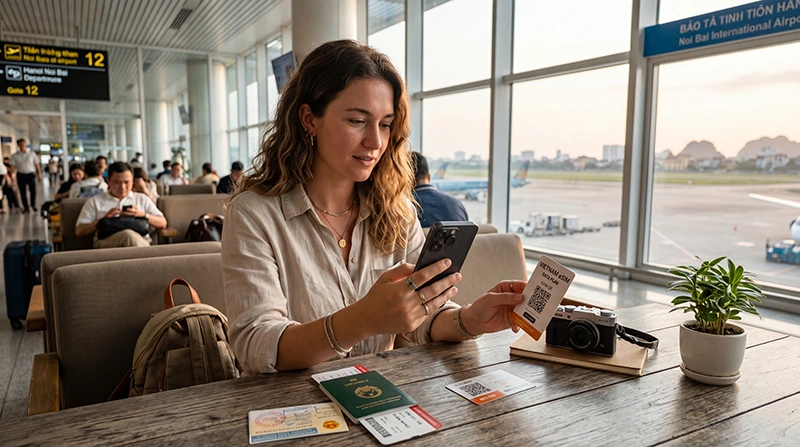

Traveler installing and using a Vietnam eSIM on iPhone before a trip

Vietnam eSIM for iPhone (2026 Complete Setup Guide)

If you are traveling to Vietnam with an iPhone, using an eSIM is one of the easiest ways to stay connected throughout your trip.

Instead of buying a physical SIM card after arrival, waiting at airport counters or replacing your regular SIM, you can install a Vietnam eSIM before departure and use mobile data once you arrive.

This is especially useful if you need internet immediately for airport transfers, Google Maps, hotel communication, WhatsApp, Grab rides, translation apps or travel bookings.

Quick answer: Most modern iPhones support eSIM. You can install your Vietnam eSIM before traveling, enable Data Roaming on the eSIM profile, select it as your mobile data source and start using internet after your phone connects to a supported network in Vietnam.

Top Vietnam eSIMs

Does iPhone Support eSIM in Vietnam?

Yes.

Most recent iPhone models support eSIM technology and can be used with travel eSIM plans for Vietnam.

The eSIM does not depend on buying a local physical SIM card. It works digitally through a QR code or manual installation details provided after purchase.

Which iPhones Support eSIM?

iPhone Model eSIM Support
iPhone XS Yes
iPhone XS Max Yes
iPhone XR Yes
iPhone 11 Series Yes
iPhone 12 Series Yes
iPhone 13 Series Yes
iPhone 14 Series Yes
iPhone 15 Series Yes
iPhone 16 Series Yes

Some iPhones sold in specific regions may have different SIM configurations, so it is always best to check your device settings before purchasing.

How to Check If Your iPhone Supports eSIM

You can quickly check from your iPhone settings.

  1. Open Settings
  2. Tap Cellular or Mobile Service
  3. Look for Add eSIM

If you see the Add eSIM option, your iPhone usually supports eSIM installation.

You can also dial:

*#06#

If your device displays an EID number, it normally supports eSIM.

When Should You Install Your Vietnam eSIM on iPhone?

The best time to install your Vietnam eSIM is before departure while connected to a stable WiFi network.

This avoids stress after landing and ensures your eSIM profile is already stored on your iPhone.

Recommended timing:

  • Install before your flight
  • Use WiFi during installation
  • Keep the eSIM turned off or inactive until travel if needed
  • Enable it when arriving in Vietnam

Most travel eSIMs activate only after connecting to a supported network in Vietnam.

How to Install a Vietnam eSIM on iPhone

Follow these steps:

  1. Connect your iPhone to WiFi
  2. Open Settings
  3. Tap Cellular or Mobile Service
  4. Tap Add eSIM
  5. Select Use QR Code
  6. Scan your Vietnam eSIM QR code
  7. Follow the on-screen setup steps
  8. Label the plan as Vietnam eSIM
  9. Keep your primary SIM for calls and SMS if needed

Recommended iPhone Settings for Vietnam eSIM

Setting Recommended Option
Mobile Data Vietnam eSIM
Default Voice Line Primary SIM
Data Roaming on Vietnam eSIM ON
Data Roaming on Primary SIM OFF
Allow Mobile Data Switching OFF

Should Data Roaming Be Enabled on iPhone?

Yes.

Most travel eSIMs require Data Roaming to be enabled on the eSIM profile.

On iPhone:

  1. Open Settings
  2. Tap Cellular
  3. Select your Vietnam eSIM
  4. Tap Data Roaming
  5. Turn it ON

Important: enable Data Roaming only for the Vietnam eSIM. Keep Data Roaming OFF on your primary SIM unless you intentionally want to use your home carrier abroad.

How to Select Vietnam eSIM for Mobile Data

After installing the eSIM, make sure your iPhone uses it for internet.

  1. Open Settings
  2. Tap Cellular
  3. Tap Cellular Data
  4. Select Vietnam eSIM

This ensures your mobile internet comes from your travel eSIM instead of your regular SIM.

Should You Turn Off Allow Cellular Data Switching?

Yes, in most cases.

If this setting is enabled, your iPhone may switch between SIMs automatically. This can cause confusion or unexpected roaming charges from your primary SIM.

Recommended setup:

  • Vietnam eSIM selected for mobile data
  • Allow Cellular Data Switching OFF
  • Primary SIM Data Roaming OFF

Does the Vietnam eSIM Activate Before Arrival?

Usually no.

Most Vietnam travel eSIMs activate when they connect to a supported Vietnamese network.

Before arrival, your iPhone may show:

  • No Service
  • Activating
  • Searching

This is normal if you are not yet in Vietnam.

What APN Should You Use on iPhone?

Most iPhones configure APN settings automatically.

If manual APN setup is needed, use:

Setting Value
APN data.esim
Username Leave Blank
Password Leave Blank

How to Enter APN Settings on iPhone

  1. Open Settings
  2. Tap Cellular
  3. Select your Vietnam eSIM
  4. Tap Cellular Data Network
  5. Enter data.esim in the APN field
  6. Leave username and password blank
  7. Restart your iPhone

Can You Keep Your Normal SIM Active?

Yes.

This is one of the biggest benefits of using eSIM on iPhone.

You can use:

  • Vietnam eSIM for mobile data
  • Primary SIM for calls
  • Primary SIM for SMS verification codes
  • Primary SIM for banking authentication
  • Primary SIM for receiving important messages

To avoid unwanted roaming costs, keep mobile data assigned to the Vietnam eSIM and Data Roaming OFF on your primary SIM.

Does WhatsApp Work With Vietnam eSIM on iPhone?

Yes.

WhatsApp remains linked to your original phone number.

Installing a Vietnam eSIM does not automatically change your WhatsApp number.

You can continue using:

  • WhatsApp messages
  • WhatsApp voice calls
  • WhatsApp video calls
  • Group chats
  • Photo sharing

Can You Use Personal Hotspot With Vietnam eSIM?

In most cases, yes.

Personal Hotspot can be useful for:

  • Laptops
  • Tablets
  • Travel companions
  • Remote work
  • Backup internet

Hotspot usage can consume data quickly, especially with laptops and video calls.

Vietnam eSIM for iPhone Troubleshooting

Problem Solution
No Service Enable Data Roaming and restart
Connected but no internet Check APN and mobile data source
Slow internet Toggle Airplane Mode or try manual network selection
eSIM stuck on Activating Wait until arrival in Vietnam
Wrong SIM using data Select Vietnam eSIM under Cellular Data

Step-by-Step Fix If Vietnam eSIM Does Not Work on iPhone

  1. Confirm you are in Vietnam
  2. Check that the Vietnam eSIM is turned on
  3. Select Vietnam eSIM for Cellular Data
  4. Enable Data Roaming on the Vietnam eSIM
  5. Turn OFF Allow Cellular Data Switching
  6. Check APN settings
  7. Toggle Airplane Mode for 30 seconds
  8. Restart your iPhone
  9. Try manual network selection if needed

Related Vietnam eSIM Guides

FAQ: Vietnam eSIM for iPhone

Can I use a Vietnam eSIM on iPhone?

Yes. Most modern iPhones support eSIM and can use a Vietnam travel eSIM.

Which iPhones support Vietnam eSIM?

Most iPhones from iPhone XS, iPhone XR and newer support eSIM.

Can I install the eSIM before traveling?

Yes. It is recommended to install your Vietnam eSIM before departure while connected to WiFi.

Will the eSIM activate before I arrive?

Usually no. Most travel eSIMs activate after connecting to a supported network in Vietnam.

Do I need Data Roaming enabled?

Yes. Enable Data Roaming on the Vietnam eSIM profile.

Should I turn off my primary SIM?

No. You can keep your primary SIM active for calls and SMS, but keep its Data Roaming turned off.

What APN should I use?

If manual setup is required, use data.esim.

Does WhatsApp keep my original number?

Yes. WhatsApp remains linked to your existing phone number.

Can I use hotspot with Vietnam eSIM?

In most cases, yes. Hotspot can be used for laptops, tablets and travel companions.

What should I do if my iPhone eSIM does not work?

Enable Data Roaming, select the eSIM as your mobile data source, check APN settings, restart your iPhone and try again.

Final Recommendation

Using a Vietnam eSIM on iPhone is one of the easiest ways to stay connected during your trip.

Install the eSIM before departure, select it for mobile data, enable Data Roaming and keep your primary SIM active only for calls and SMS if needed.

This setup gives you mobile internet throughout Vietnam while helping you avoid physical SIM cards, airport queues and unnecessary roaming costs.

Scroll to Top