


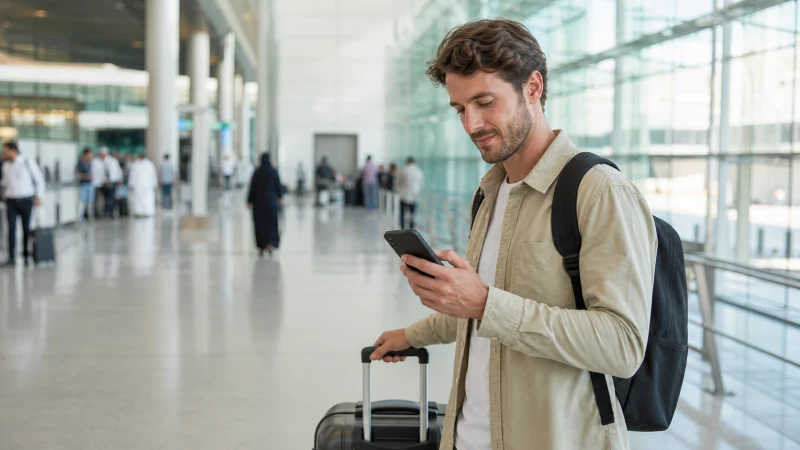

If you’ve already installed a Saudi Arabia eSIM before your flight, activating it at Riyadh airport is a quick process that gets you connected before you’ve even left the immigration queue — worth knowing the exact sequence so you’re not fumbling with settings while juggling luggage and a passport.
Quick answer: As soon as your phone reconnects to any signal after landing — or to terminal WiFi if you’d rather wait until you’re off the plane — go into your cellular settings, turn on the pre-installed eSIM, and confirm it’s set as your active data line. It typically registers with a Saudi network within a minute or two.
Top Saudi Arabia eSIMs


Before you land: what should already be done
Ideally, you installed your eSIM before departure, meaning the profile is already sitting on your phone waiting to be switched on — if you haven’t done this yet, you’ll need terminal WiFi to complete installation first, which takes longer than simple activation.
Activating right after landing
Once your phone reconnects to any network after landing — sometimes this happens automatically via roaming before you’ve done anything — head into your cellular or mobile network settings, find the installed eSIM, and toggle it on. Setting it as your primary or active data line, rather than leaving your home SIM as default, is the step most travelers forget in the moment.
Using terminal WiFi if needed
If your eSIM doesn’t activate immediately or you want to confirm everything is working before proceeding, connecting briefly to terminal WiFi — covered in the Riyadh Airport WiFi guide — gives you a stable connection to sort out any activation issues while you’re still in a familiar environment with airport staff nearby if needed.
Confirming you’re connected to a Saudi network
After activation, check that your phone displays a Saudi carrier name — STC, Mobily, or Zain, depending on your eSIM’s underlying network — rather than still showing your home carrier or “no service.” This confirms you’re properly connected rather than still relying on expensive home-network roaming by accident.
What to do during the immigration queue
Many travelers use the immigration and passport control wait specifically to get their eSIM activated, since you have a few minutes with nothing else to do — just be mindful of keeping your phone accessible for passport checks and not blocking the queue while troubleshooting.
If activation doesn’t work at the airport
A profile that won’t activate is usually a settings issue rather than anything specific to being at the airport — check your APN settings next, and the eSIM not working guide covers a fuller troubleshooting sequence if the basics don’t resolve it before you need to move on.
After you’re connected
Once your eSIM is active and confirmed, you’re ready to book a ride, look up directions, or message that you’ve landed — the Riyadh airport to city guide covers what connectivity looks like for the journey into central Riyadh that follows.
FAQ
When should I activate my eSIM at Riyadh airport?
As soon as convenient after landing — many travelers do this during the immigration queue.
Do I need WiFi to activate an already-installed eSIM?
Not always — activation can work over the airport’s ambient signal, though terminal WiFi is a reliable backup if needed.
How do I know my eSIM is properly connected?
Your phone should display a Saudi carrier name like STC, Mobily, or Zain instead of your home network.
What if my eSIM won’t activate at the airport?
Check your APN settings, and use terminal WiFi for a stable connection while troubleshooting.
Can I activate my eSIM during the immigration queue?
Yes, many travelers do exactly this, though keep your phone accessible for passport checks.
What comes after I’m connected at the airport?
Booking a ride and navigating into the city, covered in the Riyadh airport to city guide.
Final Recommendation
Activate your pre-installed eSIM as soon as you land, using terminal WiFi as backup if needed, and confirm a Saudi carrier name before assuming you’re connected. See the installing an eSIM guide if you haven’t set up your profile yet.