


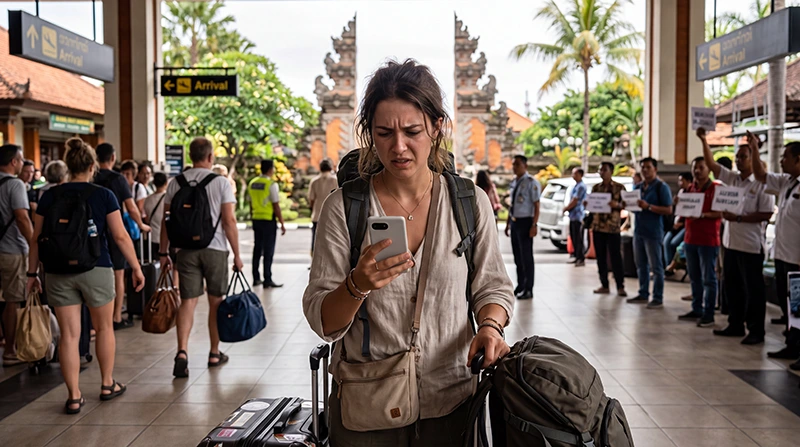

You have arrived in Indonesia.
Your eSIM appears installed.
You may even see signal bars.
But there is one major problem:
You have no internet connection.
Google Maps will not load.
WhatsApp cannot send messages.
Instagram refuses to refresh.
Your ride-hailing app cannot find a driver.
Your hotel booking confirmation is inaccessible.
If this is happening to you, do not panic.
The vast majority of Indonesia eSIM connectivity issues are caused by settings rather than a faulty eSIM.
Most problems can be fixed within a few minutes.
Quick answer: the most common causes of no internet on an Indonesia eSIM are disabled data roaming, incorrect APN settings, the wrong mobile data line being selected, network registration delays, or incomplete eSIM setup.
Top Indonesia eSIMs


First: Is Your eSIM Installed Correctly?
Before troubleshooting, verify that the eSIM is actually installed.
On most devices you should see:
- The eSIM listed in SIM settings.
- A network indicator.
- A signal icon.
- The eSIM profile enabled.
If the eSIM does not appear in your phone at all, the issue may be installation-related rather than internet-related.
Step 1: Make Sure You Are in Indonesia
This may sound obvious, but it is one of the most common misunderstandings.
Many travel eSIMs only activate when they connect to a supported network in the destination country.
If you installed the eSIM before departure, it may not become active until you arrive in Indonesia.
This is normal behavior.
Step 2: Enable Data Roaming
This is the single most common cause of no internet.
Many travelers intentionally disable roaming because they want to avoid expensive charges.
However, travel eSIMs often require roaming to be enabled.
iPhone
- Open Settings.
- Select Cellular or Mobile Service.
- Choose your Indonesia eSIM.
- Enable Data Roaming.
Android
- Open Settings.
- Select Network & Internet.
- Choose SIM Manager.
- Select the Indonesia eSIM.
- Enable Data Roaming.
After enabling roaming, wait a few minutes before testing again.
Step 3: Select the Indonesia eSIM for Mobile Data
Many dual-SIM phones continue using the primary SIM card for internet.
This causes confusion because the eSIM appears active but is not actually handling data traffic.
Verify that your Indonesia eSIM is selected as:
- Preferred Mobile Data Line
- Primary Data Connection
- Active Internet SIM
The exact wording varies by device.
Step 4: Disable Automatic Data Switching
Modern smartphones often switch automatically between SIM cards.
This feature can interfere with travel eSIM connectivity.
Disable:
- Allow Mobile Data Switching
- Automatic SIM Switching
- Smart Network Switching
This prevents the phone from reverting to your home SIM.
Step 5: Verify APN Settings
Incorrect APN settings are another major cause of no internet.
If manual configuration is required, use:
| Setting | Value |
|---|---|
| APN | data.esim |
Leave other fields empty unless instructed otherwise.
Related guide:
Step 6: Restart Your Device
This simple step resolves more issues than many travelers expect.
- Turn off your phone.
- Wait 30 seconds.
- Turn it back on.
- Wait for the network to reconnect.
Restarting forces the device to re-register with available networks.
Step 7: Use Airplane Mode
If restarting does not help, try refreshing the connection manually.
- Enable Airplane Mode.
- Wait 30 seconds.
- Disable Airplane Mode.
- Allow the device to reconnect.
This often resolves temporary registration problems.
Step 8: Check Network Selection
Sometimes your phone connects to a network that has poor performance or limited access.
Manual network selection can help.
iPhone
- Settings
- Mobile Service
- Network Selection
- Disable Automatic
- Select another available network
Android
- Settings
- Mobile Networks
- Network Operators
- Disable Automatic
- Select another network
After switching, test your connection again.
Step 9: Check Whether Your Plan Has Started
Some travelers accidentally confuse installation with activation.
An eSIM can be installed successfully but may only activate after connecting to a supported network.
Verify:
- The plan is active.
- The validity period has started.
- The package has not expired.
- The package includes Indonesia coverage.
No Internet in Bali
Bali is the most common location where travelers test their eSIM for the first time.
If you have no internet in:
- Canggu
- Ubud
- Seminyak
- Uluwatu
- Nusa Dua
- Kuta
The issue is usually related to settings rather than network availability.
Bali generally has strong mobile coverage.
No Internet in Lombok
Lombok generally offers good connectivity in tourist areas.
If internet is unavailable:
- Verify APN settings.
- Check roaming.
- Restart the device.
- Move outdoors.
Remote regions may have weaker coverage than major tourist areas.
No Internet in the Gili Islands
The Gili Islands are smaller and infrastructure is more limited.
However, complete lack of internet is usually caused by:
- Settings issues
- Network registration problems
- Incorrect APN configuration
Most travelers regain connectivity after basic troubleshooting.
No Internet in Komodo Islands
Coverage quality varies depending on your exact location.
Some remote areas of Komodo National Park may have weaker connectivity.
Try testing your connection in:
- Labuan Bajo
- Ports
- Hotels
- Town centers
If service returns, the issue may be related to coverage rather than your eSIM.
Why Do I Have Signal Bars but No Internet?
This is extremely common.
Signal bars only indicate that the device is connected to a network.
They do not guarantee internet access.
Common causes include:
- Incorrect APN
- Disabled roaming
- Wrong data SIM selected
- Plan not activated
- Network restrictions
Signal bars alone do not confirm successful data connectivity.
Why Does WhatsApp Not Work?
If WhatsApp cannot send messages, the underlying issue is usually lack of internet access.
WhatsApp itself rarely causes the problem.
Once internet access is restored, WhatsApp should function normally.
Related guide:
Does WhatsApp Work in Indonesia?
Can I Keep My Home SIM Active?
Yes.
Many travelers keep their primary SIM active for:
- SMS verification
- Banking codes
- Calls
- WhatsApp registration
However:
- Indonesia eSIM should handle mobile data.
- Home SIM should not be the preferred data line.
This prevents accidental roaming charges.
How to Test Your Internet Connection
After completing troubleshooting:
- Open Google Maps.
- Load a website.
- Send a WhatsApp message.
- Check email.
- Run a speed test.
If all of these work, the issue has been resolved.
When Should You Contact Support?
Contact support if:
- The eSIM never connects.
- No network appears.
- Activation fails.
- The plan appears inactive.
- Internet remains unavailable after all troubleshooting steps.
Before contacting support, prepare:
- Phone model
- Current location
- Screenshots of settings
- Network status screenshots
- APN screenshots
This significantly speeds up troubleshooting.
Related Indonesia Guides
- Indonesia eSIM
- Best eSIM for Indonesia
- eSIM Not Working Indonesia
- Does My eSIM Work in Indonesia?
- APN Settings Indonesia eSIM
- Why Is My eSIM Slow in Indonesia?
- Best Network in Indonesia for Tourists
Final Recommendation
Most cases of “No Internet” on an Indonesia eSIM are caused by configuration issues rather than network failures.
Start by checking data roaming, APN settings, preferred mobile data selection, and network registration.
In the vast majority of situations, these simple steps restore connectivity within minutes.
Once configured correctly, an Indonesia eSIM can provide reliable internet access throughout Bali, Lombok, Gili Islands, Komodo Islands, Jakarta, Yogyakarta, and many other destinations across the country.
FAQ: No Internet Indonesia eSIM
Why do I have no internet on my Indonesia eSIM?
The most common causes are disabled data roaming, incorrect APN settings, wrong mobile data selection, or delayed network registration.
What APN should I use?
If manual APN setup is required, use: data.esim.
Should data roaming be enabled?
Yes. Most travel eSIMs require data roaming to be turned on.
Why do I have signal bars but no internet?
Signal bars indicate network connection but do not guarantee mobile data access. APN and roaming settings are common causes.
Can I keep my regular SIM active?
Yes, but the Indonesia eSIM should remain selected as the preferred mobile data line.
Will restarting my phone help?
Yes. Restarting the device often resolves temporary network registration issues.