


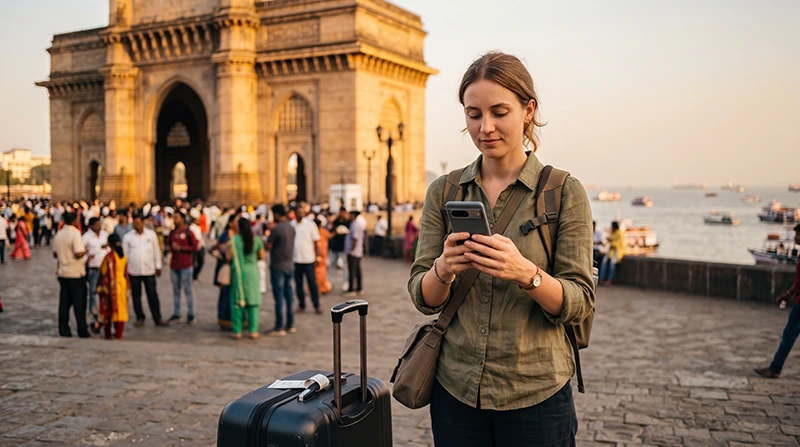

Your India eSIM is installed, you can see signal bars, but mobile internet isn’t working. This is one of the most common issues travelers experience after arriving in India, and fortunately it is usually very easy to fix.
In most cases, the problem is caused by phone settings rather than the eSIM itself. A disabled Data Roaming option, an incorrect APN or selecting the wrong SIM for mobile data can all prevent your internet connection from working.
Quick answer: make sure your India eSIM is enabled, selected for Mobile Data, Data Roaming is turned on, Network Selection is Automatic and the APN is set to data.esim.
Top India eSIMs


Why Does My India eSIM Have No Internet?
Even when your phone is connected to a local network, several settings must be configured correctly before mobile data starts working.
The most common reasons include:
- Data Roaming is turned off.
- The primary SIM is still being used for Mobile Data.
- The APN is incorrect.
- Automatic Data Switching is enabled.
- The phone hasn’t registered properly with the local network yet.
- The device simply needs to reconnect to the network.
Step 1: Confirm You Are in India
Your India eSIM activates when you arrive in one of the supported coverage areas.
If you are still outside India or your aircraft has not yet landed, mobile data will not become available.
Step 2: Make Sure the India eSIM Is Enabled
Open your phone’s SIM settings and verify that your India eSIM is switched on.
If the eSIM profile is disabled, your phone cannot connect to the local mobile network.
Step 3: Select the India eSIM for Mobile Data
Many Dual SIM phones continue using the primary SIM after installing an eSIM.
Open your Mobile Data settings and make sure the India eSIM is selected.
| Setting | Correct Value |
|---|---|
| Mobile Data | India eSIM |
| Calls | Primary SIM |
| SMS | Primary SIM |
Step 4: Enable Data Roaming
Travel eSIMs normally require Data Roaming to be enabled.
Go to the settings for your India eSIM and switch Data Roaming ON.
To avoid unexpected charges, keep Data Roaming disabled on your primary SIM.
Step 5: Verify the APN
If your phone has signal but apps and websites do not load, the APN may need to be entered manually.
| Field | Value |
|---|---|
| Name | NoveSIM |
| APN | data.esim |
| Username | Leave blank |
| Password | Leave blank |
| Authentication | None |
Save the APN and reconnect to the mobile network.
Step 6: Turn Off Automatic Data Switching
Many phones automatically switch back to the primary SIM if they believe another connection is stronger.
Disable:
- Automatic Data Switching (Android)
- Allow Cellular Data Switching (iPhone)
This ensures the India eSIM remains your active mobile data connection.
Step 7: Leave Network Selection on Automatic
Your travel eSIM automatically connects to supported partner networks in India.
If you manually selected a network, return the setting to Automatic.
Step 8: Refresh the Mobile Connection
If everything appears correct but internet still doesn’t work:
- Turn Airplane Mode on.
- Wait 30 seconds.
- Turn Airplane Mode off.
- Wait several minutes.
This forces your phone to reconnect to the available network.
Step 9: Restart Your Phone
A restart often completes network registration after changing mobile settings.
This simple step resolves many connectivity issues.
Common Symptoms and Solutions
| Problem | Recommended Fix |
|---|---|
| Signal but no internet | Enable Data Roaming and verify APN |
| No Service | Enable the eSIM and wait for network registration |
| Primary SIM uses data | Select India eSIM for Mobile Data |
| Slow internet | Reconnect to the network or change location |
| No connection after landing | Use Airplane Mode and restart the phone |
Can You Keep Your Primary SIM?
Yes. Your regular SIM card can remain active for calls, SMS and banking verification codes while your India eSIM provides internet access.
Simply keep Data Roaming disabled on your primary SIM.
Does WhatsApp Work?
Yes. WhatsApp continues using your existing phone number while your India eSIM provides the internet connection.
You do not need to register WhatsApp again.
What You Should NOT Do
- Do not delete the eSIM profile.
- Do not scan the QR code again unless instructed by support.
- Do not enable roaming on your primary SIM.
- Do not manually select random mobile networks.
- Do not remove the eSIM during troubleshooting.
Most travel eSIM QR codes can only be installed once.
Travel Tips
- Install your eSIM before departure.
- Keep your QR code until the trip is finished.
- Download offline Google Maps.
- Carry a power bank.
- Use hotel WiFi for large downloads.
- Monitor your remaining data.
- Restart your phone after changing network settings.
Related India Guides
- India eSIM
- How to Install an India eSIM
- How to Activate an India eSIM
- How to Use an India eSIM
- India eSIM Not Working
- India eSIM APN Settings
FAQ
My phone has signal but no internet. What should I do?
Enable Data Roaming, make sure the India eSIM is selected for Mobile Data and verify that the APN is data.esim.
Should I restart my phone?
Yes. Restarting the device after changing your settings often resolves connection problems.
Should I delete and reinstall the eSIM?
No. Many travel eSIM QR codes can only be installed once. Contact support before deleting the eSIM profile.
Why is my primary SIM still using data?
Your phone is probably still using your primary SIM for Mobile Data. Select the India eSIM instead.
What APN should I use?
If manual configuration is required, use data.esim.
Final Recommendation
If your India eSIM has no internet, don’t panic. In most cases the solution is simple: enable the eSIM, select it for Mobile Data, turn on Data Roaming, keep Network Selection on Automatic and verify that the APN is set to data.esim.
If the issue persists after restarting your phone and refreshing the network connection, contact customer support before deleting the eSIM profile.