
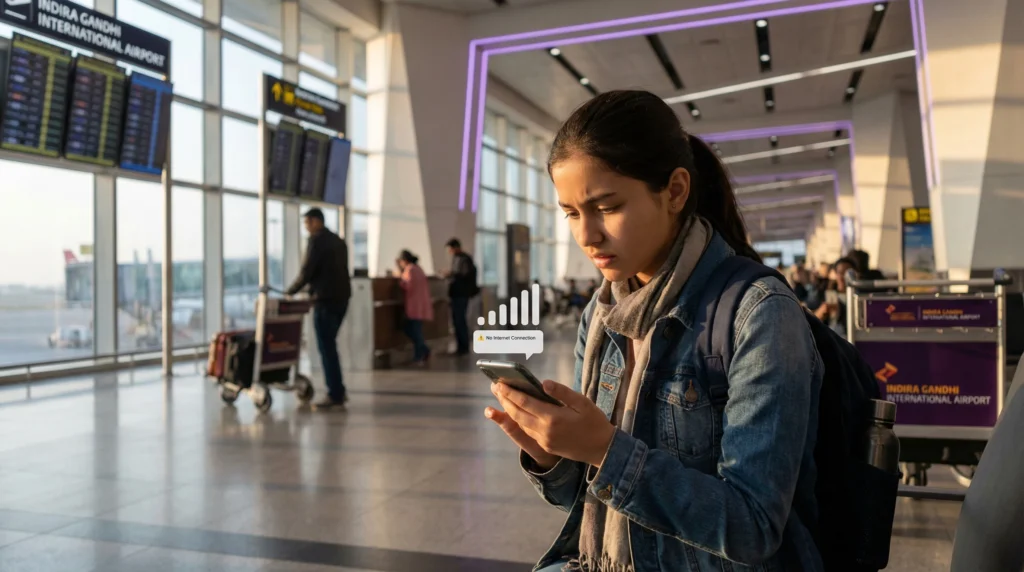

Traveler in India checking phone with eSIM signal but no internet

India eSIM Not Working? Here’s How to Fix It

Arriving in India and discovering that your eSIM isn’t working can be frustrating, especially when you need Google Maps, WhatsApp, ride-hailing apps or hotel bookings. Fortunately, most eSIM issues can be solved in just a few minutes without reinstalling the eSIM.

Whether your phone shows “No Service”, connects to the network but has no internet, or mobile data is unusually slow, this guide explains the most common causes and how to fix them.

Quick answer: most India eSIM problems are caused by one of five settings: the eSIM isn’t selected for Mobile Data, Data Roaming is disabled, the APN is incorrect, Automatic Data Switching is enabled, or the phone simply needs to reconnect to the network.

Top India eSIMs

Before You Start

Before troubleshooting, confirm the following:

  • You have already arrived in India.
  • Your eSIM was successfully installed.
  • Your phone supports eSIM.
  • Your device is carrier unlocked.
  • Your plan is valid for India.

Step 1: Make Sure the eSIM Is Enabled

Open your phone’s SIM settings and verify that the India eSIM is switched on.

If the profile is disabled, your phone cannot connect to the mobile network.

Step 2: Select the India eSIM for Mobile Data

Many Dual SIM phones continue using the primary SIM for mobile data after installation.

Open your Mobile Data settings and select the India eSIM as the active data line.

Setting Correct Value
Mobile Data India eSIM
Calls Primary SIM
SMS Primary SIM

Step 3: Enable Data Roaming

This is the most common reason why an India eSIM connects to the network but has no internet.

Open the settings for the India eSIM and turn Data Roaming ON.

Leave Data Roaming disabled on your primary SIM to avoid unexpected roaming charges.

Step 4: Check the APN

If your phone shows signal bars but websites and apps do not load, the APN may need to be configured manually.

Field Value
APN data.esim
Username Leave blank
Password Leave blank
Authentication None

Save the APN and reconnect to the network.

Step 5: Disable Automatic Data Switching

Some phones automatically switch between SIM cards when they believe another connection is stronger.

Disable Automatic Data Switching (or Allow Cellular Data Switching on iPhone) to ensure the India eSIM remains the active data connection.

Step 6: Leave Network Selection on Automatic

Your India eSIM is designed to connect automatically to a supported partner network.

If you manually selected a network, change the setting back to Automatic.

Step 7: Refresh the Mobile Connection

If everything appears correct but the connection still isn’t working:

  1. Turn Airplane Mode on.
  2. Wait about 30 seconds.
  3. Turn Airplane Mode off.
  4. Wait several minutes.

This forces your phone to reconnect to the available network.

Step 8: Restart Your Phone

A simple restart often completes network registration and resolves temporary connection issues.

Restart your device after changing any important network settings.

Common Problems and Solutions

Problem Most Likely Solution
No Service Enable the eSIM and wait for network registration
Signal but no internet Enable Data Roaming and check APN
Primary SIM using data Select India eSIM for Mobile Data
Slow internet Reconnect to the network or move to another location
No connection after landing Use Airplane Mode and restart the phone

Can You Keep Your Primary SIM?

Yes. Your primary SIM can remain active for calls, SMS and verification codes while the India eSIM provides mobile data.

Simply remember to keep Data Roaming disabled on your primary SIM.

Does WhatsApp Still Work?

Yes. WhatsApp continues using your existing phone number while your India eSIM provides the internet connection.

You do not need to register WhatsApp again.

What You Should NOT Do

  • Do not delete the eSIM profile.
  • Do not scan the QR code again unless instructed.
  • Do not disable the India eSIM.
  • Do not enable roaming on your primary SIM.
  • Do not manually change network settings unless necessary.

Many travel eSIM QR codes can only be installed once.

Travel Tips

  • Install your eSIM before departure.
  • Keep the QR code until your trip ends.
  • Download offline Google Maps.
  • Carry a power bank.
  • Monitor your data usage.
  • Use hotel WiFi for large downloads.
  • Restart your phone after changing network settings.

Related India Guides

FAQ

Why is my India eSIM connected but there’s no internet?

The most common causes are Data Roaming being disabled or an incorrect APN. Make sure Data Roaming is enabled and the APN is data.esim.

Should I restart my phone?

Yes. Restarting the phone often completes network registration after changing your settings.

Can I delete and reinstall the eSIM?

No. Many travel eSIM QR codes can only be installed once, so avoid deleting the profile unless instructed by support.

Why is my primary SIM still using data?

Your phone is probably still using the primary SIM for Mobile Data. Select the India eSIM instead.

What APN should I use?

If manual configuration is required, use data.esim.

Final Recommendation

Most India eSIM issues can be solved in just a few minutes without reinstalling the eSIM. First verify that the eSIM is enabled, selected for Mobile Data, Data Roaming is turned on and the APN is set to data.esim.

If the problem continues after restarting your phone and refreshing the network connection, contact customer support before deleting the eSIM profile.

Browse India eSIM plans here.

Scroll to Top