


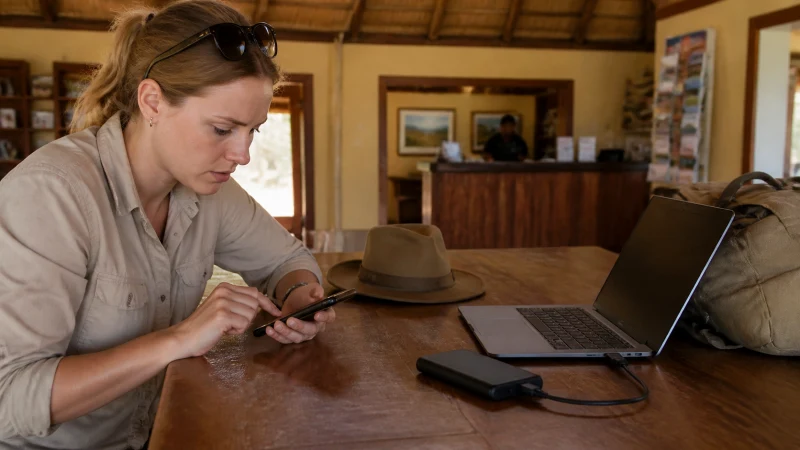

A Namibia eSIM that is not working depends on the active line, roaming, registration and APN. The phone, travel dates and places where data is genuinely needed determine the most suitable setup.
Save the route and essential confirmations outside a single app before depending on mobile data. This matters especially before a remote drive or after leaving a connected town.
NoveSIM’s Namibia plan is a data-only eSIM. Messaging and internet-calling apps work through data, but a local number and conventional mobile service are not included.
Quick answer: For a Namibia eSIM that is not working, check the enabled profile, selected Mobile Data line, Data Roaming and automatic registration in that order. Preserve the installed eSIM while gathering evidence for Support.
Top Namibia eSIMs


What should travellers check for a Namibia eSIM that is not working?
Record the exact phone model, current location, visible SIM labels and plan status before changing anything. Installation, activation and network registration are separate states, and identifying the current state helps avoid removing a valid profile.
Apply the correct travel-line settings
Label the lines Primary and Travel, choose Travel for Mobile Data and enable Data Roaming only on that eSIM. Disable automatic data switching so the home line cannot quietly take over.
Use network selection in the right order
Start with Automatic Network Selection and allow time for registration in Namibia. Try a supported manual network only when the live plan or NoveSIM Support identifies it; a random available operator may reject the profile.
Run a Controlled Manual Network Test
First confirm that the purchased plan is valid, has allowance remaining and covers the location, then check the enabled profile, data-line selection and roaming. A network shown in a scan is detectable; it is not proof that the plan is permitted to register with it.
- Open network selection for the Namibia travel line, not the home SIM. Record the current network label and symptom before changing the setting.
- Temporarily turn Automatic off and let the scan finish. If no networks appear, check the phone’s radio state and test again in a safe, more open location rather than changing the APN to create signal.
- Select only a network identified by the current plan or NoveSIM Support. Wait for the registration result instead of rapidly cycling through every visible operator.
- If registration succeeds, turn Wi-Fi off and test a fresh, lightweight webpage. Registration without working data calls for an allowance, data-line and APN check; it is a different result from registration being rejected.
- Record the result and restore Automatic after the test unless Support gives a specific temporary instruction. A manually pinned network may become unavailable as the journey continues.
A rejected selection does not by itself mean the eSIM is damaged. Keep the installed profile and share the exact error, location, handset model and test result with Support. Do not use a manual selection as an everyday speed-boost setting.
If the Connection Works but Is Slow
- Check remaining allowance, expiry and any high-speed or fair-use conditions in the purchased plan. Signal bars alone do not show the remaining data or available network capacity.
- Pause cloud backups, app updates, streaming and large downloads. Disconnect hotspot clients briefly so a laptop’s background traffic does not obscure the phone’s own performance.
- With Wi-Fi off, load the same small webpage near a window and, where safe, outdoors. Note whether all apps are affected or only one, and whether the result changes by location or time.
- If the phone works but a tethered device does not, check that device’s background activity and the plan’s hotspot conditions before changing the phone’s network settings.
- Refresh registration with Airplane Mode, allow it to reconnect and retest once. Avoid repeated large speed tests that consume the allowance, and do not disable required work security controls to test a connection.
Indoor reception, congestion, the plan’s conditions and background use can produce different symptoms; these checks gather clues rather than prove a particular cause. If data already works, repeatedly replacing the APN is not a speed-tuning method. Keep data.esim when manual NoveSIM APN configuration is required, retain the profile and send Support a small set of comparable results.
Check APN data.esim without erasing evidence
If the line registers but data does not pass, confirm whether manual APN entry is required. The NoveSIM APN is data.esim with blank username and password. Keep the installed eSIM while completing these checks.
Protect the first essential journey
Use the Namibia plan listing as the authority when checking the active line, roaming, registration and APN. Then read Namibia eSIM APN Settings: How to Use data.esim for the related travel preparation.
Before departure, compare the live plan with the needs that matter here: the active line, roaming, registration and APN. Read the high-speed allowance, validity period, activation rule and hotspot terms together rather than treating one feature in isolation. Confirm that the exact handset is unlocked and eSIM-compatible. Keep the installation details somewhere another device can display them. Current product information is more dependable than an old screenshot, a remembered description or a general promise about nationwide coverage.
- Confirm the exact handset is unlocked and supports eSIM.
- Keep the installation details private and available on another device.
- Download the first route, address and booking reference.
- Carry enough power for the longest planned transfer.
- Pause automatic updates, cloud backup and large media downloads.
Review automatic data switching
The checks in Does My Phone Support an eSIM for Namibia? and How to Install an eSIM for Namibia Before You Travel cover the relevant device stages. Record the original settings and change one control at a time.
- Confirm that the travel eSIM is visible and enabled.
- Select Travel as the Mobile Data line.
- Enable Data Roaming on Travel and keep it off on Primary unless home-carrier costs are understood.
- Disable automatic data switching.
- Allow Automatic Network Selection time to register.
- Use data.esim only when manual NoveSIM APN entry is required.
Troubleshoot without deleting the profile
The guide Slow Mobile Data in Namibia? Practical Fixes explains the next safe checks. Record the visible network and active line before restarting the phone or changing another setting.
Keep the order reference, exact phone model and current location ready for Support. Preserve the original settings wherever possible so the cause remains visible.
Check the connection before it becomes urgent
Test the connection with a normal application rather than a speed test; maps, a booking page or a short message are suitable choices. Turn off Wi-Fi temporarily so the result comes from the travel line. Use the real travel location for the check instead of treating a city speed test as evidence for the complete journey. Keep the booking and route offline, note the remaining allowance and avoid data-heavy speed tests. For a failure in Namibia, take a screenshot of the active line and registration state before trying another reversible check.
Related Articles
- How to Install an eSIM for Namibia Before You Travel
- How to Use a Namibia eSIM on iPhone
- Namibia eSIM Coverage: Towns, Highways and Remote Routes
- Mobile Networks in Namibia: A Visitor’s Guide
- Can Tourists Use 3G in Namibia?
- Mobile Internet for Long-Distance Travel in Namibia
- How Much Mobile Data Do You Need for a Namibia Trip?
FAQ
What is the practical answer?
For a Namibia eSIM that is not working, check the enabled profile, selected Mobile Data line, Data Roaming and automatic registration in that order. Preserve the installed eSIM while gathering evidence for Support.
Does a Namibia eSIM include a local number?
No. NoveSIM supplies mobile data but no Namibian number, ordinary voice minutes or carrier SMS. Messaging and internet-calling apps use the data connection.
Should Data Roaming be enabled?
Enable Data Roaming on the Namibia travel eSIM when partner access requires it. Keep roaming off on the primary line unless the home carrier’s charges are understood.
Should a non-working eSIM be deleted?
No. Preserve the installed profile and complete only reversible checks. If data still fails, give NoveSIM Support the phone model, location and visible network status.
Final Recommendation
For travellers researching a Namibia eSIM that is not working, match the product to the active line, roaming, registration and APN and the weakest important part of the route. Use current plan information instead of an old screenshot or assumption.
Keep the booking, route and an important contact available without internet, then test the travel line before it becomes time-sensitive in Namibia. Continue to plan for local coverage gaps.
Keep mobile data assigned to Travel and leave roaming disabled on the primary line unless its charges are understood. Safe, recorded troubleshooting protects the eSIM.