
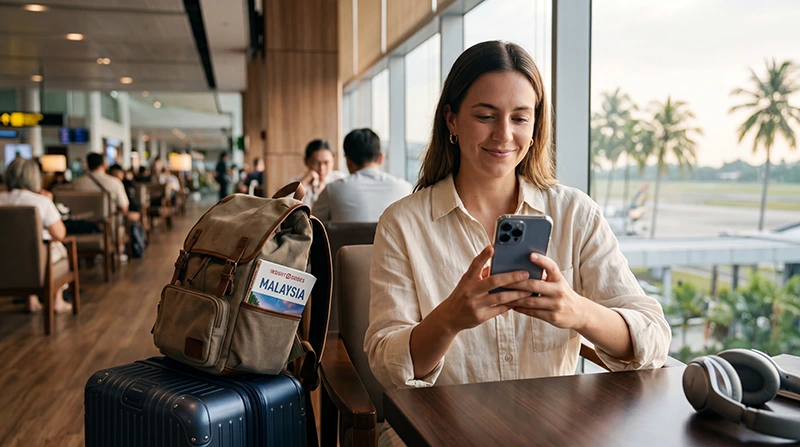

If you are traveling to Malaysia with an iPhone, using an eSIM is one of the easiest ways to get mobile internet after arrival.
Whether you are landing at KLIA Airport, exploring Kuala Lumpur, visiting Penang, relaxing in Langkawi or traveling across Borneo, an eSIM helps you stay connected without buying a physical SIM card.
Quick answer: Most modern iPhones support eSIM. You can install your Malaysia eSIM before departure, then enable it after arrival, turn on Data Roaming and select it for mobile data.
Top Malaysia eSIMs
Does iPhone Support eSIM in Malaysia?
Yes. Most recent iPhone models support eSIM technology and can be used with travel eSIM plans in Malaysia.
Your iPhone should work with a Malaysia eSIM if:
- Your iPhone supports eSIM
- Your iPhone is carrier unlocked
- The eSIM includes Malaysia coverage
- The eSIM is installed correctly
- Data Roaming is enabled on the eSIM profile
Which iPhone Models Support eSIM?
Many modern iPhone models support eSIM, including:
- iPhone 16 series
- iPhone 15 series
- iPhone 14 series
- iPhone 13 series
- iPhone 12 series
- iPhone 11 series
- iPhone XS
- iPhone XS Max
- iPhone XR
eSIM availability may vary depending on region, carrier restrictions and device model.
How to Check if Your iPhone Supports eSIM
To check eSIM support on your iPhone:
- Open Settings
- Tap Cellular or Mobile Data
- Look for Add eSIM
If you see the Add eSIM option, your iPhone likely supports eSIM installation.
How to Install a Malaysia eSIM on iPhone
It is best to install your eSIM before departure while connected to stable WiFi.
- Open Settings
- Tap Cellular or Mobile Data
- Tap Add eSIM
- Select Use QR Code
- Scan your eSIM QR code
- Follow the on-screen installation steps
- Label the plan as “Malaysia eSIM” or “Travel”
After installation, you can keep the eSIM turned off until you arrive in Malaysia.
When Should You Activate Your Malaysia eSIM?
In most cases, you can install the eSIM before travel.
The plan usually starts when the eSIM connects to a supported mobile network in Malaysia.
After arrival, turn on the eSIM, enable Data Roaming and select it as your mobile data line.
How to Turn On Your Malaysia eSIM on iPhone
After landing in Malaysia:
- Open Settings
- Tap Cellular
- Select your Malaysia eSIM
- Turn on Turn On This Line
- Enable Data Roaming
- Go back to Cellular
- Set the eSIM as your Cellular Data line
This allows your iPhone to use the Malaysia eSIM for mobile internet.
Do You Need Data Roaming on iPhone?
Yes. Most travel eSIMs require Data Roaming to be enabled on the eSIM profile.
Important:
- Turn Data Roaming ON for the Malaysia eSIM
- Keep Data Roaming OFF for your primary SIM
This helps avoid unwanted roaming charges from your home operator.
APN Settings for Malaysia eSIM on iPhone
Most iPhones configure APN settings automatically.
If manual setup is required, use:
| Setting | Value |
|---|---|
| APN | data.esim |
| Username | Leave blank |
| Password | Leave blank |
After changing APN settings, restart your iPhone or use Airplane Mode for 30 seconds.
Can You Keep Your Primary SIM Active?
Yes. Most eSIM-compatible iPhones support dual SIM functionality.
This means you can:
- Use your Malaysia eSIM for mobile data
- Keep your regular SIM active for calls
- Receive SMS verification codes
- Receive banking messages
- Keep your regular number available
Recommended iPhone Settings for Malaysia eSIM
| Setting | Recommended Option |
|---|---|
| Cellular Data | Malaysia eSIM |
| Default Voice Line | Your primary SIM |
| Data Roaming on eSIM | On |
| Data Roaming on primary SIM | Off |
| Allow Cellular Data Switching | Off |
Turning off cellular data switching can help prevent your iPhone from accidentally using your home SIM for data.
Does WhatsApp Work with Malaysia eSIM on iPhone?
Yes.
WhatsApp usually continues working with your existing number while the eSIM provides mobile data.
You do not need to change your WhatsApp number when using a Malaysia eSIM.
Using iMessage and FaceTime with a Malaysia eSIM
iMessage and FaceTime can continue working while using your eSIM for mobile data.
If your primary SIM remains active, your existing iMessage number can stay available.
If you experience issues, check:
- Settings
- Messages
- Send & Receive
- FaceTime settings
What If Your Malaysia eSIM Does Not Work on iPhone?
If your eSIM does not connect after arrival, do not delete the eSIM profile immediately.
Try these steps first:
- Make sure the eSIM is turned on
- Select the eSIM for Cellular Data
- Enable Data Roaming on the eSIM
- Check APN settings and use data.esim
- Turn Airplane Mode on for 30 seconds
- Restart your iPhone
- Wait several minutes for network registration
Should You Delete the eSIM If It Does Not Work?
No.
Do not delete the eSIM profile unless your provider specifically tells you to do so.
Most issues are caused by settings such as Data Roaming, APN or mobile data selection and can be fixed without reinstalling the eSIM.
Where Can You Use Your Malaysia eSIM on iPhone?
Your Malaysia eSIM can be used across major tourist destinations, including:
- Kuala Lumpur
- KLIA Airport
- Penang
- Langkawi
- Malacca
- Johor Bahru
- Kota Kinabalu
- Kuching
- Cameron Highlands
- Malaysia islands
Coverage may vary in remote rainforest areas, mountains and isolated islands.
Related Malaysia eSIM Guides
- Malaysia eSIM for Android
- How to Activate Malaysia eSIM
- Install Malaysia eSIM
- Does My eSIM Work in Malaysia
- eSIM Not Working Malaysia
- APN Settings Malaysia eSIM
- Best eSIM for Malaysia
FAQ: Malaysia eSIM for iPhone
Can I use a Malaysia eSIM on iPhone?
Yes. Most modern iPhones support eSIM and can use a Malaysia travel eSIM if the device is carrier unlocked.
Should I install my eSIM before traveling?
Yes. It is best to install your eSIM before departure while connected to stable WiFi.
Do I need Data Roaming enabled?
Yes. Most travel eSIMs require Data Roaming to be enabled on the eSIM profile.
Can I keep my normal SIM active?
Yes. Most modern iPhones allow you to keep your regular SIM active while using the eSIM for mobile data.
Will WhatsApp still work?
Yes. WhatsApp usually remains linked to your existing phone number.
What APN should I use?
If manual APN setup is required, use data.esim and leave username and password blank.
Should I delete my eSIM if it does not connect?
No. Most issues can be fixed by checking Data Roaming, APN settings and mobile data selection.
Can I use iMessage and FaceTime with a Malaysia eSIM?
Yes. iMessage and FaceTime can continue working while the eSIM provides mobile data.
Final Recommendation
Using a Malaysia eSIM on iPhone is one of the easiest ways to stay connected during your trip.
Install the eSIM before departure, enable it after arrival, turn on Data Roaming and select it as your mobile data line.
For most iPhone users, this setup provides convenient mobile internet throughout Malaysia while keeping the regular SIM active for calls, SMS and verification codes.


