


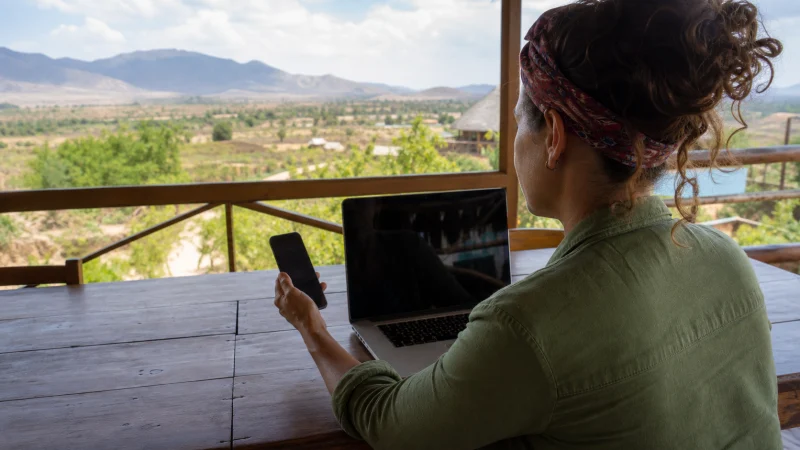

A Kenya eSIM can provide a hotspot connection if the purchased plan permits tethering and your phone supports it. The other device connects to your phone, not directly to the eSIM, so working mobile data on the host phone is the first requirement.
This matters when you need to send a document from a laptop or connect a travel companion’s phone in Kenya. A hotspot is useful for a short task; it is not a guarantee of enough speed or uninterrupted reception for a meeting.
Our travel eSIMs supply data. We do not provide a Kenyan phone number, conventional calls or SMS with these plans. Sharing the connection lets another device use internet services, but does not give it a mobile telephone line.
Quick answer: Before using a Kenya eSIM hotspot, confirm tethering is allowed by the selected plan. Test mobile data on your phone with Wi-Fi off, then enable its password-protected hotspot and connect one device. If the phone works but the laptop does not, investigate the hotspot connection rather than reinstalling the eSIM.
Top Kenya eSIMs


Check the plan before relying on tethering
Look at the terms for the exact Kenya eSIM plan you intend to buy. Confirm whether hotspot use is allowed, whether it has a separate allowance and what happens when high-speed data is used up. If the terms do not answer the question, ask us before purchase rather than treating a phone’s hotspot switch as proof of permission.
A plan described as unlimited may still manage speeds. A laptop sharing that connection experiences the same mobile-data limitations; hotspot does not bypass them. For a work call, also arrange a fallback connection with your accommodation.
Connect one device and make a small test
- On the host phone, enable the Kenya eSIM, select it for mobile data and apply the roaming setting supplied with the plan. Keep home-line data roaming off and automatic data switching disabled if you do not want home-line data used.
- Turn off Wi-Fi on the host and open a simple webpage. If it does not load, follow the Kenya eSIM connection checks before attempting tethering.
- Open the hotspot controls, choose a recognisable network name and set a strong password. Do not create an open network.
- On the laptop or second phone, select that hotspot in its Wi-Fi list and enter the password.
- Load a small page on the connected device, then check the remaining allowance before starting a large transfer.
On iPhone, Personal Hotspot is normally under Settings or Cellular settings. Enable Allow Others to Join and keep the hotspot screen open while the other device connects. Apple’s hotspot instructions explain the available connection methods.
For Pixel, the usual route is Settings → Network & internet → Hotspot & tethering → Wi-Fi hotspot. Other Android manufacturers use different labels. Google’s Pixel guidance also notes that Data Saver can prevent Wi-Fi tethering.
Which part of the connection is failing?
| What you see | What to check next |
|---|---|
| The host phone has no internet. | Data line, plan status and mobile registration. This is not yet a hotspot fault. |
| The laptop cannot see the hotspot. | Hotspot enabled, nearby devices and the host’s compatibility options. |
| The laptop connects but cannot browse. | Correct hotspot, password, host data test and tethering terms. |
| Both devices browse slowly. | Reception, remaining high-speed data and competing downloads. |
If only one connected device fails, disconnect it and reconnect to the named hotspot. On supported iPhones, Maximise Compatibility may help a device that cannot connect. Change one setting at a time so you can tell which action helped.
Do not copy an unrelated operator’s APN to make hotspot work. If your NoveSIM instructions require manual APN entry, use data.esim for the travel line and consult the Kenya eSIM APN guide. Preserve the installed profile; do not delete the eSIM or reset all network settings unless our support team instructs you.
Stop the laptop consuming your trip allowance
A laptop can start software updates or cloud synchronisation as soon as it sees Wi-Fi. Before connecting, pause large downloads and backups, close unused video applications and use a metered connection option where available. Ask other users not to stream while you are doing an essential task.
Check usage after the first session rather than assuming a phone-sized allowance will cover laptop work. The Kenya trip data guide helps separate light messaging from heavier uploads. Turn hotspot off when finished, keep the phone ventilated and monitor its battery during longer sessions.
Related Articles
FAQ
Can I share my Kenya eSIM with a laptop?
You can share the phone’s mobile-data connection if the plan permits tethering and the handset supports it. The laptop uses Wi-Fi to reach the phone; it does not need its own eSIM.
Does hotspot provide extra data?
No. Connected devices consume the host plan’s allowance or its stated tethering allowance. Speed-management and other plan conditions still apply.
Why does my phone work but my laptop have no internet?
Check that the laptop is connected to the correct hotspot, then confirm plan permissions and reconnect it. Because the phone already browses, deleting or reinstalling its eSIM is not a sensible first step.
Can hotspot work without mobile reception?
A Wi-Fi link between the devices does not create a mobile internet connection. For the Kenya eSIM to supply data, the host needs access to a supported network and a usable plan.
Final Recommendation
Use a Kenya eSIM hotspot for a defined task after confirming the selected plan’s tethering conditions. Test with one connected device before committing to a call or large upload.
Separate a host mobile-data failure from a laptop-to-phone connection problem. Keep the eSIM installed while you investigate.
For essential work during your Kenya trip, budget for shared data and arrange a second connection rather than relying solely on tethering.