


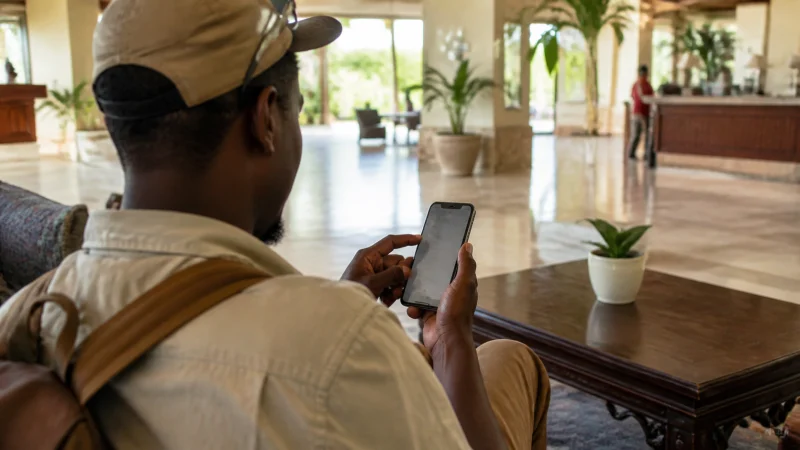

Using a Kenya eSIM on iPhone is mainly a question of selecting the correct data line. Adding a travel profile does not mean you must replace the telephone number used by your contacts or choose the travel line for ordinary calls.
Check the exact iPhone’s eSIM support and carrier-unlocked status before buying. Regional variants differ, so a familiar model name or a dual-SIM description is not enough on its own.
Our Kenya travel eSIMs are data-only. We do not provide a Kenyan number, conventional calls or SMS. Your internet apps can use travel data while your home-number arrangement remains a separate decision.
Quick answer: On a compatible, unlocked iPhone, label the installed travel profile Kenya and select it under Cellular Data or Mobile Data. Apply the plan’s instructed Data Roaming setting to that line, protect the home line from unwanted roaming and keep automatic data switching off. Test a fresh webpage with Wi-Fi disabled when service is expected.
Top Kenya eSIMs

Kenya eSIM
Fixed
1 GB, 7 days€ 9.372 GB, 15 days€ 15.623 GB, 30 days€ 21.42Unlimited
Unlimited, 1 day€ 10.26Unlimited, 3 days€ 18.29Unlimited, 5 days€ 26.33
Check the iPhone before relying on a Kenya eSIM
Open Settings → General → About and inspect Carrier Lock. Apple’s international eSIM guidance identifies No SIM Restrictions as the unlocked indication. If the phone is locked, contact the carrier; an installation retry does not unlock it.
Confirm eSIM support for the exact device and regional version separately. Corporate phones can also have restrictions, so ask the administrator before changing a managed line.
For adding the profile itself, follow our Kenya eSIM installation guide. The instructions supplied with the purchased plan determine when to install and when validity begins.
Label the lines before choosing mobile data
Use labels you can distinguish immediately, such as Home and Kenya. The label is a convenience; it does not change a number or the service included with a line.
- Open Settings and the Cellular or Mobile Service section.
- Select the travel profile and give it a recognisable plan label.
- Confirm that the line is enabled when the plan instructions say to use it.
- Open the Cellular Data or Mobile Data selector and choose Kenya.
- Review Allow Cellular Data Switching and leave it off if you want data confined to the travel line.
Wording varies by iOS version and region. Apple explains labels and separate voice/data choices in its dual-SIM guide. If iOS presents a travel setup prompt, read which lines it enables rather than accepting it without checking.
Data Roaming belongs to a particular line
Open the Kenya line’s options and enable Data Roaming when instructed for the travel plan. Turning roaming on for that profile is different from enabling it on the home SIM.
Keep the home line’s data roaming off unless you deliberately intend to use an agreed home-provider allowance. Leaving the home number enabled may still carry voice or messaging charges under the carrier’s terms; switching its data roaming off does not settle every possible charge.
If verification messages on the home number matter, decide how you will receive them before departure. A data-only Kenya eSIM cannot receive a conventional SMS addressed to another number.
Keep iMessage and WhatsApp separate from the data choice
Choosing the travel line for internet does not require a new WhatsApp account number. See the Kenya WhatsApp guide for the distinction between existing account use and verification.
Review the addresses and numbers selected for iMessage and FaceTime if iOS asks about them. Do not assume a data-only profile supplies a new callable number, and avoid repeatedly toggling account activation to solve a mobile-data problem.
If you intentionally turn the home line off, consider its effect on ordinary calls and account codes separately from apps using the internet connection.
Test data after arrival, not an ordinary telephone call
At a place where reception is expected, switch Wi-Fi off and open a fresh webpage. Check which line is selected for mobile data if the result is unexpected. Airport Wi-Fi can otherwise hide a travel-line configuration problem.
If the iPhone shows signal without internet, check allowance, validity and the instructed settings. For NoveSIM manual APN entry, use data.esim only when required. Some configurations do not expose an editable APN; do not install an unknown profile to force access.
Use the Kenya troubleshooting guide if data remains unavailable. Keep the installed eSIM and contact support before deleting or attempting to reinstall it.
When the trip is over
Check that the home line is enabled and selected for mobile data again. Review its normal roaming settings and turn the travel line off when no longer needed. Do not assume every software version restores your preferences automatically.
Before removing the travel profile, check whether there is remaining validity or any intended further use. Turning a line off and deleting its installed profile are different actions.
Related Articles
FAQ
Can I keep my home number while using a Kenya eSIM on iPhone?
A supported dual-SIM arrangement can separate the home-number line from travel data. Check compatibility and your carrier’s charges before leaving the home line enabled.
Which line should I select for Cellular Data?
Select the Kenya travel profile when you intend to use its allowance. Labels help identify it, but verify the actual selection rather than relying on the label alone.
Does turning off home-line Data Roaming stop all roaming charges?
It addresses data roaming on that line, not every voice, SMS or carrier service charge. Check the home provider’s terms for the functions you leave enabled.
Should I delete the eSIM when iPhone has signal but no data?
No. Keep the installed profile and check data-line selection, roaming, plan status and APN if required before contacting support.
Final Recommendation
Use the Kenya eSIM on iPhone as the deliberate mobile-data choice, not as an automatic replacement for the home number.
Label the profiles, verify roaming per line and test data without Wi-Fi after arrival.
Review the home settings again on return, and preserve the installed travel profile until you have decided whether it is still needed.