


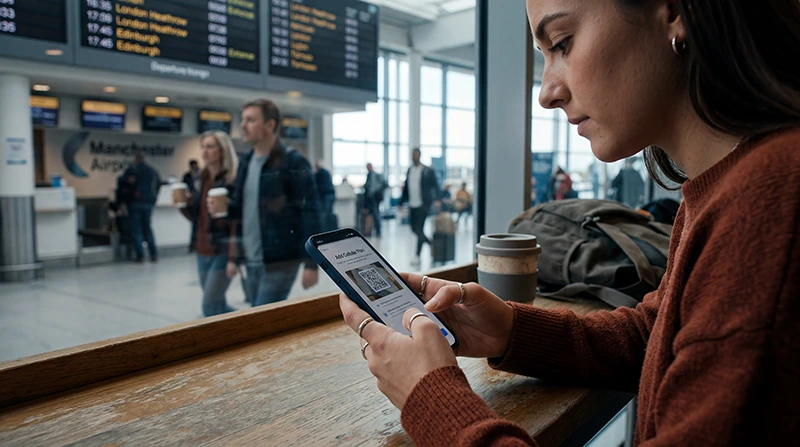

Install UK eSIM service while you have stable internet and enough time to check every setting. The profile must be added to a compatible, carrier-unlocked phone, but installation does not always mean that the plan should be activated or used immediately.
The exact menu names differ between iPhone, Samsung, Google Pixel and other Android devices. The important sequence is consistent: add the supplied profile, label it clearly, select it for mobile data at the correct time and protect the home SIM from unintended roaming.
Keep the QR code private and available on another screen or printed page if the phone cannot scan an image displayed on itself. Do not delete the eSIM if the first connection attempt fails because many profiles cannot be reinstalled.
Quick answer: To install a UK eSIM, connect to reliable Wi-Fi, scan the provider’s QR code through the phone’s eSIM settings and follow the prompts. After arrival, enable the eSIM, select it for mobile data and turn on data roaming for that line when the instructions require it.
Top United Kingdom eSIMs

United Kingdom eSIM
Fixed
1 GB, 7 days€ 2.202 GB, 15 days€ 3.083 GB, 30 days€ 4.40Unlimited
Unlimited, 1 day€ 2.64Unlimited, 3 days€ 5.72Unlimited, 5 days€ 9.25
Europe Extra eSIM
Fixed
1 GB, 7 days€ 2.202 GB, 15 days€ 3.523 GB, 30 days€ 4.40Unlimited
Unlimited, 1 day€ 2.64Unlimited, 3 days€ 5.28Unlimited, 5 days€ 8.81Europe+ eSIM
Fixed
1 GB, 7 days€ 2.642 GB, 15 days€ 3.963 GB, 30 days€ 5.28Unlimited
Unlimited, 1 day€ 2.64Unlimited, 3 days€ 6.16Unlimited, 5 days€ 10.13Checks before you install UK eSIM service
- Confirm the exact phone model supports eSIM.
- Make sure the device is not locked to another carrier.
- Read when the selected plan’s validity begins.
- Use trusted Wi-Fi and keep the phone charged.
- Save the installation information securely.
The device may support eSIM generally but still lack it in a regional variant. Check the compatible devices list and the handset settings before purchase.
How to install a UK eSIM on iPhone
- Open Settings, then Mobile Service or Cellular.
- Select Add eSIM.
- Choose Use QR Code and scan the supplied code.
- Follow the on-screen confirmation steps.
- Label the new line “UK eSIM”.
- Keep the intended primary line for calls if required.
Do not switch the new profile on early if the plan starts when it first connects. For iPhone-specific menu guidance, see the UK eSIM for iPhone guide.
How to install a UK eSIM on Android
On many Samsung phones, open Settings, Connections, SIM manager and Add eSIM. On many Pixel phones, open Settings, Network & internet, SIMs and Add SIM. Other manufacturers may place the option under Mobile Network or Cellular.
- Select the option to scan a QR code.
- Scan the code and approve the download.
- Give the profile a recognisable UK label.
- Leave it disabled until the instructed activation time if necessary.
If scanning is unavailable, use manual activation details only when they were supplied with the order. Do not guess the address or confirmation code.
Installation and activation are different
Installation adds the profile to the phone. Activation makes the plan ready for service and may begin validity, depending on the product. Some plans start on installation; others start on first supported-network connection.
Follow the purchased plan’s instructions instead of a generic timing rule. The UK eSIM activation guide explains the arrival steps in more detail.
Settings to use after arrival in the UK
- Enable the UK eSIM line.
- Select it as the mobile-data SIM.
- Enable Data Roaming on the UK eSIM when required.
- Keep Data Roaming off on the home SIM.
- Disable automatic data switching to prevent fallback to the home line.
- Wait several minutes and test a webpage.
NoveSIM travel eSIMs are data-only. Calls and SMS remain on another line and may incur operator charges; internet calling apps use the selected data connection.
APN and connection troubleshooting
Most phones receive the APN automatically. If the instructions require a manual NoveSIM APN, enter data.esim and leave username and password blank. Save it, select it if necessary and restart the connection.
If service does not appear, toggle Airplane Mode once, restart the phone and allow automatic network selection time to register. Follow the UK eSIM troubleshooting guide or the UK APN guide. Do not delete the profile unless Support specifically asks you to do so.
Related Articles
- Best eSIM for UK Travel
- Does My eSIM Work in the UK?
- No Internet on a UK eSIM
- Local SIM vs eSIM in the UK
FAQ
Should I install my UK eSIM before travelling?
Usually yes if the plan instructions allow it. Installation on reliable Wi-Fi is convenient, but verify when validity starts before adding or enabling the profile.
Why can my phone not add the eSIM?
The device may be incompatible, carrier-locked, offline or unable to reuse an already consumed QR code. Confirm the model and lock status before further attempts.
Should data roaming be on for a UK eSIM?
Enable it on the travel eSIM when the provider’s instructions require it. Keep roaming off on the home SIM unless its charges are understood.
Can I delete and reinstall the UK eSIM?
Do not delete it during routine troubleshooting. Many QR codes are single-use, so removal can require support and may prevent reinstallation.
Final Recommendation
Install UK eSIM service on trusted Wi-Fi only after confirming compatibility, unlock status and the plan’s activation rule.
Label the profile, select it for mobile data after arrival and isolate the home SIM from unintended data roaming.
Keep the eSIM installed if service is delayed, verify settings methodically and contact Support before any irreversible action.