


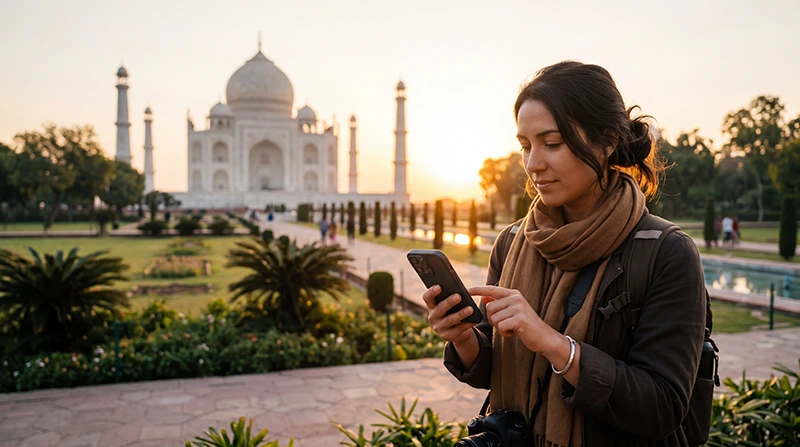

An India eSIM on iPhone lets a compatible, carrier-unlocked device use travel data without removing the primary SIM. Install the profile on reliable Wi-Fi before departure, but follow the plan instructions about when validity begins.
After landing, the important settings are choosing the India eSIM for Mobile Data, enabling Data Roaming on that travel line and preventing the primary line from taking over data.
NoveSIM travel eSIMs are data-only. We do not provide an Indian number or conventional calls and SMS; iMessage, FaceTime, WhatsApp and other internet apps can continue through data.
Quick answer: On iPhone, open Settings, choose Cellular or Mobile Data, tap Add eSIM and follow the supplied QR-code or manual-installation instructions. Label the new line, select it for mobile data in India and leave data roaming disabled on your home SIM.
Top India eSIMs


Can your iPhone use an India eSIM?
Apple supports eSIM on many recent iPhone models, but capability can vary by model and sales region. Check the exact model rather than assuming that every version with the same product name is identical. The phone must also be unlocked for use with another provider.
Use the India eSIM compatibility guide and check Settings → General → About. On supported iPhones, the cellular settings include an option to add an eSIM. The carrier-lock field should indicate that there are no SIM restrictions.
Install the travel eSIM before flying
- Connect the iPhone to stable Wi-Fi.
- Open Settings and tap Cellular or Mobile Data.
- Tap Add eSIM or Set Up Cellular.
- Choose the QR-code option or enter the supplied details manually.
- Follow the on-screen prompts and wait for the profile to finish installing.
- Give the line a clear label such as India Travel.
Do not scan the code with a different phone if the QR image must be displayed separately. Keep the installation information until the trip is complete, and do not delete the profile if a connection problem occurs.
Select the correct lines after arrival
| iPhone setting | Recommended selection |
|---|---|
| Mobile Data | India travel eSIM |
| Data Roaming on travel eSIM | On |
| Data Roaming on primary SIM | Off |
| Allow Mobile Data Switching | Off unless intentionally required |
| Default voice line | Your preferred calling SIM |
These choices allow the travel plan to handle internet traffic while the usual number remains available according to the home carrier’s terms. Receiving or making calls on the primary line can still create charges, so check those terms separately.
Test the connection safely
Turn Wi-Fi off and open a normal webpage. If data does not load, confirm the active line, roaming setting and plan coverage before changing anything advanced. Leave network selection on Automatic initially.
If manual APN entry is required for NoveSIM, use data.esim. Follow the India APN instructions rather than entering a domestic operator’s APN.
Keep your normal number and messaging apps
A data-only travel eSIM does not replace the number registered in WhatsApp. iMessage and FaceTime settings should be reviewed if iPhone asks about a new line. Avoid changing account numbers merely because the data connection changed.
For the wider dual-SIM setup, use the India activation guide. Monitor usage with the India data-planning guide.
If the India eSIM does not connect
- Confirm that the eSIM line is turned on.
- Confirm that it is selected for Mobile Data.
- Enable Data Roaming on the travel line.
- Turn Airplane Mode on briefly, then turn it off.
- Restart the iPhone and test again with Wi-Fi off.
Do not delete the installed eSIM unless NoveSIM Support instructs you to do so. Continue with the India eSIM troubleshooting guide if the basic checks do not restore data.
Related Articles
- India eSIM Plans
- Does My Phone Support an India eSIM?
- How to Activate an India eSIM
- India eSIM APN Settings
FAQ
Can I keep my primary SIM active on iPhone?
Yes, on a supported dual-SIM iPhone. Select the India eSIM for data and disable roaming data on the primary line unless you intentionally need it.
Should I install the India eSIM before departure?
Yes, installation is easier on reliable Wi-Fi. Check the plan instructions so you understand whether validity begins at installation or first network connection.
Why does the iPhone show signal but no internet?
The wrong data line, disabled roaming or an APN issue may be responsible. Verify those settings before restarting the phone.
Should I remove the eSIM and scan the code again?
No. Keep the profile installed and contact support before removal because an installation code may not be reusable.
Final Recommendation
Use an India eSIM on iPhone only after confirming the exact model supports eSIM and the device is carrier-unlocked.
Install it on Wi-Fi, label it clearly, then select the travel line for mobile data and enable roaming on that line after arrival.
Keep roaming data off on the primary SIM, test with Wi-Fi disabled and preserve the installed profile if troubleshooting is needed.