


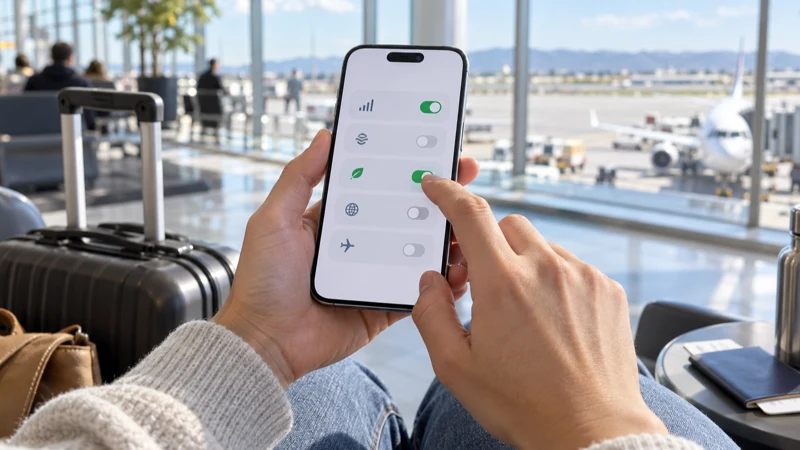

Low Data Mode can reduce background mobile-data use while your iPhone is connected through a travel eSIM. It is useful when your plan has a fixed allowance and you want maps, messages and bookings to take priority over automatic downloads.
The setting does not create more data or block every large transfer. It asks iOS and supported apps to reduce background activity, so you should still control photo backup, streaming quality and hotspot use separately.
NoveSIM travel plans are data-only, without a local number, conventional calls or SMS. Internet calling and messaging apps can use the travel allowance while Low Data Mode is enabled.
Quick answer: Open Settings > Cellular > Cellular Data Options > Data Mode, then choose Low Data Mode for the travel eSIM. Test maps and messaging afterward, and switch the setting off temporarily when an essential download or update will not complete.
Top eSIMs

Turn on Low Data Mode for the correct line
On a dual-SIM iPhone, check which line supplies mobile data before changing the setting. The travel eSIM should be selected under Cellular Data, while automatic data switching should normally remain off when you want to prevent the home line from taking over.
- Open Settings and tap Cellular or Mobile Service.
- Select the travel eSIM if the phone shows settings separately for each line.
- Open Cellular Data Options and tap Data Mode.
- Select Low Data Mode.
- Turn Wi-Fi off briefly and confirm that an essential app loads over the travel line.
If you are unsure which line is active, use the guide to choose the correct default lines. The dual-SIM travel setup explains how to keep the home number available without using it for data.
What Low Data Mode changes
Low Data Mode can reduce background network activity, automatic downloads and some forms of synchronisation. Individual applications decide how they respond, so the effect is not identical in every app. Navigation and messages can continue, but photo uploads, media quality or background refresh may be reduced.
It does not replace normal usage controls. Pause cloud-photo backup, prevent app updates over mobile data and download entertainment on Wi-Fi. For a realistic allowance, compare your habits with the travel data planning guide.
When should you switch it off?
Temporarily use Standard mode if an essential offline map, boarding pass, operating-system component or work file will not download correctly. Return to Low Data Mode after the task finishes. Do not change the APN or delete the eSIM because an app is waiting for unrestricted data; those actions solve a different problem.
Watch the heavy uses Low Data Mode cannot control
- Video streaming at a manually selected high resolution.
- Long video calls.
- Hotspot use by a laptop or another traveller.
- Manual cloud uploads.
- Large maps or media downloaded on demand.
Check usage in iPhone cellular settings and reset the statistics at the beginning of the trip if you want a clean measurement. The provider’s remaining-balance record, when available, remains the authority for the plan allowance.
Related Articles
FAQ
Does Low Data Mode stop mobile data?
No. Essential apps can still use the connection, while iOS and supported apps reduce some background activity.
Will Google Maps work in Low Data Mode?
Yes, but downloading large offline areas is better done on trusted Wi-Fi before travel.
Does the setting apply to both SIMs?
Data options can be line-specific. Open the travel eSIM’s settings and confirm that you changed the intended line.
Should I leave Low Data Mode on for the whole trip?
You can leave it on when conserving data, then switch temporarily to Standard mode for an essential task that needs normal background activity.
Final Recommendation
Enable Low Data Mode on the travel eSIM when the allowance is limited and predictable usage matters.
Also pause photo backup, updates and high-quality streaming because the setting cannot control every manual transfer.
Test essential apps after enabling it and temporarily return to Standard mode only when a necessary download requires it.