


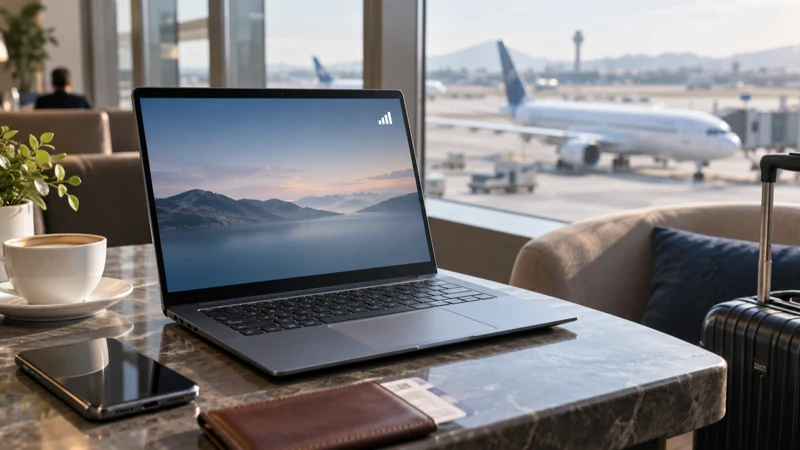

You can use a travel eSIM directly on some Windows laptops, but only when the computer has compatible cellular hardware and exposes eSIM controls in Windows. A normal Wi-Fi-only laptop cannot gain eSIM support through software or a QR code alone.
For most travellers, the practical alternative is installing the eSIM on a compatible phone and sharing its data through hotspot, provided the selected plan permits tethering.
NoveSIM plans are data-only and do not include a telephone number, standard calls or SMS. Direct laptop installation and hotspot availability depend on the selected plan and device.
Quick answer: Open Windows Settings > Network & internet > Cellular. If the laptop has no Cellular section or no option to manage eSIM profiles, use a compatible phone as a hotspot instead. Confirm plan and device support before scanning any activation code.
Top eSIMs

What a laptop needs for direct eSIM use
An eSIM chip is only part of the requirement. The laptop also needs a cellular modem, antennas, drivers and firmware that support mobile-network profiles. Product names can cover several configurations, so verify the exact model and optional WWAN specification with the manufacturer.
- A Windows laptop configured with LTE or 5G hardware.
- An available eSIM or cellular-profile option in Settings.
- Current modem drivers and Windows updates.
- A travel plan that supports installation on that device type.
- Coverage in the countries on the itinerary.
A laptop that appears on a general product page may still be the Wi-Fi-only version. The NoveSIM compatible-device information is a starting point, but the manufacturer and current plan details are decisive.
Check Windows before purchasing
- Open Settings.
- Select Network & internet.
- Look for Cellular.
- Open the cellular profile or eSIM-management options if available.
- Record the full laptop model and modem details before contacting support or buying.
Do not scan a one-use QR code merely to test whether the laptop accepts it. Verify compatibility first. If direct installation is supported, follow the order instructions and keep activation credentials private.
Use a phone hotspot when the laptop has no modem
Install the travel eSIM on a compatible unlocked phone, select it for mobile data and enable hotspot. Connect the laptop over Wi-Fi or USB where supported. Review hotspot use with an eSIM and check whether the exact plan has tethering limits.
Laptop updates, cloud synchronisation and video meetings can consume data quickly. Pause automatic downloads, use lower video quality and monitor the allowance. The business travel eSIM guide covers work-specific planning and backup connectivity.
What about MacBooks and Chromebooks?
Do not infer eSIM support from a phone made by the same brand. Check the exact computer specifications. If the machine lacks compatible cellular hardware and an eSIM-management path, use Wi-Fi, a phone hotspot or a dedicated supported hotspot device.
Related Articles
FAQ
Can every Windows laptop use an eSIM?
No. The laptop needs compatible cellular hardware, drivers and eSIM controls; Wi-Fi-only models cannot add those through software.
Can I install a phone eSIM QR code on a laptop?
Only when both the plan and laptop are supported. Confirm first because some QR codes have limited installations.
Is phone hotspot easier?
Usually yes for a laptop without cellular hardware, but hotspot availability and limits depend on the travel plan and phone.
How much data does laptop work use?
It varies widely. Video meetings, operating-system updates, cloud files and backups can use far more data than email or documents.
Final Recommendation
Use a travel eSIM directly on a laptop only after confirming cellular hardware, Windows eSIM controls and plan compatibility.
If any requirement is missing, use a compatible phone hotspot instead of risking a one-use activation code.
Control laptop updates and video quality so one work session does not exhaust the travel allowance.