


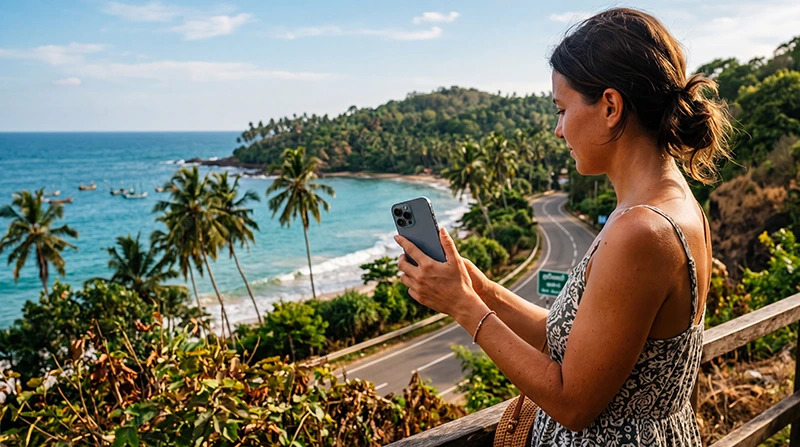

Using an eSIM in Sri Lanka begins after the profile has already been installed. On arrival, switch on the travel line, select it for mobile data, enable data roaming on that line and test the connection with Wi-Fi turned off.
This guide focuses on day-to-day use: keeping the home SIM available, preventing accidental roaming, using maps and messaging, monitoring data and handling connection changes while travelling around the island. For the earlier setup stage, use the separate installation guide.
NoveSIM travel eSIMs are data-only. They do not include a Sri Lankan number or conventional calls and SMS, but internet-based services such as WhatsApp, FaceTime, Messenger and map apps work through mobile data.
Quick answer: Keep the eSIM installed, choose it as the phone’s mobile-data line, turn on data roaming for that line, turn off automatic data switching and leave network selection automatic. Keep offline maps for trains, hill-country roads and remote areas.
Top Sri Lanka eSIMs

Sri Lanka eSIM
Fixed
1 GB, 7 days€ 4.442 GB, 15 days€ 7.103 GB, 30 days€ 9.32Unlimited
Unlimited, 1 day€ 4.88Unlimited, 3 days€ 11.09Unlimited, 5 days€ 17.30
Before You Arrive in Sri Lanka
- Confirm that the eSIM appears in the phone’s SIM settings.
- Label it Sri Lanka, Travel or NoveSIM.
- Save the installation information and support contact offline.
- Check whether the plan starts on installation or first network connection.
- Download the first accommodation address and map area.
If the eSIM has not yet been added to the phone, follow how to install a Sri Lanka eSIM. Installation adds the profile; activation allows it to register and use the plan.
Turn On the eSIM After Landing
- Open the phone’s SIM, Cellular or Mobile Network settings.
- Switch on the Sri Lanka eSIM line.
- Select it as the preferred SIM for mobile data.
- Enable data roaming on the Sri Lanka eSIM.
- Disable automatic mobile-data switching.
- Leave network selection on automatic.
- Turn off Wi-Fi and open a website to test mobile data.
Allow a few minutes for network registration after landing. The focused Sri Lanka eSIM activation guide explains the first connection in more detail.
Use Dual SIM Without Accidental Home-SIM Data
You can often keep the home SIM active for calls or verification messages while the eSIM handles data. The crucial setting is the mobile-data line: it must remain assigned to the travel eSIM.
| Function | Recommended line |
|---|---|
| Mobile data | Sri Lanka eSIM |
| Default voice line | Home SIM if required |
| Automatic data switching | Off |
| Data roaming on travel line | On |
| Data roaming on home line | Off unless deliberately using it |
Your home operator may charge for roaming calls, voicemail or messages even when mobile data uses the eSIM. Review its terms independently.
Use WhatsApp and Other Messaging Apps
WhatsApp can keep the number already registered in the app. You do not need to replace it with a travel number, and a data-only eSIM may not have a usable telephone number at all. Continue using the app over the eSIM’s internet connection.
For number prompts and verification considerations, see using WhatsApp in Sri Lanka.
Use Maps and Ride Apps
Mobile data supports live searches, route changes and driver messages, but offline preparation is still important. Download Colombo and each major trip area before travel. Mountain terrain and railway sections can interrupt reception.
The Google Maps in Sri Lanka guide covers offline maps, place pins and navigation preparation.
Monitor Data During the Trip
Reset the phone’s mobile-data statistics at the beginning of the trip, then review usage after the first full day. Video, cloud backup and hotspot traffic consume far more data than messages or ordinary map use.
- Pause automatic photo and video backup on mobile data.
- Download app updates over trusted Wi-Fi.
- Reduce streaming quality.
- Save entertainment before long transfers.
Choose an allowance using the Sri Lanka travel data guide.
Use Personal Hotspot Carefully
Hotspot availability depends on the selected plan and device. If it is supported, a laptop can consume data quickly through updates, cloud sync and video calls. Test the hotspot before an important work session and disable automatic downloads on the connected device.
What to Do When the Connection Changes
Reception can change between Colombo, hill-country routes, the railway and coastal or rural areas. Keep network selection automatic as the normal setting. If data becomes slow, move outside or away from thick walls, pause background traffic and try LTE or 4G if 5G is unstable.
If the phone has signal but no internet, verify the data line, roaming and the data.esim APN using the Sri Lanka no-internet guide. Do not delete the eSIM.
When the APN Needs Attention
Most phones populate the APN automatically. If manual entry is required for a NoveSIM plan, use data.esim. Do not copy a domestic carrier APN or settings from another provider. See the Sri Lanka APN instructions for device-specific steps.
Related Articles
- Sri Lanka eSIM Plans
- Install a Sri Lanka eSIM
- Activate a Sri Lanka eSIM
- How Much Data Do You Need?
- Fix Signal with No Internet
FAQ
When should I turn on my Sri Lanka eSIM?
Follow the plan’s activation policy. In normal use, switch on the line and connect it to a supported network after arriving in Sri Lanka.
Why does data roaming need to be on?
A travel eSIM commonly uses a partner network, so data roaming must be enabled on the travel line. The home SIM can keep its own data roaming switched off.
Can I keep my home SIM active?
Usually yes on a Dual SIM phone. Select the eSIM for mobile data and check the home carrier’s charges for calls, voicemail and messages.
Should I delete the eSIM if it stops working?
No. Check the selected data line, roaming, APN and plan status first. Contact support before deleting an installed profile.
Final Recommendation
Use the Sri Lanka eSIM as the dedicated mobile-data line while keeping the home SIM available only for the services you deliberately need.
Enable roaming on the travel line, disable data switching and monitor consumption from the first day. Keep network selection automatic during normal travel.
Download maps and essential details before long transfers, and troubleshoot the settings without deleting the installed eSIM.