


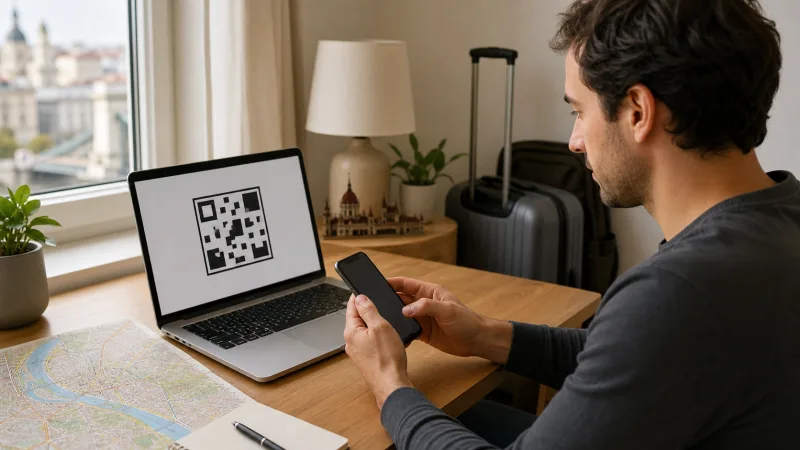

Install a Hungary eSIM on stable WiFi by adding the provider’s QR code or activation details in the phone’s SIM settings. Installation adds the profile; the plan’s paid validity may begin at a different event.
Before starting, confirm that the exact device variant supports eSIM, is carrier-unlocked and has the provider email available on another screen or device.
NoveSIM travel eSIMs are data-only. We do not provide a Hungarian number, calls or SMS; keep the home SIM for those services if its roaming settings are safe.
Quick answer: Add the eSIM before travel over reliable WiFi, label it Hungary, keep the home line as the call line, and select Hungary for mobile data after arrival. Enable data roaming only on the travel eSIM when instructed, and never delete the profile while troubleshooting.
Top Hungary eSIMs

Hungary eSIM
Fixed
1 GB, 7 days€ 1.762 GB, 15 days€ 3.523 GB, 30 days€ 4.40Unlimited
Unlimited, 1 day€ 2.20Unlimited, 3 days€ 4.84Unlimited, 5 days€ 7.93
Europe Extra eSIM
Fixed
1 GB, 7 days€ 2.202 GB, 15 days€ 3.523 GB, 30 days€ 4.40Unlimited
Unlimited, 1 day€ 2.64Unlimited, 3 days€ 5.28Unlimited, 5 days€ 8.81Europe+ eSIM
Fixed
1 GB, 7 days€ 2.642 GB, 15 days€ 3.963 GB, 30 days€ 5.28Unlimited
Unlimited, 1 day€ 2.64Unlimited, 3 days€ 6.16Unlimited, 5 days€ 10.13Checks before installation
- Confirm eSIM support for the exact model and sales region.
- Verify that no carrier lock remains.
- Read what starts plan validity.
- Keep the QR code private and unused.
- Connect to stable WiFi and charge the phone.
How to confirm eSIM support and unlock status
Use the exact model number rather than the marketing family name. Regional versions of the same phone can have different SIM hardware. The presence of an Add eSIM, Add Cellular Plan or Set up an eSIM option is a useful check, but provider support and an available eSIM slot still matter.
On iPhone, open Settings → General → About and review Carrier Lock. On Android, examine SIM manager or Network & internet → SIMs, then confirm the lock status with the original carrier when it is not shown clearly.
A software update cannot add missing eSIM hardware or remove a carrier lock. Resolve compatibility before purchase instead of assuming every recent phone accepts a travel profile.
Installation, activation and validity are not the same
Installation downloads the profile. Activation makes the service available, while validity defines the paid usage period. Depending on the product, the validity clock may start during installation, after manual activation or when the profile first connects to a supported network.
Read the order instructions before scanning the QR code. If first network connection starts validity, you can normally prepare the profile at home and turn it on in Hungary. If installation itself starts the plan, installing too early can waste travel days. The pre-travel installation guide explains this timing decision.
Install on iPhone
- Open Settings and Mobile Service or Cellular.
- Tap Add eSIM.
- Choose the QR-code option and scan the provider code, or use the supported link/manual details.
- Follow the prompts and label the line Hungary.
- Keep the home line for calls if required and avoid switching mobile data automatically.
Install on Google Pixel
- Open Settings.
- Select Network & internet, then SIMs.
- Tap Add SIM and Set up an eSIM.
- Scan the code and follow the on-screen instructions.
- Label the profile and review data preferences.
Install on Samsung Galaxy
- Open Settings and Connections.
- Tap SIM manager, then Add eSIM.
- Choose Scan QR code when supplied.
- Complete the prompts and label the plan.
- Review the preferred SIM for mobile data.
Menu wording varies by software version. If Add eSIM is absent, confirm compatibility and lock status before retrying.
Dual-SIM settings after installation
Label both lines clearly. Keep the home SIM as the default voice line when calls or verification messages are required, but choose the Hungary eSIM for mobile data. Disable automatic mobile-data switching so a weak travel signal does not move data back to the home carrier.
- Home SIM: calls and SMS only when its roaming tariff is acceptable.
- Hungary eSIM: cellular data.
- Home-line data roaming: off.
- Hungary-line data roaming: on only when the plan instructions require it.
- Cellular-data switching: off unless there is a deliberate reason to use it.
Receiving calls or SMS through the home number can still create carrier charges. Check those terms separately from mobile-data settings.
Connect after arriving in Hungary
- Turn on the Hungary line.
- Select it for cellular data.
- Enable data roaming on that line when the instructions require it.
- Disable roaming on the home SIM.
- Turn off WiFi and open an ordinary webpage.
If a manual APN is required for NoveSIM, enter data.esim. The Hungary APN guide shows where to check it.
iMessage, FaceTime, WhatsApp, calls and SMS
Installing a data eSIM does not require changing the number registered to WhatsApp. When WhatsApp asks whether to use a new number, keep the existing number unless you genuinely intend to migrate the account.
On iPhone, review the addresses and numbers selected for iMessage and FaceTime after changing SIM settings. Do not remove a working home number from those services merely because the travel eSIM supplies internet.
WhatsApp, FaceTime, Signal and other internet calling tools use mobile data. Conventional calls and SMS continue through the selected voice line and its carrier tariff. NoveSIM does not supply a Hungarian telephone number.
Using the eSIM during the trip
Monitor the allowance in the provider account or phone settings, while remembering that the phone’s counter may cover a different date range. Download maps before regional travel and restrict cloud backup, system updates and video autoplay on mobile data.
Hotspot availability depends on the exact plan and device. Confirm tethering before connecting a laptop, because background updates and video meetings can consume data quickly. See the Hungary eSIM hotspot guide for setup and usage controls.
5G also depends on the plan, partner network, handset and local coverage. A fallback to stable 4G is normal and does not mean installation failed.
If installation or data fails
- Confirm the profile appears in the phone’s SIM settings.
- Check that the plan is active and has remaining data.
- Turn on the Hungary line and select it for mobile data.
- Enable data roaming on that line when required.
- Leave network selection on automatic.
- Toggle aeroplane mode briefly, then restart the phone.
- Compare the APN with the provider instructions.
- Turn off WiFi and test an ordinary webpage.
Do not scan the code repeatedly or delete an installed profile. Many QR codes are single-use, and deletion can remove a profile that cannot be downloaded again without support. Use Hungary eSIM troubleshooting or contact support with the order number, device model, location and exact error.
Review plans on the Hungary eSIM page and check route expectations in the coverage guide.
What to do when the trip ends
Switch mobile data back to the normal line only after reviewing its roaming situation. If the Hungary plan may be topped up or reused, leave the profile installed and turn it off. Delete it only when you are certain the service is finished and the provider does not require the profile for a refund, support case or later top-up.
Restore any cloud-backup, update and data-switching preferences that were changed for travel. Confirm that calls, messages and mobile data now use the intended home line.
Related Articles
FAQ
Can I install a Hungary eSIM before departure?
Usually yes, but first confirm whether installation or first connection starts validity.
Do I need WiFi to install it?
Use stable WiFi unless the device and provider explicitly support another activation method.
Should data roaming be enabled?
Many travel eSIMs require it on the travel line. Follow the plan instructions and keep roaming off on the home line.
Should I delete an eSIM that will not connect?
No. Many profiles cannot be downloaded again without assistance. Keep it installed and troubleshoot the settings first.
Final Recommendation
Install the Hungary eSIM over stable WiFi after checking the exact model, carrier lock and validity timing.
After arrival, select it for data, protect the home line from roaming and test the instructed roaming and APN settings without WiFi.
Keep the profile installed if anything fails. Use it for apps and hotspot according to the plan, then disable or retain it deliberately when the trip ends.