


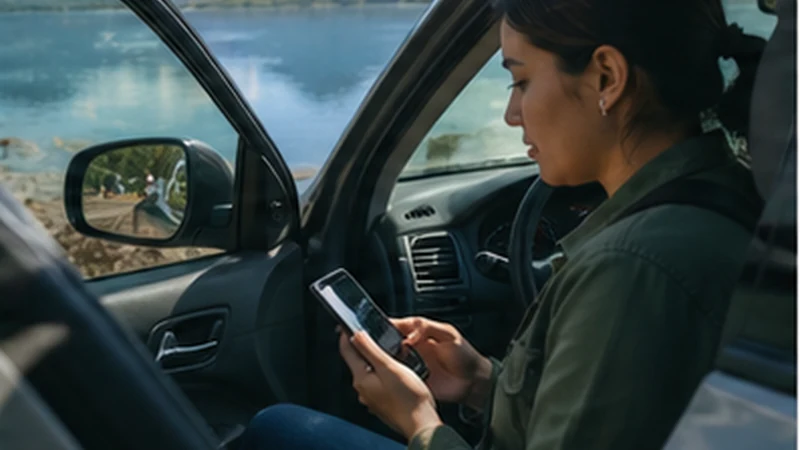

A Guatemala eSIM for a rental car can make the trip easier when plans change: finding the collection desk, opening an accommodation message, checking a route around congestion or contacting the rental company. It should not, however, be the only place where the contract, roadside number or return address is stored.
Driving introduces a different connectivity requirement from travelling by coach or shuttle. The phone must remain usable for navigation without distracting the driver, and the route must survive temporary loss of mobile coverage.
NoveSIM Guatemala plans are data-only. They do not supply a local telephone number, conventional calls or SMS, so verify before collection whether the rental company accepts contact through email or an internet messaging service.
Quick answer: Activate the eSIM before leaving the rental location, download the full driving area, save the contract and assistance details offline, and mount the navigation phone securely. Let a passenger change routes or stop safely before touching the device.
Top Guatemala eSIMs

Guatemala eSIM
Fixed
1 GB, 7 days6.50$2 GB, 15 days10.50$3 GB, 30 days13.50$Unlimited
Unlimited, 1 day6.00$Unlimited, 3 days20.00$Unlimited, 5 days28.00$
Central America eSIM
Fixed
1 GB, 7 days8.00$2 GB, 15 days13.00$3 GB, 30 days17.50$Unlimited
Unlimited, 1 day7.50$Unlimited, 3 days18.50$Unlimited, 5 days29.50$Set Up a Guatemala eSIM for a Rental Car Before Collecting the Keys
The best time to confirm mobile data is while the traveller is stationary and still has access to airport, hotel or rental-office Wi-Fi. Switch on the Guatemala eSIM, select it for mobile data and enable Data Roaming on the travel line. Disable roaming on the home SIM and turn off automatic mobile-data switching.
Temporarily turn Wi-Fi off and load the collection address or a map tile. This confirms that the phone is using mobile data rather than the building’s connection. Keep network selection on Automatic unless support asks for a manual test.
If the eSIM has not registered after landing, complete the steps in the La Aurora Airport eSIM setup guide before beginning the drive.
Save the Rental Information That Matters on the Road
Photograph or download the signed agreement and the vehicle-condition record before leaving the collection point. The files should open without an internet connection. Confirm that the documented damage matches the vehicle and retain time-stamped photographs taken according to the rental company’s process.
Store the following details in a note or offline folder:
- rental-company name and collection branch;
- roadside-assistance instructions and contract reference;
- fuel or charging terms shown in the agreement;
- authorised-driver information;
- exact return location and return-hour instructions;
- procedure for a late return or a problem outside office hours.
A data-only eSIM may not be able to place a conventional call to a roadside number. Ask the company what alternative contact channel should be used and keep an emergency communication fallback appropriate to the journey.
Download More Than the Main Route
An offline map should include the collection area, destination, likely alternative roads and return location—not only a narrow line between two pins. A diversion becomes difficult when the replacement road lies outside the downloaded region.
Save the first accommodation, planned fuel stops and any meeting points as favourites. Where the navigation app supports it, download the relevant language or voice guidance as well. Test the map once with Wi-Fi and mobile data disabled to confirm that the route remains visible.
The separate Guatemala offline-maps checklist covers map regions, saved pins and backup navigation in more detail.
Choose One Navigation Phone and One Operator
Mount the phone where it does not obstruct the driver’s view and connect it to reliable in-car power. Navigation, screen brightness and weak-signal searching can consume battery much faster than ordinary messaging. Carry a charging cable compatible with the vehicle and a power bank that is already charged.
If two people are travelling, the passenger should handle route changes, accommodation messages and searches while the vehicle is moving. A solo driver should pull over in a suitable safe place before changing settings or reading a message. Connectivity is useful only when it does not create another road risk.
Use live traffic as additional information rather than as the sole route plan. Follow current local road restrictions, rental conditions and official advice even when an app suggests a different road.
Expect the Connection to Change Outside Urban Areas
Mobile performance can differ between Guatemala City, interurban roads, highland terrain and more remote destinations. A phone may move between network technologies or temporarily lose service. That does not necessarily indicate a problem with the eSIM.
Continue on the downloaded route and allow Automatic network selection to reconnect. Do not troubleshoot while driving. Do not delete the installed eSIM because of a route-level signal gap. At the next appropriate stop, use Airplane Mode for about 30 seconds if service has not returned, then wait for registration.
If signal is present but data does not pass, check that the travel eSIM remains selected and still has Data Roaming enabled. Enter data.esim only when manual APN configuration is required. The Guatemala eSIM coverage guide explains why route-level performance cannot be guaranteed from a general coverage view.
Use Mobile Data Deliberately During the Trip
Maps usually need modest data after their regions are downloaded. Repeated video playback, cloud photo synchronisation and operating-system updates can consume far more. Pause automatic backups and large downloads if the allowance is intended mainly for navigation and communication.
When sharing the connection with a passenger, switch the hotspot off after use and prevent the connected device from downloading updates. The Guatemala data-planning guide helps estimate an allowance based on trip length and actual activities.
Prepare the Return Before the Final Driving Day
Do not wait until the last hour to search for the return branch. Confirm the exact entrance, operating hours and fuel or charging requirement while connected at the accommodation. Save a screenshot of the location and allow time for traffic, vehicle inspection and any shuttle back to the terminal.
Retain photographs of the returned vehicle and any receipt supplied by the company. Keep the eSIM active until the collection, return and onward airport transfer are complete; those are precisely the moments when a location update or booking message may be needed.
Related Articles
- Guatemala Road-Trip Mobile Internet
- Mobile Internet in Guatemala
- Guatemala Emergency Connectivity Planning
FAQ
Can a Guatemala eSIM replace offline maps in a rental car?
No. Mobile coverage can change along the route, and a diversion may occur while the phone is offline. Download the destination, alternative-road area and return branch before driving.
Can I call the rental company’s roadside number with the eSIM?
NoveSIM plans are data-only and do not provide conventional calls. Ask the rental company whether it offers an internet messaging, email or in-app contact option and retain an appropriate calling fallback.
Should I use the rental car’s built-in navigation instead?
It can be a useful second system if current maps are available, but confirm how it works before departure. A downloaded route on the phone remains valuable for saved accommodation and return details.
Should I delete the eSIM if coverage disappears on the road?
No. A local signal gap does not mean the installed profile is damaged. Continue with offline navigation, wait for Automatic reconnection and contact support before removing the eSIM.
Final Recommendation
Prepare the Guatemala eSIM for a rental car together with the vehicle documents before leaving the collection point. Confirm mobile data, save the signed agreement and establish a workable contact method with the rental company.
Download a broad map area, secure and power the navigation phone, and keep all route adjustments away from the driver while the vehicle is moving.
Expect coverage changes, preserve the installed eSIM and keep the exact return instructions offline until the vehicle has been handed back.