


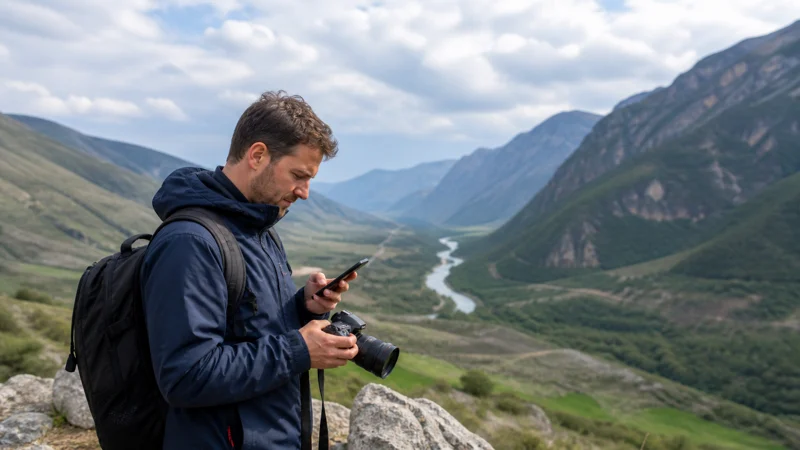

For a photography trip in Georgia, separate the data needed to manage the journey from the data used to upload images and video. A plan suitable for maps and messages can be used up quickly if a phone or laptop begins transferring the full library.
Decide which files need to leave the device during the trip and how you will keep independent copies when internet is unavailable. Check the actual files and transfer settings instead of relying on one assumed size for every photo or video.
NoveSIM travel eSIMs are data-only. They do not include a Georgian number, conventional calls or carrier SMS. Internet messaging, calling and upload services can use data where available, subject to their own account requirements.
Quick answer: For photography travel in Georgia, reserve data for navigation, bookings and contact first, then estimate uploads from the selected files’ actual sizes. Check hotspot permission before connecting a laptop, control background transfers and verify completed copies rather than treating a queued upload as a backup. Test accommodation Wi-Fi for the required task, with local copies retained if the connection is interrupted.
Top Georgia eSIMs

Georgia eSIM
Fixed
1 GB, 7 days€ 3.172 GB, 15 days€ 4.983 GB, 30 days€ 6.33Unlimited
Unlimited, 1 day€ 3.62Unlimited, 3 days€ 7.24Unlimited, 5 days€ 11.31
Commonwealth of Independent States eSIM
Fixed
1 GB, 7 days€ 8.142 GB, 15 days€ 17.643 GB, 30 days€ 18.55Unlimited
Unlimited, 1 day€ 8.60Unlimited, 3 days€ 23.07Unlimited, 5 days€ 37.10Estimate the files you actually intend to upload
Use the file manager or export tool to check the total size of a selected folder. If planning before you have the files, use a representative sample from your own camera and chosen settings: file count multiplied by average size gives a starting estimate.
Illustrative example: If 200 selected files average 25 MB each, their combined size is approximately 5,000 MB, or 5 GB using decimal units. The 25 MB figure is an example, not a standard RAW size. Actual usage can differ because of previews, extra files, retries and how the service transfers data.
Video size depends on the recording and export settings, so measure it separately. Add your normal travel use and any other connected devices before choosing an allowance. The Georgia data-use guide helps account for those other activities.
Keep enough data for the next transfer and changed arrangements before assigning the rest to media. An upload budget is useful only if the plan also remains valid when you need it.
Choose what to transfer during the trip
| Transfer task | Check first | Practical preparation |
|---|---|---|
| Smaller exports for sharing | Actual export size and the quality the recipient needs | Select the intended images instead of starting a full-library transfer |
| Selected originals | Total selected size, available allowance and required destination storage | Transfer a defined selection and verify its completion |
| Full archive | Total volume, tested connection, available time and local backup arrangements | Retain independent copies and do not base the workflow on an assumed uninterrupted upload |
Smaller sharing exports and original files serve different purposes. A preview or reduced-size copy should not be mistaken for a verified original merely because both appear in a cloud gallery.
Distinguish a copy, synchronisation and a completed upload
A local copy on a separate storage device can remain accessible without internet. A queued cloud transfer is still pending, and synchronisation may link changes across devices rather than preserve an independent version. Check the exact behaviour of the storage service you use.
Before relying on a transfer, confirm the expected files at the destination and that the required versions can be accessed. A progress notification or thumbnail alone is not proof that every original has finished uploading.
Keep original files and independent copies according to your backup plan. Do not erase or format a source card solely because an upload has started. Plan sufficient storage and a way to maintain copies when the connection is unavailable.
This guide does not establish one backup procedure for every camera, editing tool or cloud service. Follow the relevant product instructions, including how deletions, synchronisation and offline files behave.
Control the laptop before turning on a hotspot
Check that the purchased plan permits tethering and that your device supports the arrangement. A working connection on the phone does not by itself establish that every laptop task will work through its hotspot.
- Review cloud-photo uploads, file synchronisation and operating-system or application updates on the laptop.
- Pause transfers you do not intend to use mobile data for, following the relevant app’s settings.
- Check the size and destination of the selected media transfer.
- Connect through the permitted hotspot and test the required service with a small task.
- Review usage and transfer status, then disconnect sharing when it is no longer needed.
Read the plan’s total or daily allowance, high-speed conditions and hotspot terms. Connected devices share the host phone’s data and depend on its reception and battery. Do not assume that an “unlimited” label means unrestricted full-speed archive uploads.
Test accommodation Wi-Fi for uploads
Ask about the connection at the actual desk or room where you will work, including whether other guests share it. A property’s Wi-Fi listing does not establish upstream performance, which matters when sending files.
After arrival, try a small representative upload to the service you will actually use and verify the result. Do not treat a browser opening successfully, or a download completing quickly, as proof that a large archive will finish on schedule.
A short test cannot guarantee sustained performance for the whole transfer. Keep files available locally and allow the workflow to pause. The Georgia remote-work internet guide covers checking the working space and mobile fallback.
Verify venue Wi-Fi information with the property. Use the upload service’s official app or website, keep activation codes out of shared screenshots and follow any required account-security practices.
Keep the next location accessible without live data
Download the next address, accommodation entrance and booking or pickup instructions before leaving a tested connection. Keep the map area and route information accessible without a new login, and check the app’s offline functions.
The Georgia road-trip guide covers preparation for travel between stops. A successful connection at one property does not establish service at a photography location or throughout the approach. The Georgia coverage guide explains partner access and location checks.
Confirm access and any photography requirements directly with the relevant venue, owner or authority where applicable. This article does not provide location-specific permissions or promise reception at shooting sites.
Plan power until the next confirmed charging opportunity, carrying suitable cables and backup power. Follow equipment manufacturers’ instructions and keep the essential travel information available independently of a laptop that is busy transferring files.
Match the plan to transfers and departure
If an existing Georgia plan works and still has enough data and validity, a photography outing does not itself require a new profile. For a new NoveSIM purchase, confirm exact device compatibility and carrier-unlocked status and compare the offer with your measured upload needs.
Use the Georgia travel eSIM guide for plan selection. Check what starts validity before installation and count through the last day you need the connection. Additional nights or a delayed file transfer do not automatically extend the purchase.
Install over reliable internet only at the time permitted by the plan, following the Georgia eSIM setup instructions. Select the intended data line, apply its supplied Data Roaming setting, keep home-line data roaming off if you do not intend to use it and review automatic switching.
For a persistent connection problem, check validity, remaining allowance and the selected data line using the Georgia eSIM troubleshooting guide. Keep network selection automatic initially and retain the profile unless NoveSIM support instructs you to remove it.
Related Articles
- Planning connections and charging between overnight stops in Svaneti
- Preparing addresses and bookings for a multi-stop Kakheti itinerary
FAQ
How much data should I allow for uploading photography files?
Measure the selected folder or multiply the intended file count by an average from your own representative files. Add ordinary travel use and room for transfer differences. There is no universal size for every RAW file or video.
Does starting a cloud upload mean I have a backup?
No. A queued or partial transfer is not confirmation that the required files exist at the destination. Verify completion and access, and keep originals and independent copies according to your backup plan.
Can my laptop upload automatically when I connect it to the phone?
It may have background synchronisation or updates enabled. Review those settings before hotspot use, check plan permission and transfer only what you intend. Laptop traffic uses the host phone’s allowance.
Will hotel Wi-Fi finish a full archive upload overnight?
Do not assume it will. Test the actual service from the room, consider the total file volume and keep a workflow that can pause. A small successful test does not guarantee sustained performance or a completion time.
Should I choose a bigger plan to get better reception at a shooting location?
A larger allowance does not create supported network reception. Check the exact location separately and keep route and booking information offline. Choose more data for measured transfer needs rather than as a coverage guarantee.
Final Recommendation
For photography travel in Georgia, measure the intended uploads and separate them from the data needed to manage the trip. Prepare storage and verify completed copies rather than treating a started transfer as a finished backup.
Choose a NoveSIM travel eSIM around device compatibility, hotspot terms, actual file volume and validity through departure. Follow its setup instructions and control background transfers before connecting a laptop.
Keep the next route and arrival details offline, retain suitable local copies and plan power between confirmed charging opportunities. Internet access should support the workflow where available without becoming the only place your files or travel plans can be accessed.