


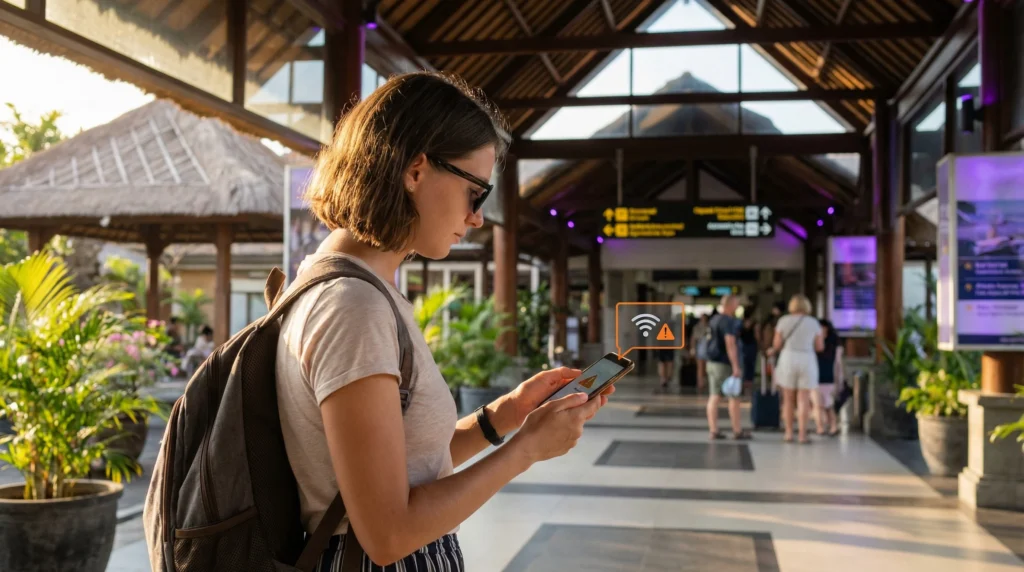

An eSIM not working in Indonesia is often caused by the wrong mobile-data line, disabled roaming, incomplete activation or an incorrect APN. Weak local coverage and an expired allowance require different fixes, so diagnose the symptom before changing settings.
Work from the simplest checks to the more invasive ones. Keep the installed profile throughout troubleshooting because deleting it may remove a profile that cannot be downloaded again without support.
NoveSIM travel eSIMs are data-only. They provide internet access but not an Indonesian number, conventional calls or SMS.
Quick answer: Turn Wi-Fi off, confirm the Indonesia eSIM is enabled and selected for mobile data, enable roaming on that line and verify the plan is valid. If data still fails, check the APN is data.esim, toggle airplane mode once and test automatic network selection.
Top Indonesia eSIMs


eSIM not working in Indonesia: identify the symptom
| Symptom | First check |
|---|---|
| No signal | Line enabled, local coverage and network selection |
| Signal but no data | Selected data line, roaming, validity and APN |
| Slow data | Signal strength, congestion and plan speed policy |
| Works on Wi-Fi only | Mobile-data assignment and roaming |
| Stopped after working | Allowance, expiry and fair-use threshold |
Run the basic data checks
- Disable Wi-Fi so the test uses cellular data.
- Switch the Indonesia eSIM on.
- Select it as the mobile-data line.
- Enable data roaming for the travel profile.
- Disable automatic data switching to the home SIM.
- Open a new webpage rather than a cached app screen.
If the line has never connected, review Indonesia eSIM activation. Installation alone may not assign the profile to mobile data.
Check the plan and the APN
Confirm that validity has started, the allowance is not exhausted and Indonesia is included. For a NoveSIM profile, the manual APN is data.esim; username and password remain blank unless the order instructions say otherwise.
Use the complete fields in Indonesia eSIM APN Settings. Do not copy a local operator’s retail APN merely because that operator appears as the partner network.
Recover network registration
- Leave network selection automatic.
- Toggle airplane mode on for about 30 seconds.
- Turn it off and allow several minutes for registration.
- Restart the phone once if no network appears.
- Try a supported network manually only when automatic selection fails.
Network availability differs between cities, islands and remote routes. Compare the location with the Indonesia network guide.
What to do when data is slow
Test outdoors or beside a window, check the signal indicator and try again at a less congested time. A plan may also reduce speed after a fair-use threshold even though data continues.
- Pause cloud backups and application updates.
- Disconnect unnecessary hotspot devices.
- Lower video quality.
- Compare another supported network if permitted.
- Check whether the plan’s high-speed allowance has reset.
Read Indonesia unlimited-data conditions when speed falls after heavy use.
Prepare useful information for support
Record the phone model, current location, displayed network, signal state, APN screen and exact error. Screenshots are more useful than repeatedly changing settings.
Keep the eSIM installed and do not delete it unless support explicitly instructs you to do so. If compatibility itself is uncertain, verify the device with the Indonesia eSIM compatibility checklist.
Related Articles
- Install an Indonesia eSIM
- Best eSIM for Indonesia Travel
- How Much Data for Indonesia?
- WhatsApp in Indonesia
FAQ
Why does my Indonesia eSIM show signal but no data?
The likely checks are the selected data line, roaming, plan validity and APN. Signal only confirms radio registration.
What APN should NoveSIM use in Indonesia?
Use data.esim and leave username and password blank unless the order instructions specify otherwise.
Why is my Indonesia eSIM slow?
Weak signal, congestion, a fair-use threshold or background traffic can reduce speed. Test location and plan status before changing configuration.
Should I delete the eSIM and scan the QR code again?
No. Keep it installed and remove it only if support explicitly tells you to do so.
Final Recommendation
For an eSIM not working in Indonesia, check data selection, roaming, validity and data.esim before changing networks.
Treat weak signal, no data and throttled speed as different symptoms and test one change at a time.
Retain the installed profile and send clear device, location and settings evidence to support if the controlled recovery sequence fails.