
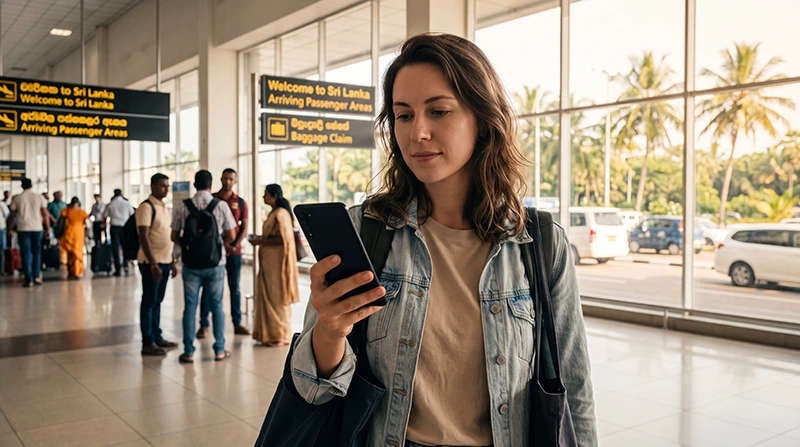

Traveler activating a Sri Lanka eSIM after arriving at Colombo Airport

eSIM at Colombo Airport: How to Get Connected After Landing

Using an eSIM at Colombo Airport is one of the easiest ways to get mobile internet shortly after arriving in Sri Lanka. You can install the digital SIM before departure, keep your regular SIM card active and connect to a supported local mobile network after landing.

Mobile data is useful immediately at the airport. You may need to contact your hotel, message an airport transfer driver, check a taxi route, use Google Maps, confirm a booking or let family members know that you have arrived safely.

Bandaranaike International Airport is the main international gateway to Sri Lanka and is located near Katunayake and Negombo, north of central Colombo. Once you leave the terminal, mobile data becomes more practical than relying only on airport WiFi.

Quick answer: install your Sri Lanka eSIM before flying. After landing at Colombo Airport, turn off Airplane Mode, enable the eSIM, select it for Mobile Data, turn on Data Roaming and wait several minutes for it to connect.

Top Sri Lanka eSIMs

Can You Use an eSIM at Colombo Airport?

Yes. A compatible Sri Lanka travel eSIM should work at Colombo Airport when the plan includes Sri Lanka, the phone supports eSIM technology and the device is unlocked.

The eSIM connects through a supported local partner network. You do not need to visit a mobile operator counter or replace your physical SIM card.

For successful connection, make sure:

  • The eSIM profile is already installed.
  • Sri Lanka is included in the plan coverage.
  • The travel line is enabled.
  • The eSIM is selected for Mobile Data.
  • Data Roaming is turned on for the eSIM.
  • Network Selection is set to Automatic.
  • The plan is active and within its validity period.

Why Install the eSIM Before Your Flight?

Installing the eSIM before departure is strongly recommended because the installation process normally requires a stable internet connection.

Preparing it at home allows you to:

  • Confirm that your phone supports eSIM.
  • Check that the profile appears in the SIM settings.
  • Label the line Sri Lanka, Travel or NoveSIM.
  • Avoid scanning a QR code after a long flight.
  • Resolve installation issues before travelling.
  • Connect more quickly after landing.

Your NoveSIM QR code and installation instructions are sent by email after purchase. The same details can also be found in your NoveSIM account by opening the order and viewing the eSIM information.

Do not delete the profile after installation. Many travel eSIM QR codes are intended for one installation and may not work again after removal.

What to Do Before Boarding Your Flight

Complete these steps before travelling to Sri Lanka:

  1. Check that your phone supports eSIM.
  2. Confirm that the device is unlocked.
  3. Purchase a plan that includes Sri Lanka.
  4. Install the eSIM while connected to WiFi.
  5. Label the new line clearly.
  6. Keep the profile installed.
  7. Save the installation details offline.
  8. Download your hotel address and airport transfer information.

Read our guide on how to install a Sri Lanka eSIM if the profile has not yet been added to your phone.

How to Activate the eSIM After Landing

After arriving at Bandaranaike International Airport, complete the mobile data setup.

  1. Turn off Airplane Mode.
  2. Open your phone’s SIM or Mobile Network settings.
  3. Enable the Sri Lanka eSIM.
  4. Select it as the preferred line for Mobile Data.
  5. Turn on Data Roaming for the eSIM.
  6. Turn off automatic mobile data switching.
  7. Keep Network Selection on Automatic.
  8. Wait several minutes for registration.

The phone should connect to a supported local mobile network. Registration may not happen instantly, especially immediately after leaving Airplane Mode.

For a complete walkthrough, read our guide on how to activate a Sri Lanka eSIM.

Recommended eSIM Settings at Colombo Airport

Setting Recommended Value
Sri Lanka eSIM Enabled
Mobile Data Sri Lanka eSIM
Calls Primary SIM
SMS Primary SIM
Data Roaming on Sri Lanka eSIM On
Data Roaming on primary SIM Off
Automatic Data Switching Off
Network Selection Automatic
Preferred Network Type 5G Auto or 4G/LTE
APN data.esim if required

How to Activate the eSIM on iPhone

  1. Open Settings.
  2. Select Cellular or Mobile Data.
  3. Tap the Sri Lanka eSIM.
  4. Enable Turn On This Line.
  5. Turn on Data Roaming.
  6. Return to the main Cellular menu.
  7. Select Cellular Data or Mobile Data.
  8. Choose the Sri Lanka eSIM.
  9. Turn Allow Cellular Data Switching off.

Keep your regular SIM selected for calls, SMS, iMessage and FaceTime if you want to continue using your existing number.

See our full Sri Lanka eSIM for iPhone guide.

How to Activate the eSIM on Samsung

  1. Open Settings.
  2. Select Connections.
  3. Tap SIM Manager.
  4. Enable the Sri Lanka eSIM.
  5. Select it under Preferred SIMs for Mobile Data.
  6. Return to Connections.
  7. Open Mobile Networks.
  8. Enable Data Roaming for the travel eSIM.
  9. Disable automatic or backup data switching.
  10. Keep Network Operators set to automatic.

How to Activate the eSIM on Google Pixel

  1. Open Settings.
  2. Select Network and Internet.
  3. Tap SIMs.
  4. Select the Sri Lanka eSIM.
  5. Enable Use SIM.
  6. Turn on Roaming.
  7. Select the eSIM for Mobile Data.
  8. Disable automatic data switching if available.
  9. Keep automatic network selection enabled.

For more Android instructions, visit our Sri Lanka eSIM for Android guide.

Why Must Data Roaming Be Enabled?

A travel eSIM connects through a supported local partner network in Sri Lanka. Your phone therefore treats the connection as roaming.

Data Roaming must be enabled on the travel eSIM for mobile internet to work. This is normal and does not create separate charges beyond the prepaid data plan.

Use this configuration:

  • Data Roaming on travel eSIM: On.
  • Data Roaming on primary SIM: Off.
  • Mobile Data: Sri Lanka eSIM.
  • Automatic Data Switching: Off.

How Long Does It Take to Connect?

Connection is often completed within a few minutes after landing and turning off Airplane Mode.

It may take longer when:

  • The phone has just restarted.
  • The device is still searching for a local network.
  • You are inside an area with weaker indoor reception.
  • Automatic network registration is still in progress.
  • The wrong SIM is selected for Mobile Data.
  • Data Roaming is disabled.

Wait several minutes before changing settings repeatedly. If the eSIM does not connect, turn Airplane Mode on for approximately 30 seconds and then turn it off.

How to Test the Connection

Airport WiFi may hide whether the eSIM is working. Test the mobile connection separately.

  1. Turn WiFi off.
  2. Confirm that the Sri Lanka eSIM is selected for Mobile Data.
  3. Open a lightweight website.
  4. Search for your hotel in Google Maps.
  5. Send a WhatsApp text message.

If these services work, the eSIM is active and ready for use after you leave the airport.

What Can You Use the eSIM for at the Airport?

  • Contacting your airport transfer driver.
  • Messaging your hotel or guesthouse.
  • Using Google Maps.
  • Checking taxi routes.
  • Opening booking confirmations.
  • Contacting friends or family.
  • Checking local transport options.
  • Using translation applications.
  • Receiving flight or accommodation updates.

eSIM vs Airport SIM Card

Feature Travel eSIM Airport SIM Card
Purchase before travel Yes No
Installation Digital Physical SIM or local setup
Airport queue No Possible
Passport registration at airport Usually not required Normally required
Keep primary SIM Yes Depends on phone
Local phone number Usually no Usually yes
Ready after landing Usually within minutes After purchase and activation
Best for Convenience and mobile data Local calls and longer stays

A physical airport SIM may be useful when you need a local Sri Lankan phone number. A travel eSIM is usually more convenient when your main priority is mobile data.

Compare both options in our guides to a SIM card at Colombo Airport and local SIM vs eSIM in Sri Lanka.

Can You Keep Your Home SIM Active?

Yes. Most modern Dual SIM phones allow you to keep your regular SIM active while using the Sri Lanka eSIM for mobile data.

This can be useful for:

  • Receiving bank verification messages.
  • Keeping your regular number reachable.
  • Receiving security codes.
  • Using iMessage with your existing number.
  • Receiving important SMS notifications.

Your home operator may still charge for answering or making traditional calls abroad. Check its roaming prices before travelling.

Does WhatsApp Keep Your Existing Number?

Yes. WhatsApp continues using the number already registered with your account while the Sri Lanka eSIM supplies mobile data.

You do not need to change your WhatsApp number after installing or activating the eSIM.

Once the connection is active, you can use WhatsApp to contact your driver, hotel, family and other travellers.

Read our guide to using WhatsApp in Sri Lanka.

Can You Make Normal Phone Calls?

NoveSIM Sri Lanka plans are mobile data only. They do not include a local telephone number, traditional voice minutes or standard SMS.

You can make internet-based calls using:

  • WhatsApp.
  • Viber.
  • FaceTime.
  • Messenger.
  • Telegram.
  • Google Meet.
  • Microsoft Teams.

Keep your primary SIM active if you need to receive standard calls or SMS, but check your home operator’s roaming charges.

Sri Lanka eSIM APN Settings

The APN is normally configured automatically. If the eSIM shows signal but mobile internet does not work, enter the APN manually.

APN Field Value
Name NoveSIM
APN data.esim
Username Leave blank
Password Leave blank
Authentication None or automatic

Save the APN and make sure it is selected. Then activate Airplane Mode for 30 seconds or restart the phone.

See our complete guide to Sri Lanka eSIM APN settings.

What If the eSIM Shows No Service?

No Service means the phone has not registered with a supported network.

  1. Confirm that Sri Lanka is included in the plan.
  2. Make sure you are already at Colombo Airport.
  3. Enable the Sri Lanka eSIM.
  4. Turn on Data Roaming.
  5. Keep Network Selection on Automatic.
  6. Turn Airplane Mode on for 30 seconds.
  7. Restart the phone.
  8. Move closer to a window or an open area.

Do not delete the eSIM while troubleshooting.

What If the eSIM Has Signal but No Internet?

If signal bars, 4G, LTE or 5G appear but nothing loads, check:

  • The eSIM is selected for Mobile Data.
  • Data Roaming is enabled.
  • Automatic Data Switching is disabled.
  • The APN is data.esim.
  • The plan is active.
  • WiFi is off during testing.

After correcting the settings, turn Airplane Mode on for 30 seconds and restart the phone.

Read our guide to fixing no internet on a Sri Lanka eSIM.

What If the Connection Is Slow?

Airport terminals can become busy, and mobile speed may vary depending on local network congestion, indoor reception and the network selected by the phone.

Try:

  • Moving closer to a window.
  • Turning Airplane Mode on for 30 seconds.
  • Restarting the phone.
  • Switching from unstable 5G to 4G.
  • Pausing cloud backups and app updates.
  • Testing another supported network.

See our guide to fixing a slow Sri Lanka eSIM.

Should You Use 5G or 4G at the Airport?

Use 5G Auto when the phone and plan support it. The device can then switch between 5G and 4G according to local availability.

Switch to 4G or LTE when:

  • The 5G connection is unstable.
  • Pages load inconsistently.
  • The phone frequently changes between networks.
  • Battery use becomes unusually high.

A stable 4G connection is sufficient for messaging, navigation and booking applications.

Can You Use Personal Hotspot?

Personal Hotspot availability depends on the selected plan and device. When supported, you can share the connection with a laptop, tablet or another phone.

Hotspot use may be useful while waiting for transport, but connected devices can consume data quickly through updates and cloud synchronisation.

Before enabling hotspot:

  • Disable automatic software updates.
  • Pause cloud backups.
  • Disconnect unused devices.
  • Monitor your data usage.

What to Do Before Leaving the Airport

Before travelling to Colombo, Negombo or another destination, confirm that:

  • The eSIM is connected.
  • Google Maps works with WiFi turned off.
  • Your hotel address is saved.
  • Your transfer driver can contact you.
  • The Sri Lanka eSIM remains selected for Mobile Data.
  • Your primary SIM has Data Roaming turned off.
  • Automatic Data Switching is disabled.

Download offline maps before travelling through mountain regions, rural areas or national parks later in your trip.

Related Sri Lanka Guides

FAQ

Can I use an eSIM at Colombo Airport?

Yes. A compatible Sri Lanka eSIM should connect after landing when the plan includes Sri Lanka and the correct mobile data settings are enabled.

Should I install the eSIM before flying?

Yes. Install it before departure while connected to reliable WiFi.

When should I activate the eSIM?

Enable it for Mobile Data after arriving in Sri Lanka and turning off Airplane Mode.

Do I need Data Roaming enabled?

Yes. Enable Data Roaming on the travel eSIM because it connects through a local partner network.

How quickly will the eSIM connect?

It often connects within a few minutes, but network registration can occasionally take longer.

Can I keep my normal SIM active?

Yes. Keep it active for calls and SMS while using the Sri Lanka eSIM for Mobile Data.

Will WhatsApp keep my current number?

Yes. WhatsApp continues using your existing number while the eSIM supplies internet access.

What APN should I use?

For a NoveSIM Sri Lanka eSIM, use data.esim if manual APN configuration is required.

What should I do if the eSIM shows No Service?

Enable the line, turn on Data Roaming, keep Network Selection automatic and use Airplane Mode for 30 seconds.

What if I have signal but no internet?

Check the selected Mobile Data line, Data Roaming, Automatic Data Switching and APN settings.

Is an eSIM better than buying a SIM at the airport?

An eSIM is usually more convenient because it can be installed before departure and does not require an airport queue or physical SIM replacement.

Can I use airport WiFi while activating the eSIM?

Yes. WiFi can be useful temporarily while checking settings, but turn it off when testing whether mobile data works.

Final Recommendation

A travel eSIM is one of the easiest ways to get mobile internet after arriving at Colombo Airport. Install the profile before departure and keep it on the device throughout your journey.

After landing, enable the Sri Lanka eSIM, select it for Mobile Data, turn on Data Roaming and disable automatic data switching. Keep roaming turned off on your primary SIM.

If the eSIM connects to a network but has no internet, use data.esim as the APN, turn Airplane Mode on for 30 seconds and restart the phone.

Browse Sri Lanka eSIM plans here.

Scroll to Top