


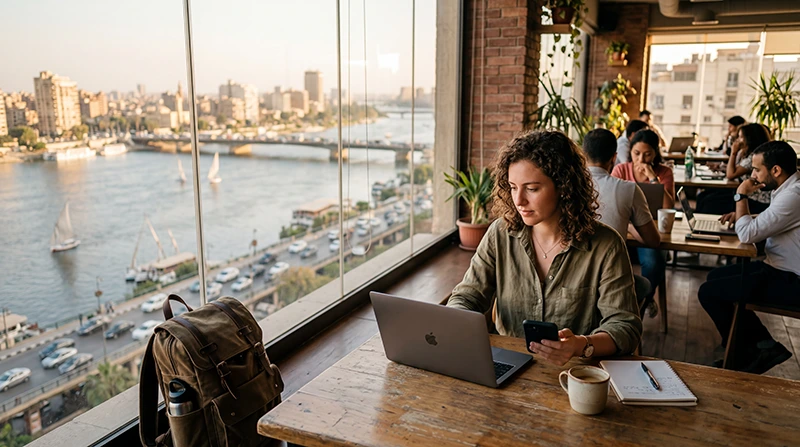

Coworking in Egypt is useful when you need a desk away from your accommodation, but the right booking depends on the day’s work. A shared seat for email is a different purchase from a private room for several client calls.
Choose a location you can reach reliably, confirm visitor access and ask what the pass includes. In Cairo, compare the actual building and journey with your accommodation rather than picking a workspace from a country-wide list.
We provide NoveSIM travel data, not workspace bookings or tested Wi-Fi ratings. An Egypt eSIM can support mobile backup if its tethering terms allow it; our data-only plans do not include an Egyptian number, ordinary calls or SMS.
Quick answer: Book a desk for quiet individual work and a suitable call room when privacy matters. Confirm opening hours, visitor requirements, Wi-Fi access and the total short-stay price before paying. Test your tools at the intended desk, and keep a permitted mobile hotspot ready for a connection interruption.
Top Egypt eSIMs

Egypt eSIM
Fixed
1 GB, 7 days€ 4.442 GB, 15 days€ 7.103 GB, 30 days€ 9.76Unlimited
Unlimited, 1 day€ 4.88Unlimited, 3 days€ 11.54Unlimited, 5 days€ 18.64
Africa eSIM
Fixed
1 GB, 7 days€ 10.202 GB, 15 days€ 19.083 GB, 30 days€ 26.62Unlimited
Unlimited, 1 day€ 13.75Unlimited, 3 days€ 39.49Unlimited, 5 days€ 65.22Which coworking booking fits your workday?
| Work you need to do | Booking to ask about | Question that matters |
|---|---|---|
| Email, writing and routine laptop work | Hourly or day coworking | Is a seat available and are calls allowed in the shared area? |
| Private conversations or repeated meetings | Call room, meeting room or day office | Is the room included, or charged separately by the hour? |
| Several workdays during a stay | Access pass or short membership | How many visits are included, and do you still need a reservation? |
| The same workstation each day | Dedicated desk | What contract term does the quoted rate require? |
A low per-day figure can belong to a long agreement rather than a day pass. Compare the payable total for your dates, including room use, tax and any booking fee.
A verified starting point for a Cairo desk day
Regus lists coworking options in Cairo, including hourly and day access. Its published information also distinguishes meeting rooms from coworking bookings and recommends reserving short-term desks in advance.
Use the operator’s current listing to check the exact centre, dates and access conditions. This is a starting point for finding a booking, not a claim that NoveSIM has tested the network or compared it with every independent workspace.
For a stay in Dahab or a Red Sea resort, confirm whether the place advertised as a workspace is a staffed coworking venue, hotel business area or café. Those arrangements can have different rules on calls, power sockets and how long you can occupy a table.
Confirm the working hours and journey
A building’s opening hours and a visitor’s access hours may differ. Ask when reception is staffed, whether an evening meeting is permitted and how to enter the building on your first visit. Confirm any identification requirement directly with the venue.
In Cairo, save the building name, entrance and map pin before setting off. A workspace in New Cairo or Maadi is not interchangeable with one near your hotel. Allow for the journey rather than scheduling a client call immediately after the expected arrival.
- Check whether the pass permits re-entry after lunch.
- Ask whether external guests may join a meeting.
- Confirm whether calls require a separate room reservation.
- Read cancellation rules before paying for several days.
Test Wi-Fi from the seat you will use
Ask whether you can visit or try a short booking before committing to a longer arrangement. Connect from the chosen seat and verify a meeting call, a representative upload and your workplace VPN if required. Follow your employer’s security requirements on shared networks.
Check whether the Wi-Fi login limits the number of devices or expires during a long session. If the venue offers wired access, ask whether your desk has it and whether you need an adapter.
The Egypt remote-work connection guide covers testing the full workload. This page helps choose and book the workspace; neither a venue description nor a quick speed test guarantees every meeting will run smoothly.
Keep a small interruption plan
Save urgent documents locally and know how to report a Wi-Fi fault to staff. If moving to another seat does not restore service, a mobile hotspot may cover the immediate task, provided the plan allows tethering and reception at the desk is adequate.
Check the Egypt eSIM terms before relying on laptop sharing. Test hotspot access before the meeting, and pause large file synchronisation when using backup data. A larger allowance does not guarantee a faster upload or a stronger indoor signal.
Keep another venue’s contact details if work cannot wait. For setup or a failed mobile backup, follow Egypt activation instructions or the Egypt troubleshooting checks. Keep the installed eSIM during diagnosis; do not use profile deletion as a Wi-Fi fix.
Related Articles
FAQ
Can I book a coworking desk for one day in Cairo?
Some operators, including Regus, offer day and hourly options. Check availability at the exact centre and reserve if required rather than assuming you can walk in.
Does a coworking pass include a private meeting room?
Not necessarily. Ask whether private call space is included, needs a reservation or carries an additional hourly charge.
How should I compare advertised coworking prices?
Compare the total for your booking dates and access type. A dedicated-desk daily rate tied to a long contract is not the same price as a one-day visit.
Should I buy mobile backup for a coworking day?
It can help with an interruption if tethering is permitted and reception is adequate. Test it at the desk and choose an allowance for the urgent workload, not an assumed unlimited laptop connection.
Final Recommendation
Choose coworking in Egypt by the desk or room you need, its usable access hours and the complete booking cost. Verify the Cairo location and reserve a short visit before committing to an extended stay.
Test work tools at the seat, retain a way to contact staff and prepare a mobile fallback for the tasks that cannot wait. Treat the venue’s facilities and your backup connection as two separate checks.