


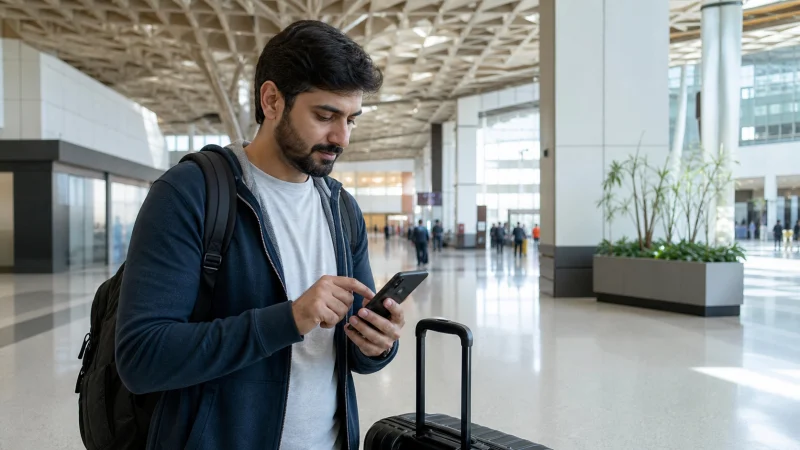

Activate a Pakistan eSIM according to the exact plan instructions, normally by switching on the installed travel line, selecting it for Mobile Data and enabling Data Roaming after arrival.
Activation is not the same as installation. The profile can already be stored on the phone while it waits for the plan’s trigger or for a permitted Pakistani network.
NoveSIM Pakistan plans are data-only. Successful activation provides internet access but not a Pakistani number, traditional calls or SMS.
Quick answer: After landing, enable the Pakistan eSIM, assign Mobile Data to it, turn on Data Roaming for that line, keep primary-line roaming and data switching off, then wait several minutes for automatic registration.
Top Pakistan eSIMs

Pakistan eSIM
Fixed
1 GB, 7 days€ 3.992 GB, 15 days€ 7.103 GB, 30 days€ 10.20Unlimited
Unlimited, 1 day€ 5.32Unlimited, 3 days€ 15.09Unlimited, 5 days€ 23.96
Read the Plan’s Activation Trigger
Some plans begin validity when installed, some when activated and others when they first register on a supported destination network. The order instructions for the purchased plan are the authority.
If installation has not been completed, stop and use the Pakistan eSIM installation guide on dependable Wi-Fi.
Activate on an iPhone
- Open Settings and choose Cellular or Mobile Service.
- Select the line labelled Pakistan or Travel and switch it on.
- Open Cellular Data and select that travel line.
- Disable Allow Cellular Data Switching.
- Open the Pakistan line and enable Data Roaming.
- Confirm that Data Roaming is off on the primary line.
- Wait for the network indicator before opening several normal websites.
Activate on Android
- Open the SIM manager or mobile-network settings.
- Switch on the Pakistan eSIM.
- Select it as the preferred SIM for mobile data.
- Enable roaming for the travel eSIM.
- Disable automatic data switching and home-SIM roaming.
- Keep Network Selection on Automatic for the first connection.
- Wait several minutes and test with Wi-Fi turned off.
Allow Time for Network Registration
Registration may take several minutes after a flight, restart or location change. Avoid switching networks repeatedly while the phone is still negotiating service.
If no network appears, turn Airplane Mode on for 30 seconds, turn it off and wait again. Move near a window or outside the terminal before deciding that the plan has failed.
Confirm That Data Uses the Travel Line
Turn Wi-Fi off for the test and inspect the active data indicator. Open more than one website or app. On a dual-SIM device, confirm that the phone has not returned to the home SIM after a restart or call.
Use the dual-SIM configuration guide to prevent automatic fallback and unwanted roaming charges.
Check the APN Only if Signal Appears Without Data
Do not edit the APN when the phone has not registered at all. If signal is present but data does not load, verify plan allowance and validity, then use data.esim if manual entry is required. Leave username and password blank.
Follow the Pakistan APN procedure rather than copying settings from a domestic operator.
Understand What Activation Does Not Fix
Correct line settings cannot overcome an unsupported phone, carrier lock, exhausted plan, unavailable route coverage or a handset that is ineligible under current Pakistan device-registration rules.
If service works in one location but not another, review Pakistan coverage expectations before changing the profile.
If Activation Still Fails
- Confirm the destination and validity on the purchased plan.
- Verify that the installed line is enabled and selected for data.
- Refresh registration with Airplane Mode and a restart.
- Check allowance and APN only after signal appears.
- Record the phone model, location, error and screenshots.
Use the full Pakistan diagnostic sequence. Do not delete the installed eSIM unless NoveSIM Support specifically instructs you to do so.
Related Articles
- Check Pakistan eSIM Compatibility
- Manual Network Selection
- Internet at Islamabad Airport
- Internet at Karachi Airport
FAQ
When should I activate a Pakistan eSIM?
Follow the exact plan’s trigger. Many travellers complete the line and roaming handover after landing, but validity rules differ.
Why does the installed eSIM show No Service at home?
It may be unable to register outside the destination. This does not by itself mean installation failed.
Should Data Roaming be on?
Yes on the travel eSIM when required for partner-network service. Keep it off on the home SIM.
Should I delete and reinstall after a failed activation?
No. Preserve the profile and contact support after completing reversible checks.
Final Recommendation
Use the exact plan trigger and distinguish activation from installation.
Assign data and roaming to the Pakistan eSIM, prevent home-line fallback and allow time for registration.
If it remains offline, keep the profile installed and diagnose line, plan, APN, coverage and device eligibility in order.