


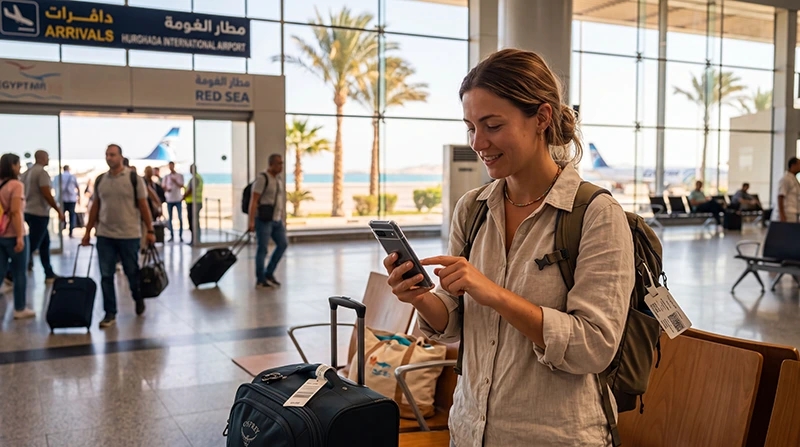

To use a travel eSIM at Hurghada Airport, you need more than an installation confirmation: the profile must be enabled, selected for mobile data and able to register on a supported network. Prepare the installation before travelling when your package instructions allow it, then check the connection after landing.
This guide is for the moment when you have arrived at HRG and want your existing travel profile to supply internet. It does not assume that installing an eSIM starts its allowance, that an airport signal guarantees data or that every phone uses the same settings labels.
Our NoveSIM travel plans are data-only. We do not provide an Egyptian phone number, conventional calls or SMS. Keep that distinction in mind when choosing the default voice line: selecting the travel eSIM for data does not turn it into a local telephone service.
Quick answer: After landing at Hurghada Airport, turn off flight mode, enable your installed Egypt eSIM and select it for mobile data. Follow the package’s roaming instructions, keep automatic data switching off and test a new webpage with Wi-Fi disabled. If data fails, check the profile, allowance and settings before seeking support; do not delete the eSIM.
Top Egypt eSIMs

Egypt eSIM
Fixed
1 GB, 7 days€ 4.462 GB, 15 days€ 7.143 GB, 30 days€ 9.82Unlimited
Unlimited, 1 day€ 4.91Unlimited, 3 days€ 11.60Unlimited, 5 days€ 18.74
Africa eSIM
Fixed
1 GB, 7 days€ 10.262 GB, 15 days€ 19.193 GB, 30 days€ 26.78Unlimited
Unlimited, 1 day€ 13.83Unlimited, 3 days€ 39.72Unlimited, 5 days€ 65.60Before the flight: confirm the profile is actually installed
A purchase email and an installed profile are different things. Look in your phone’s SIM or cellular settings for the travel line and give it a recognisable label such as “Egypt Data”. If you have several old travel profiles, identify the one associated with this order rather than enabling each in turn at the airport.
Check the exact handset model and whether it is carrier-unlocked before purchasing. The Egypt eSIM compatibility guide explains the device checks. A phone that accepts your home operator’s eSIM is not necessarily unlocked for another provider.
Read the current Egypt plan conditions and supplied installation instructions. Establish what starts validity and whether installation before departure is permitted. Do not enable a plan early simply to see whether it works at home: destination coverage and activation rules vary by package.
Keep the order reference and installation details somewhere accessible if you lose internet. For the installation itself, follow the Egypt eSIM activation guide over a reliable connection. At HRG, an already installed profile lets you concentrate on line selection rather than scanning a QR code while organising your arrival.
After landing: change the data line, not every default
Open the phone’s SIM or cellular settings after switching off flight mode. The names differ by platform, but distinguish three separate controls: whether a line is enabled, which line supplies mobile data and which line handles conventional calls.
- Enable the installed Egypt travel profile if it is off.
- Select that profile as the mobile-data line.
- Enable data roaming for the NoveSIM travel line as directed by its instructions.
- Keep the home line’s data roaming off if you do not want it to use chargeable roaming data.
- Disable automatic mobile-data switching so the phone does not silently use another line for internet.
- Begin with network selection set to Automatic and allow the phone to register.
You do not need to choose the data-only travel profile for conventional calls or SMS. If you leave the home line enabled for those services, its carrier’s Egypt roaming terms still apply. Turning off home-line data roaming does not remove possible voice or SMS charges.
Make sure the test is using the eSIM
Switch Wi-Fi off before testing. Otherwise, a successful page load may demonstrate airport Wi-Fi rather than your new cellular connection. Check which line is selected for data, then open a webpage you have not already downloaded.
Next, send a small message through the app you intend to use. A delivered message is a more useful test than repeatedly refreshing a signal indicator. You do not need a speed test or a large download to establish whether basic communication works.
If the test succeeds, the profile is providing data at that location. It does not guarantee the same speed elsewhere, 5G service or uninterrupted reception on the journey. Network availability depends on the plan, handset and local conditions.
No service and signal-without-data need different checks
No service: confirm that the travel line is enabled, flight mode is off and automatic network selection is available. Check that the purchased package covers Egypt and is eligible for use. Do not interpret an old home-line signal icon as registration of the travel eSIM.
Signal but no internet: recheck the selected data line, travel-line data roaming, package status and remaining allowance. These checks come before changing an APN. For NoveSIM, the APN is data.esim when manual configuration is required; it is not a universal APN for Egyptian local SIM cards or other eSIM providers.
Use the NoveSIM Egypt APN instructions if the supplied guidance requires a manual entry. Change the setting on the travel profile, not your home SIM. Avoid copying extra fields from an unrelated operator guide.
If the connection still fails, continue with Egypt eSIM troubleshooting and keep the profile installed. Deleting it does not establish whether the original problem was an inactive allowance, wrong data line or unavailable network.
If installation is missing or support is needed at HRG
If the profile does not appear in settings, first distinguish an unfinished installation from an installed but disabled line. Consult the order’s instructions before attempting another installation; do not assume the original QR code can always be reused.
Use a reliable connection to contact support. Provide the order reference, handset model, whether the profile appears in settings and whether it shows no service or signal without data. A screenshot of the relevant settings can help, but do not post an activation QR code or account credentials publicly.
For temporary online access, see the Hurghada Airport Wi-Fi login guide. If connectivity is delaying your pickup, the Hurghada arrival and transfer guide covers the separate task of reaching your driver without depending on immediate eSIM activation.
Related Articles
FAQ
Should I install my eSIM before flying to Hurghada?
Install over a reliable connection before departure when the package instructions permit it. Check what starts validity first, then confirm the profile appears in your phone’s settings.
Why does my phone show signal at HRG but no eSIM data?
The signal may belong to another line, or the travel profile may not be selected for data. Check line selection, travel-line roaming and package status; use data.esim only when a manual NoveSIM APN entry is required.
Should I select the Egypt eSIM for calls as well?
Not for conventional calls on a NoveSIM data-only plan. Select it for mobile data. Any home line retained for calls and SMS remains subject to that carrier’s roaming conditions.
Should I delete the eSIM if it will not connect at Hurghada Airport?
No. Keep it installed while checking settings and contacting support. Remove it only if support specifically instructs you to do so.
Final Recommendation
Prepare the installed profile and its activation information before flying to Hurghada. Know which line belongs to the Egypt order and what starts the plan’s validity.
After landing, make the necessary data-line changes and test with Wi-Fi off. Keep home-line data controls separate from voice and SMS decisions.
If the eSIM does not connect, describe the exact symptom and retain the profile for diagnosis. Use a separate connection or your offline arrival arrangement while support helps resolve the data problem.